

Design a frame: ready looks, words and approval
You design a frame once, with your words, colors and logo, and approve it before it goes on your products.
Steps
- Open Craft > Frames and select New frame.
- Name it and pick a ready look. For the Gulf looks, also choose English or Arabic under Language of the words.
- Change it to your brand: the words, the colors, the logo, where each layer sits. Your brand colors show as swatches under Brand colors.
- Use Preview on products to see the frame on your own products, on sale and at full price. Nothing is sent to your catalog or ads.
Craft > Frames lists your designs. Each shows where it is used, or Not on products. Rename, Archive and Bring back are on each row, and Put on products starts putting it on products.
Ready looks
You can change everything after you start. A price on a frame is what the shopper pays.
| Group | Look | What it draws |
|---|---|---|
| Basics | Sale badge, Brand ring, Blank frame | A sale badge (with the old price struck through beside the price on products on sale), a ring with the brand name, or just the product picture. |
| Prices | Price tag | The price in a tag at the bottom. |
| Prices | Was and now, Percent off, Save amount | The old price struck through, the discount, or the amount saved. Products on sale only. |
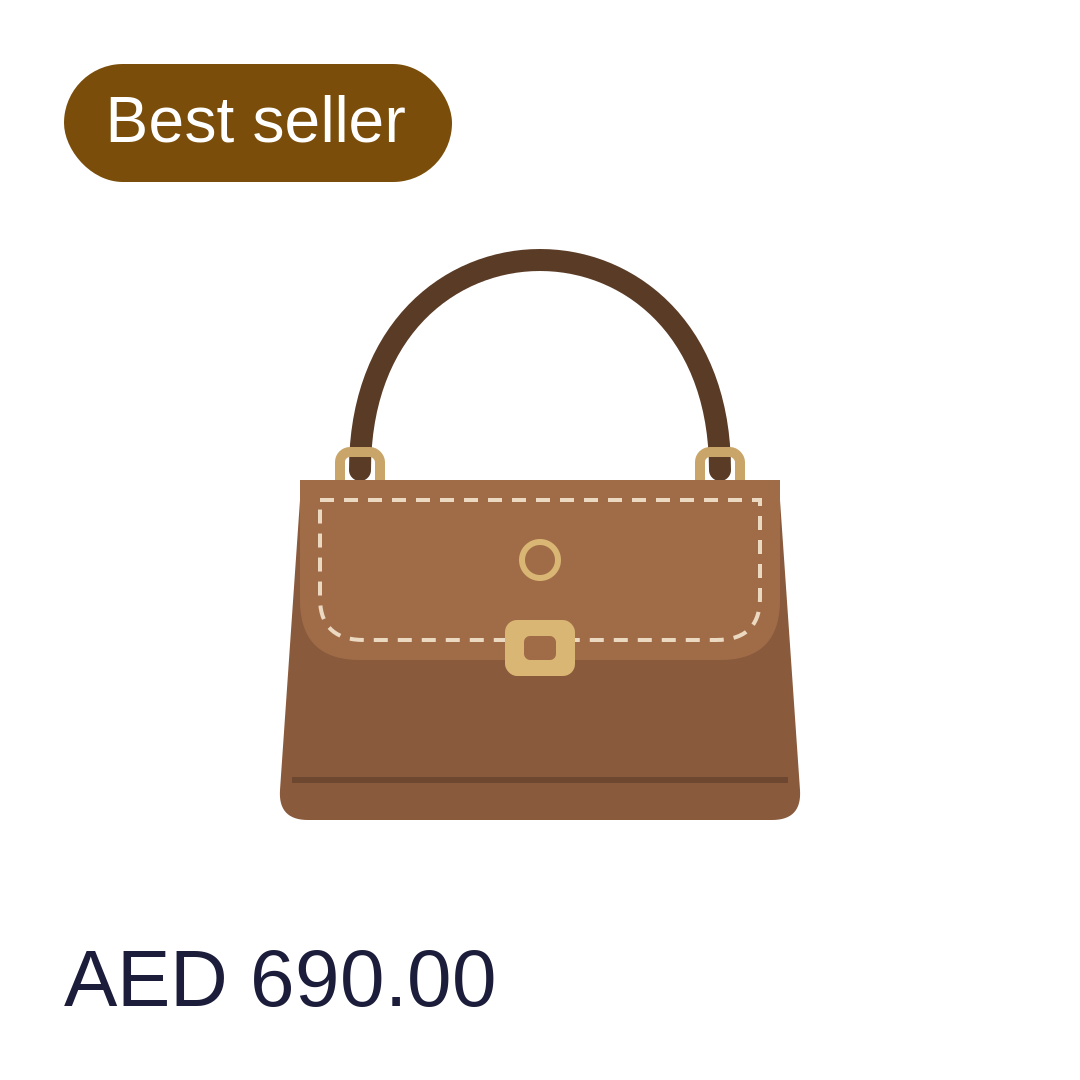
| Labels | Best seller, New arrival | A label on products in your Best Seller or New Arrival group (it reads New in), and the price. |
| Labels | Only a few left | "Only 3 left" on products with only a few in stock, and the price. |
| Labels | Split payments, Free delivery | The number of payments and each amount, or free delivery from an amount you set: see Split payments and free delivery labels. |
| Sale moments | 11.11 (11 Nov), White Friday (last Friday of Nov to the Monday after), UAE National Day (2 to 3 Dec), Saudi National Day (23 Sep), Ramadan, Eid (Eid al-Fitr), Back to school (15 Aug to 15 Sep), Year end (26 to 31 Dec) | A ribbon with the moment's name, the discount and the price. The discount shows only on products on sale. |
The days of a sale moment are a suggestion: you set the real dates when you put the frame on products. For Ramadan and Eid, check the days once the moon is sighted.
The Best seller label on a handbag in the Best Seller group:
Words and prices
A detail in curly brackets is filled in for each product. The buttons under the Text box add the common ones.
| Write | What each product shows |
|---|---|
{now_price} | What the shopper pays: the sale price while on sale, otherwise the price. Use it on a sale frame. |
{price} | The price. On a product on sale, the price before the sale. |
{sale_price}, {discount_pct}, {saving} | The sale price, the discount as a number, and the amount saved. |
{currency}, {stock}, {title}, {brand} | The currency, the stock, the title and the brand. |
Money details are the amount alone, so write {currency} {now_price} for AED 1,250.00. Under When to show it, Add a rule decides which products a layer is drawn on, such as Only on sale. Add Only on sale to anything that reads {sale_price} or {discount_pct}.
Approve it
Before a design goes on a catalog, an Owner, Admin or Manager checks it on your real products and approves it, once for each version. Select Check and approve on the design, read any warning, then select Approve anyway or go back and fix it. A changed design is approved again. Pictures for your Library need no approval.