

Put a frame on your products
On this page
A frame adds your price, sale label and brand to your product pictures: you design it once and Tapper makes the picture for every product you choose.
Before you start
- Frames on your workspace. To add Frames, . Your account team turns frames on for your catalog. Nothing changes in your ads or catalogs until they are on and a member of your team approves a design and goes live with it.
- An approved frame design. See Design a frame.
- A connected Meta ad account and catalog, for a frame on your Meta catalog products.
- An Owner, Admin or Manager role to design, approve and put frames on products.
Steps
- Open Craft > Frames > Framed products and select Put a frame on products.
- Design. Pick a design you made, or start a new one.
- Products. Choose which group of products gets it.
- Where and when. See samples on your products, then choose where the frame goes and for how long.
- Select Put the frame on your products. The window Put the frame on these products? says which design and version goes where and for how long.
- The frame's page opens on its Ads tab. With Only on the ads I choose, choose there which ads show the framed picture: nothing changes in an ad until you do. With On every ad that shows these products, no ad is edited. See Choose which Meta ads show the frame.
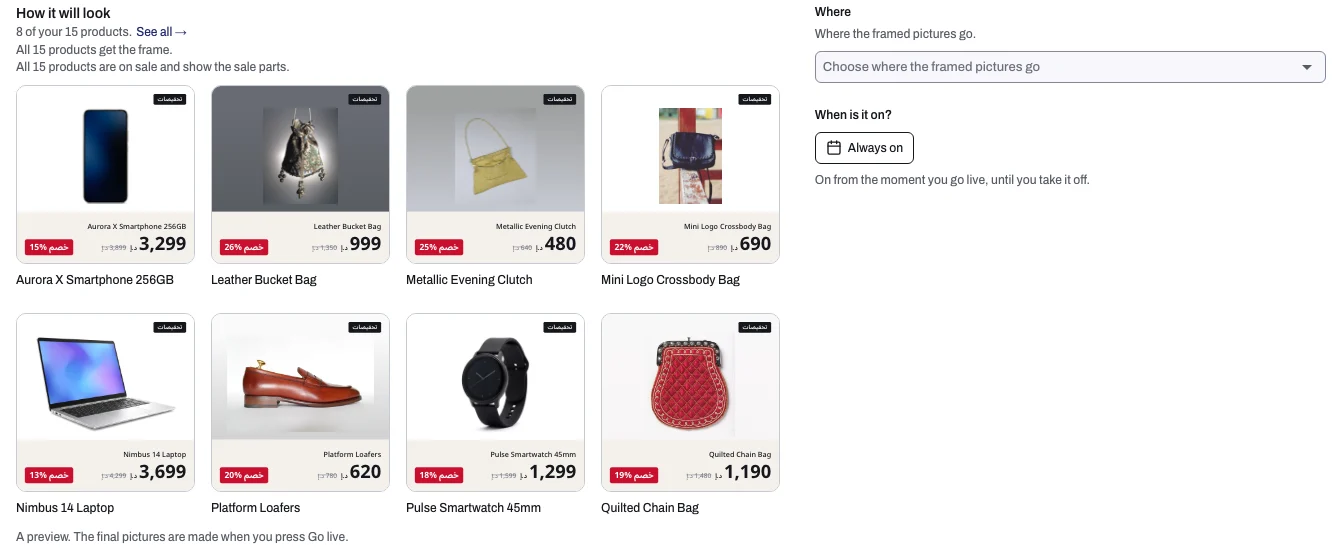
Where has two kinds of place. Pick one or more:
- Your Library. The framed pictures are kept in your Library. Nothing changes in your ads.
- Meta catalogs. A framed picture, in Square, is added to each chosen product in the catalog, beside the product's own pictures. The product's own pictures stay as they are, and the framed one comes off when you take the frame off.
With a Meta catalog picked, Where this frame shows asks how the frame reaches your ads. You can change it later on the frame's page.
- On every ad that shows these products. No ad is edited. The framed picture shows in Reels and Stories on every ad that uses the catalog, and the feeds keep the product's own picture.
- Only on the ads I choose. You choose the ads on the frame's Ads tab, and only those show the frame.
When is it on? leaves the frame Always on, or choose a first and last day. A frame with days goes on by itself at the start of its first day and comes off by itself at the end of its last day, in the frame's time zone. Tapper checks every hour, so a change can come up to an hour late, and a frame you put on or change is checked right away. Meta then takes a few hours to show it.
A product that leaves the group loses its framed picture at the next hourly check. Your products' own pictures are never replaced, and every step that puts a frame on has one that takes it off.
See it working
Open Craft > Frames > Framed products. Each row shows a frame's design, where it goes, its days and how many of its products carry it. See Framed products: change, take off and read the results.
Related
- Design a frame: ready looks, words and approval
- Choose which Meta ads show the frame
- Framed products: change, take off and read the results
- Compare your ads head to head
- Frame templates for agencies
- Split payments and free delivery labels
- The Products page: your products, grouped
- Set up the label feed in Google Merchant Center and Meta
- Meta Ads: what is read and what you see