

Requesting refunds from Google Ads
This guide walks you through Google's official refund process for invalid or suspicious clicks, and shows how to prepare the right supporting evidence with Tapper data. Use this guide after reviewing Ad refund requests.
Context
Tapper's blocking filters most invalid traffic before it appears on your Google Ads invoice. When questionable clicks still slip through, you can submit a refund request directly to Google
Note. Google's review process for manual refunds is strict and may take several weeks. Even with a well-prepared case, refunds are not guaranteed. Submitting precise, timestamped Tapper evidence gives you the best chance. This guide explains where to include screenshots, what to write, and how to attach your Tapper report.
Before you begin
Before submitting a claim, make sure you have:
- admin or billing access to the relevant Google Ads account
- campaign IDs and campaign names affected by the issue
- the date range of the suspected invalid activity
- an exported Tapper IVT report or logs in CSV or PDF format
- screenshots that show click spikes, unusual cost patterns, or related anomalies
Google reference pages
Step by step: submitting a refund request
Step 1: Open the Help Center
- Log into your Google Ads Manager account.
- In the upper-right corner, click the Help (?) icon.
- A help panel opens on the right side.
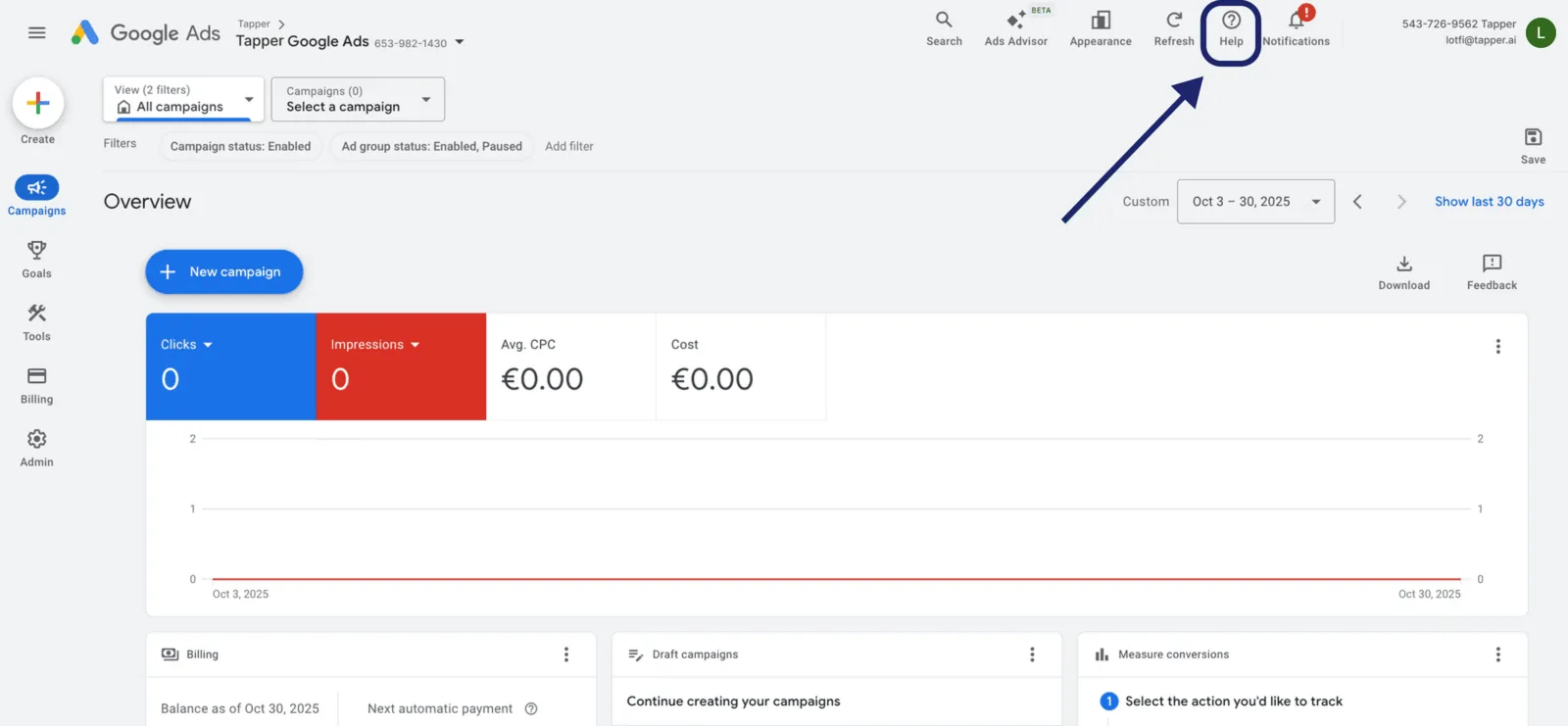
Step 2: Navigate to Contact Us
Scroll to the bottom of the Help panel. Under Need more help, click Contact Us.
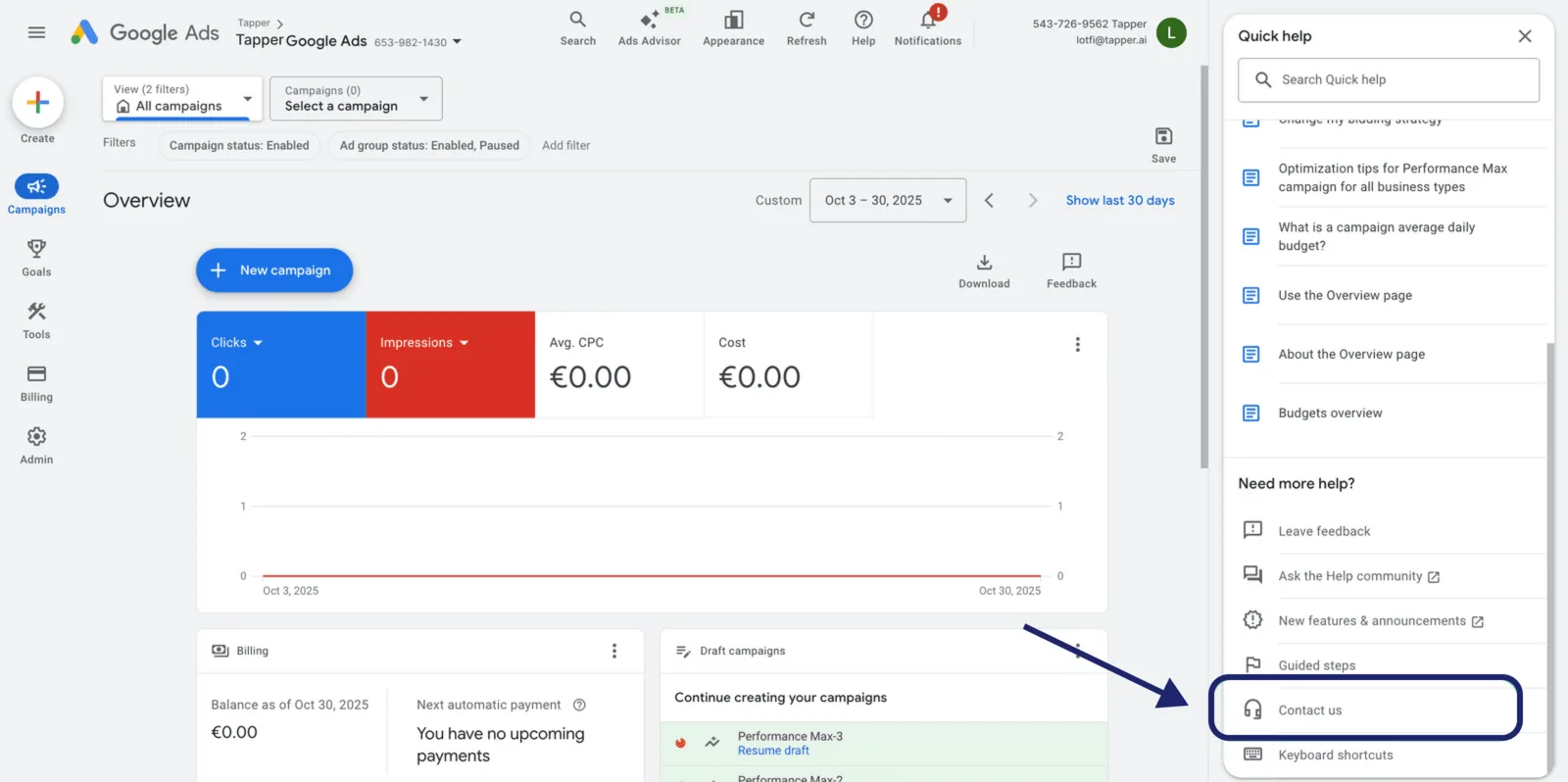
Step 3: Search for Invalid Clicks
- In the field Tell us what you need help with, type Invalid Clicks.
- Click Next Step to continue.
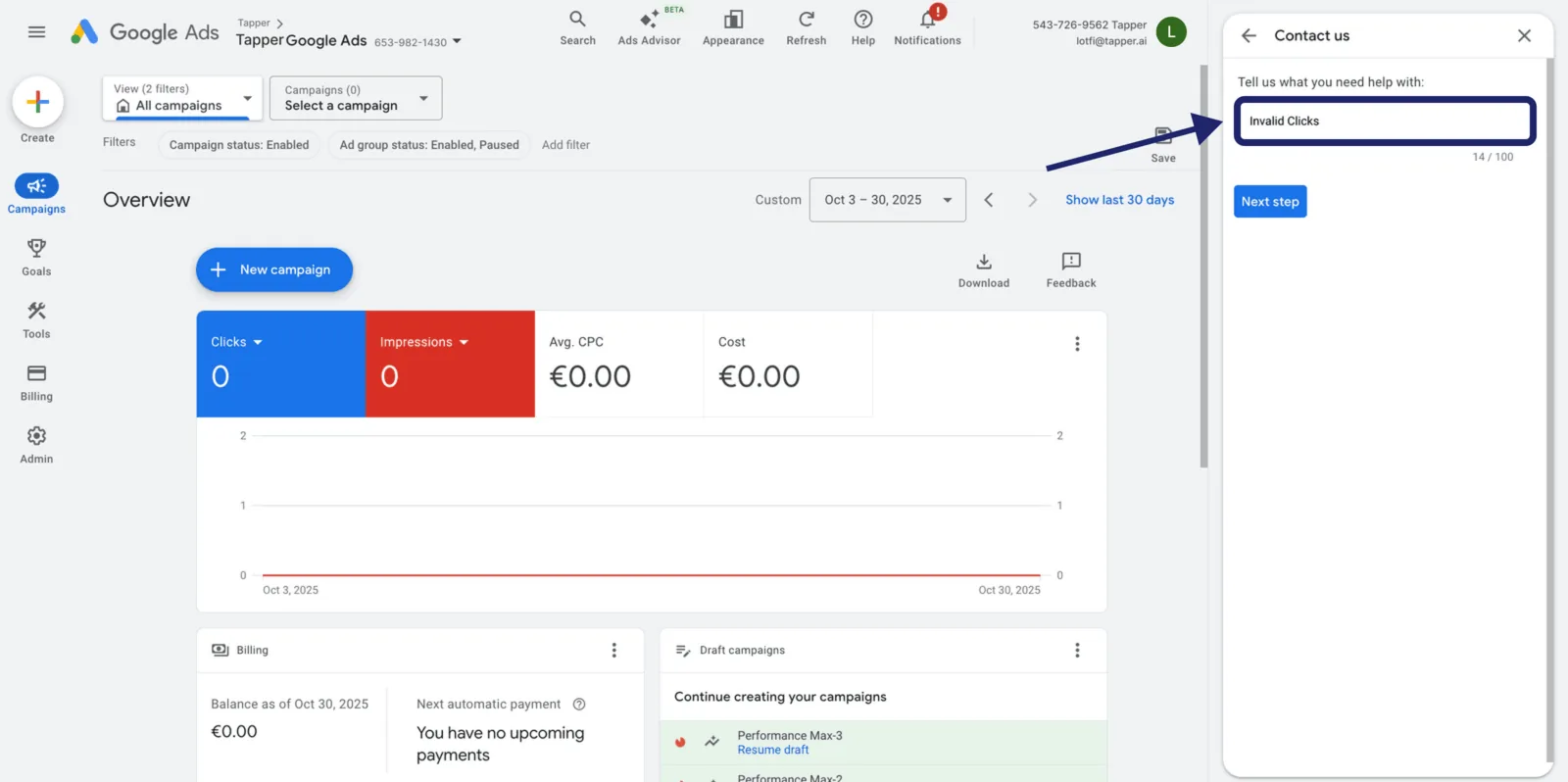
Step 4: Choose Other
Google shows several suggested help topics. Select Other to continue to the contact form, then click Next Step again.
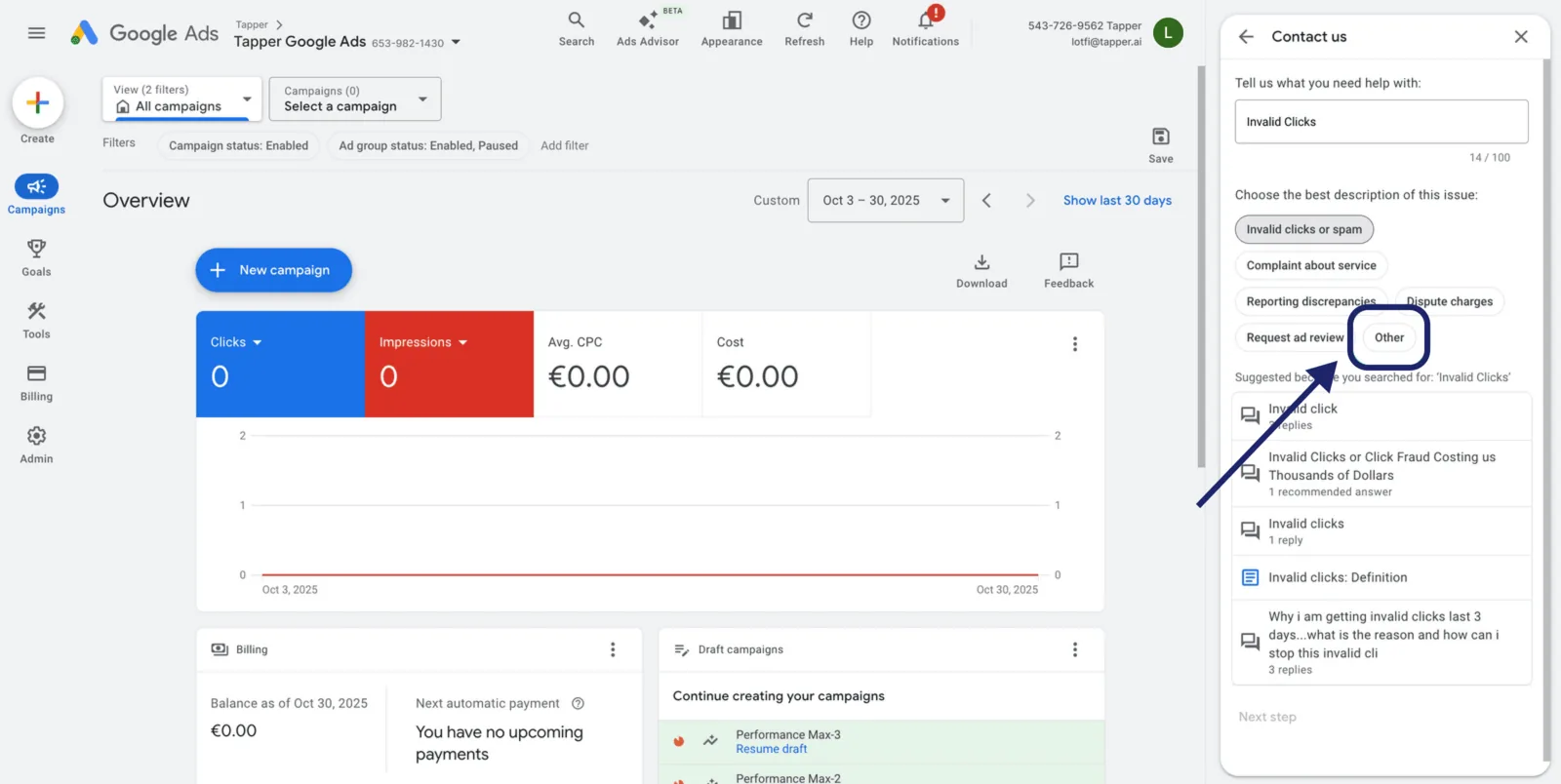
Step 5: Prepare details
Before you continue, gather all relevant information:
- campaigns affected by invalid activity, including campaign name and campaign ID
- the date range of the observed issue
- a Tapper data export showing IVT rates, traffic patterns, and timestamps
- screenshots or log extracts that support the claim
Step 6: Select account and contact method
- Choose the relevant ad account, and the correct sub-account if you operate inside an MCC.
- Under Contact Options, select Email so you can include detailed documentation and attachments.
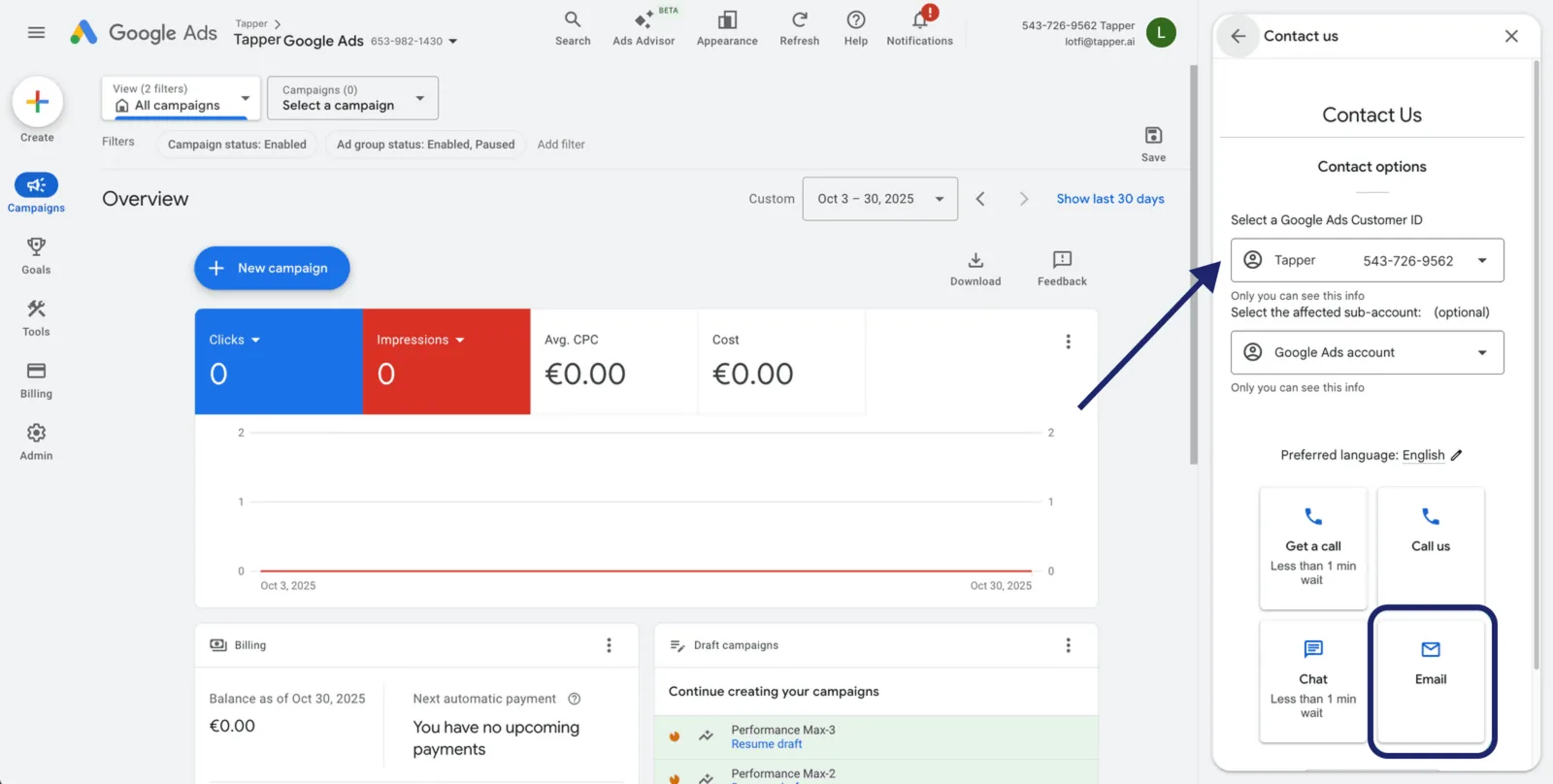
Step 7: Fill out the refund form
When the contact form opens, fill in each field carefully. Use your Tapper report data and Google Ads account information to ensure accuracy.
| Field | What to enter | | ---- | | Contact Name | Your full name | | End Customer Company Name | The advertiser’s company name, not the agency name | | Criticality & Impact on Business | Briefly explain why the issue matters. Example: invalid clicks increased spend and may have reduced conversion efficiency, which affects active campaigns, budget allocation, and reporting reliability. Stay factual rather than emotional | | Account Login Email ID | The email address you use to sign into Google Ads | | Contact Email | The address where Google should send updates. This is often the same as the login email | | Email CC (optional) | Add colleagues or stakeholders who should stay informed. Separate multiple addresses with commas | | Request Type | Choose Campaign Specific if the issue affects selected campaigns only. Choose Not Campaign Specific if the invalid activity appears across multiple campaigns or broader account traffic | | Date Range When the Issue Appeared | Enter the start and end dates in MM/DD/YYYY format so they match your fraud0 evidence exactly | | Preferred Contact Method | Choose Email me for documentation-heavy cases, or Either phone or email if both are acceptable | | Summary of the Issue | Describe the issue clearly and factually. Include affected campaigns, the date range, and the evidence you are attaching | | Attach an uncropped screenshot or file | Upload a relevant supporting file, such as a fraud0 IVT export, a screenshot of suspicious spikes in Google Ads, or documentation of billing discrepancies. Make sure the screenshot shows Account ID, Date Range, Page URL, and the full visible report | | Upload HAR File (Optional) | Only add this if Google requests it or if a network-level investigation is needed | | Feedback Consent (Optional) | Enable this only if you agree to receive follow-up feedback requests from Google |
Example wording for the description
A stronger claim usually includes:
- the relevant date range
- invalid-click activity across the affected campaigns
- internal Tapper logs with GCLID-based UTC timestamps
- non-human or high-bounce activity
- repeat clicks from the same IPs
- geo or device configuration violations
- a clear request for review and credit
| Example structure: During [date range], we observed a material volume of invalid clicks across our Google Ads campaigns. Our internal logs, based on GCLIDs and UTC timestamps, show clear patterns of non-human or high-bounce activity, repeat clicks from the same IPs, and geo and device configuration violations. The supporting evidence includes per-click GCLIDs with IP and timestamp, as well as aggregated tables showing affected IPs and burst windows. Known crawlers such as AdsBot-Google were excluded. We request a review and credit for the associated invalid traffic for the stated date range.
Step 8: Submit and follow up
Click Submit once all fields and attachments are complete. Google will send a confirmation email with a case number, so keep this reference for future communication. Refund reviews can take 2 to 6 weeks depending on complexity.
What happens next
Google reviews your submission manually and may contact you for additional evidence or clarification. If approved, a credit is applied directly to your Google Ads account under Billing, then Adjustments. If the claim is denied, review the feedback carefully. If you have new data, you can generally reapply once per 60 days.
Tapper tips for a stronger case
- Be specific. Reference exact campaign IDs and timeframes.
- Use consistent data. Tapper exports, GCLIDs, timestamps, and screenshots should all align.
- Stay factual. Avoid speculation or assumptions in your claim text.
- Submit promptly. Claims older than 60 days are rarely accepted.
Related page
See the overview page for broader refund context: Ad refund requests.
Was this helpful?
Related articles
Still need help?
Chat with our team and mention this article.