

Generate a Google Ads refund report
The Refunds page builds the evidence for a Google Ads refund claim: a CSV file listing the invalid Google Ads clicks Tapper blocked on one protected entity, for a period of up to 30 days. You attach that file to the claim you file with Google. Generate a report whenever you want to recover spend on invalid clicks Google charged you for; How refunds for invalid clicks work explains what Google will and will not credit.
Before you start
- A connected Google Ads account. The page needs a protected entity with a Google Ads account connected to it.
- Any workspace role. Owner, Admin and Editor members can all generate and download reports.
- A plan with paid analytics. The Refunds page is part of Tapper's paid analytics, so your plan must include that feature.
- Tapper Block. The page is part of Block; Lift only workspaces do not have it.
Steps
Open the Refunds page
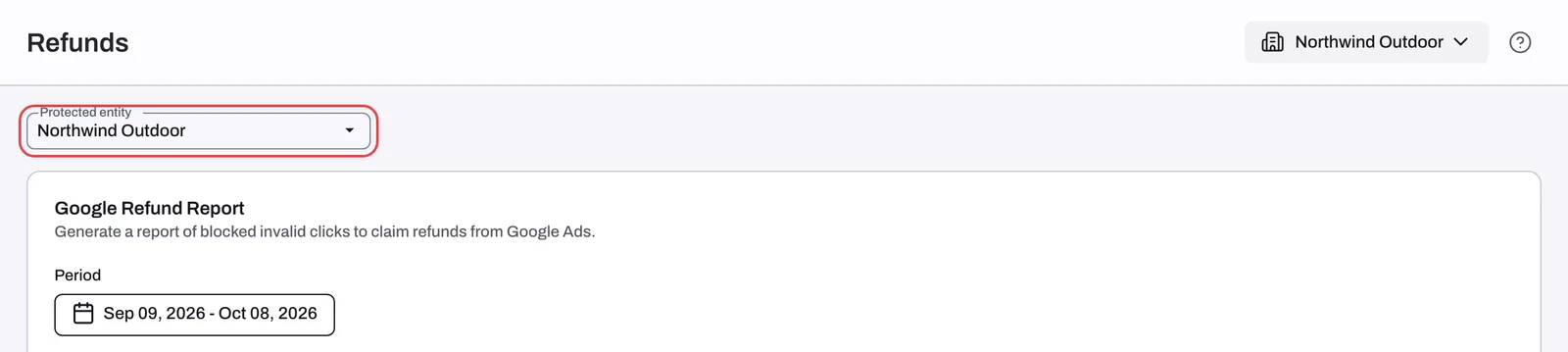
- In the sidebar, under Protection, click Refunds. The page shows the Google Refund Report form.
- If your workspace has two or more protected entities, choose one in the Protected entity dropdown. A report covers only the entity you select.
Choose the period
- Open Period and pick the days the report should cover. By default it covers the last 30 days ending yesterday, counted in your workspace time zone. A period can be 30 days at most.
Google investigates clicks only up to 60 days after they happen, so keep the most recent 30 days unless you have a reason not to, and file the claim soon after.
Choose the block reason tiers
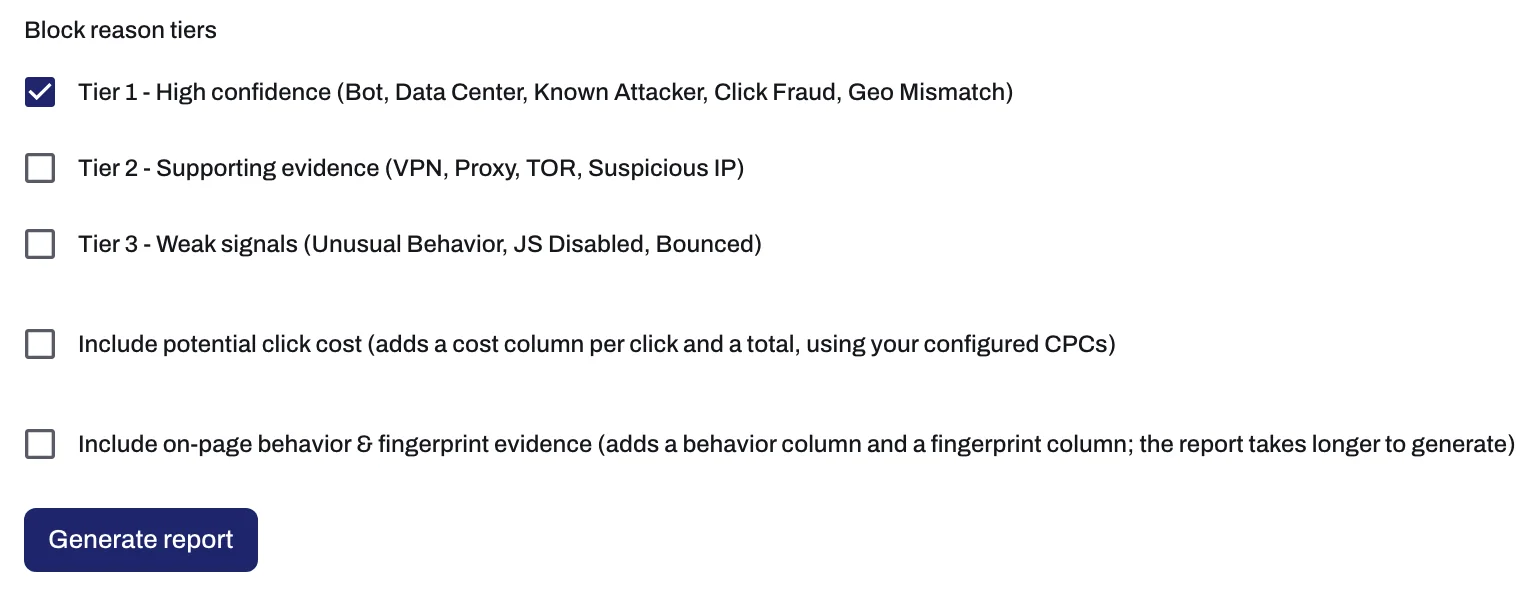
- Under Block reason tiers, tick the tiers whose clicks you want in the report. Each tier groups block reasons by how strong they are as evidence. Only Tier 1 is ticked when the page opens.
| Tier | Reasons its label names |
|---|---|
| Tier 1 - High confidence | Five reasons, among them Bot, Data Center, Known Attacker and Geo Mismatch |
| Tier 2 - Supporting evidence | VPN, Proxy, TOR, Suspicious IP |
| Tier 3 - Weak signals | Unusual Behavior, JS Disabled, Bounced |
Each tier holds more block reasons than its label lists. Tier 1 holds the high-confidence reasons; adding Tier 2 or Tier 3 brings in more clicks backed by weaker evidence. For what each reason means, see Block reasons explained.
Choose the options
- To add an estimate of what the clicks cost, tick Include potential click cost (adds a cost column per click and a total, using your configured CPCs).
- To add what each visitor did on your page, tick Include on-page behavior & fingerprint evidence (adds a behavior column and a fingerprint column; the report takes longer to generate).
Generate the report
- Click Generate report. The button stays disabled until you have a period of 30 days or less and at least one tier ticked.
What happens next
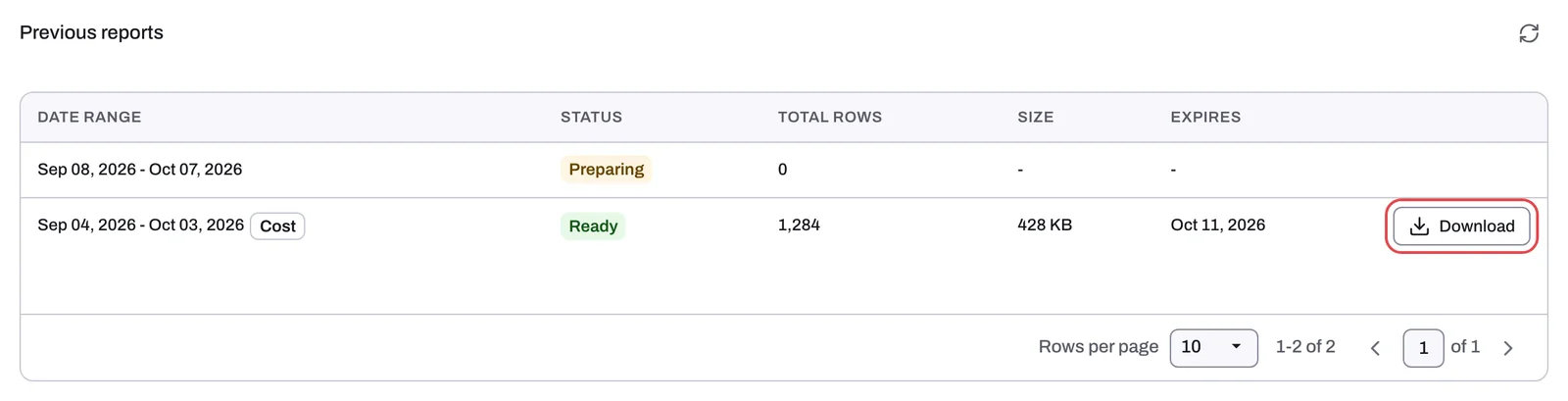
The report appears under Previous reports and moves through the statuses Queued, Preparing and Ready (or Failed). The list updates itself while a report is in progress. The columns are Date range (with a Cost tag when you included the click cost), Status, Total rows (one row per click), Size and Expires.
When the status reads Ready, click Download. The download link lasts 7 days, after which the report drops off the list, so download it before then and keep your own copy with the claim. The list shows every report generated in the workspace, for all entities, while each new report covers only the entity you selected.
What is in the file
The report is one CSV file named refund_google_<customer id>_<from>_<to>.csv. It has one row per unique GCLID, and only Google Ads clicks.
| Column | What it holds |
|---|---|
gclid | Google's click ID for the click |
ip | The visitor's IP address |
customer_id | Your Google Ads customer ID |
campaign | The campaign that was clicked |
happened_at | When the click happened, in UTC |
landing_page_url, user_agent, http_referrer | The page the click landed on, the visitor's browser (user agent) and the referring page |
block_reasons | Why Tapper flagged the click, limited to the tiers you ticked |
asn, asn_name, asn_type | The network the IP address belongs to |
is_datacenter, is_vpn, is_anonymous, is_known_attacker, is_known_abuser, is_threat | Flags about the IP address: data center, VPN, anonymous, known attacker, known abuser, threat |
With the cost option, the file adds a potential_click_cost column and a summary block headed "GOOGLE ADS INVALID CLICK REFUND REPORT" with the total. That summary always gives the report window as 30 days, even for a shorter period: use the dates of your period (also in the file name) when you fill in Google's form. With the behavior option, the file adds events_summary and fingerprint_summary columns.
To file the claim, follow Request a refund from Google Ads for invalid clicks.
If something goes wrong
- "Date range cannot exceed 30 days." Shorten the period to 30 days or less.
- The report is Ready with 0 rows and reads "No blocked clicks found for the specified filters." No click in that period matched the tiers you ticked on this entity. Tick more tiers, pick another period, or check that you selected the right entity.
- The status reads Failed. Generate the report again. If it fails again, write to support@tapper.ai with the entity and the period.
- The report is no longer in the list. Its link expired after 7 days. Generate it again.
- "Connect Google Ads to start protection" appears instead of the form: connect a Google Ads account to the entity first. See Connect Google Ads.
- "No protected entities yet" appears: create a protected entity and connect Google Ads to it. See Protected entities: what they are and how to add one.
Related
Was this helpful?
Related articles
Still need help?
Chat with our team and mention this article.