

Deployment A/B tests: enforced versus logged-only visitors
A deployment A/B test measures Tapper's blocking by splitting visitors instead of campaigns. Inside the same campaigns, visitors in group A are enforced: Tapper blocks them as usual. Visitors in group B are logged only: Tapper records what it would have done but does not block them. Comparing the two groups shows what blocking changes for your cost per acquisition (CPA). The Tapper team starts and ends these tests; you read the results in the app.
How it works
- Visitors are split, not campaigns. Both groups see the same campaigns at the same time, so the only difference between them is whether Tapper's decisions are enforced.
- Only Tapper starts and ends a test. There is no create or end button. If you want a test on an entity, ask your account manager. A test keeps running until the Tapper team ends it.
- Control means the unprotected group. On the results page the groups are named Blocking (A - enforced) and Control (B - not enforced).
What you see in Tapper
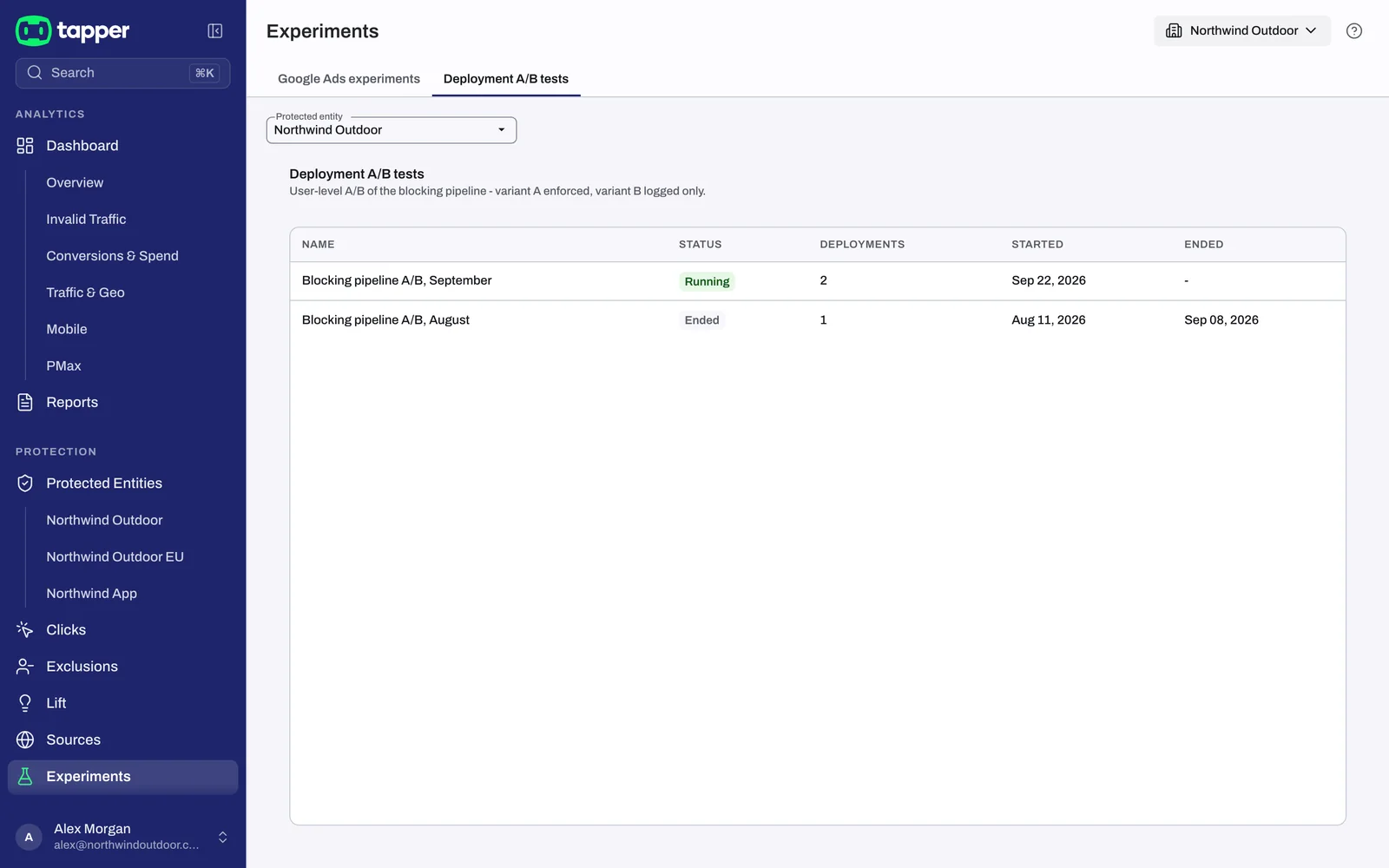
The list
In the sidebar, under Protection, click Experiments, then open the Deployment A/B tests tab. If your workspace has two or more protected entities, choose one in the Protected entity dropdown. The tab needs a protected entity but no particular ad account, and only workspace Owners and Admins can use it. Lift only workspaces do not have the Experiments page.
| Column | What it shows |
|---|---|
| Name | The test's name |
| Status | Running or Ended |
| Deployments | How many deployments the test covers; hover to see them |
| Started, Ended | The start and end days, in your workspace time zone |
With no test on the entity, the tab reads No deployment A/B tests yet.
The results page
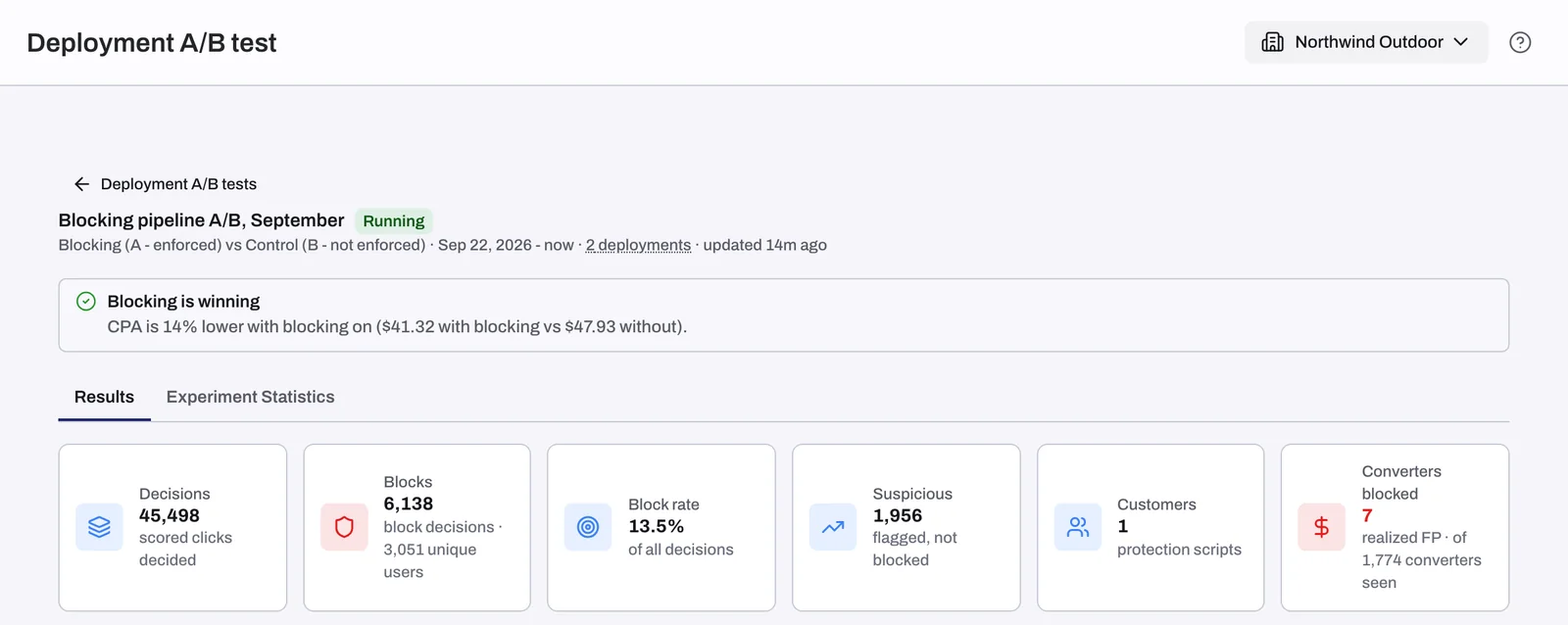
Click a test to open Deployment A/B test. The header shows the test's name and status, "Blocking (A - enforced) vs Control (B - not enforced)", the test window, the number of deployments and when the report was last updated (for example "updated 14m ago"). The first load can take up to about 30 seconds; after that the report refreshes every hour.
The verdict sits in a banner under the header, above the Results and Experiment Statistics tabs:
| Verdict | When it shows |
|---|---|
| Blocking is winning | CPA is at least 10% lower with blocking on |
| Control is ahead so far | CPA is at least 10% higher with blocking on |
| No clear difference yet | The two CPAs are within 10% of each other |
| Too early to call | Either group has fewer than 100 clicks or fewer than 10 conversions: "Tapper is still collecting data for this experiment." |
When cost data is missing for a group, the verdict compares conversion rates instead and says so: "Cost data is missing, so this compares conversion rate." When leaving out conversions from people Tapper flagged changes the picture noticeably, the verdict adds the CPA change without them.
The Results tab
| Tile | What it counts |
|---|---|
| Decisions | Scored clicks Tapper decided on |
| Blocks | Block decisions, with the number of unique users blocked |
| Block rate | Blocks as a share of all decisions |
| Suspicious | Decisions that flagged a click without blocking it |
| Customers | The protected entities in the test |
| Converters blocked | Visitors who converted and had been blocked, out of all converters seen. Shown in red when it is above 0 |
The Experiment Statistics tab
Each tile compares the blocking group with the control group:
| Tile | What to know |
|---|---|
| Clicks | Should be roughly equal between the groups. A big gap points to a problem with the split, not to performance |
| Users | Distinct users in each group |
| Conversions, Conversion rate | Conversions in each group |
| Est. spend | "Hourly-average-CPC estimate - not billing data." |
| CPA | Cost per conversion in each group |
| CPA (FP-adj) | CPA with conversions from users Tapper had flagged subtracted from the blocking group |
| FPR | The false positive rate. In the blocking group these are real enforcement mistakes; in the control group they are hypothetical, because nothing was blocked |
Switch between Per campaign and Aggregate, and narrow the campaigns with CPA reduced, Conversions > 0, Blocks > 0 and Top campaigns.
Related
Was this helpful?
Related articles
Still need help?
Chat with our team and mention this article.