

Request a refund from Google Ads for invalid clicks
To ask Google for a credit on invalid clicks Tapper found, you file a claim yourself, by hand, on Google's own form. There is no API for it, so Tapper cannot file the claim for you: Tapper gives you the evidence, a CSV report of the invalid clicks it blocked, and this guide takes you through Google's side. On a workspace in monitoring-only mode Tapper writes no exclusions of its own, so a claim is the main way to recover that spend.
Before you start
- Your Tapper refund report. Download it from the Refunds page before its link expires after 7 days. See Generate a Google Ads refund report.
- Your Google Ads customer ID. Google Ads shows it at the top left, next to the account name. If you work through a manager account, the number at the top right, next to your sign-in email, is the manager account's. The customer ID is also in the report's
customer_idcolumn and in its file name. - Access to the Google Ads account the clicks were charged to, so you can sign in and pick it on the form.
- The report's period. You enter the same start and end dates on Google's form. The period is in the report's Date range column on the Refunds page and in the file name.
Open Google's form
The quickest way is Google's click quality form. Open it while signed in with the Google account you use for Google Ads.
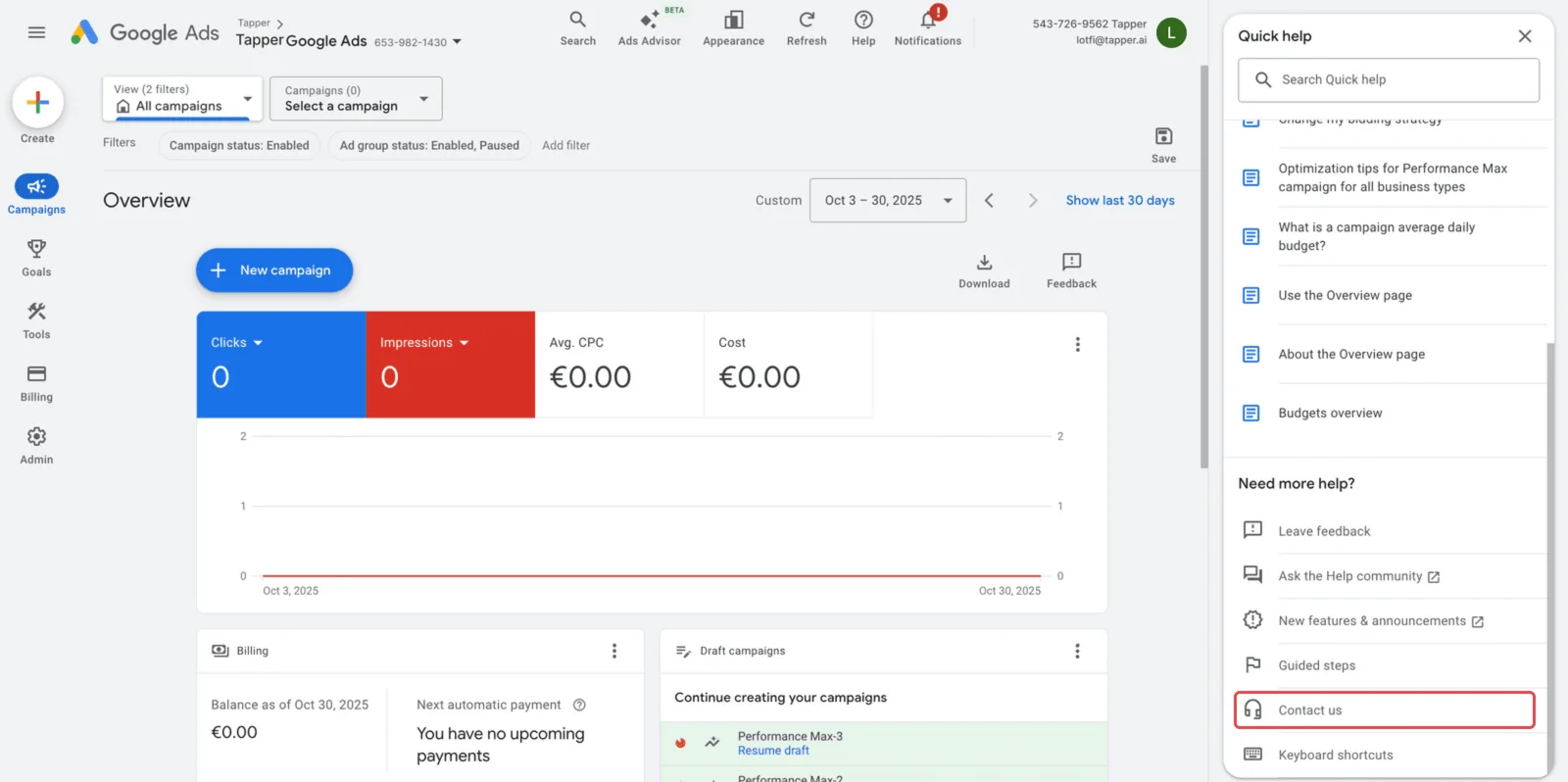
You can also reach Google's contact form from inside Google Ads:
- Sign in to Google Ads and click Help (the question mark icon) at the top right. The Quick help panel opens.
- Scroll to Need more help? and click Contact us.
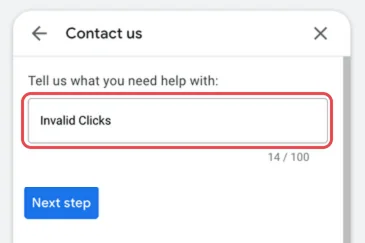
- In Tell us what you need help with, type
Invalid Clicks, then click Next step.
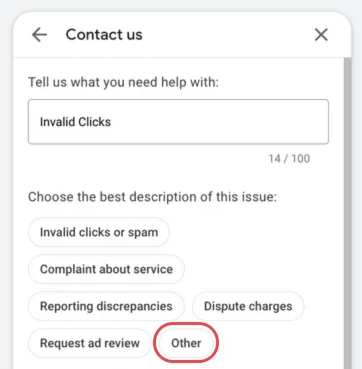
- Under Choose the best description of this issue, select Other, then click Next step.
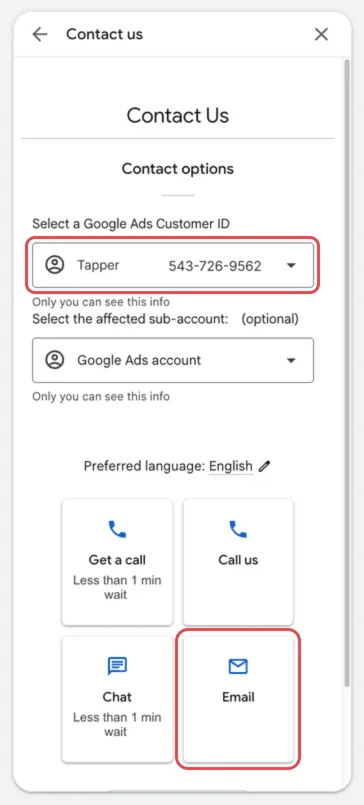
- Under Contact options, pick the account in Select a Google Ads Customer ID. If you work through a manager account, pick the manager account there (the number at the top right of Google Ads), then pick the advertiser's account in Select the affected sub-account.
- Choose Email, so you can attach the report and keep a written record.
Fill in the form
Fill in each one from your Tapper report and your Google Ads account.
| Field | What to enter |
|---|---|
| Contact Name | Your full name |
| End Customer Company Name | The advertiser's company name, not the agency's |
| Criticality & Impact on Business | A short, factual line on why it matters, for example: invalid clicks increased spend and distorted campaign reporting |
| Account Login Email ID | The email address you sign in to Google Ads with |
| Contact Email | Where Google should send updates; often the same address |
| Email CC (optional) | Colleagues who should follow the case, separated by commas |
| Request Type | Campaign Specific if the clicks hit selected campaigns, Not Campaign Specific if they are spread across the account. The report's campaign column tells you which |
| Date Range When the Issue Appeared | The start and end dates of your report's period, in MM/DD/YYYY format |
| Preferred Contact Method | Email me works best for a claim built on an attachment |
| Summary of the Issue | Your claim, see below |
| Attach an uncropped screenshot or file | The Tapper refund report CSV |
| Upload HAR File (optional) | Leave empty unless Google asks for it |
| Feedback Consent (optional) | Tick it only if you agree to receive feedback requests from Google |
What to write
Google matches claims against its own records, so lead with what it can check: the GCLIDs (Google's own click IDs, the first column of the report) and objective facts about the network each click came from, such as data center, VPN and known-attacker IP addresses. Time on site or page reloads carry less weight. Keep it factual and give the same dates as the form.
Adapt this example to what your report shows:
Between [start date] and [end date], our Google Ads account [customer ID] received clicks we believe are invalid. The attached CSV lists each click by its GCLID with its UTC timestamp, IP address, campaign, landing page, user agent and the reasons it was flagged. Many of these clicks come from data center, VPN or known-attacker IP addresses, as shown in the is_datacenter, is_vpn and is_known_attacker columns. We ask you to review these clicks and credit the invalid clicks we were charged for in this period.
When everything is filled in, click Submit. Keep the case number from Google's confirmation email for any follow-up.
What happens next
- Google reviews the claim by hand and may email you for more evidence. Answer with the same report and dates.
- A review can take several weeks.
- If Google approves the claim, it applies a credit to your Google Ads account. The credit covers only clicks you were charged for: clicks Google's own systems already filtered are not refunded, even when they appear in Tapper's report.
- If Google declines, read its reply for the reason. Any new claim still has to cover clicks from the last 60 days.
If something goes wrong
- The report's download link has expired. Generate the report again on the Refunds page; the link lasts 7 days.
- The advertiser's account is in neither Select a Google Ads Customer ID nor Select the affected sub-account. Sign in to Google Ads with a Google account that has access to it, then start again.
- The report has no rows. No click matched the period and tiers you chose; see Generate a Google Ads refund report.
Related
Was this helpful?
Related articles
Still need help?
Chat with our team and mention this article.