

The Products page: your products, grouped
On this page
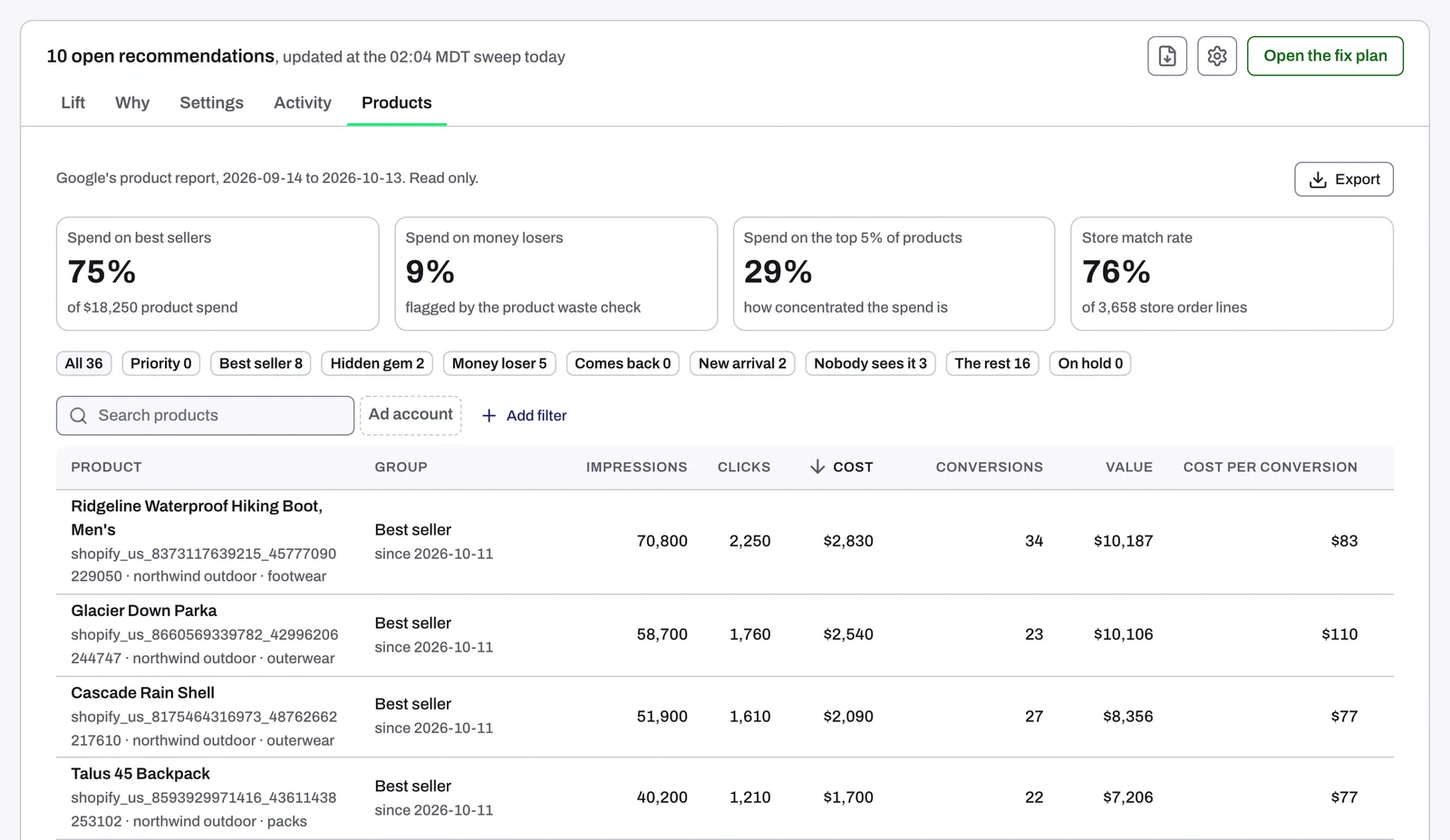
Lift's Products page lists the products your Google Shopping and Performance Max campaigns spent on, from Google's product report, with your Shopify sales beside them and Meta's catalogue ads on a tab of their own. It puts each product in a group and says what to do with it. Other sources: Setup > Data sources.
When the page shows
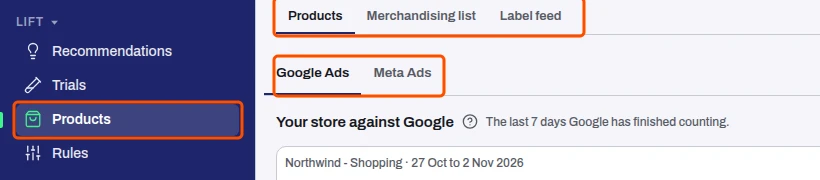
Products is in the Lift section of the sidebar when one of the entity's Google Ads accounts has products with spend in the last 30 days, or its business type is Online store (you sell products from a catalogue or product feed) (Business details).
- A Meta Ads or TikTok Ads account alone does not add it.
- One Google Ads account at a time: the Ad account chip switches.
- The white-label partner app has no Products page.
The page's tabs
The page has three tabs: Products (everything below), Merchandising list and Label feed. The last two are settings that shape which products Lift pushes, holds and labels. Each is for one Google Ads account, picked at the top, and each has its own address (/lift/products/merchandising-list, /lift/products/label-feed). Label feed is in the Tapper app only, not in the white-label partner app.
Google Ads and Meta Ads
When products also run in Meta catalogue ads, Google Ads and Meta Ads tabs sit under the page's tabs. The tab switches everything below and is kept in the address, so a reload or shared link opens the same one. If all your products run on Meta, the page opens on Meta Ads. Groups are always judged on Google's figures or your store's sales, never Meta's.
Your store against Google
With Shopify connected, the Google Ads tab opens with one line per account, over the last 7 days Google has finished counting:
- Google counted: purchases Google counted, with value.
- Your store recorded, from Google clicks: store orders whose landing page carries a Google click ID (gclid, gbraid or wbraid), with value.
They never match exactly: Google counts across devices and by its own rules. When Google counts too few, the line says so, such as "Google counted 62% of the orders your store took from Google clicks.", and names the share under which a purchase tag is broken or missing on some orders. The newest 3 days are left out.
The line at the top
It says what the page reads and over which days, such as "Google's product report and your store's sales, 28 Sep to 27 Oct". Without a store, it ends with the product spend. Its ? names the account, the spend source (Google's product report, without VAT), what Google counts as a conversion and every group's rule. Export sits beside it.
Figures are whole numbers. Amounts under one unit keep cents; a share above 0 reads "under 0.1%", never 0%.
The four cards
What to do with your products has one card per group with products. Each shows: what to do and how many products; what they spent and their share of product spend, such as "3% of product spend, 30 days"; one sentence on why; two facts (one is always the campaign count); and buttons.
| Card | Its title | Its two facts | Its buttons |
|---|---|---|---|
| No sales | Stop paying for N products with no sales | Spend, last 7 days and Campaigns | Show them in the table |
| Best sellers | Run N best sellers on their own | Their share of sales (Share of store sales or Share of Google's purchase value) and Campaigns | Show them in the table and See the plan |
| Hidden gems | Give N hidden gems a chance | Their sales (Store sales or Google's purchase value) and Campaigns | Show them in the table and Add to the plan |
| Under target | N products below their campaign's target | Return (or Cost per conversion, by the campaigns' targets) and Campaigns | Check them |
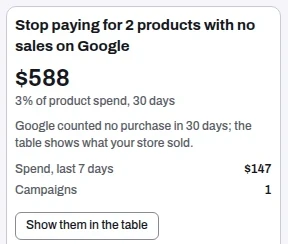
Show them in the table filters the table; pressed again it reads Show every product. With a store, No sales is judged on Google's figures, so the card says "with no sales on Google" and the table shows what your store sold.
Before grouping, the page says "Groups appear after the next daily scan of this account." An account with no products says why, such as no product feed linked to its Performance Max or Shopping campaigns that spent in the last 7 days.
The best sellers plan
See the plan opens The best sellers plan: run best sellers in a copy of each campaign, starting at their share of today's budget, so they keep it when budget runs short. Total budget is unchanged.
- It says how many best sellers it covers, what they spent, and how today's budget splits between copies and originals.
- A table lists each campaign's target, Budget a day, the best sellers' Spend, Share of spend and Share of value, and Starting split a day: Copy and Original.
- A campaign is split when best sellers take at least 10% of its spend, its budget is its own, and it runs at least 30 more days. Others are left, with the reason.
- The steps: Lift labels best sellers through the label feed, your agency copies each campaign and excludes the label from each original, and you check the next morning that each product shows in its copy only.
Add to the plan on Hidden gems (also in the plan and on a hidden gem's page) adds them to run with best sellers. It then reads In the plan, with Undo. Nothing changes in Google Ads.
The tiles
With a store connected, under the cards, each with a ?:
| Tile | What it shows |
|---|---|
| Product spend | What the products cost over the page's days, from Google's product report, without VAT. The cards' shares are of this. |
| Store match | The share of your store's order lines over the same days whose product Google lists, with the line count. |
Without a store, one line says "Connect your store to see real sales."

The table
One row per product, largest spend first.
| Column | What it shows |
|---|---|
| Product | Title, with brand and product type. Stays in place when the table scrolls sideways. |
| Group | Its group and since when, such as "since 11 Oct", and Google's stock for the product: "Google: In stock", "Google: Out of stock", "Google: Preorder", "Google: Partly out of stock", "Google: Partly preorder" or "Google: Not in feed". |
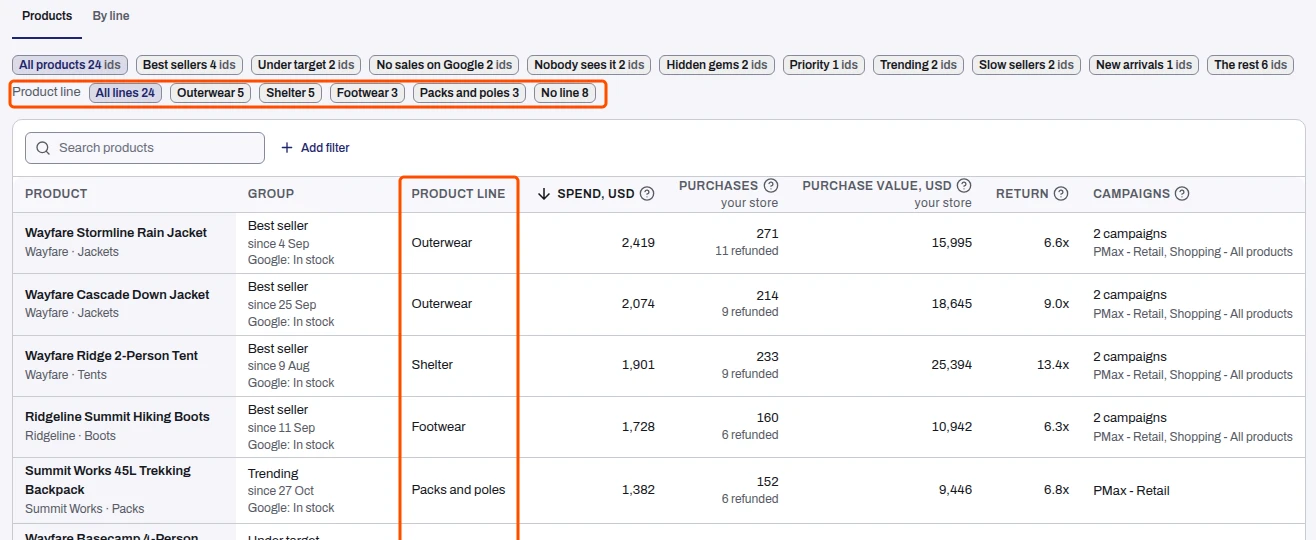
| Product line | Where product lines are set up on your account: the product's line, or "No line" (Product lines). |
| Spend | Google's cost, over every campaign that showed it. |
| Purchases | With a store: units sold, marked "your store". Without: Google's count, named Conversions where Lift reads every action the account counts. |
| Purchase value | With a store: what your store's orders took, net of discounts and refunds, without shipping. Without: Google's value (or Value). |
| Cost per purchase | Google's, without a store. With a store, on the product's page. |
| Return | Without a store: Google's value over spend, such as 8.8x. With a store: store revenue over Google's spend, when both use one currency. |
| Campaigns | The campaign that showed it, or how many. |
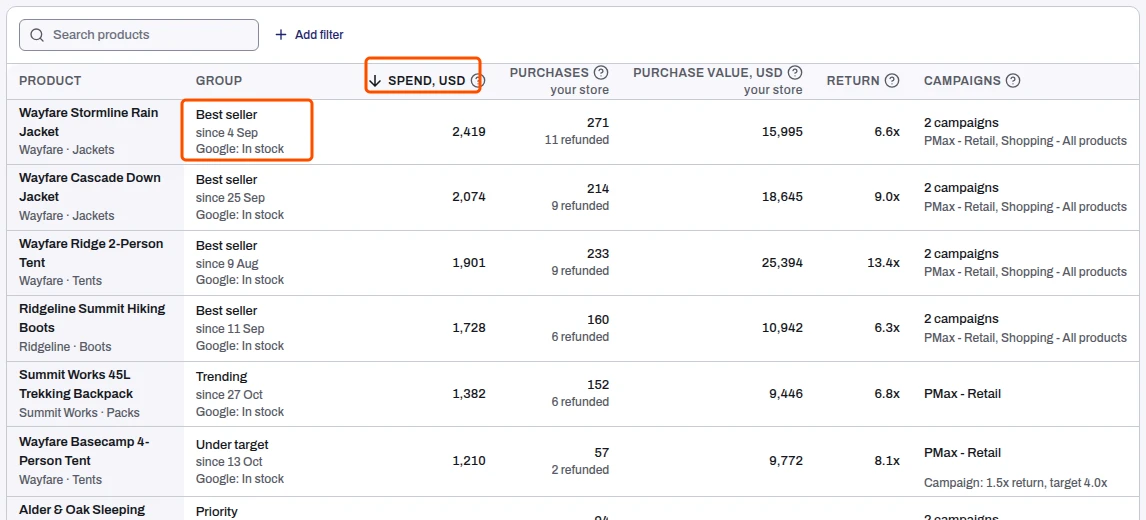
Each column's ? gives its rule. An empty cell reads "-". "Google: Not in feed" means Google lists nothing for the product, under its ID or under its name. A product that came back under a new ID shows the stock of its new listing.
- Campaign names read by the part that tells them apart, such as "PMax - Retail"; the full name shows on hover, focus or tap. Several read "3 campaigns", with their shared start.
- Under target rows list each campaign with a target, such as "Campaign: 5.5x return, target 6.5x".
- A product whose every unit came back reads "Refunded"; partial refunds say how many, such as "1 refunded".
- When several Google products share one store variant, each row shows the variant's figures and says "shared by N products": do not add them.
Search products finds by title or ID. Add filter offers Brand, Product type, Category, Custom label and, with brand terms, Own brand. Empty: "No products with impressions or cost in this window". Export downloads a CSV of up to 5,000 products with every figure, following your group, filters and search; with product lines it has a Product line column.
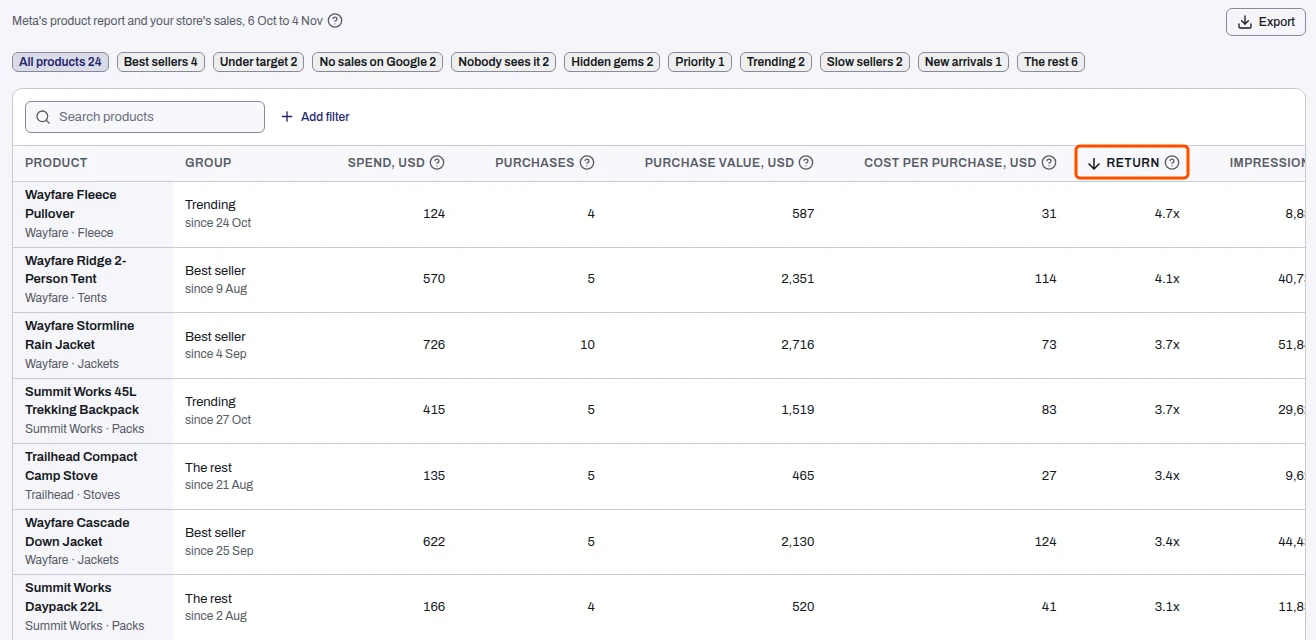
Sorting
Press a column heading to sort the whole list, not only the page on screen. Press again to reverse it. An arrow marks the column and its direction. The list starts with Spend, highest first.
| Tab | Columns that sort |
|---|---|
| Google Ads, store connected | Spend |
| Google Ads, no store | Spend, Purchases (or Conversions), Purchase value (or Value) and Return |
| Meta Ads | Spend, Purchases, Purchase value, Cost per purchase, Return, Impressions, Clicks and Click rate |
Cost per purchase starts with the lowest; every other column starts with the highest. A product with no figure comes last either way. On a phone, Sort lists the same columns.
Two currencies on one page
When your store sells in another currency, the page reads in the ad account's. Store figures are converted at the month's rate, with the store's amount beside them, such as "USD 2,613 (SAR 9,800)". The ? names the month. Without a rate, nothing is converted.
Product lines
If product lines are set up on your account, the Google Ads tab groups your products by line, such as "Outerwear" or "Footwear". A product is in one line at most; a product no line takes is in No line. Lines are set up for you; you do not edit them.
- Product line column: after Group, the product's line.
- Product line chips: All lines, one chip per line with its product count, and No line. Press one to show that line's products; press it again to clear it. It works with the group chips, search and filters.
- Product line on a product's page, in Last 30 days.
Best sellers by line
By line, beside Products above the chips, lists one row per line, most ad spend first and No line last, over the days named above the table.
| Column | What it shows |
|---|---|
| Product line | The line. |
| Products | How many products it takes. |
| Best sellers | How many of them are best sellers. |
| Ad spend | What Google Ads spent on the line's products, in the ad account's currency. |
| Units | With a store: what your store sold of the line's products. |
| Store sales | With a store: the value of those sales, in the store's currency. |
Press a row to see that line's products. See the campaigns opens the campaigns that carried the line's products. See the plan opens the best sellers plan for that line alone.
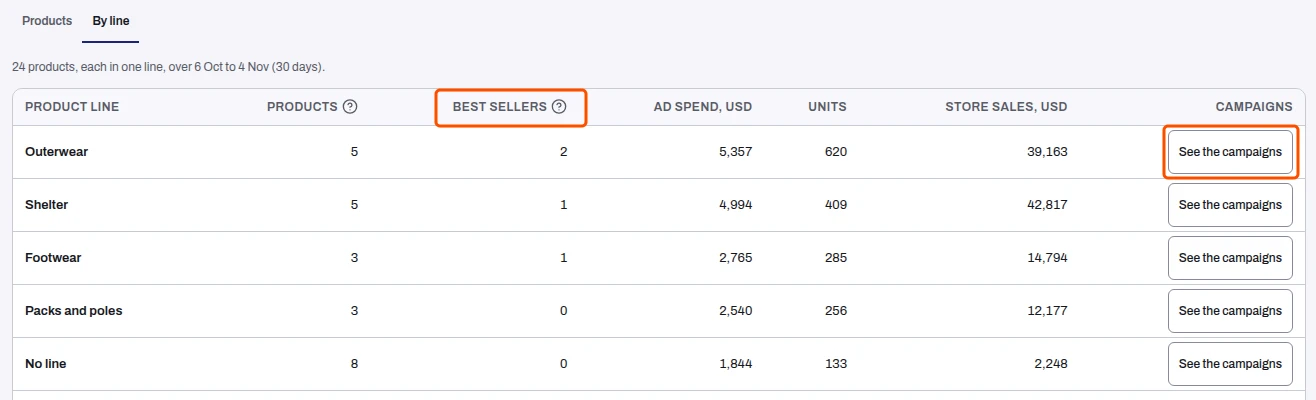
Units and store sales are your store's, for the same days, and never added to the ad spend. Only products that match a store item count.
The Meta Ads tab
One Meta account's catalogue ads figures per product, in its currency. With several, pick one under Meta Ads account; markets stay apart.
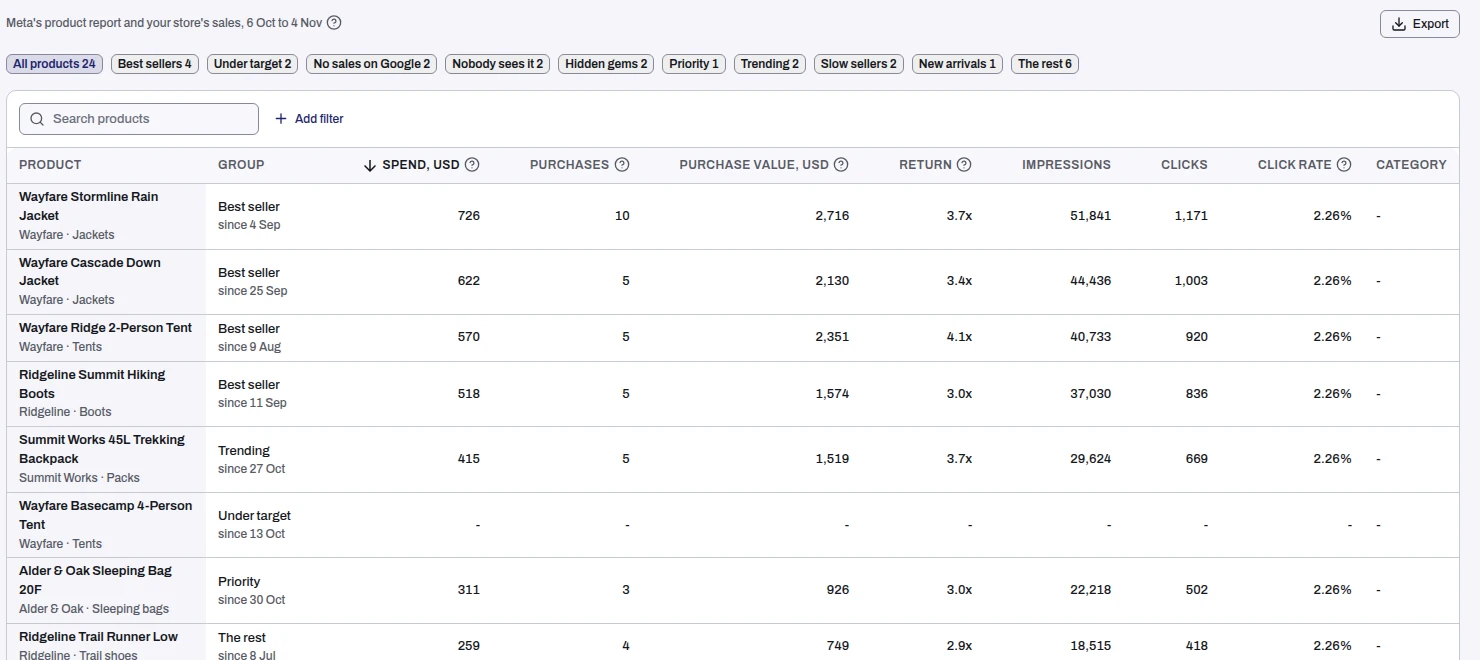
- The line reads, such as, "Meta's product report and your store's sales, 28 Sep to 27 Oct"; each source gives its own days when they differ.
- Two cards at most. No sales ("Stop paying Meta for N products with no sales"), only when Meta spent on them and counted no purchase, with Clicks on Meta and Purchases on Meta. Best sellers with Purchase value on Meta and Purchases on Meta. The plan is on Google Ads.
- Product spend is Meta's. Store match is on Google Ads only.
- The table: Product, Group, Spend, Purchases, Purchase value, Cost per purchase, Return, Impressions, Clicks, Click rate and Category, all Meta's, and all sort (Sorting). Cost per purchase is Meta's spend over its purchases. Return reads "-" under one unit of spend or none. Purchases use Meta's default attribution, views included. It lists the products Meta spent on, most Meta spend first.
- Your store's sales cover every channel, so they are only on the product's page, under Your store, all channels.
- Meta products with no Google match lists, under the table, the Meta products that no Google product of the account meets.
A product's page here shows Meta's figures, with Catalogue availability and Catalogue price.
The product groups
Each group with products has a chip with its count; press it to filter, All products for everything. The ? beside the line at the top gives every rule. Lift regroups after each daily scan.
| Group | Which products |
|---|---|
| Best seller | When groups are judged on your store's sales: at least 3 units sold in 30 days, in the top quarter of the account's products by store sales. On Google's figures: in the top 25% of the account's products by conversion value over 30 days, with at least 3 conversions. |
| Under target | It sells, but its return is under the target of a campaign that showed it, its cost per conversion is over that target, or it had no conversion in a campaign that spent a lot on it. |
| No sales | No conversion in 30 days (on store sales: no unit sold, net of refunds) while spending at least what the account pays for one conversion, or flagged by the product waste check with none, and in stock on every one of those days, by your feed and your store. A product on sale now is not put here; it takes the next group it fits. With a store connected and Google's figures judged, it reads No sales on Google. |
| Sold out | Only a product that would otherwise be No sales, so the same spend rule applies: no sale in 30 days while spending at least what the account pays for one conversion (or flagged by the product waste check), and out of stock on at least one of those days: your product feed showed it out of stock or, with your store connected, your store's stock for it read zero (your store is read each night; a product that does not track stock says nothing). Google stops and restarts showing it with stock. |
| Nobody sees it | Fewer than 50 impressions in 30 days across the account's campaigns. |
| Hidden gem | When groups are judged on your store's sales: it sold at least 3 units in 30 days, at a price (a free item is left out), and Google showed it less than your typical product, meaning its total impressions are below the middle product's. Every size and colour of a product is counted together. On Google's figures, which also apply when a store is connected but its orders do not yet cover enough of your products to judge them: top quarter by Google's conversion value or by store sales, shown less than your typical product, and not a best seller. |
| Priority | Marked push on your merchandising list, until its end date. |
| Trending | Conversion value in the last 7 days at least twice the 7 days before, on at least 3 conversions. |
| Comes back | Refunded at least twice as often as the store's products overall, on at least 5 orders in 60 days. |
| New arrival | First seen in the last 14 days, with under 50 impressions. |
| The rest | Every other product with impressions or cost. |
| On hold | Marked hold on your merchandising list: kept out of every group until its end date. |
| Not in a group | Every campaign that showed it has stopped, or it is new and joins a group at the daily scan. |
A product is in one group. Where several fit, the first wins: On hold and Priority, then Comes back, Sold out, No sales, Under target, Best seller, Hidden gem, Trending, New arrival, Nobody sees it and The rest. When groups are judged on your store's sales, Hidden gem is checked just before Best seller, so a product that fits both is a hidden gem.
Product checks: Products and feed in The checks Lift runs on Google Ads.
One product: its page
Press a row to open the product's own page. Products at the top left goes back to the table with your filters kept. The page shows the product's name, ID and group, its choices, Last 30 days figures, what to do and when Lift looks again, and Each day's read (Google's 30 days to each read day, with each campaign's return against its target).
With a store, Last 30 days puts the store's figures after spend:
- Purchases: units your store sold, with how many were refunded.
- Purchase value: what those orders took, net of discounts and refunds.
- Return: store revenue over Google's spend.
- Store figures shared by: shown when several Google products share one store variant.
Then come Google's own, such as Google's purchases, Google's purchase value, Google's cost per purchase and Google's return, then impressions, clicks, own brand, Store refunded and, with your margin set under Business details > Products and margins, profit. Where product lines are set up, Product line leads the list.
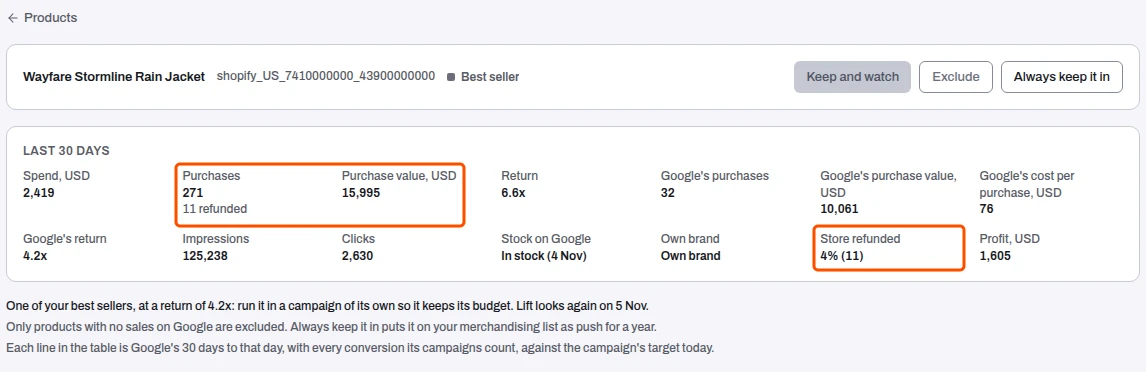
Stock on Google is on every product Google's feed read covers. It gives Google's stock state with its read day, such as "In stock (4 Nov)"; how many listings are sold out when they differ; and, for a product that left the feed, "Not in your product feed since 2 Nov".
Under the figures, a sentence says what to do. The choices at the top right:
- Keep and watch: the product stays in the group its figures give it. In force while it is not on your merchandising list; on a listed product, it takes it off.
- Always keep it in: adds it to your merchandising list as push for a year, so it moves to Priority at the next scan.
- See the plan or Add to the plan, as on the cards.

Changing the list or the plan takes an Owner, Admin or Manager. A Viewer sees the plan without its buttons.
The merchandising list
Lift > Products > Merchandising list tab: one list per Google Ads account, each line with an end date.
- Push: in Priority until the end date, whatever its sales.
- On hold: in no group, and out of the label feed, until the end date.
- Clearance: marks the product; its group does not change.
Add a product takes a Product id or SKU, an Action and an Until date, then Add. Replace from a spreadsheet (Upload) takes a CSV of product ID or SKU, push, hold or clear, and end date (YYYY-MM-DD), one per line, and replaces the whole list. The table shows each line's Action, Until and how many products it Matches; Remove takes one line off the list, and its products go back to their own group. Products move at the next scan.
The label feed
The Label feed tab (Lift > Products > Label feed) writes Lift's groups into one custom label in Merchant Center, so campaigns can include or exclude a group and products follow on their own.
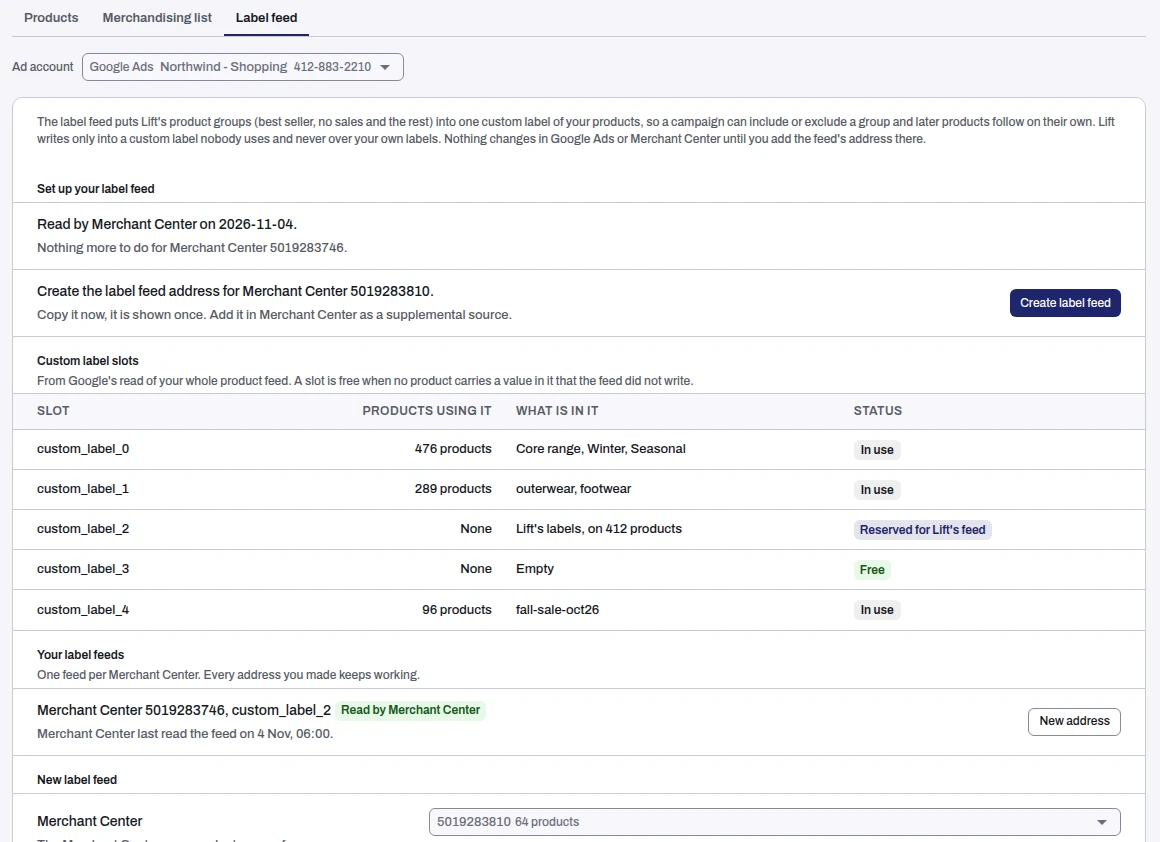
- Set up your label feed: one line per Merchant Center saying what is left to do, such as Create the label feed address, or that it is Read by Merchant Center and there is nothing more to do.
- Custom label slots: custom_label_0 to custom_label_4 with their products, contents and status: Free, In use (your labels) or Reserved for Lift's feed.
- New label feed: pick the Merchant Center and a free Custom label (Lift suggests one), then Create label feed. The address is shown once.
- Your label feeds: Waiting for Merchant Center, Read by Merchant Center (with last read time) or Stopped (your labels are in its slot). New address stops the old one at once.
- Labels: one value per group, each starting "tapper", such as "tapper best seller".
Step by step: Set up the label feed in Google Merchant Center and Meta.
Related
Was this helpful?
Still need help?
Chat with our team and mention this article.