

A Tapper goal says Not driving bidding
On this page
The Bidding row on a Tapper goal card reads Not driving bidding until the goal is attached to at least one campaign. Campaigns counted under Observing feed the goal but do not bid on it.
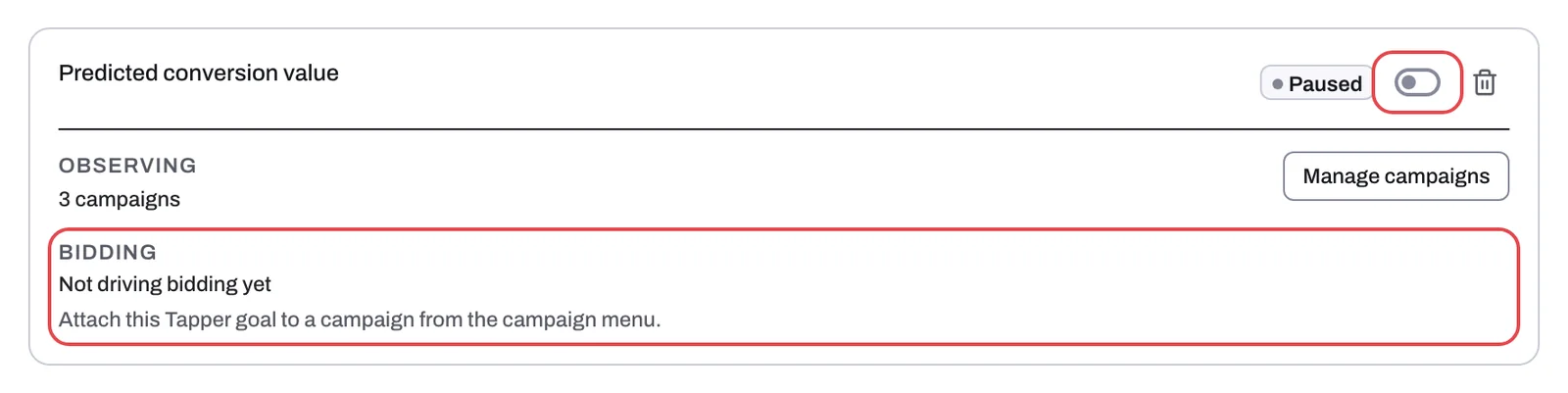
Why it happens
- No campaign is attached. The card says so: "Attach this Tapper goal to a campaign from the campaign menu."
- The goal is paused. You can attach a goal only once it is Active. Every new goal starts paused until Tapper's short setup review.
The bid strategy does not change this row. A campaign attached while it bids on another strategy than Maximize Conversion Value still counts under Bidding, but bidding won't use Tapper's values until it switches to value-based bidding.
Fix it
- With several protected entities, pick the entity in the switcher under the workspace name. Under Setup, select Ad accounts, open Google Ads and then the Tapper goals tab.
- If the goal is new and reads Paused, write to support@tapper.ai so Tapper can switch it on. If you paused it, turn on the switch beside Paused (its tooltip reads Activate).
- Once the goal is Active, open the Campaigns tab, open the ⋮ menu on the campaign's row and click Attach Tapper goal. If the item is grayed out, hover over it: the tooltip says why, for example "No active Tapper goals on this account. Create one first."
- Pick the dialog's choices (Attach a goal to a campaign) and click Attach.
- If a warning about Maximize Conversion Value appears, change the campaign's bid strategy to Maximize conversion value in Google Ads.
- The card's Bidding row now reads Driving with the number of campaigns. On a workspace with Block, the campaign's row also shows the Tapper goal chip.
If it still happens
- Check the account's row on the Google Ads page's Ad accounts tab. If it reads Needs reconnecting, Attach Tapper goal stays grayed out with the tooltip "Reconnect this Google Ads account to set conversion goals." See Reconnect an ad account that stopped working.
- Write to support@tapper.ai with your workspace name, the entity name, the Account ID from the account row and the goal's name as it appears on its card.
Related
Was this helpful?
Still need help?
Chat with our team and mention this article.