

Connect Salesforce (read-only)
On this page
The Salesforce row of Setup > Data sources connects your Salesforce org to Tapper, read-only. Tapper reads each lead's outcome, matches it to the ad click that produced it and shows how many it matched. Salesforce is part of Tapper Vantage, which Tapper enables for your workspace. For the other sources on that page, see Connect your data: Setup > Data sources.
Before you start
- You need the Owner or Admin role. Managers and Viewers cannot change the connection.
- You need a Salesforce user who can sign in and approve the connection for your org. The public guide Connect Salesforce lists the editions that can connect and the read access your Salesforce admin sets up first.
- Your Salesforce admin gives that user a permission set with API Enabled and Read, and only Read, on Lead, Opportunity, Contact, Account, Task and Event. Task and Event access is for sales activity outcomes, never their subject or description.
Connect Salesforce
- With several protected entities, pick the entity in the switcher at the top of the sidebar.
- Under Setup, click Data sources. Salesforce is in the Leads and customers group.
- Read the note on the Salesforce row: "Your Salesforce admin first grants API access and read on Lead, Opportunity, Contact and Account." The group is read-only: "Tapper never changes anything in Salesforce, Mailchimp or Marketing Cloud."
- Click Continue with Salesforce.
- Sign in to Salesforce and approve the access. Back on Setup > Data sources, a message confirms "Salesforce connected."
Start syncing
A new connection starts paused: the row reads Paused with your org's address.
- Press Manage, then open the Settings tab. The switch reads Syncing paused.
- Check the Click ID field: the Salesforce field Tapper reads the Google click ID from, detected when you connect. Syncing needs one. If it reads "None found. Matching uses Tapper click data.", see Add the Click ID field to Salesforce leads first.
- Turn the switch on. It reads Syncing enabled and the 12-month backfill begins.
- The page then says how often Tapper checks Salesforce. With the default interval it reads "Syncing every 15 minutes."
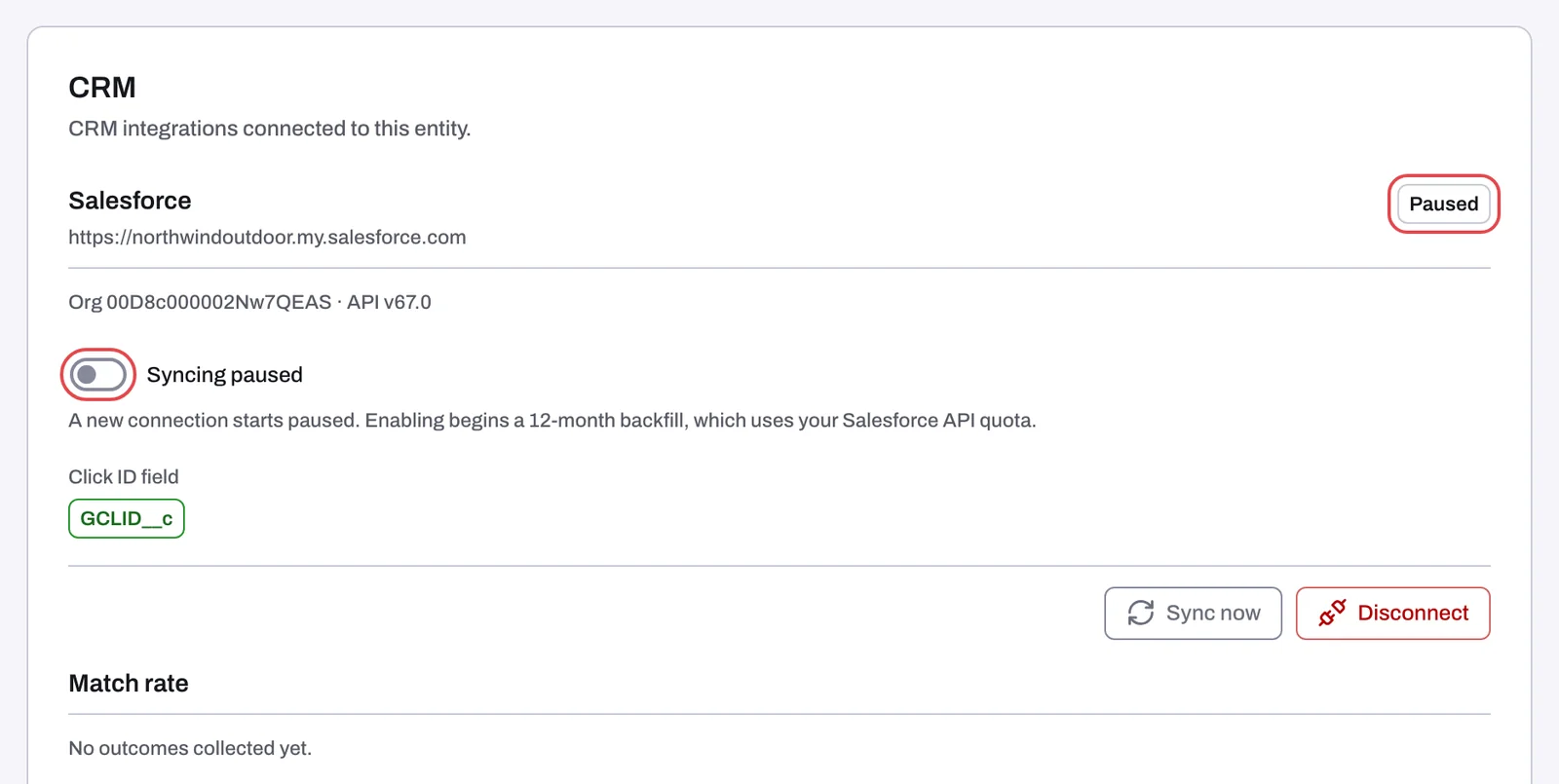
The Salesforce page
Under its heading the page says whether syncing runs and when it last synced, for example "Syncing every 15 minutes. Last sync: 30 Oct, 08:00." The header has Sync now, which runs a sync straight away while syncing is on, and Disconnect.
| Tab | What it shows |
|---|---|
| Overview | Outcomes matched to an ad click (the match rate) and Outcomes by stage |
| Settings | The Syncing enabled or Syncing paused switch, the Click ID field (read-only) and the Connected account: the org and user Tapper reads with |
| Activity | Sync status: one row per synced Salesforce object, with its backfill, when it is up to date as of, and when it was last checked |
Disconnect ends the connection: "Tapper's access to Salesforce is revoked and syncing stops. Outcomes already collected are kept."
If something goes wrong
- Paused or "Salesforce sync stopped on {date}": see Salesforce shows Paused or a stopped sync.
- "Syncing was not changed. Try again.": check the Click ID field first. If it names a field, try again, then write to support@tapper.ai.
- A low match rate: see Add the Click ID field to Salesforce leads.
Related
Was this helpful?
Still need help?
Chat with our team and mention this article.