

Connect Salesforce (read-only) on the CRM tab
The CRM tab on an entity connects your Salesforce org to Tapper, read-only. Tapper reads each lead's outcome from Salesforce, matches it back to the ad click that produced it, and shows on the tab how many outcomes it could match. The CRM tab is part of Tapper Vantage, which Tapper enables for your workspace: see Tapper Vantage: what it is and how it works.
Before you start
- You need the Owner or Admin role in the workspace. Editor members cannot see or change the connection.
- You need a Salesforce user who can sign in and approve the connection for your org. The public guide Connect Salesforce lists the Salesforce editions that can connect and the read access your Salesforce admin sets up first.
Connect Salesforce
- Open Protected Entities and open the entity whose leads you want to match.
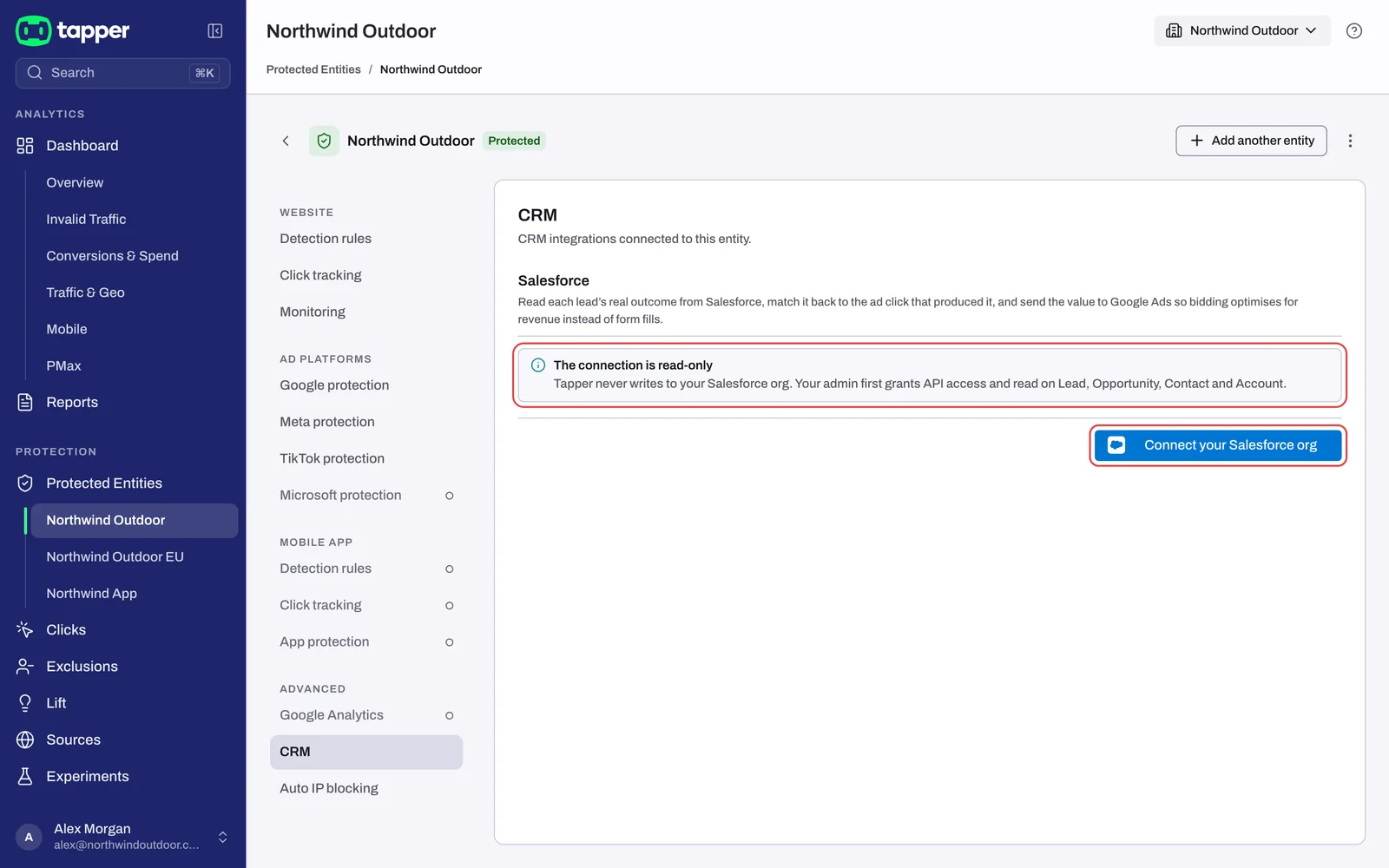
- In the entity's left rail, under Advanced, click CRM.
- In the Salesforce section, read the notice The connection is read-only: "Tapper never writes to your Salesforce org. Your admin first grants API access and read on Lead, Opportunity, Contact and Account."
- Click Connect your Salesforce org.
- Sign in to Salesforce and approve the access Tapper asks for. You come back to the CRM tab, and a message confirms "Salesforce connected."
Start syncing
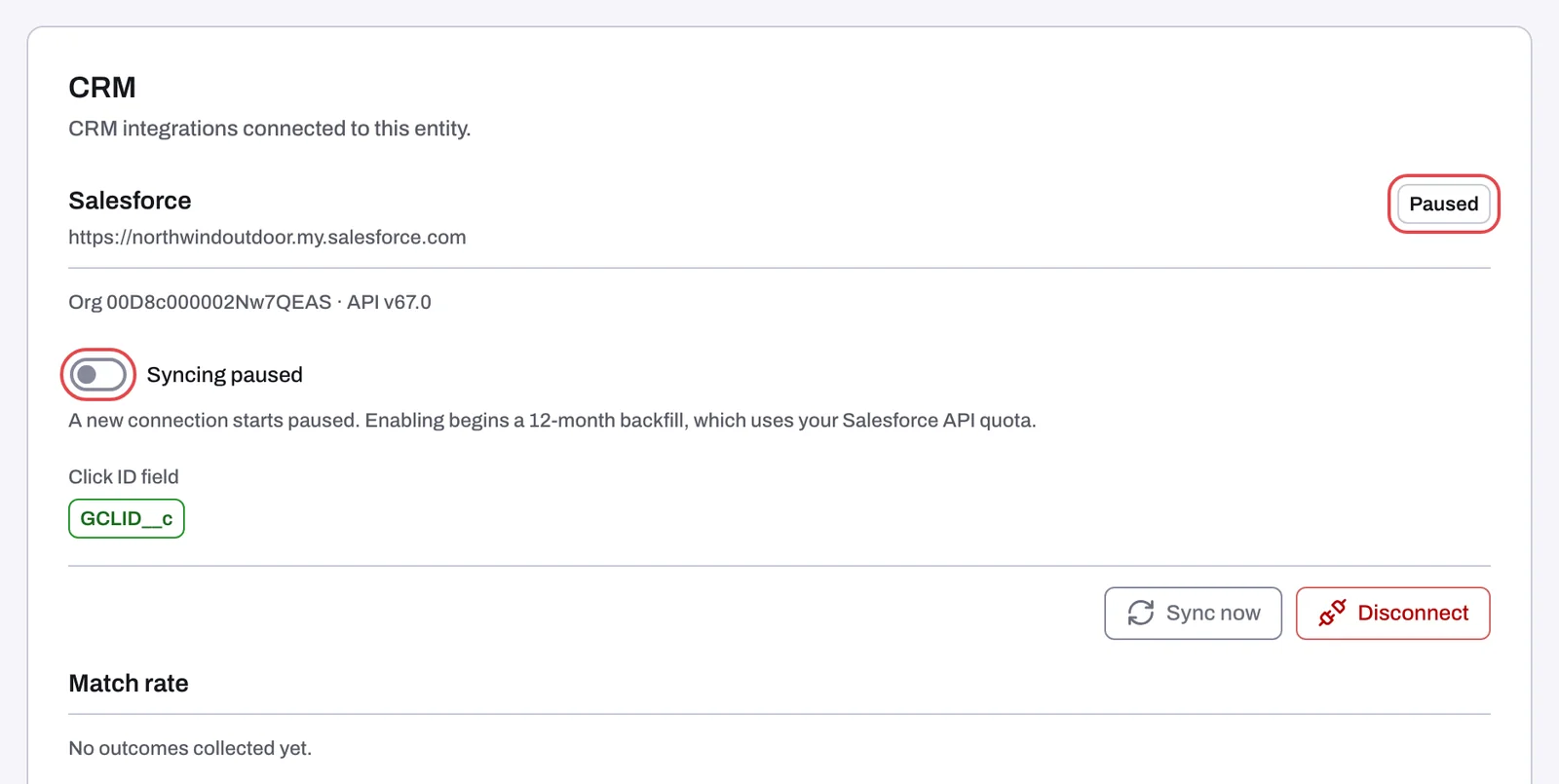
A new connection starts paused. The status chip reads Paused and the switch reads Syncing paused.
- Check the Click ID field. It shows the Salesforce field Tapper reads the Google click ID from, which Tapper detects when you connect. If it reads "None found. Matching uses Tapper click data.", add a click ID field before you turn syncing on, because syncing needs one. See Add the Click ID field to Salesforce leads.
- Turn the switch on. It reads Syncing enabled, the chip changes to Syncing, and the 12-month backfill begins.
- From then on the tab shows how often Tapper checks Salesforce. With the default interval it reads "Syncing every 15 minutes."
What happens next
Once the connection is in place, the tab shows:
| Item | What it tells you |
|---|---|
| Status chip | Syncing while syncing is on, Paused while it is off, Sync error when a sync has stopped (a notice under the heading says why) |
| Sync now | While syncing is on, runs a sync straight away instead of waiting for the next scheduled one |
| Switch | Syncing enabled or Syncing paused. Switch it off to pause syncing at any time. |
| Click ID field | The Salesforce field Tapper reads the click ID from (read-only) |
| Match rate | How many outcomes Tapper matched to an ad click, split into Salesforce click ID, Tapper click data and Unmatched |
| Sync status | How the sync is progressing |
| Disconnect | Ends the connection. The confirmation reads: "Tapper's access to Salesforce is revoked and syncing stops. Outcomes already collected are kept." |
If something goes wrong
- The chip stays Paused. Every new connection starts that way. Turn the switch on when you are ready. See Salesforce shows Paused or Sync error.
- Turning the switch on shows "Syncing was not changed. Try again." Check the Click ID field first: syncing needs a click ID field. If a field is shown, try again, then write to support@tapper.ai.
- The chip reads Sync error. A sync has stopped, and the notice under the Salesforce heading says why. The same article walks through the fix.
- The match rate is low. That usually means the click ID field is missing on your leads, or empty. See Add the Click ID field to Salesforce leads.
Related
Was this helpful?
Related articles
Still need help?
Chat with our team and mention this article.