

Salesforce shows Paused or Sync error
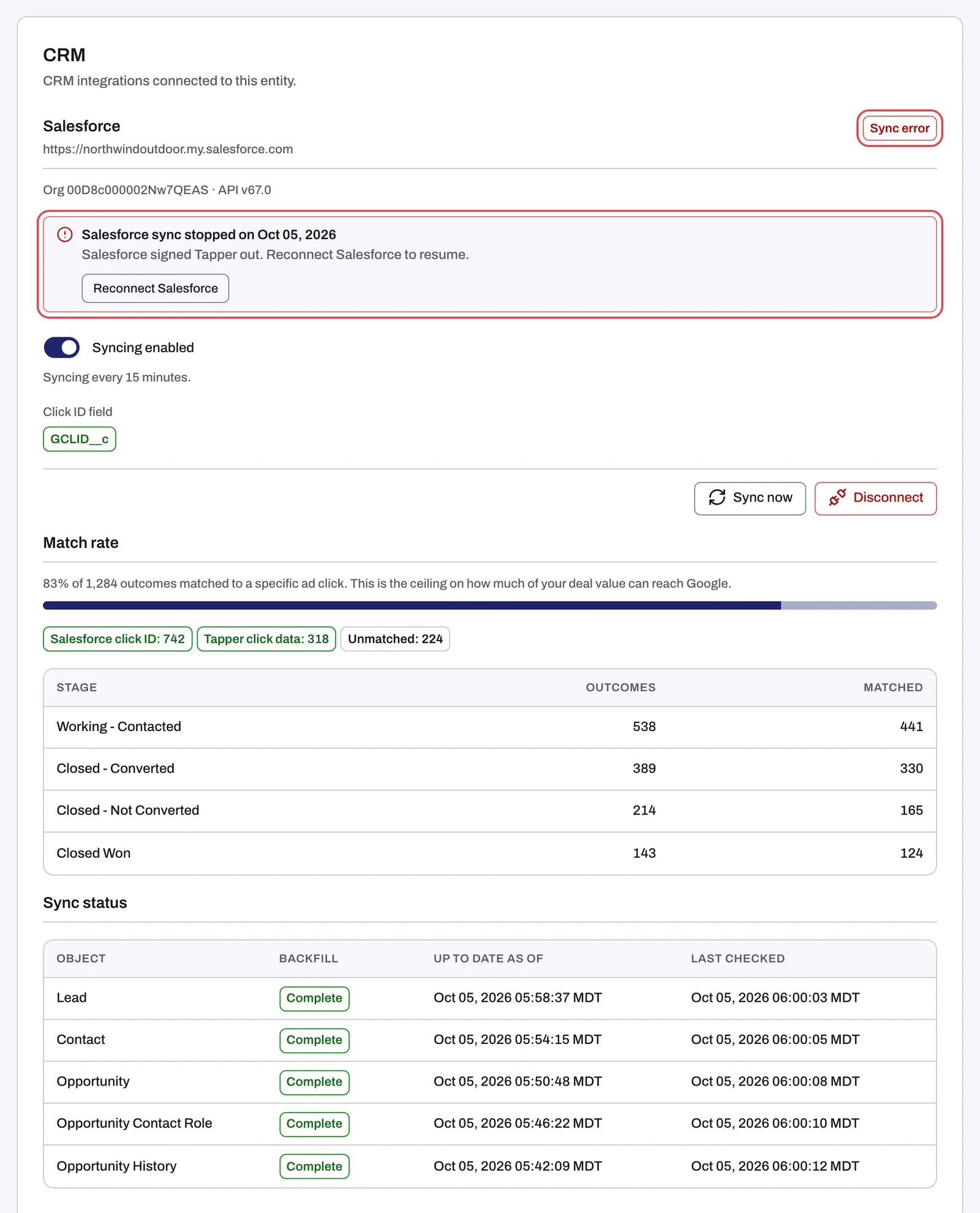
On an entity's CRM tab, the chip next to the Salesforce heading reads Syncing, Paused or Sync error. Paused is normal for a new connection: syncing has not been switched on yet. Sync error means a sync stopped, and the tab tells you why.
Why it happens
Paused
- Every new connection starts paused.
- Or someone in your workspace switched syncing off. The switch then reads Syncing paused.
Sync error
- A sync stopped. A notice under the Salesforce heading reads "Salesforce sync stopped on {date}" and gives the reason, for example:
- "Salesforce signed Tapper out. Reconnect Salesforce to resume."
- "Your org used up its daily Salesforce API limit. Resume syncing once the limit resets."
- "The connected Salesforce user lost API access. Ask your Salesforce admin to restore it, then reconnect Salesforce."
- The switch still reads Syncing enabled, so there is nothing to turn back on with it.
Fix it
The chip says Paused
- Open Protected Entities, open the entity, and click CRM under Advanced in the left rail.
- Check that the Click ID field names a Salesforce field. If it reads "None found. Matching uses Tapper click data.", set one up first: syncing needs one, and until it is in place, turning the switch on shows "Syncing was not changed. Try again." See Add the Click ID field to Salesforce leads.
- Agree on the timing with your Salesforce admin, because enabling begins a 12-month backfill that uses your Salesforce API quota.
- Turn the switch on. It reads Syncing enabled and the chip changes to Syncing.
- After that, Tapper syncs on a schedule, every 15 minutes by default. Sync now runs a sync straight away when you do not want to wait.
The chip says Sync error
- On the CRM tab, read the notice "Salesforce sync stopped on {date}" under the Salesforce heading.
- If it says your org used up its daily Salesforce API limit, wait until the limit resets, then click Resume syncing.
- Otherwise, fix the cause it names with your Salesforce admin. For example, check that the Salesforce user that connected Tapper can still sign in and still has the access described in the public guide Connect Salesforce.
- Click Reconnect Salesforce and sign in again as a Salesforce user with the right access. This restores the existing connection and clears the error; it does not start a new connection.
- Look at the Sync status section: the Last checked time moves on once syncing runs again.
If it still happens
Write to support@tapper.ai and include:
- your workspace name and the entity name as it appears under Protected Entities;
- the chip text and any message shown under the Salesforce heading, word for word, or a screenshot;
- roughly when the sync stopped and anything that changed in Salesforce around then.
How to get help from Tapper lists what else helps the first reply solve it.
Related
Was this helpful?
Related articles
Still need help?
Chat with our team and mention this article.