

Tapper goals: let Google bid on predicted conversion value
A Tapper goal gives a Google Ads campaign something new to bid on. It creates a conversion action and a custom goal in your Google Ads account, and you attach it to the campaigns that should bid on it. Tapper goals are part of Tapper Vantage and live on the entity's Google protection tab.
Before you start
- A Google Ads account is connected to the entity. See Connect Google Ads.
- You have the Owner or Admin role in the workspace.
- On a Block + Lift workspace the Tapper goals section is always there. On a Lift only workspace it appears once Tapper enables Vantage for the workspace: write to support@tapper.ai to have it enabled. See Tapper Vantage: what it is and how it works.
- The campaigns you attach a goal to should bid on Maximize Conversion Value in Google Ads.
Create a Tapper goal
- Open Protected Entities, open the entity, and click Google protection under Ad platforms in the left rail.
- On the Overview sub-tab, find the Tapper goals section. If the entity has several Google Ads accounts, use the All accounts filter to narrow the list to one.
- Click New Tapper goal.
- If the dialog shows an Account field, pick the Google Ads account the goal is for.
- Under "What should Google optimise for?", choose Predicted conversion value.
- Under "Which campaigns feed it?", choose All campaigns or Selected campaigns only and tick the campaigns the goal observes.
- Click Create. A card for the goal appears in the section with the status Paused.
A new Tapper goal starts paused until Tapper's short setup review. Write to support@tapper.ai with the entity name and the goal's name. Once the goal is Active, you can attach it to campaigns.
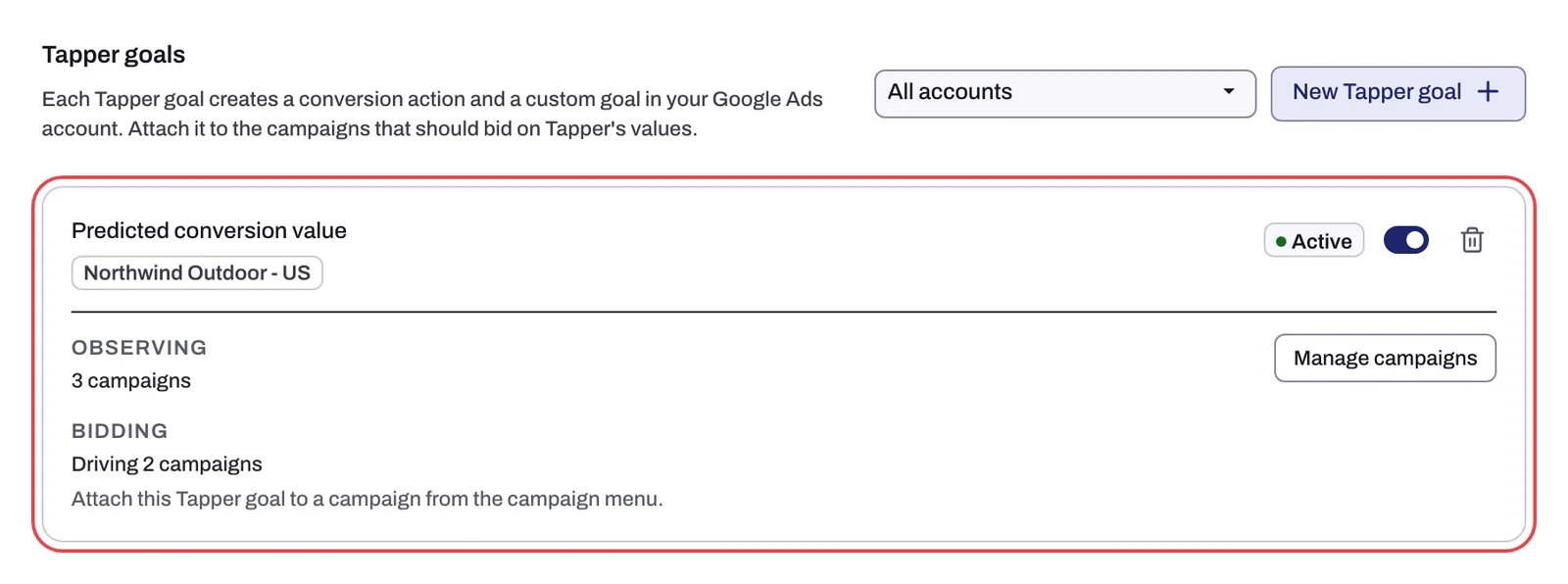
Read a goal card
| Row | What it shows |
|---|---|
| Status | Active or Paused, with a switch beside it whose tooltip reads Activate or Pause. |
| Observing | How many campaigns feed the goal, or All campaigns. Manage campaigns opens Campaigns feeding this Tapper goal, where you change them and click Save. |
| Bidding | Not driving bidding yet until the goal is attached to at least one campaign, then Driving and the number of attached campaigns, for example "Driving 2 campaigns" |
Observing and bidding are separate. A campaign can feed a goal without bidding on it, and the Bidding row changes only when you attach the goal to a campaign.
Attach a goal to a campaign
- On the Google protection tab, open the Manage campaigns sub-tab.
- Find the campaign on the Campaigns view and open the ⋮ menu on its row.
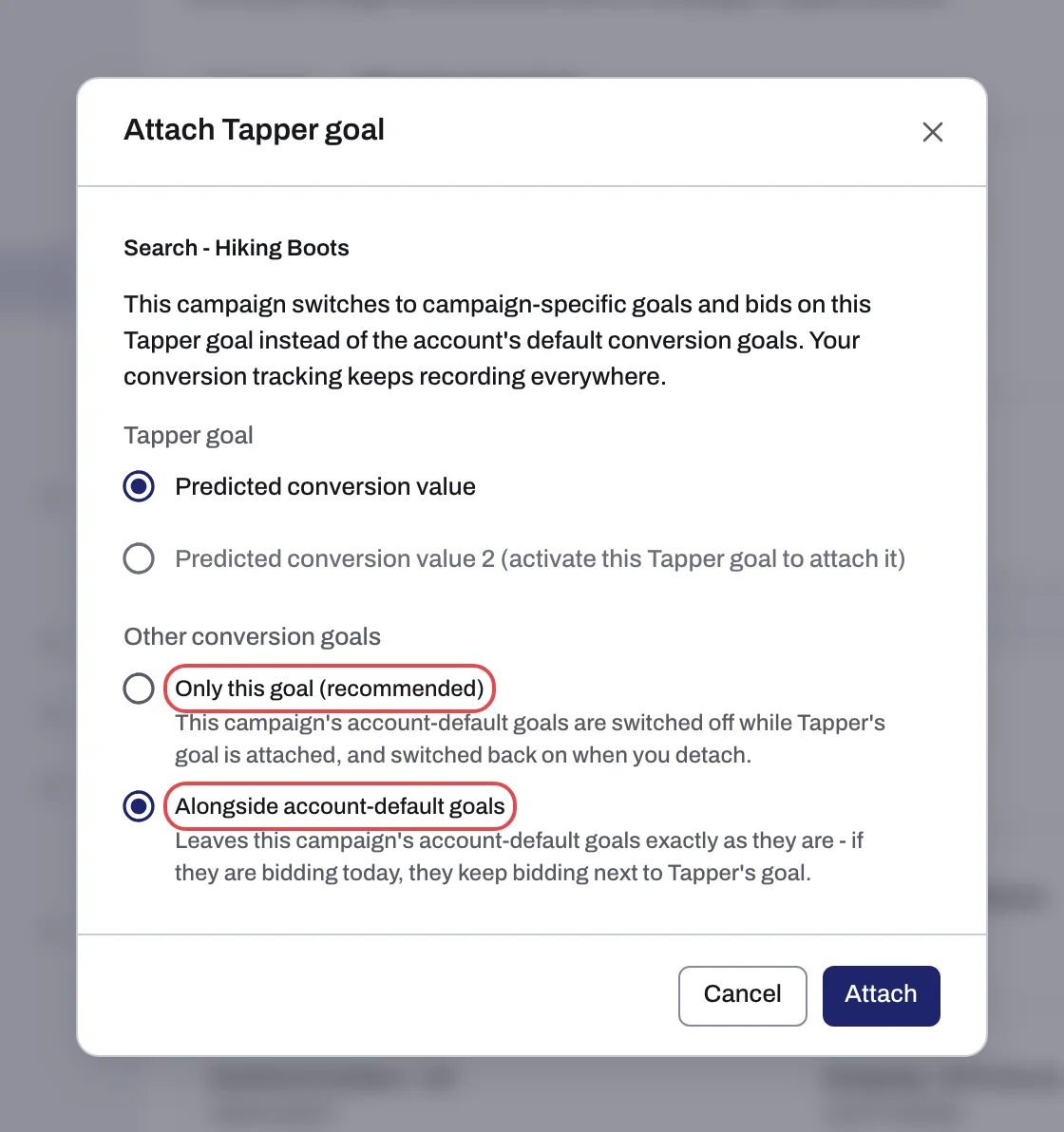
- Click Attach Tapper goal. If the account has more than one Tapper goal, pick one under Tapper goal. Only an Active goal can be picked; a paused one is marked "activate this Tapper goal to attach it".
- Under Other conversion goals, choose one:
- Only this goal (recommended): the campaign bids on the Tapper goal alone.
- Alongside account-default goals: the campaign keeps bidding on your account-default conversion goals as well. This is the default.
- Click Attach. The goal card's Bidding row now counts the campaign. On a Block + Lift workspace the campaign's row also shows the Tapper goal chip in its Protection column; when the account has more than one Tapper goal, the chip names the goal, for example "Tapper goal: Predicted conversion value".
Change, detach or delete
- To change the goal or the Other conversion goals choice on a campaign, open the row's ⋮ menu and click Edit Tapper goal attachment.
- To stop a campaign bidding on the goal, click Detach Tapper goal in the same menu, then Detach.
- To pause a goal, turn off the switch beside Active on its card (its tooltip reads Pause). A paused goal stops uploading values and cannot be attached. Turning the switch back on (its tooltip then reads Activate) restarts a goal you paused.
- To delete a goal, click the trash icon on its card, then Delete in the Delete Tapper goal? dialog. Deleting detaches it from any campaign bidding on it and leaves the conversion action it created in your Google Ads account.
If something goes wrong
- The goal stays Paused. A new goal is switched on by Tapper after a short setup review. Write to support@tapper.ai.
- Attach Tapper goal is grayed out. Hover over it: the tooltip says why, for example "No active Tapper goals on this account yet. Create one first." or "Reconnect this Google Ads account to set conversion goals."
- The card still says Not driving bidding yet. See A Tapper goal says Not driving bidding yet.
Related
Was this helpful?
Related articles
Still need help?
Chat with our team and mention this article.