

Add the Click ID field to Salesforce leads
Tapper matches a Salesforce lead to the Google Ads click that produced it through the Google click ID, the GCLID. When the GCLID is stored on your Salesforce leads, Tapper reads it during each sync and ties the lead's outcome to a specific ad click.
Before you start
- Salesforce is connected on the entity's CRM tab. See Connect Salesforce (read-only) on the CRM tab.
- A Salesforce admin can add a field to your leads, and someone can edit the lead form on your website.
Store the click ID on your leads
This part happens in Salesforce and on your lead form, not in Tapper. The public guide Add the Click ID Field has the full steps. In outline:
- In Salesforce, create a field on the Lead object to hold the click ID.
- Make sure the Salesforce user that connected Tapper can see the field.
- On your lead form, capture the
gclidvalue from the landing page URL into that field. - Submit a test lead and check that the value lands on the new lead in Salesforce.
If your leads already carry a click ID, for example because you import offline conversions into Google Ads, check with whoever set that up before you build a second field.
Check the field in Tapper
- Open Protected Entities, open the entity, and click CRM under Advanced in the left rail.
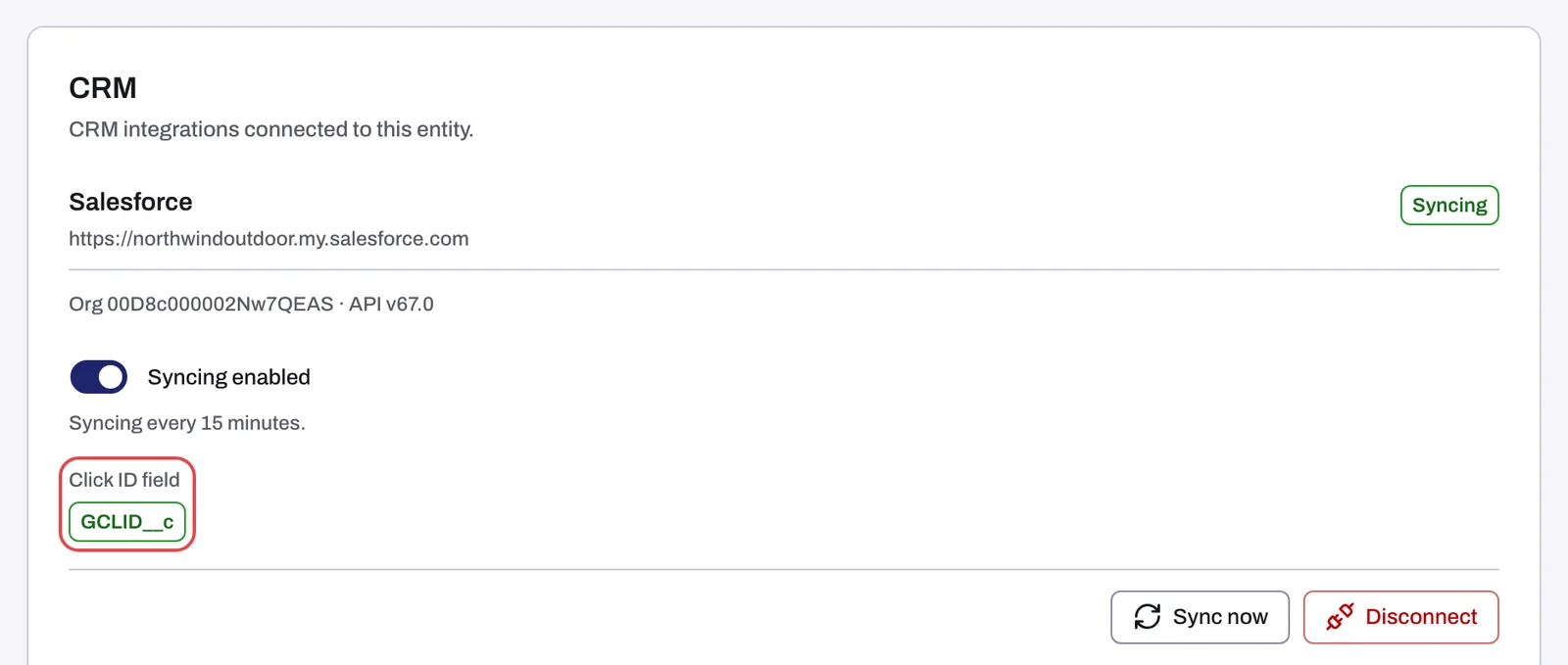
- Look at Click ID field. It shows the Salesforce field Tapper reads the click ID from. It is read-only: Tapper detects the field from your Salesforce org when you connect.
- Check that it names the field you created.
What happens next
The Match rate section shows how many of the outcomes Tapper read from Salesforce it could tie to an ad click, with three chips:
| Chip | What it counts |
|---|---|
| Salesforce click ID | Outcomes matched through the click ID stored on the Salesforce record |
| Tapper click data | Outcomes matched through Tapper's own record of the ad click |
| Unmatched | Outcomes Tapper could not tie to an ad click |

If something goes wrong
- The Click ID field reads "None found. Matching uses Tapper click data." or names another field. First check that the Salesforce user that connected Tapper can see your field: Tapper sees the fields that user can see. Tapper looks for the field when Salesforce is connected, so for a field you added afterwards, write to support@tapper.ai with the entity name and the field's API name in Salesforce. Syncing needs a click ID field, so set it up before you turn syncing on.
- The match rate stays low. That usually means the click ID field is missing on your leads, or empty. Open a recent lead in Salesforce and check that the field holds a value. If it is empty, check how your lead form captures the click ID.
- Some campaigns skip Tapper's tracking. On a Block + Lift workspace, Tapper sets a tracking template on your Google Ads account that passes the
gclidof every click to Tapper. Where a campaign, ad group or ad has its own tracking template, it overrides Tapper's, and Tapper can't see those clicks. The dashboard warns you with the banner Some ads skip Tapper's tracking and offers Fix tracking. Until it is fixed, leads from those clicks can only match through the Salesforce click ID. See Fix campaigns, ad groups or ads that override Tapper's tracking.
Related
Was this helpful?
Related articles
Still need help?
Chat with our team and mention this article.