

Add the website tag with Google Tag Manager
On this page
With Google Tag Manager (GTM) you can add the website tag without touching your site's code: paste it into a Custom HTML tag, or use the Tapper - Monitoring Script template with your entity's public key. Both load the same script on every page.
Before you start
- GTM is installed on your site, and you can publish in its container.
- Your workspace has Block.
- The entity has a connected ad account. Until then, Monitoring in Setup > Website asks you to connect an ad platform first.
Step 1: copy the script from Tapper
- With more than one entity, pick the entity in the switcher at the top of the sidebar.
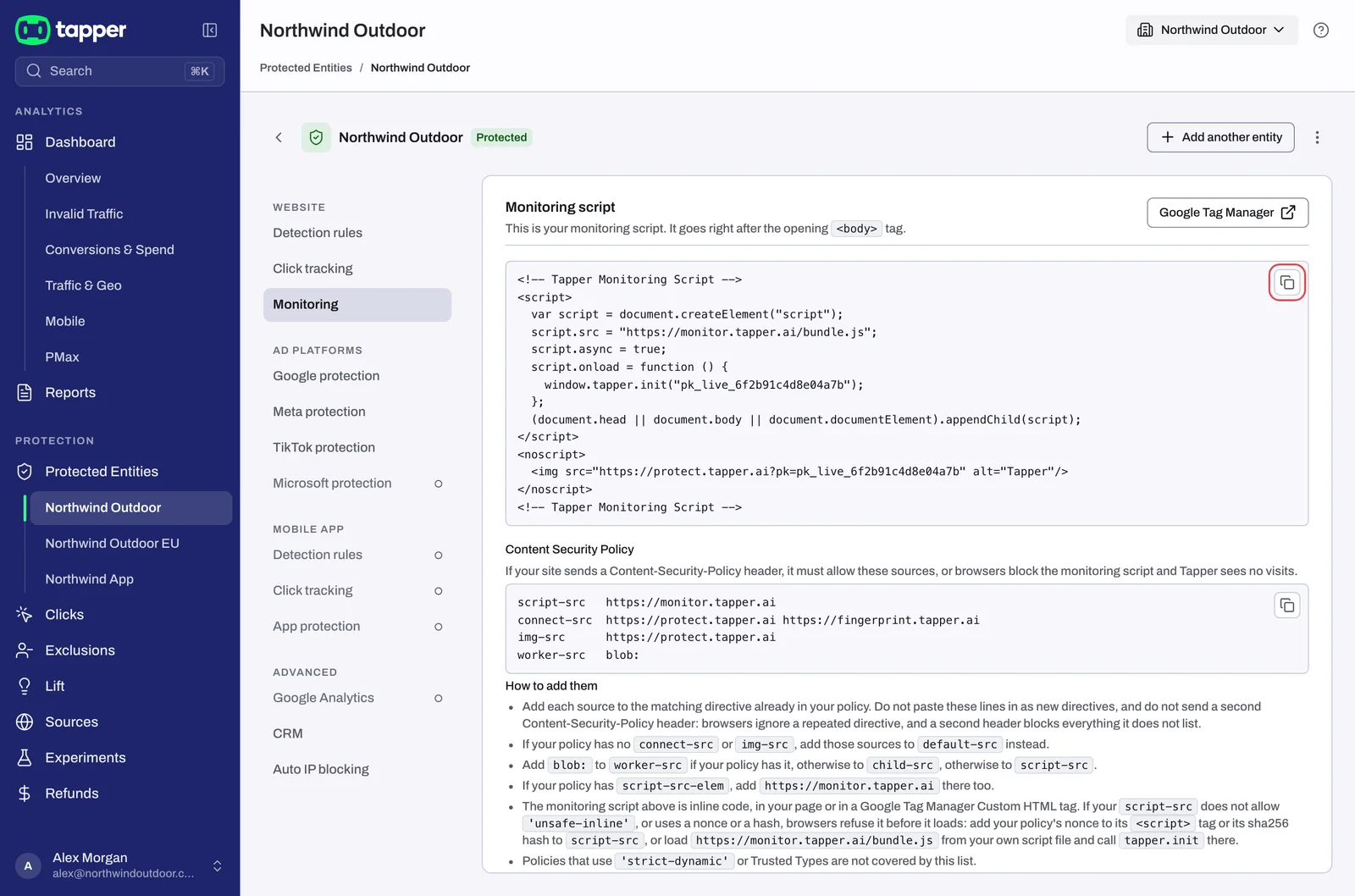
- Under Setup, click Website, then Monitoring.
- Open the Install script and consent tab. Under Monitoring script, click the copy button at the top right of the code box.
 Example: drawn with made-up figures.
The public key is already in the script: the value inside window.tapper.init("..."), starting with pk_live_ or pk_test_. Option B asks for it.
Step 2, option A: a Custom HTML tag
- In GTM, open your site's container and go to Tags.
- Click New.
- Click Tag Configuration and choose Custom HTML.
- Paste the script into the HTML field.
- Under Triggering, choose Initialization - All Pages, so the script runs as every page starts loading.
- Name the tag, for example "Tapper - Monitoring Script", and click Save.
Step 2, option B: the Tapper - Monitoring Script template
- Add the Tapper - Monitoring Script template from the Community Template Gallery.
- Create a tag and choose Tapper - Monitoring Script as its type.
- In Public Key (labeled pk in some versions), paste the key from step 1. The field's help text says to find it under "Settings → Public Key" in Tapper. Ignore that: there is no such setting, and the key is the value inside
window.tapper.init("..."). - Set the trigger to All Pages.
- Name the tag and click Save.
Use one option, not both, so the script loads once per page.
Step 3: publish
- Click Submit.
- Enter a version name and description, such as "Add Tapper website tag".
- Click Publish.
What happens next
Use GTM's Preview mode to confirm the tag fires on every page, then check that the website tag is working.
If something goes wrong
- The template rejects the key. Copy it again from inside
window.tapper.init("..."), without the quotes. It starts withpk_live_orpk_test_. - The tag fires, in Preview or live, but Tapper shows no visits. Check your Content Security Policy first, then the check article above. If you use the template, you can also try a Custom HTML tag (option A) in its place and publish again.
- No script appears under Monitoring. Connect an ad account to the entity first.
Open the install guide on the same tab opens the website tag guide on docs.tapper.ai. Or write to support@tapper.ai.