

Conversion pages: count conversions without a snippet
On this page
List the pages that mean a customer converted, such as an order confirmation, and Tapper counts a conversion when a visitor reaches one. The monitoring script already sees every page view, so nothing new goes on your site. Use this when nobody can tag the confirmation page, or your tag manager cannot fire a tag on that page alone.
Before you start
- The monitoring script must be on your site, confirmation pages included.
- Only workspace Owners and Admins can add or change a conversion page.
Add a page
- With more than one protected entity, pick the entity in the switcher at the top of the sidebar.
- Under Setup, click Website, then Monitoring, and open the Conversions tab.
- Click Add page.
- In Add conversion page, fill in Name, for example "Order confirmation".
- Pick a Rule (see the table) and fill in Address or Text on the page below it.
- Optionally enter Value (optional), what one conversion is worth, and Currency, a three-letter code such as
USD. Give both or neither. - Leave Counts as a conversion signal on for a success page. Turn it off for a result such as declined or pending.
- Click Add page at the bottom of the dialog.
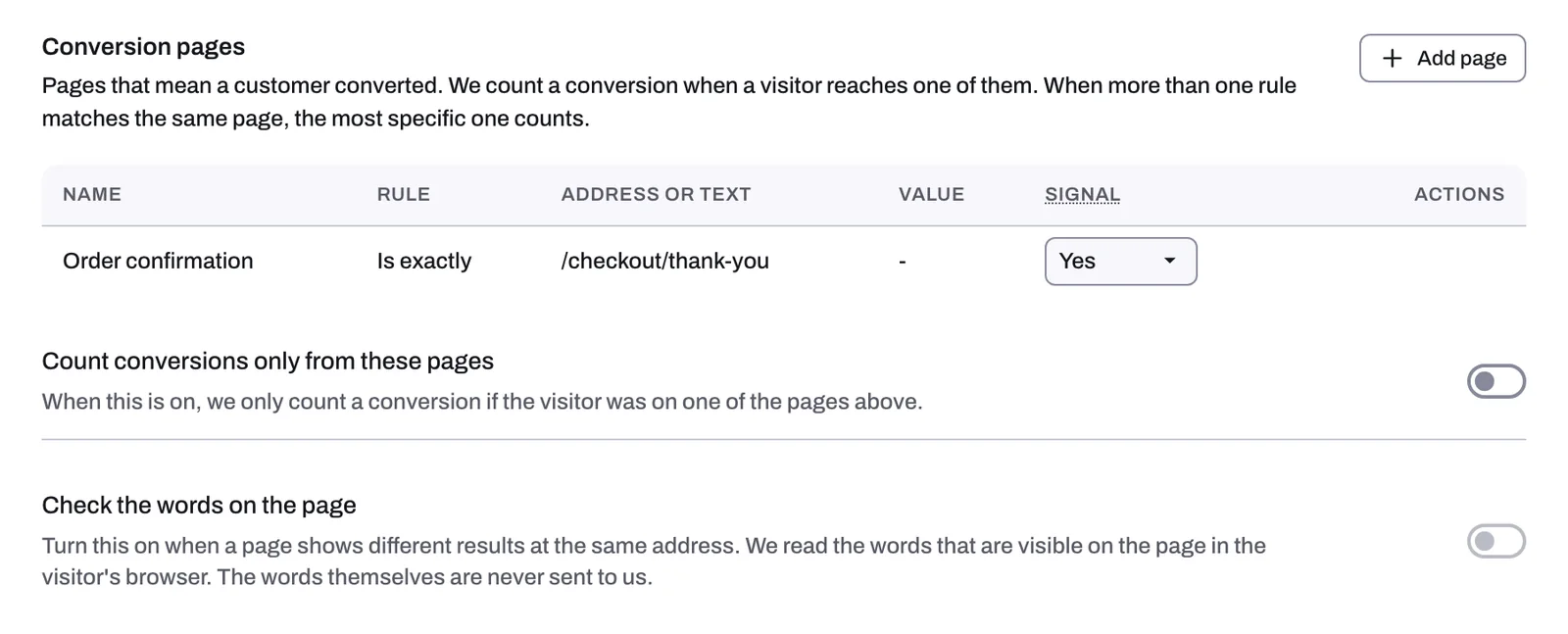
To edit, hover over the row: a pencil and a trash icon appear in the Actions column, which looks empty until then. The pencil opens Edit conversion page; click Save when done. The trash removes the page after you confirm with Delete; conversions already recorded are kept.
| Rule | What it matches |
|---|---|
| Is exactly | The address must be exactly this, and nothing else. |
| Contains | The address contains this text anywhere in it. |
| Starts with | The address begins with this text. |
| Matches pattern | Advanced: the address matches this regular expression. |
| Page text contains | The words on the page contain this text. |
| Element text contains | The words inside one part of the page contain this text. Use this when only one area shows the result. |
Address rules: enter the part after your domain, such as /checkout/thank-you. Case does not matter. Anything after ? or # is ignored, so an order id or campaign parameter does not stop a match.
Text rules: enter words that appear only after a conversion, such as your application has been approved, and never on a page that is not one. Case and extra spaces do not matter. Element text contains also asks for Part of the page: the id or class of the area that shows the result, such as #status. Your developer can give you this.
The two switches under the list
| Switch | What it does |
|---|---|
| Count conversions only from these pages | Conversions your site reports from anywhere else stop counting. It stays grayed out while the list is empty. |
| Check the words on the page | Tapper reads the words visible in the visitor's browser. The words themselves are never sent to Tapper. Turn it on when you use a text rule: text rules count nothing while it is off, and it stays grayed out until the list has one. |
How conversions are counted
- One conversion per visitor, per page, per day. Ten reloads count once.
- When several rules match a page, the most specific one counts.
- Each row's Signal is a Yes or No dropdown, the same setting as Counts as a conversion signal. Owners and Admins change it in the row and it saves at once. Yes means a visitor who reaches the page is treated as a real customer when Tapper checks your traffic. Either way, the conversion counts in your numbers.
Conversion pages or the conversion script?
You can run both. A conversion page has one fixed value, the one you set, so it suits conversions worth roughly the same. Each order's real value, currency and order id come only from the conversion script. If your order values vary, see Install the conversion script: GTM, Shopify, PrestaShop or JavaScript.
The guide is also on docs.tapper.ai: Conversion Pages.
Related
Was this helpful?
Still need help?
Chat with our team and mention this article.