

A real customer was blocked: what you can do
A customer tells you they no longer see your ads, or you find someone you know is genuine on the Exclusions page. Tapper has no unblock button: the Exclusions page and its visitor drawer have no action to release a visitor or add them to an allowlist. What you can do is find out why the visitor was excluded, change the setting behind it, and let the existing exclusion lapse or remove it where Tapper gives you a control.
Why it happens
Every exclusion comes from a rule or a signal, shown as its block reason. A genuine customer can trip one: clicking your ads several times while comparing prices, browsing through a VPN, being in a country your rule blocks, leaving your page within seconds, or sharing an address with someone you excluded by hand. Tapper excludes by IP address and by visitor, so the exclusion follows the address and the visitor rather than the person's intent.
Fix it
Find the visitor and the reason
- Open Exclusions in the sidebar. In the row above the table, pick the platform with the platform button (it shows the current one, such as Google Ads) and set the date range.
- If you know the campaign or the reason, click Add filter, choose Campaign or Block reason, pick the value and click Apply. The filter then shows as a chip in the row. On Meta Ads and TikTok Ads the Campaign filter does not narrow the list, so filter by Block reason there.
- Find the visitor's row. If you know the customer's IP address, look for it in the IP address column (shown unless your workspace hides sensitive information).
- On Google Ads, click the row to open the visitor drawer. Note the Block reason, the IP Address, whether Audience based block and IP based block apply, and the visitor id in the header. On Meta Ads, TikTok Ads and Microsoft Ads the row does not open a drawer; read the block reason, the visitor id and the IP address from the columns.
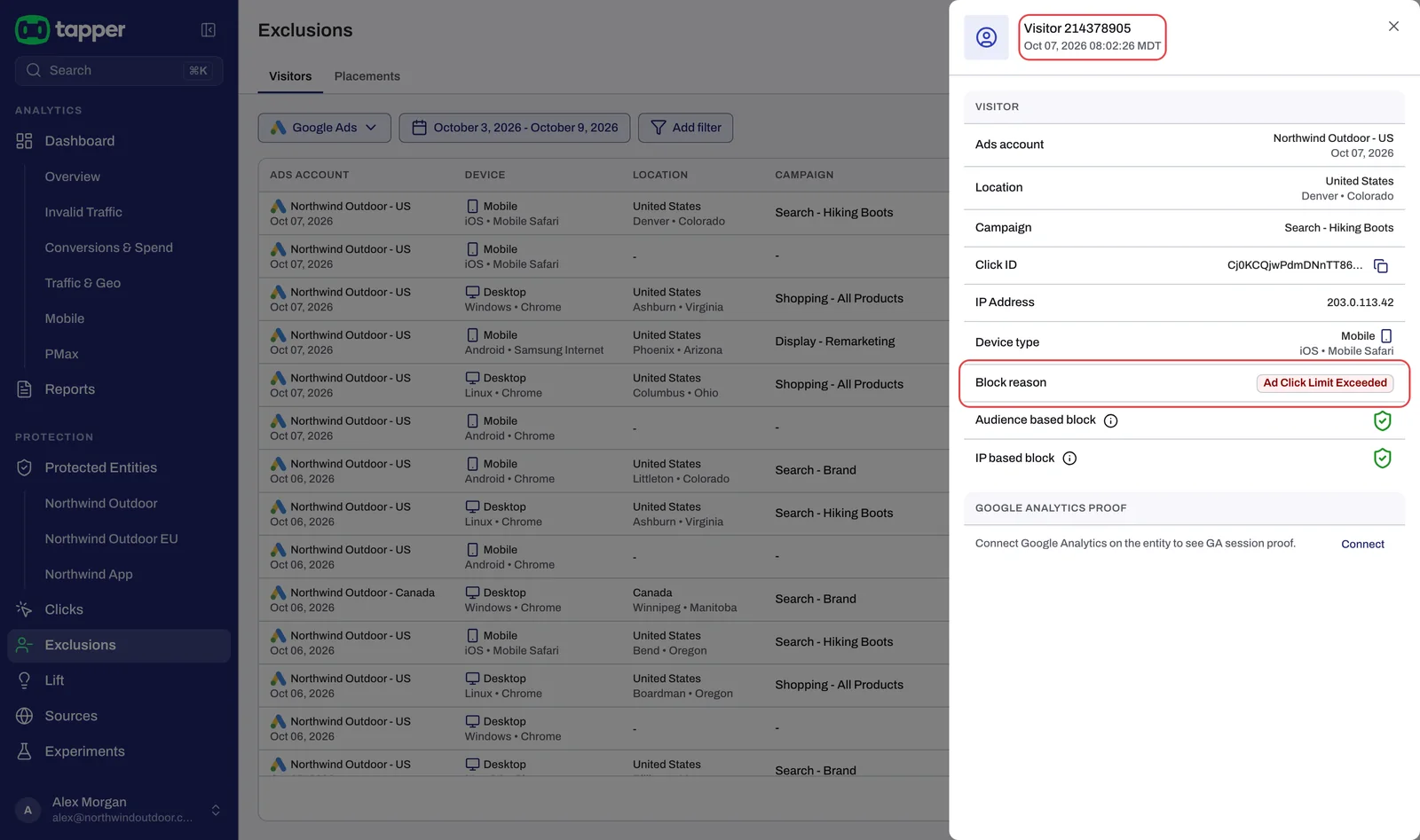
Block reasons explained: what each label means says what each reason means.
Change the setting behind the reason
Make the change in the rule set that governs the visitor's campaign, on the entity's Web detection rules tab. A rule change decides how Tapper judges clicks from then on.
| Block reason | What to change |
|---|---|
| Ad Click Limit Exceeded | Loosen the Invalid click threshold: allow more clicks, or count them over a shorter window. See Set invalid click thresholds. |
| Geographical Inconsistency | In Block IPs by country, add the country to the allow list or remove it from the block list. See Block or allow clicks by country. |
| Bounced or Suspicious Ad Click | Lower Minimum Seconds on Site, or raise the number in Suspicious Ad Clicks. |
| VPN | Consider whether VPN blocking should be on for this rule set. |
| An address you entered yourself | On the Auto IP blocking tab, delete the line from Excluded IPs and click Update excluded IPs. Tapper removes it from your Google campaigns too. |
Let the existing exclusion lapse
- Google audiences. A visitor stays in Tapper's Google audience for its retention window. Tapper creates its lists with 90 days for invalid traffic and 180 days for visitors over your click limit. The Block segment for [N] days field on the Invalid Traffic Audience card of the Google protection tab sets the maximum, from 1 to 540 days; a shorter window lets visitors drop out sooner. Tapper creates its Meta and TikTok audiences with 90 days.
- Google IP exclusions. These are not on a timer. When a campaign reaches Google's limit of 500 IP exclusions, Tapper rotates lower-priority IPs out to make room. An IP rotated out can still be in the audience, and it can be excluded again if it comes back with a new invalid click.
- A campaign's Protection switch. Turning Protection off for a Google campaign on Manage campaigns removes Tapper's audience exclusions and value rules from that campaign. It does not remove the campaign's IP exclusions, and it stops Tapper protecting that campaign against everyone else too. Use it only as a last resort.
If it still happens
Contact Tapper support with the visitor id from the drawer, the platform and the campaign, and say what the customer can no longer see. See How to get help from Tapper.
Related
Was this helpful?
Related articles
Still need help?
Chat with our team and mention this article.