

How Tapper decides a click is invalid
Tapper decides a click is invalid by running it through the checks in the rule set that covers it, together with what it knows about the visitor's IP address. Every check you can change is on the entity's Web detection rules tab.
How it works
Tapper looks at two kinds of evidence for each ad click:
- What happened on your site. The monitoring script records whether JavaScript ran, whether the page loaded, how long the visitor stayed and how they behaved.
- Who clicked. How many times the same IP clicked your ads in a time window, the device behind the click, the country of the IP and the network it belongs to (a data center, a VPN, a proxy or the Tor network, for example).
The rule set that covers the click (the Default set, or a custom set linked to that platform, ad account or campaign) holds your settings for the checks below. When a check fires, the visitor gets a block reason, and Tapper excludes it unless the rule set is in Monitoring-only mode. A visitor can carry more than one reason.
Click counts: thresholds and aborted clicks
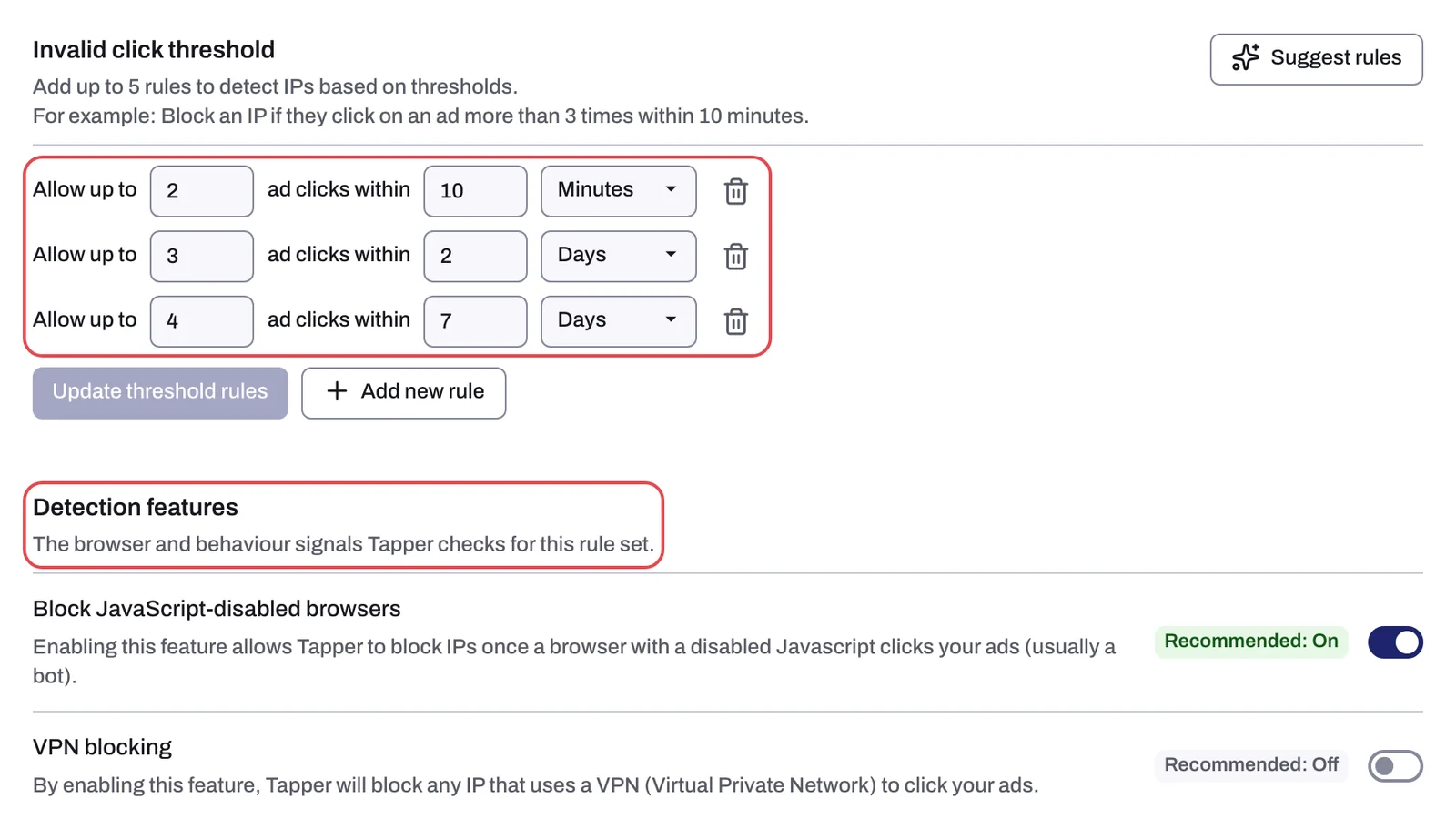
- Invalid click threshold. Each row reads "Allow up to [N] ad clicks within [M]" followed by a unit: Seconds, Minutes, Hours or Days. For example: "Block an IP if they click on an ad more than 3 times within 10 minutes." A rule set with no rows counts nothing. Suggest rules adds the presets for your industry. A breach leaves the reason Ad Click Limit Exceeded. Tune the rows to how your customers buy: a genuine buyer may click several times while comparing before converting. See Set invalid click thresholds.
- Aborted ad clicks. Each row reads "Allow up to [N] aborted ad clicks within [M] [unit]". An aborted click is one where the ad click registers but your page never loads and no events are recorded. If a later session from the same user shows valid interaction, the click is not blocked. Reason: Aborted Ad Click. See Aborted ad clicks: block IPs whose clicks never load your page.
Detection features
These rows sit in the Detection features section.
| Setting | What it checks | Chip | New rule set | Reason it leaves |
|---|---|---|---|---|
| Block JavaScript-disabled browsers | A browser with JavaScript disabled clicked your ad (usually a bot) | Recommended: On | On | JS Disabled |
| VPN blocking | The IP belongs to a VPN | Recommended: Off | Off | VPN |
| Block IPs by country | The IP's country is on your block list, or missing from your allow list | none | Off | Geographical Inconsistency |
| Behavior analysis | The behavior the script recorded points to an invalid source | Recommended: On | On | Unusual Behavior |
| Suspicious Ad Clicks | The IP clicked [N] times without any events on the page | none | 3 | Suspicious Ad Click |
| Minimum Seconds on Site | The IP spent less than [N] seconds on your site | none | 2 | Bounced |
See Detection features: what each switch does, Block or allow clicks by country and Suspicious ad clicks and minimum seconds on site.
Blocking features that widen a detection
In the Blocking section, two switches reach beyond a single click:
- Device blocking (on for a new rule set): "Tapper will detect IPs that were used by the same device ID to click on your ads repeatedly." A clicker who changes IP is still matched to the same device. See Device blocking: catch repeat offenders who change IP.
- Cross-platform blocking (off for a new rule set): Tapper checks for invalid clicks and blocks them across Google, Meta and TikTok. A block that came from another platform carries the reason Cross Platform Blocked. See Cross-platform blocking across Google, Meta and TikTok.
The other two rows in that section do not change what counts as invalid: Pixel Guard controls when tracking pixels may fire, and Monitoring-only mode decides whether a detection is enforced.
Checks with no switch
Some reasons come from Tapper's own analysis rather than from a row on the tab, so you cannot turn them off one by one:
- IP intelligence: every click's IP is checked against network data, which leads to reasons such as Data Center, Proxy, Tor, Known Attacker, Known Abuser, Threat and Suspicious ASN.
- Device and browser signals: automation and spoofing show up as Bad Bot, Fake User Agent, Suspicious Screen Resolution and Tampered Device.
Block reasons explained: what each label means lists every label and what produces it.
What is not in the app
There are no honeypots, no ASN reports or ASN confidence scores, no separate proxy switch, no allowlist of converted IPs, no "Block IPs for a Certain Period" rule and no "Block all IPs after the first click" option. ASN appears only as the block reason Suspicious ASN and in the ASN columns of the Google refund report file.
Related
Was this helpful?
Related articles
Still need help?
Chat with our team and mention this article.