

What Tapper creates in your Google Ads account
When you connect a Google Ads account to a Block + Lift workspace, Tapper writes a small set of objects into that account. Each one carries a name that starts with "Tapper - ", so you can recognize it among your own conversion actions, audience lists and audiences.
What Tapper creates when the account is linked
Tapper creates these objects in the background while the account links.
| What you see in Google Ads | Kind | Notes |
|---|---|---|
| "Tapper - Invalid Traffic Action (WEBPAGE)" and "Tapper - Invalid Traffic Action (UPLOAD_CLICKS)" | Conversion actions | Created by Tapper for its own use. They are separate from Tapper goals. |
| "Tapper - Ad Click Limit Exceeded Traffic Action (WEBPAGE)" and "Tapper - Ad Click Limit Exceeded Traffic Action (UPLOAD_CLICKS)" | Conversion actions | The same pair, for visitors that went over the ad click limit. |
| "Tapper - Invalid Traffic List" | User list | Created with a 90 day membership. Holds the visitors Tapper flagged as invalid. |
| "Tapper - Ad Click Limit Exceeded Traffic List" | User list | Created with a 180 day membership. Holds the visitors that went over the ad click limit. |
| "Tapper - Invalid Traffic Audience" | Audience | Built on the invalid traffic list. |
| "Tapper - Invalid and Ad Click Limit Exceeded Traffic Audience" | Audience | Built on both lists. |
| Account-level tracking template | Account setting | Tapper reads the template you had, keeps a copy, and replaces it with its own. |
Tapper also syncs the campaign list and queues a check that compares the account's location targeting with your detection rules.
The lists and audiences
The two user lists are the memory of what Tapper has flagged, and the two audiences are built on them. Tapper uses them to exclude flagged visitors from your protected campaigns: it excludes the two lists on Search, Display, Shopping and Performance Max campaigns, which then carry the Audience Exclusion chip, and uses its audiences on the ad groups of Demand Gen campaigns, where the Ad groups view shows the Audience Segment Exclusion chip. While an entity is in monitoring-only mode (the setting every new rule set starts with, and the only mode during a free trial), Tapper skips audience exclusions.
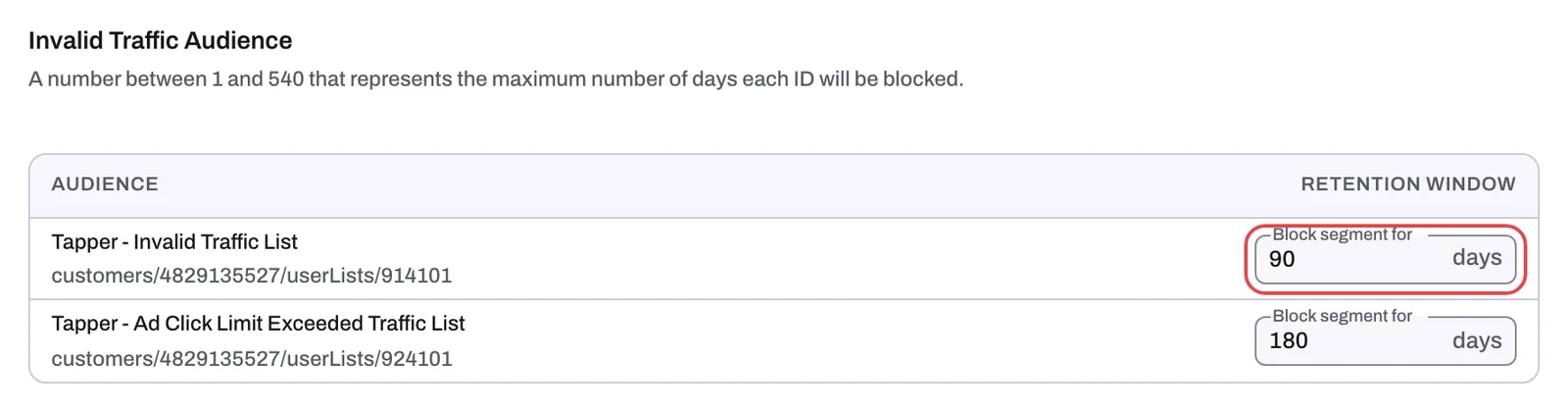
In Tapper, the two lists appear on the Google protection tab of your entity, in the Invalid Traffic Audience section, with the columns Audience and Retention window. Each list has its own row, "Tapper - Invalid Traffic List" and "Tapper - Ad Click Limit Exceeded Traffic List", with its Google Ads resource name under it. The Block segment for field sets how many days each visitor stays in the list, from 1 to 540. A row whose list shows no Google Ads resource name has a Create audience button.
On the Manage campaigns sub-tab, chips on a campaign row show what is applied to it: Audience Exclusion, Value Rule Exclusion and Tapper goal ("Tapper goal:" followed by the goal's name when the account has more than one goal). Audience Segment Exclusion shows on ad group rows in the Ad groups view. Switching a campaign's Protection switch off removes Tapper's audience exclusions and value rules from that campaign; switching it on applies them again. The switch appears only on Search, Display, Shopping, Demand Gen and Performance Max campaigns.
New campaigns are picked up by the campaign sync, which runs at connect and then every 6 hours, or when you press Refresh campaigns. A new campaign found by a sync gets Tapper's IP exclusions and audience exclusion queued.
The tracking template
Tapper sets the account-level tracking template itself. You do not paste it anywhere at connection. The only time you copy it from the Tracking template block on the Google protection tab is when a campaign, ad group or ad has its own template that overrides the account one. The dashboard warns you when that happens with the banner "Some ads skip Tapper's tracking" and a Fix tracking button.
Read The Google Ads tracking template: what Tapper sets and why for the full template and what each parameter carries.
Tapper goals add more, but only when you create one
The objects above appear on their own. A Tapper goal is different: it is created by you, from the Tapper goals section on the Google protection tab, with the New Tapper goal button. Each goal creates a conversion action and a custom goal in your Google Ads account. Nothing is created until you create a goal, and deleting a goal in Tapper leaves its conversion action in place in Google Ads. See Tapper goals: let Google bid on predicted conversion value.
Other things Tapper writes per campaign
These are not objects with a Tapper name, but you will find them in the account:
- IP exclusions on Search, Display, Shopping and Demand Gen campaigns, pushed per flagged click once blocking is on. Google allows at most 500 per campaign; see The 500 IP exclusions per campaign limit in Google Ads.
- Placement exclusions at account level, on Display and Performance Max; see Placement exclusions on Display and Performance Max.
- Conversion value rules and shadow campaigns, optional extras; see Value rules and shadow campaigns: optional extras for Performance Max, Search and Shopping.
What happens when you disconnect
Disconnect is in the ⋮ menu of the account card on the Google protection tab. When you confirm, Tapper puts back the account-level tracking template you had before you connected, or clears it if there was none. Tapper can only do this while it still has access, so an account showing Needs reconnect keeps Tapper's template until you change it in Google Ads. Disconnecting removes nothing else: the Tapper-named conversion actions, user lists and audiences, and the exclusions already on your campaigns, stay in the account. If you are unsure what to remove afterwards, contact support@tapper.ai. See Disconnect an ad account.
Lift only workspaces
A Lift only workspace creates none of the objects above when you connect. Lift changes your account only through its fixes; see Fix, mark as done, dismiss and revert. The Tapper goals section appears once Tapper enables Vantage for the workspace. See Lift only: what your workspace includes and leaves out.
Related
Was this helpful?
Related articles
Still need help?
Chat with our team and mention this article.