

Fix campaigns, ad groups or ads that override Tapper's tracking
The dashboard shows the banner Some ads skip Tapper's tracking with a Fix tracking button. Until you fix them, the clicks on those campaigns, ad groups or ads never reach Tapper.

Why it happens
With Block, Tapper sets its tracking template at the account level of each connected Google Ads account. Google uses the most specific template it finds: an ad's template wins over its ad group's, an ad group's over its campaign's, and a campaign's over the account's. So any template set on a campaign, ad group or ad replaces Tapper's for the clicks on it. Common sources:
- A leftover from a tool you no longer use.
- A UTM template such as
{lpurl}?utm_source=google&utm_campaign={campaignid}, set to tag the landing page for your analytics. - A template managed by Search Ads 360.
Tapper finds these overrides in the campaign structure it syncs every 6 hours, or when you press Refresh campaigns on the Google protection tab, so a template added a few minutes ago may not be listed yet. Templates that already point to protect.tapper.ai are not listed.
Fix it
You need to be a workspace Owner or Admin to apply fixes.
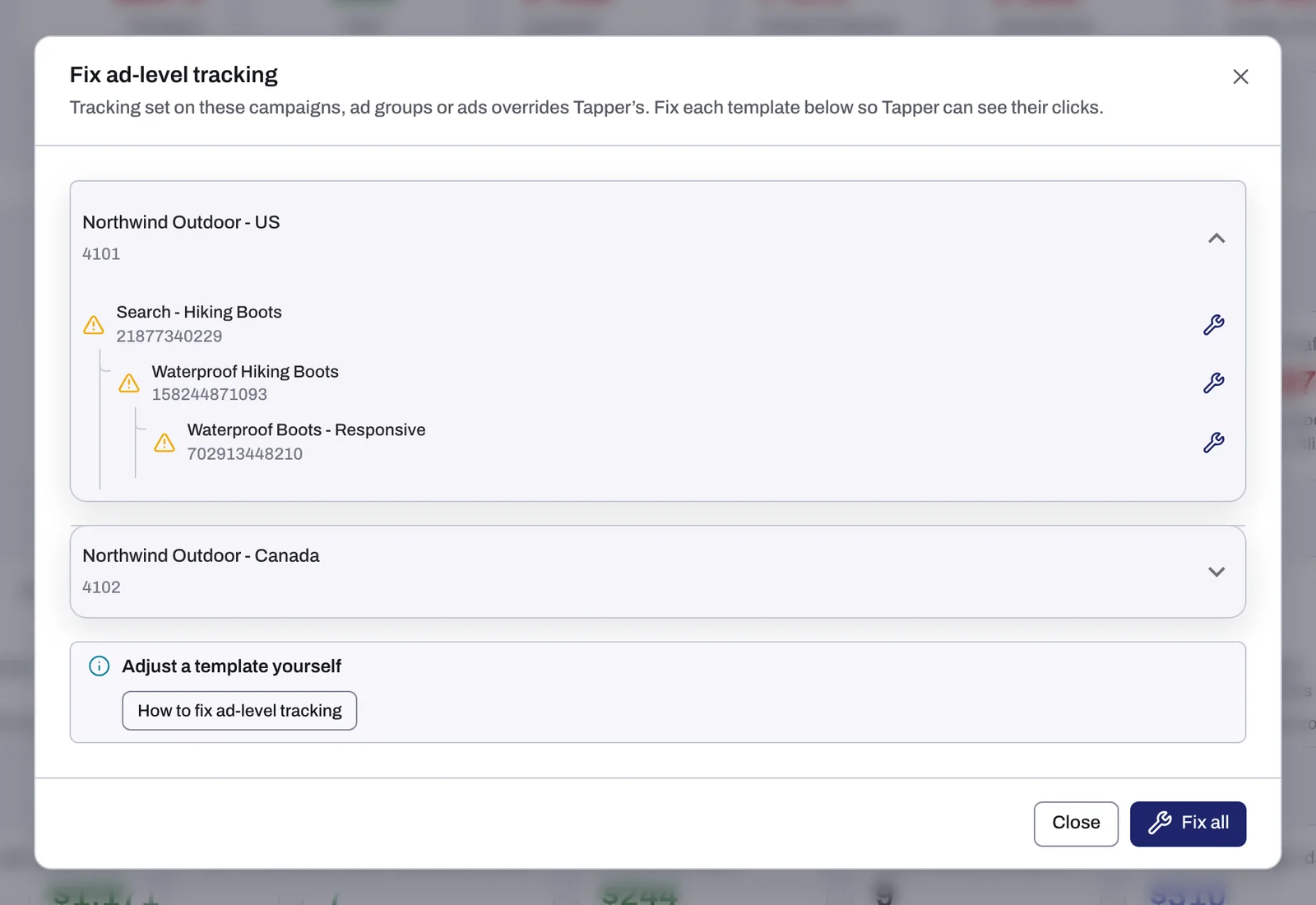
- On the dashboard, click Fix tracking on the banner. The Fix ad-level tracking dialog opens.
- Expand an account to see the campaigns, ad groups and ads that carry their own template. Hover the warning icon on a row to see its template.
- To fix one item, click the wrench button on its row. To fix everything listed, click Fix all.
- Rows Tapper can't rewrite safely stay in the list, with the reason. When a row offers a Corrected template (ready to paste), copy it and paste it yourself: in Search Ads 360 if the account is managed there (see below), otherwise in that item's URL options in Google Ads. When a row offers no corrected template, the dialog suggests adding Tapper's click hop to the template by hand; support@tapper.ai can give you the exact string for your account.
What a fix changes in Google Ads
- A template that only adds parameters to your landing page, one that starts with
{lpurl}?: Tapper moves those parameters into the item's Final URL suffix, keeping anything already there, and clears the template. Your UTM tags still reach your page, and the click goes through Tapper's account-level template. - Any other template: Tapper wraps it inside its own, so the click passes through Tapper first and then carries on through your original template.
Accounts managed in Search Ads 360
Search Ads 360 writes its templates back on every sync, so an edit made in Google Ads does not last. Under each corrected template the dialog says: "Paste in SA360 (Settings → tracking template) - pasting in Google Ads will be reverted by SA360's next sync." Paste the corrected template in Search Ads 360 instead.
Leftover templates you no longer need
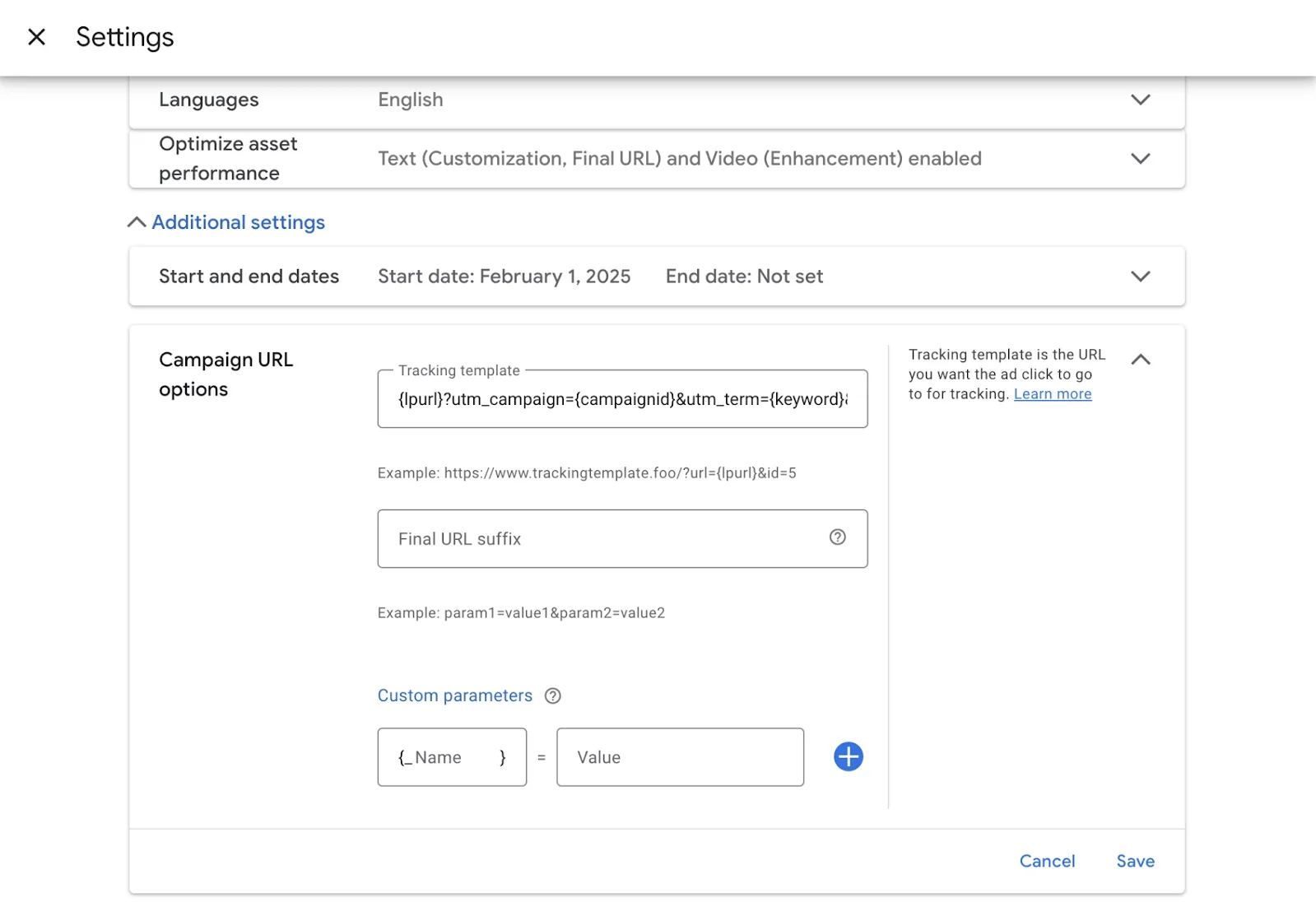
If the template belongs to a tool you have stopped using, you can delete it in Google Ads:
- Open the campaign, then Settings, then Additional settings, then Campaign URL options. For an ad group or an ad, open its own URL options.
- Empty Tracking template and click Save.
Tapper's account-level template then applies again.
Changing a template by hand
Under the list of accounts, the dialog's Adjust a template yourself notice has a How to fix ad-level tracking button. It opens Tapper's guide on docs.tapper.ai in a new tab, which describes the two changes you can make yourself in an item's URL options in Google Ads:
- For a template that starts with
{lpurl}?, add everything after the?to Final URL suffix, then empty Tracking template and save. A fix makes the same change. - Otherwise, paste Tapper's tracking template into the item's Tracking template. Copy it from the Tracking template section of the entity's Google protection tab, with the copy button. This replaces the item's own template; if you still need that template, use a fix, which wraps it instead.
Tapper has no setting of its own for Google's Final URL suffix. Do not add parameters to the end of Tapper's template: everything after redirection_url={lpurl} belongs to Tapper's address, not to your landing page. If none of this works for your setup, write to support@tapper.ai.
Microsoft Ads
Microsoft Ads has the same kind of conflict and its own box on the entity's Microsoft protection tab: Some Microsoft Ads clicks skip Tapper's tracking, with Fix tracking. The dialog Fix Microsoft Ads tracking templates has a fix button on each row, plus Close and Fix all. Fixing a template rewrites it in Microsoft Ads. See Connect Microsoft Ads.
If it still happens
- You fixed a template in Google Ads and the banner stays. The list follows the campaign sync. Press Refresh campaigns on the Google protection tab, under Manage campaigns, or wait for the next sync (every 6 hours).
- The same rows keep coming back. Another tool, such as Search Ads 360, is writing its template again. Change it at the source.
- Still stuck? Write to support@tapper.ai with the account's customer ID as Google Ads shows it and the names of the campaigns listed.
Related
Was this helpful?
Related articles
Still need help?
Chat with our team and mention this article.