

Protected entities: what they are and how to add one
A protected entity is the thing Tapper protects: one website or one mobile app, together with everything that belongs to it. Your first entity was created when you set up the workspace, so this article is for the second one onward.
What an entity is
The app also calls an entity a protection script. One entity holds:
- Its domains, entered under Protected domains on the Web detection rules tab.
- Its detection rule sets, including the default set every entity gets.
- Its monitoring script, with its own key, on the Website monitoring tab.
- Its connected ad accounts: Google Ads, Meta Ads, TikTok Ads and Microsoft Ads.
- Its mobile app integrations through your MMP (Block + Lift workspaces only).
If you run ads for two brands or two websites, each one gets its own entity. If one website is served by several ad accounts, they all belong to the same entity.
You reach your entities from the sidebar: under Protection, the Protected Entities row opens the full list and shows up to five entities under it.
The status chip
Every entity page shows a chip in its header. On a Block + Lift workspace it reads Protected or Setup incomplete. Hover Setup incomplete to see what is missing: at least one domain, a connected ad account (a mobile app integration also counts), or both. On a Lift only workspace the chip reads Lift active or Connect an ad account.
Add an entity
Before you start
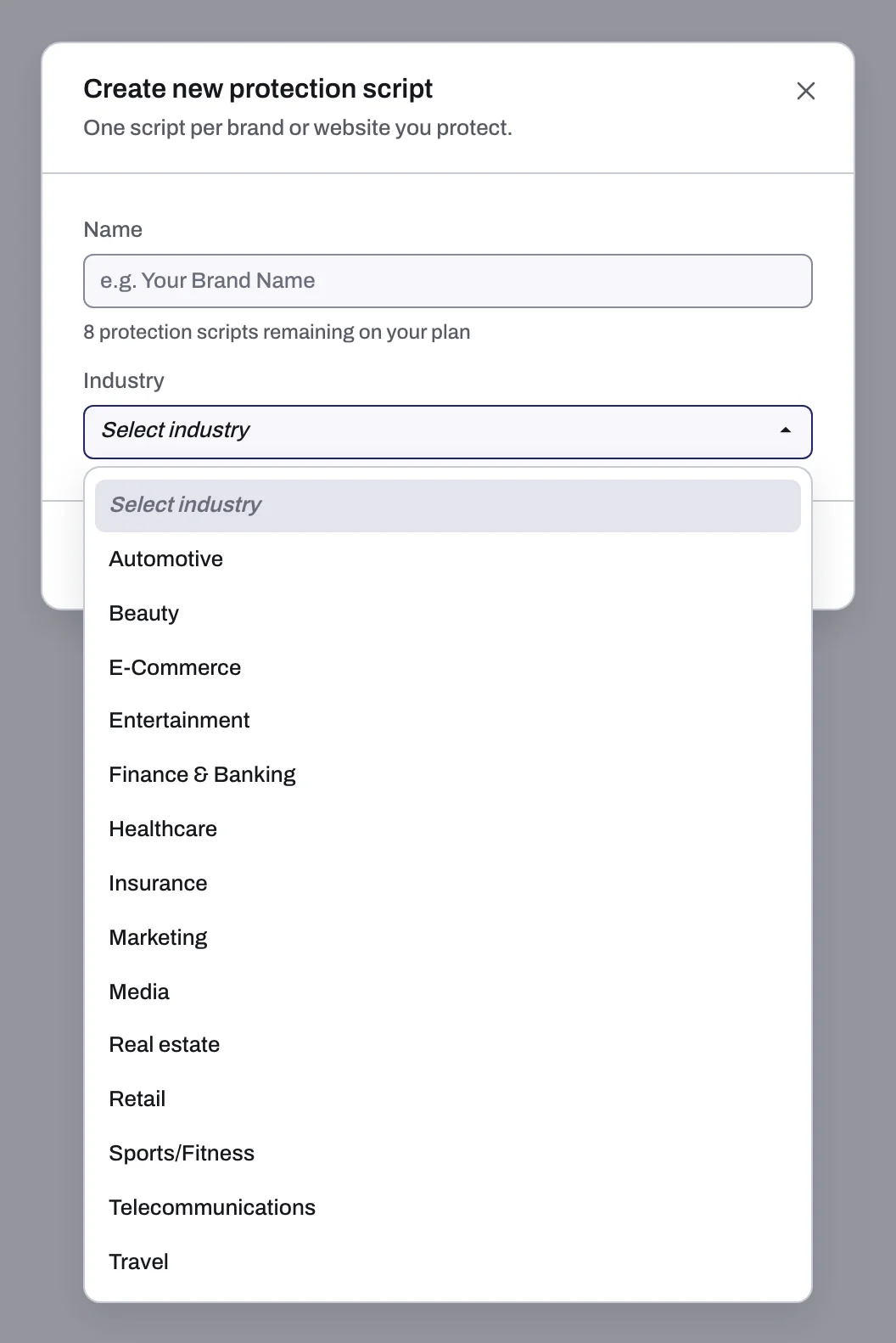
- The Create new protection script dialog shows how many protection scripts remain on your plan. When none remain, you cannot create another on your current plan.
- Only a workspace Owner or Admin can connect an ad account to the new entity.
Steps
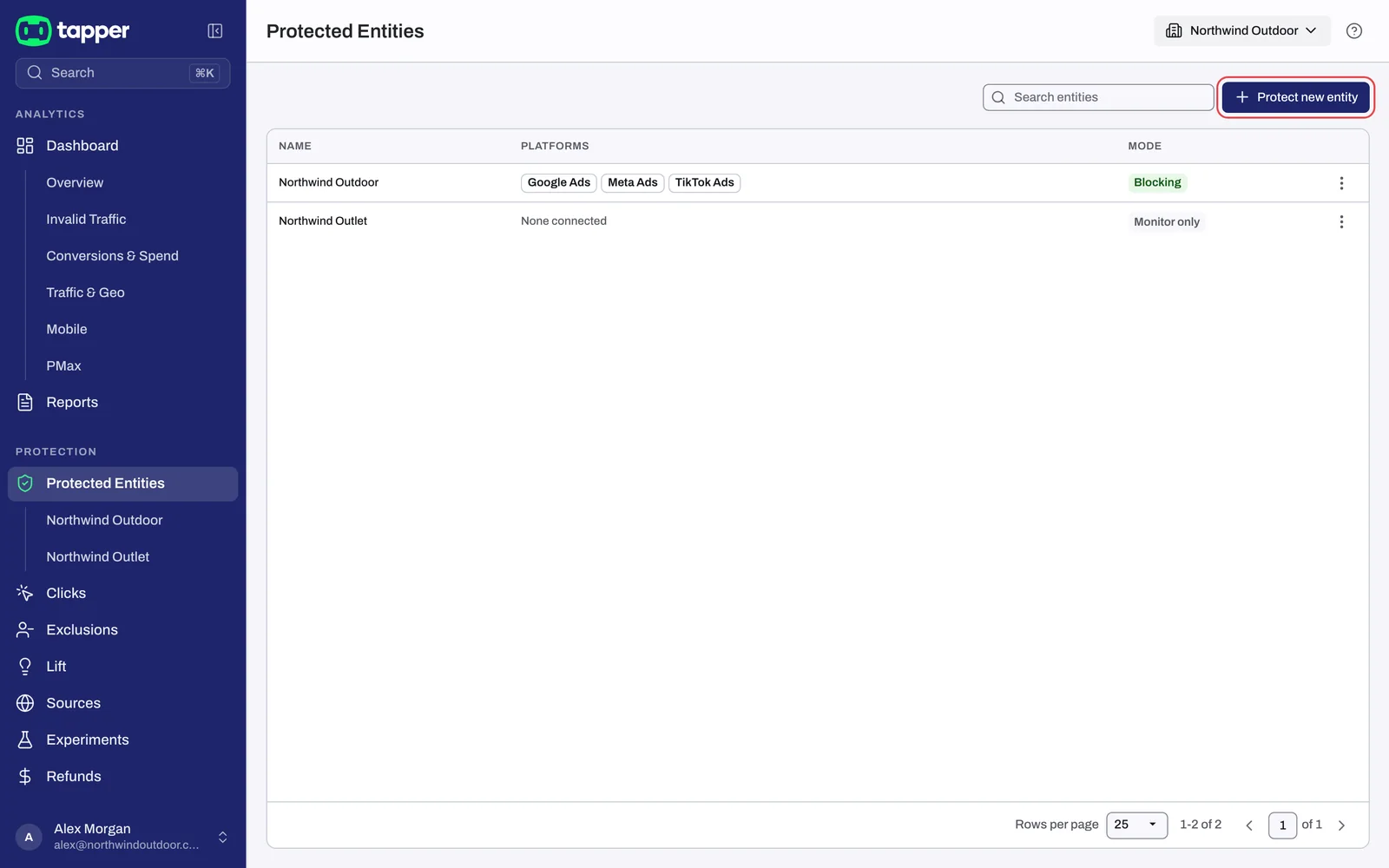
- In the sidebar, under Protection, click Protected Entities.
- Click Protect new entity. On a Lift only workspace the button is Add entity.
- In the Create new protection script dialog, type a Name.
- Pick an Industry. It is required.
- Click Create. You land on the new entity's page.
What happens next
The new entity starts as Setup incomplete, and its page shows a banner under the header: Connect an ad account to start protection, "Until then Tapper only watches your traffic." Its Connect an ad account button opens the setup wizard for this entity, starting at the Connect an ad account step. After you choose the accounts, the wizard moves on to Install website monitoring and Set your detection rules, where you also add the domain under Protected domains, and ends with Finish.
You can also finish the entity from its own page:
- Connect an ad account. Click Add another entity in the header, or the connect button on an empty platform tab, for example Connect Google Ads on Google protection. Both open Add an account. See Add another ad account to an entity.
- Add at least one domain. Open the Web detection rules tab and, under Protected domains, type the domain and press Enter.
- Install the monitoring script. Open the Website monitoring tab. See The monitoring script: what it does and where to find it.
The Web detection rules and Website monitoring tabs only start "once a Google, Meta, TikTok or Microsoft Ads account is connected to this entity", so connect the account first.
On a Lift only workspace the banner reads Connect an ad account to start Lift, and there is no domain or monitoring script step: connect an ad account and the chip reads Lift active.
A new entity has no invalid click threshold rules yet. On the Web detection rules tab, Suggest rules adds the presets for the industry you pick; see Suggested thresholds by industry. Like every new rule set, the entity's default set starts in Monitoring-only mode, so it records invalid clicks without blocking them until an Owner or Admin on a paid plan switches blocking on: see Monitoring-only mode: why nothing is blocked yet and what changes when blocking starts.

The entity list
The Protected Entities page has a Search entities box and one row per entity.
| Column | What it shows |
|---|---|
| Name | The entity's name. |
| Platforms | One chip per connected platform, MMP for a mobile app, or None connected. |
| Mode | Monitor only when every rule set on the entity is in Monitoring-only mode, otherwise Blocking. |
| Row menu | Delete protection script |
If a workspace stopped partway through setup, the page shows the banner Finish setting up this workspace, which resumes the setup wizard at the unfinished step.
Rename or delete an entity
Rename an entity from its own page: open it, click the menu in the header and choose Edit name. To delete an entity, choose Delete protection in the same menu, or Delete protection script in the entity's row menu on the Protected Entities list. Both ask you to confirm.
Related
Was this helpful?
Related articles
Still need help?
Chat with our team and mention this article.