

Install Tapper on a Shopify store
A Shopify store needs Tapper in two places. The monitoring script runs on your storefront pages, and a checkout pixel records checkout and purchase events, because Shopify's checkout runs in a sandbox where theme scripts never run. On top of that, the Tapper Shopify app connects your order data.
What a Shopify store needs
| Part | What it does | Where it goes |
|---|---|---|
| Monitoring script | Records how visitors behave on every storefront page. | Your theme (theme.liquid), or the Tapper Monitoring app embed once the Tapper app is installed. |
| Tapper Shopify app | Connects your order data. Shopify asks for one permission: view orders. | Installed from a private link Tapper sends you. |
| Checkout pixel | Records your checkout's order value, currency and order id. | Shopify admin, Settings, Customer events. |
Conversions on Shopify come from the checkout pixel. You do not add a snippet to a thank-you page.
In Tapper, everything Shopify-specific is on the entity's Website monitoring tab: open Protected Entities, the entity, then Monitoring under Website in the left rail. The monitoring script is under Monitoring script, and the app and pixel steps are under Conversion script, on the Shopify tab.
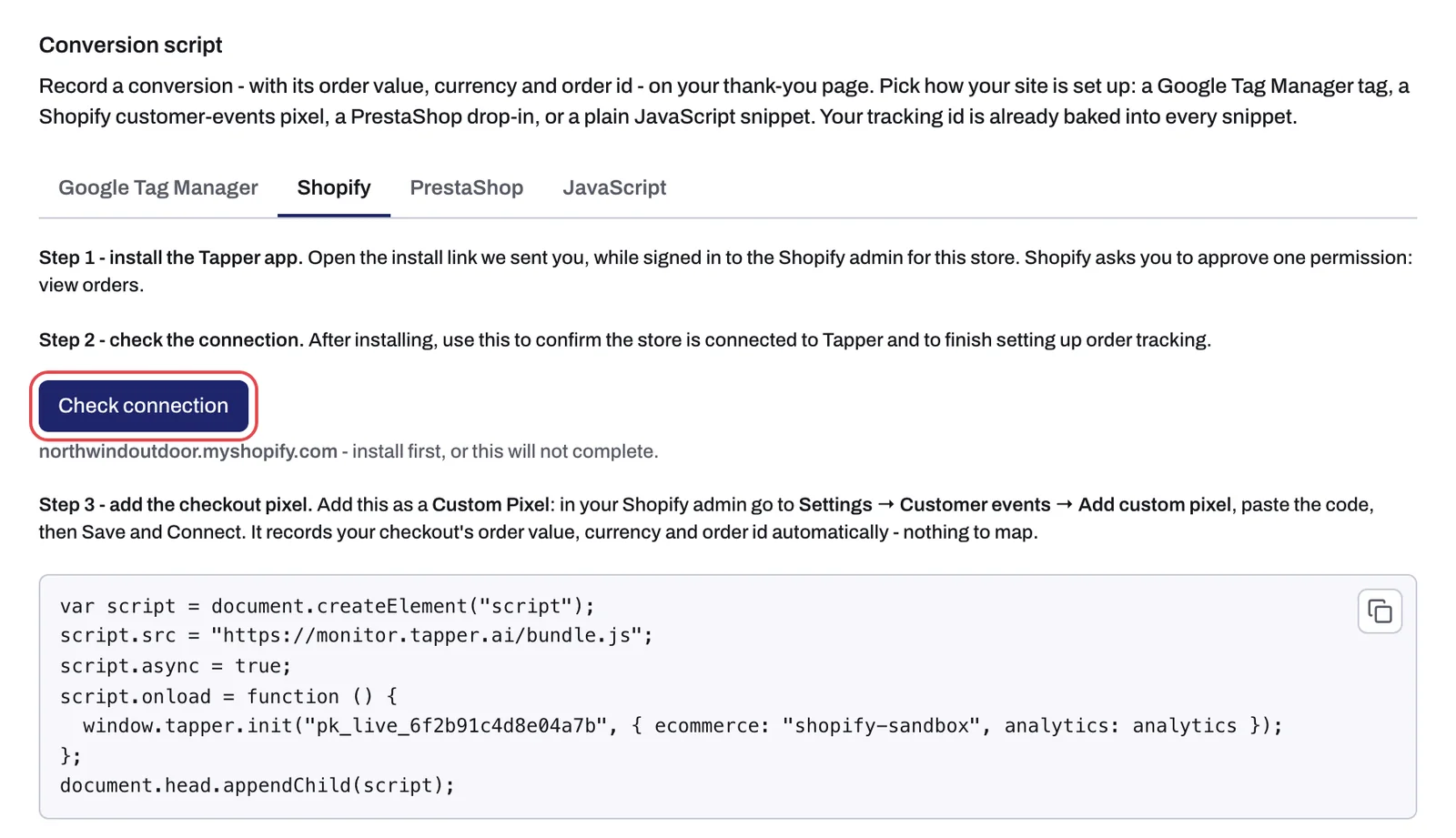
Step 1: put the monitoring script on your storefront
If the monitoring script is already in your theme, keep it exactly as it is. The checkout pixel adds to it and does not replace it.
To add it to your theme by hand:
- In Tapper, on the Website monitoring tab, copy the monitoring script with the copy button in the top-right corner of its code box.
- In your Shopify admin, go to Online Store, then Themes. Click the three-dot button on your current theme and choose Edit code.
- Under Layout, open theme.liquid.
- Paste the script right after the opening
<body>tag. Just before the closing</body>tag works too. - Click Save.
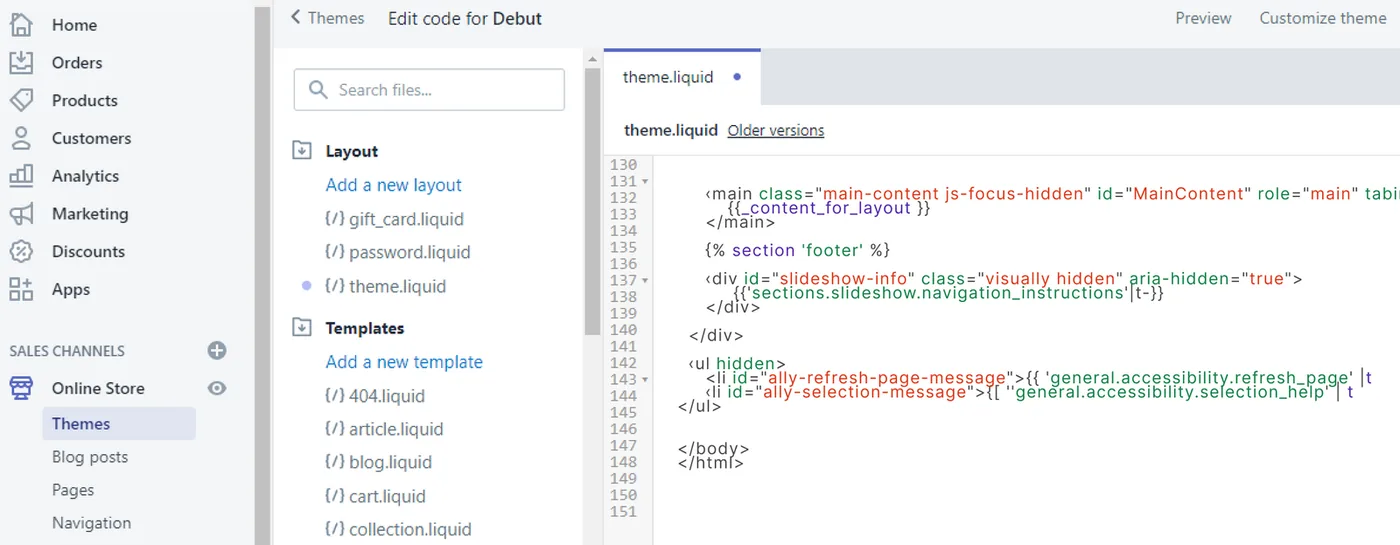
Once the Tapper app is installed (step 2), you can use its Tapper Monitoring app embed instead of the theme paste: go to Online Store, Themes, Customize, open App embeds, switch Tapper Monitoring on, enter your entity's key and save. The key is the value inside window.tapper.init("...") in your monitoring script. Use the theme paste or the app embed, never both, or tracking runs twice.
Step 2: install the Tapper app and check the connection
- Open the install link Tapper sent you, while signed in to the Shopify admin for this store. If Tapper holds links for your stores, the tab also shows an Install on button for each store. Shopify asks you to approve one permission: view orders.
- Back in Tapper, on the Shopify tab, click Check connection. This finishes connecting your order data. When the store is connected, the line under it reads "order tracking is active."
The app is not in the Shopify App Store. Each link is made for one store domain and expires after about a week. If you run several stores, each one needs its own link and its own checkout pixel; stores in one Shopify Plus organization can share one link.
If the tab says "No Shopify store is registered for this website yet.", contact Tapper. There is nothing for you to enter.
Step 3: add the checkout pixel
- On the Shopify tab in Tapper, copy the pixel code. Your key is already in it.
- In your Shopify admin, go to Settings, then Customer events, then Add custom pixel. Name it
Tapper. - Paste the code into the code window.
- Click Save, then Connect.
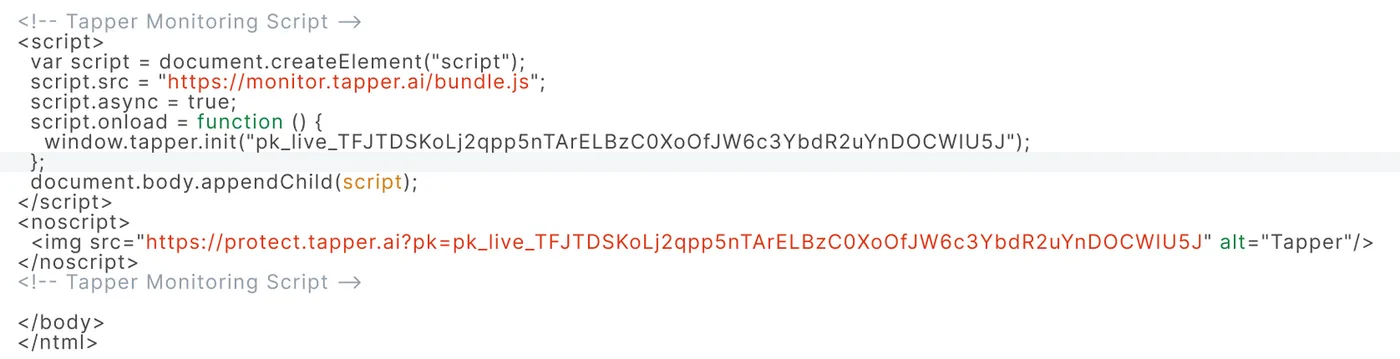
The code is plain JavaScript with no script tags. It looks like this, with your key where {your key} is:
var script = document.createElement("script");
script.src = "https://monitor.tapper.ai/bundle.js";
script.async = true;
script.onload = function () {
  window.tapper.init("{your key}", { ecommerce: "shopify-sandbox", analytics: analytics });
};
document.head.appendChild(script);
Do not rename or change analytics in the code: Shopify's pixel sandbox provides it. The pixel records your checkout's order value, currency and order id automatically, so there is nothing to map.
What happens next
- In Shopify, Settings, Customer events shows your
Tapperpixel as connected. - Order data arrives in Tapper when a payment settles, not when checkout completes. Orders placed before you installed the app are not backfilled.
- To confirm the storefront script is sending visits, see Check that the monitoring script is working on your site.
If something goes wrong
- The install link gives an error or a 404. Check that you are signed in to the store the link was made for. If the link is more than a few days old, ask Tapper for a fresh one.
- The link opens your Apps page and nothing installs. You were signed in to a different store. Sign in to the right store and open the link again.
- Shopify says you cannot install apps. Your staff account needs Shopify's Applications permission. Ask the store owner to open the link or grant you the permission.
- Visits show up but no checkout or purchase events. The pixel is missing, or it was saved but never connected.
- Visits show up but no orders. Orders appear once their payment settles, and only orders placed after the install.
- Counts look roughly doubled. The monitoring script is both pasted in your theme and switched on as the app embed. Remove one.
Remove Tapper from Shopify
The app and the pixel are separate. Uninstall the app under Settings, Apps and sales channels, then delete the Tapper pixel under Settings, Customer events: uninstalling the app does not remove it. Uninstalling the app also turns off its Tapper Monitoring app embed, so storefront tracking stops. If you used the theme paste, remove the script from theme.liquid too.
Step-by-step guides are also on docs.tapper.ai: Shopify Integration and Install the Tapper Shopify App.
Related
Was this helpful?
Related articles
Still need help?
Chat with our team and mention this article.