

Check that the monitoring script is working on your site
You can confirm in about three minutes that the monitoring script runs on your landing pages: load a page in your browser's developer tools, then look for the signs in Tapper. Lift only workspaces have no monitoring script.
Before you start
- The script is installed, either pasted right after the opening
<body>tag or added through Google Tag Manager. See The monitoring script: what it does and where to find it. - Have the address of a landing page your ads send visitors to.
- Use a browser window without ad blockers or privacy extensions, which can block scripts like Tapper's. A private window with extensions turned off works.
Check in your browser
Open the developer tools
- Chrome: right-click the page and choose Inspect, or press F12 (Windows) or Command + Option + I (Mac). From the menu: the three dots at the top right, then More tools, then Developer tools.
- Safari: in the menu bar, choose Develop, then Show Web Inspector. If there is no Develop menu, turn it on in Safari's settings under Advanced.
Load a landing page as an ad visitor
- In the developer tools, open the Network tab.
- In the address bar, open your landing page with a click ID added, for example
https://yourdomain.com/?gclid=test. Usegclidfor Google Ads,fbclidfor Meta andttclidfor TikTok. If the address already contains a?, add&gclid=testat the end instead. - Type
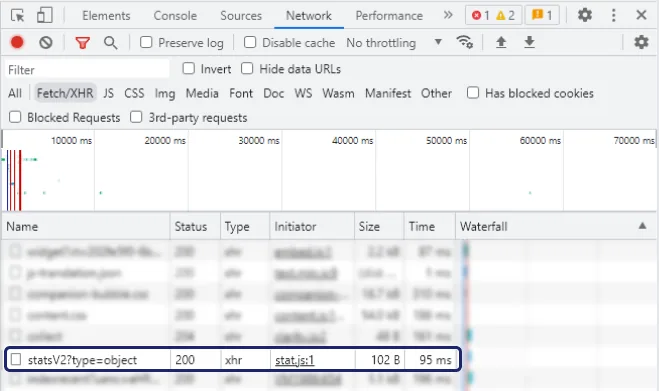
tapperin the Network tab's filter box. - Look for
bundle.jsfrommonitor.tapper.aiwith status 200, followed by requests toprotect.tapper.ai. You may also see requests tofingerprint.tapper.ai.
If both appear, the script loads and talks to Tapper on that page. Repeat on each kind of landing page your ads use.
Shopify stores
If your store uses the Tapper Shopify app, open the entity's Website monitoring tab, go to Conversion script and choose the Shopify tab. Click Check connection. This confirms the store's order connection, not the storefront script, so run the browser check above as well. Keep one copy of the monitoring script on the storefront: the theme paste or the app's Tapper Monitoring embed, not both. See Install Tapper on a Shopify store.
Check in Tapper
- The Clicks page. Open Clicks in the sidebar and choose the platform (Google Ads, Meta Ads, TikTok Ads or Microsoft Ads). Clicks from your ads appear here once visitors land on pages that run the script. Filter by Protection script to see one entity.
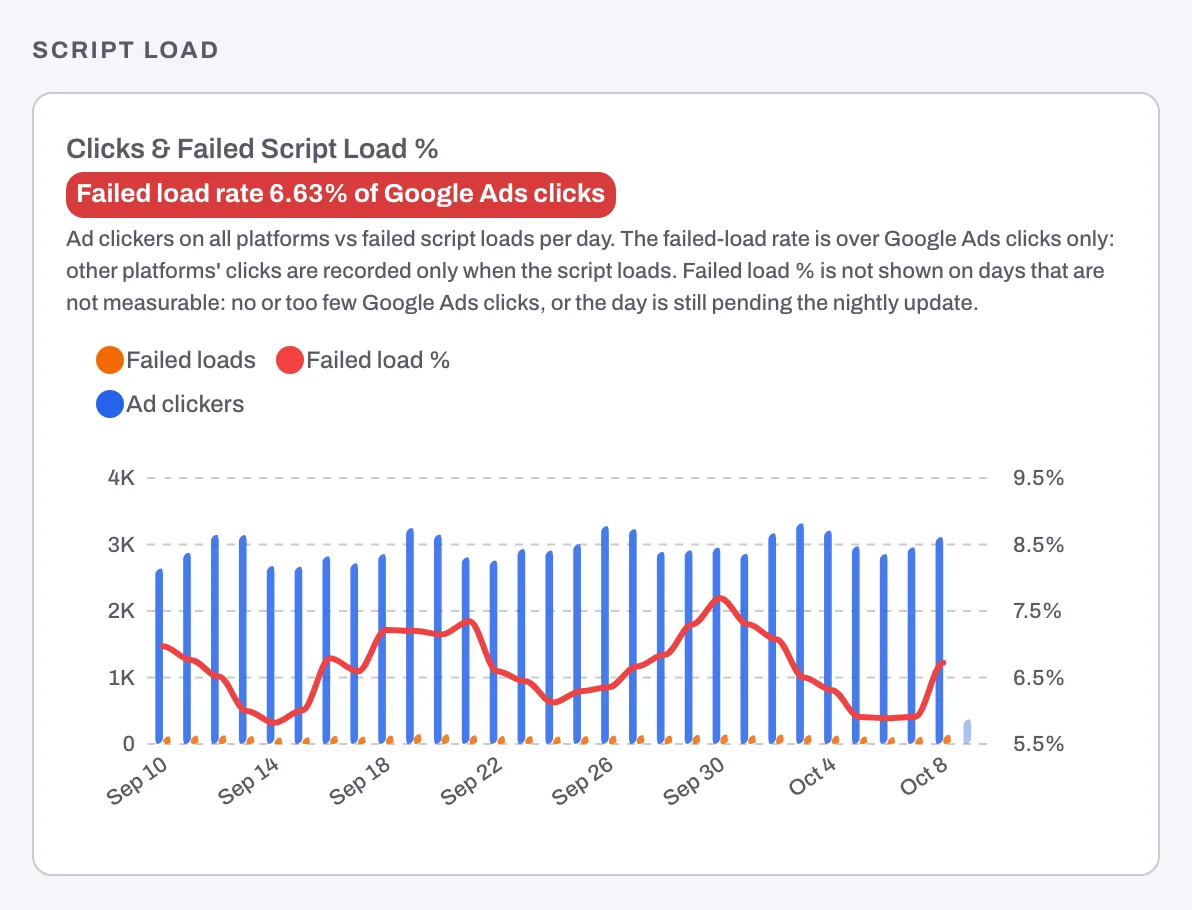
- Clicks & Failed Script Load %. On the dashboard's Overview, in the Script load section, this card shows ad clickers and failed script loads per day, with a Failed load rate as a share of Google Ads clicks. A low rate means the script loads for nearly every Google Ads click; a high one means many clicks reached pages where it did not.
- Script Initialization Time (daily). On the Traffic & Geo tab, under Engagement, this chart tracks the script's start-up time day by day. Values for recent days mean the script is running on your pages.
Dashboard numbers refresh every 4 hours, so a new install takes a while to show there.
If nothing shows up
- No
bundle.jsrequest. The script is not on this page. Paste it right after the opening<body>tag, or check that your Google Tag Manager tag fires on All Pages and that the container is published. bundle.jsis blocked, often with a Console message that mentions Content Security Policy. Your site's Content-Security-Policy header must allow Tapper's sources, listed below.- Your cookie policy is Consent first. Tapper stores nothing on a visitor's device until your site calls
window.tapper.consent("GRANTED");. Make sure your banner passes each visitor's answer withwindow.tapper.consent("GRANTED");orwindow.tapper.consent("DENIED");, then accept your own banner, reload the page and check again. See Cookie policy, consent snippets and recognizing visitors without cookies. - The domain is not listed. The script runs only on the domains under Protected domains on the Web detection rules tab. Check the spelling and add every domain your ads land on.
- The dashboard never changes. It may be on Demo, which shows sample data. Switch it to Live.
The sources to allow in a Content Security Policy, as the Website monitoring tab lists them:
script-src   https://monitor.tapper.ai
connect-src  https://protect.tapper.ai https://fingerprint.tapper.ai
img-src      https://protect.tapper.ai
worker-src   blob:
See Allow Tapper in your Content Security Policy for where to add them.
Still nothing? Write to support@tapper.ai with the landing page address and a screenshot of the Network tab.
Related
Was this helpful?
Related articles
Still need help?
Chat with our team and mention this article.