

The monitoring script: what it does and where to find it
The monitoring script is the small piece of JavaScript that Tapper Block runs on your website. Each protected entity has its own script with the entity's key already filled in.
What the script does
Block decides whether an ad click is invalid partly from what the visitor does once they land on your site. The monitoring script is how Tapper sees that. It runs on every page and records how each visitor behaves and which device and browser they use. Several settings on the Web detection rules tab work only with it:
| Detection setting | What it needs from the script |
|---|---|
| Behavior analysis | The recorded behavior of each visitor, to judge whether a click came from a valid or an invalid source. |
| Suspicious Ad Clicks | Whether a click was followed by any events on the page. |
| Minimum Seconds on Site | How long the visitor stayed on your site. |
| Block JavaScript-disabled browsers | The fallback image in the script, which loads only when JavaScript is off. |
| Device blocking | The device ID, to spot one device clicking your ads from several IPs. |
| Aborted ad clicks | Whether your page loaded and recorded any events after the ad click. |
Conversions and web click tracking links rely on the script too. Without it, these settings have nothing to work with.
The script does not record video replays of visitor sessions or build click and scroll heatmaps. The app has neither.
Where to find it
- In the sidebar, under Protection, click Protected Entities.
- Open the entity.
- In the left rail, under Website, click Monitoring. The tab is titled Website monitoring.
- Scroll past Cookie policy and Recognise visitors without cookies to the Monitoring script section.
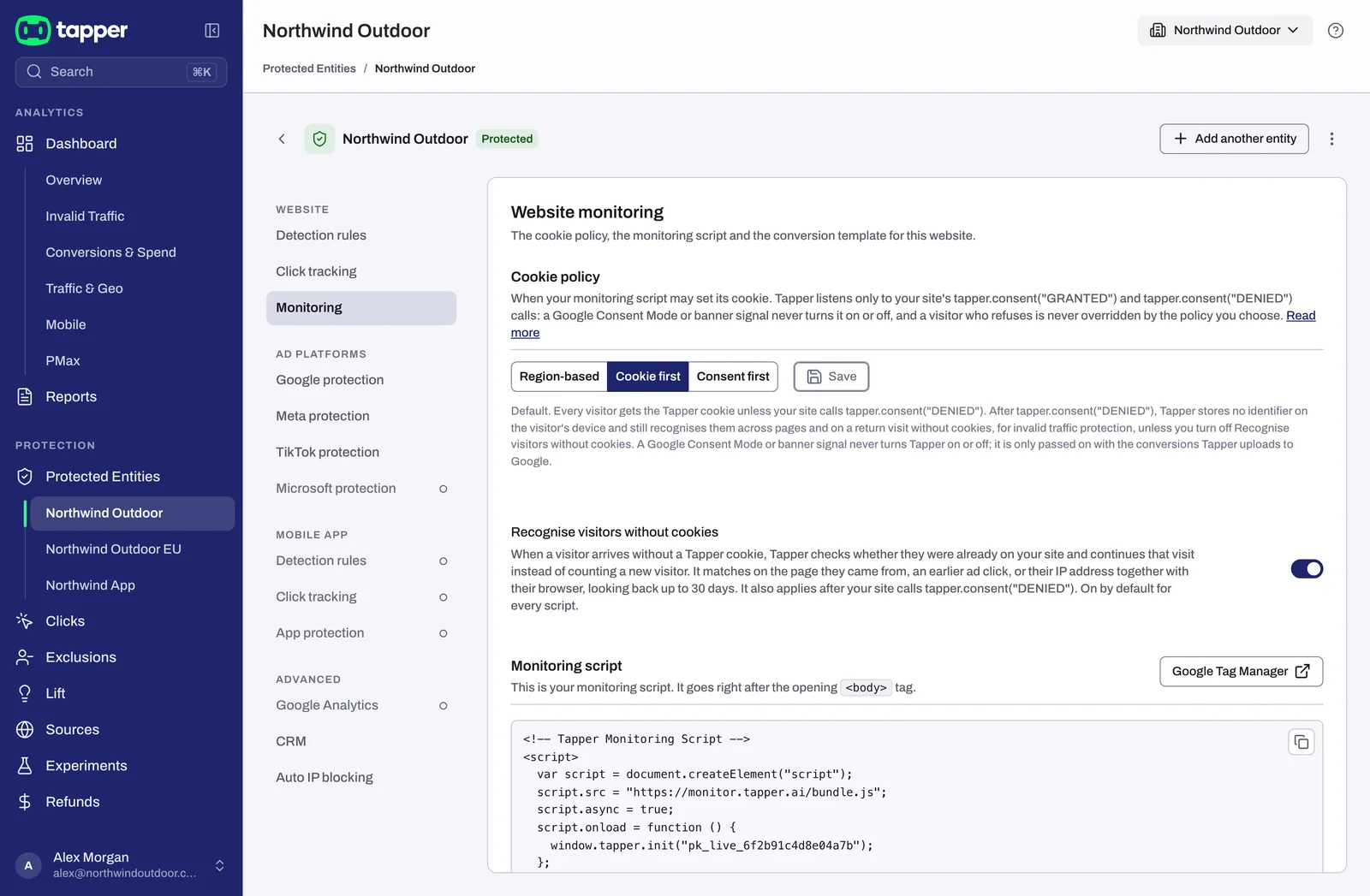
The tab starts only "once a Google, Meta, TikTok or Microsoft Ads account is connected to this entity." Connect an ad account first if you see that message.
The same script appears during setup, at the step Install website monitoring. If you installed it then, you do not need to install it again.
The snippet
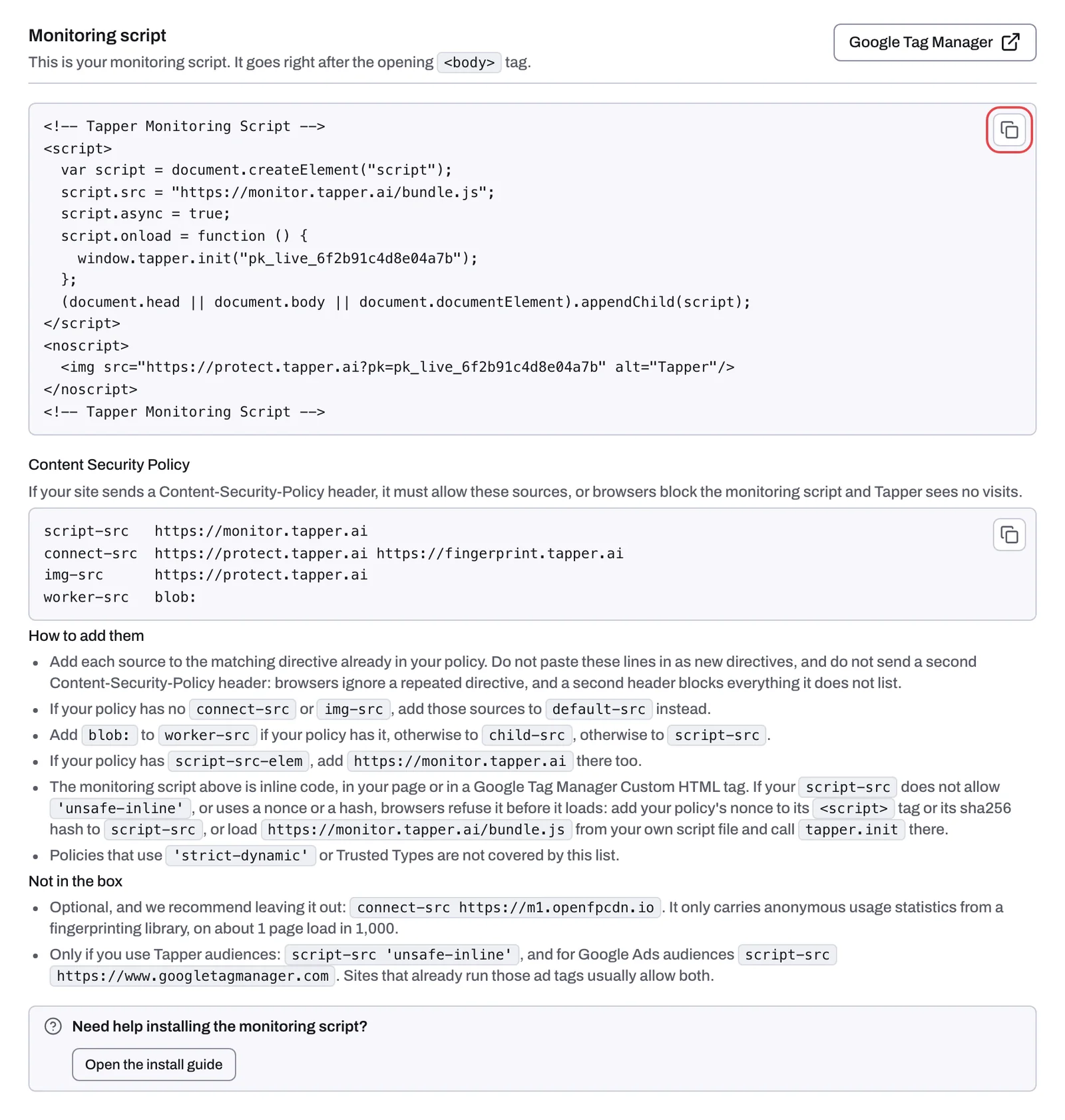
It goes right after the opening <body> tag. The snippet looks like this:
<!-- Tapper Monitoring Script -->
<script>
  var script = document.createElement("script");
  script.src = "https://monitor.tapper.ai/bundle.js";
  script.async = true;
  script.onload = function () {
    window.tapper.init("{public key}");
  };
  (document.head || document.body || document.documentElement).appendChild(script);
</script>
<noscript>
  <img src="https://protect.tapper.ai?pk={public key}" alt="Tapper"/>
</noscript>
<!-- Tapper Monitoring Script -->
In the app, {public key} is already replaced with your entity's key, so always copy the script from the app rather than from this page. The script loads https://monitor.tapper.ai/bundle.js without holding up your page, then calls window.tapper.init with your key. The noscript part loads a small image from protect.tapper.ai only in browsers that have JavaScript turned off.
The section has three controls:
- The copy button in the top-right corner of the code box copies the snippet with your key.
- Google Tag Manager opens tagmanager.google.com.
- Open the install guide, under "Need help installing the monitoring script?", opens the Monitoring Script guide on docs.tapper.ai.
Between the snippet and the install guide link, a Content Security Policy box lists the sources your site must allow if it sends that header.
Where it goes on your site
Install the script once on every page of the site, using one of these routes:
- Directly in your HTML. Paste it right after the opening
<body>tag, in the template or layout that every page shares. - Google Tag Manager. Use a Custom HTML tag or the community template Tapper - Monitoring Script. See Install the monitoring script with Google Tag Manager.
- Shopify. See Install Tapper on a Shopify store.
- PrestaShop. The PrestaShop snippet under Conversion script goes in place of the monitoring script, so you install that one instead of both. See Install the conversion script: GTM, Shopify, PrestaShop or JavaScript.
Tapper has no WordPress guide. On WordPress or another site builder, use Google Tag Manager or the builder's option for adding code right after the opening <body> tag.
After you install it
- If your site sends a Content Security Policy header, the browser can refuse the script and Tapper sees no visits. See Allow Tapper in your Content Security Policy.
- If your site asks visitors for cookie consent, set the cookie policy at the top of the same tab. See Cookie policy, consent snippets and recognizing visitors without cookies.
- To confirm visits are arriving, see Check that the monitoring script is working on your site.
Related
Was this helpful?
Related articles
Still need help?
Chat with our team and mention this article.