

Install the monitoring script with Google Tag Manager
If your site already runs Google Tag Manager (GTM), you can install Tapper's monitoring script without touching your site's code. There are two ways to do it: paste the script into a Custom HTML tag, or use the Tapper - Monitoring Script template from the Community Template Gallery and give it your entity's public key. Both load the same script on every page.
Before you start
- GTM must already be installed on your site. Google shows you its own installation code when you first set up a container.
- You need permission to publish changes in that GTM container.
- Your workspace must be Block + Lift. Lift only workspaces have no monitoring script.
- The entity needs a connected Google, Meta, TikTok or Microsoft Ads account. Until it has one, the Website monitoring tab does not start.
Step 1: copy the script from Tapper
- In the sidebar, under Protection, click Protected Entities, then click your entity.
- In the left rail, under Website, click Monitoring.
- Scroll to Monitoring script and click the copy button in the top-right corner of the code box.
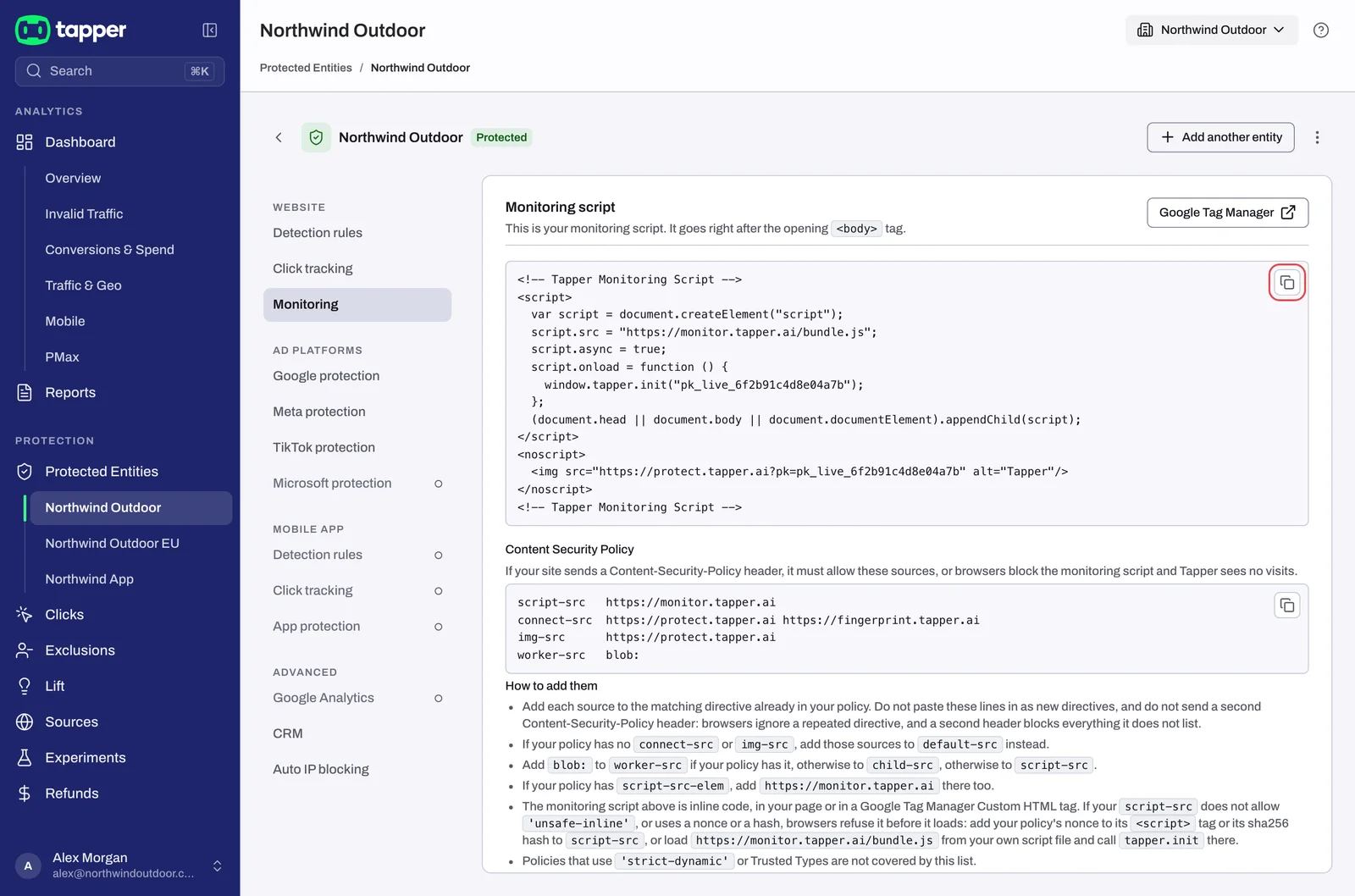
Your entity's public key is already inside the script. You do not need to look for it anywhere else in the app: it is the value inside window.tapper.init("..."), and it starts with pk_live_ or pk_test_. The template in option B asks for this value.
Step 2, option A: a Custom HTML tag
- In GTM, open the container for your site and go to Tags.
- Click New.
- Click Tag Configuration and choose Custom HTML.
- Paste the monitoring script into the HTML field.
- Under Triggering, choose the built-in trigger Initialization - All Pages, so the script runs as every page starts loading.
- Give the tag a clear name, such as "Tapper - Monitoring Script", and click Save.
Step 2, option B: the Tapper - Monitoring Script template
- In GTM, add the Tapper - Monitoring Script template to your workspace from the Community Template Gallery.
- Create a new tag and choose Tapper - Monitoring Script as its type.
- In the template's only field, Public Key (some versions of the template label it pk), paste the key from step 1 (the value that starts with
pk_live_orpk_test_). The field's help text in GTM says to find the key under "Settings → Public Key" in the Tapper dashboard. Ignore that: Tapper has no such setting, and the key is the value insidewindow.tapper.init("...")in the script you copied. - Set the trigger to All Pages.
- Name the tag and click Save.
Use one option, not both, so the script loads once per page.
Step 3: publish
- Click Submit.
- Enter a version name and a short description, such as "Add Tapper monitoring script".
- Click Publish.
What happens next
Use GTM's Preview mode to confirm the tag fires on every page, then check that Tapper is receiving visits: see Check that the monitoring script is working on your site.
If something goes wrong
- The template does not accept the key. Your key starts with
pk_live_orpk_test_. Copy it again from insidewindow.tapper.init("...")in the snippet, without the quotes. - The template tag fires and
bundle.jsloads, but no requests reachprotect.tapper.ai. Delete the template tag, add a Custom HTML tag instead (option A) and publish again. - The tag fires in Preview but Tapper shows no visits. Check your Content Security Policy first, then work through Check that the monitoring script is working on your site.
- No script appears under Website monitoring. Connect an ad account to the entity first. The tab starts "once a Google, Meta, TikTok or Microsoft Ads account is connected to this entity."
You can also open the Monitoring Script guide on docs.tapper.ai from Open the install guide on the same tab, or write to support@tapper.ai.
Related
Was this helpful?
Related articles
Still need help?
Chat with our team and mention this article.