

Install the conversion script: GTM, Shopify, PrestaShop or JavaScript
The conversion script tells Tapper when a visitor converts, together with the order value, currency and order id. Pick the tab that matches how your site is built: Google Tag Manager, Shopify, PrestaShop or plain JavaScript. Your entity's key is already in every snippet.
Before you start
- The monitoring script must be on every page of your site, the thank-you page included. The conversion script works with it. See The monitoring script: what it does and where to find it.
- Know which page a customer reaches only after converting: the order confirmation or the application-approved page.
- No developer available? You can count conversions by page instead: see Conversion pages: count conversions without a snippet.
Where to find it
- In the sidebar, under Protection, click Protected Entities and open the entity.
- In the left rail, under Website, click Monitoring.
- Scroll to Conversion script and pick a tab: Google Tag Manager, Shopify, PrestaShop or JavaScript.
Google Tag Manager
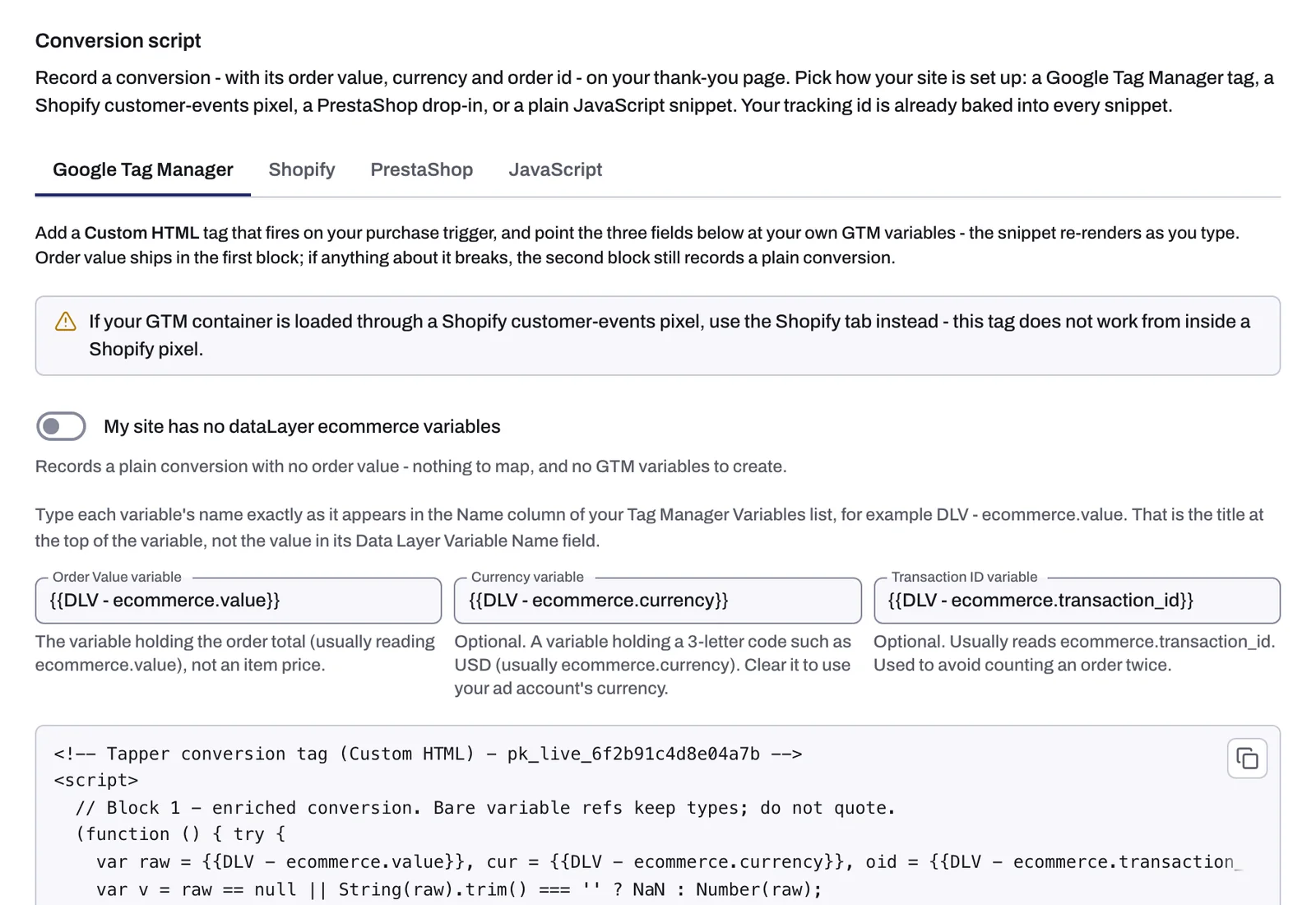
The tab builds a Custom HTML tag for you.
- Fill in Order Value variable, Currency variable and Transaction ID variable with your own GTM variables. Type each variable's name exactly as it appears in the Name column of your Tag Manager Variables list, for example
DLV - ecommerce.value. The snippet updates as you type. - Copy the snippet.
- In GTM, create a Custom HTML tag, paste the snippet and set it to fire on your purchase trigger.
- Save the tag, then submit and publish the container.
Currency and Transaction ID are optional. Leave Currency empty and the value is recorded in your connected ad account's currency. The transaction id is used to avoid counting an order twice.
If your site has no dataLayer ecommerce values, turn on My site has no dataLayer ecommerce variables. The tag then records a plain conversion with no order value.
You can also use the Tapper - Conversion Script template from the GTM gallery. Enter your key in Public Key (pk) and map its Order Value, Currency and Transaction ID fields (the last two are optional) to ecommerce.value, ecommerce.currency and ecommerce.transaction_id. With GA4 ecommerce tracking these are already filled on the purchase event.
Shopify
Shopify conversions come from a checkout pixel you add under Settings, Customer events, not from a snippet on a thank-you page. The pixel records your checkout's order value, currency and order id automatically. The full setup, including the Tapper Shopify app, is in Install Tapper on a Shopify store.
PrestaShop
The PrestaShop snippet goes right after the opening <body> tag, in place of the standard monitoring script, not next to it. It does everything the monitoring script does, plus add-to-cart, checkout and purchase capture, and records order value, currency and order id from your PrestaShop checkout automatically.
JavaScript
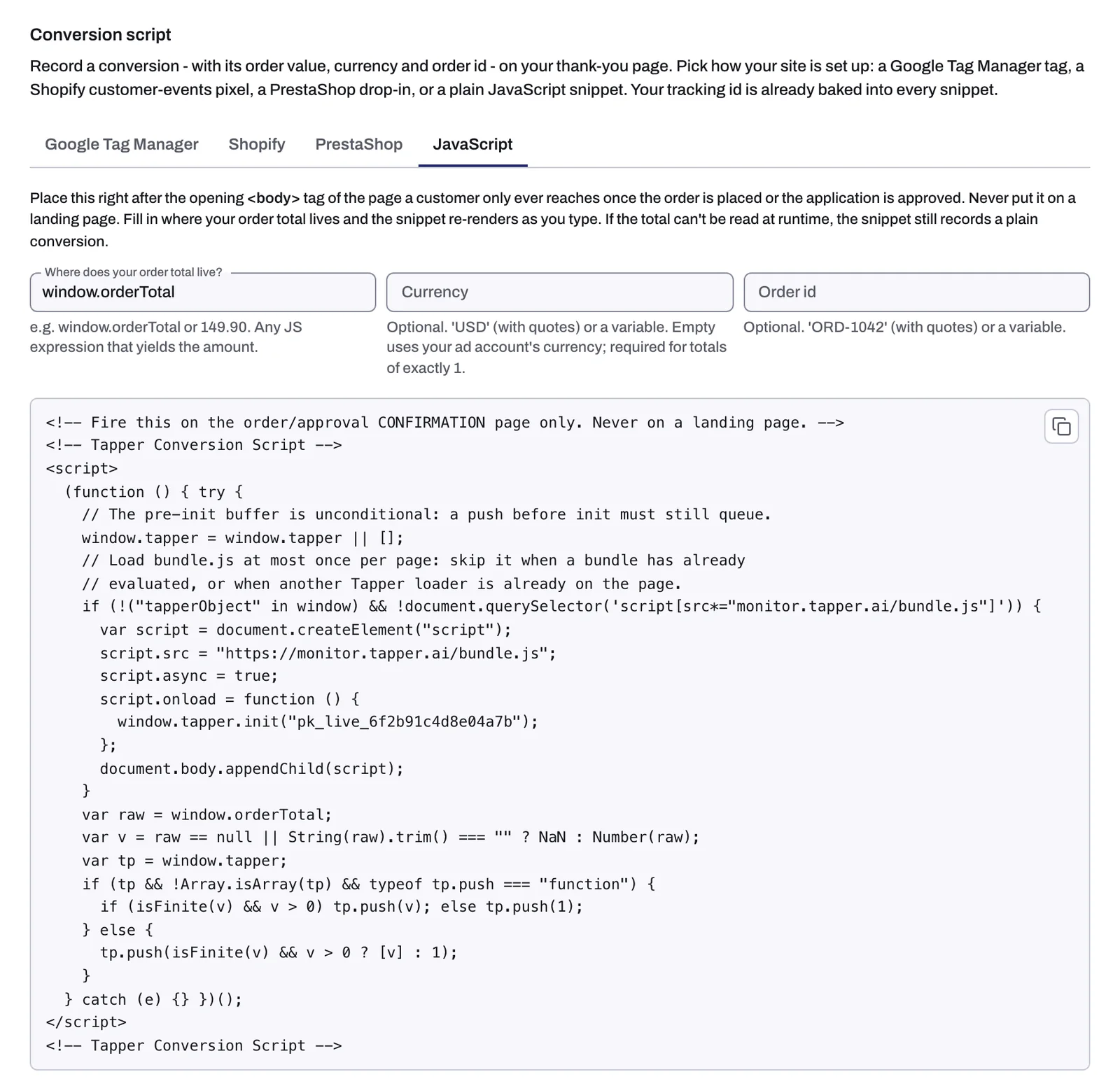
Use this tab when you can edit the confirmation page yourself.
- In Where does your order total live?, enter the JavaScript that holds the total, such as
window.orderTotal. - Optionally fill in Currency (for example
'USD'with quotes, or a variable) and Order id. - Copy the snippet and paste it right after the opening
<body>tag of the page a customer reaches only once the order is placed or the application is approved.
Never put it on a landing page. A fixed number such as 149.90 fires on every view of the page it sits on. On a landing page, that records a conversion for every visitor who clicks your ad. If the total cannot be read when the page runs, the snippet still records a plain conversion.
If your developer prefers to call Tapper directly, the call is window.tapper.push(amount, currency?, orderId?), for example:
window.tapper.push(49.99, "USD", "ORD-1042");
The amount must be a number (49.99, never the string "49.99"). Without a currency, the value is recorded in your connected ad account's currency. Stores that sell in several currencies must always pass a 3-letter code, and amounts of exactly 1 always need one.
What happens next
- Conversions recorded by Tapper show on the dashboard's Conversions & Spend tab, for example in the Conversion events tile ("Tracked by Tapper").
- Your monthly report shows its conversion cards (Conversions, CPA, Conversion Rate) only when conversions are verified.
- The app has no setting that allows converted IPs. If you think a real customer was blocked, see A real customer was blocked: what you can do.
If something goes wrong
- Almost every ad visitor shows as converted. The snippet is on a landing page, or a fixed amount fires on a page every visitor sees. Move it to the confirmation page only.
- Every purchase is counted twice. The GTM container has two Tapper conversion tags. Keep one.
- Values land in the wrong currency. Pass the currency explicitly, as a 3-letter code.
Related
Was this helpful?
Related articles
Still need help?
Chat with our team and mention this article.