

A fix was refused or cannot be reverted
On Google Ads, a Lift card's fix button (named for its change, for example Pause campaign) makes the change for you once you confirm it, and Revert this fix undoes it. If that does not work, the fix button is grayed out or missing, a red message such as "The fix ran but nothing landed in Google Ads." appears after you confirm, or a fix cannot be undone.
Why it happens
The fix button is grayed out or missing
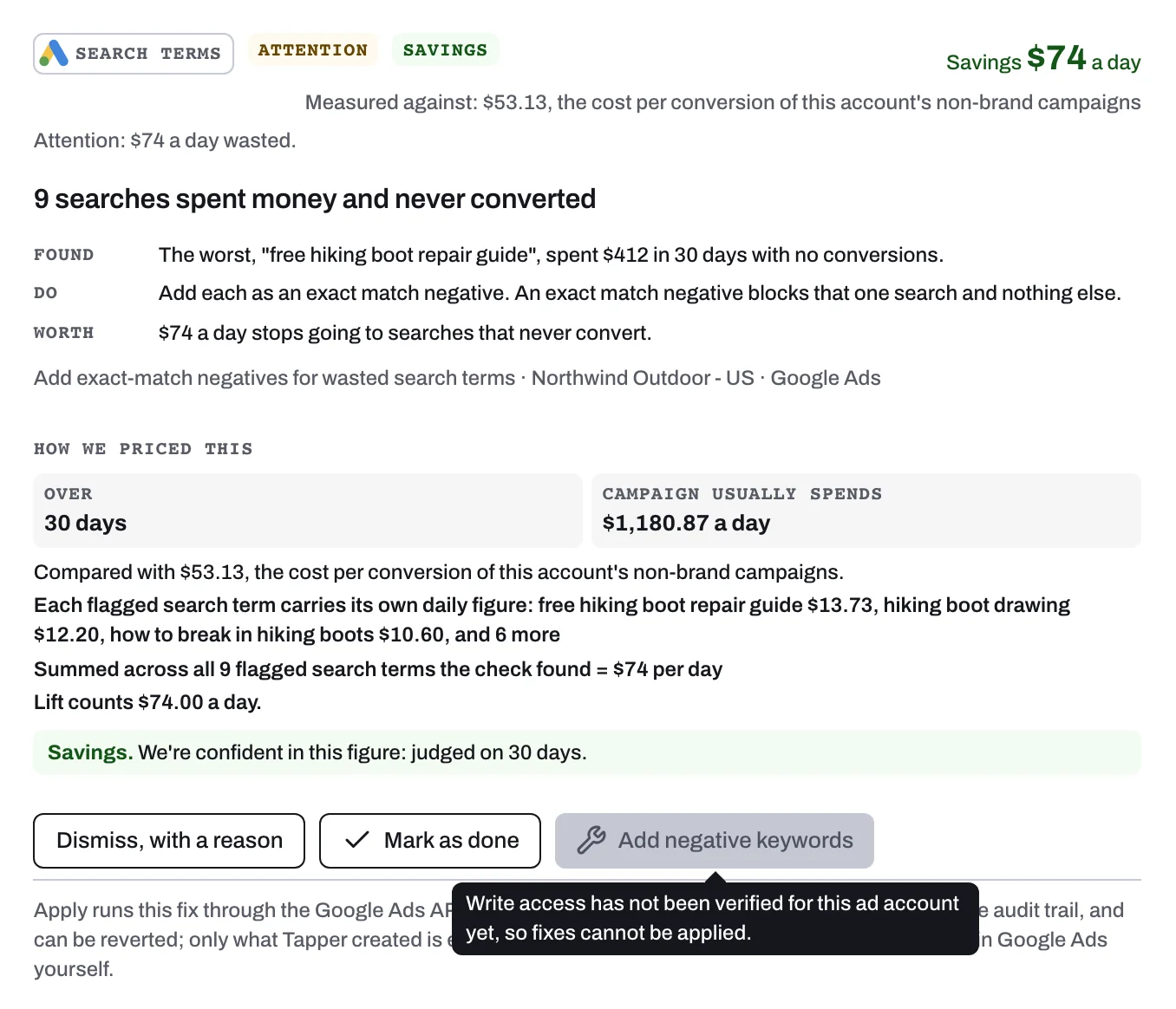
Hover over a grayed-out fix button to read why.
| What you see | Why |
|---|---|
| "Write access has not been verified for this ad account yet, so fixes cannot be applied." | Tapper has not yet confirmed that it can make changes in this account. |
| "Tapper has read-only access to this ad account, so fixes cannot be applied." | The Google login connected to Tapper can view the account but not change it. |
| "This ad account is not reachable through the Google Ads API right now, so fixes cannot be applied." | Tapper could not reach the account, for example because its connection stopped working or the account is not active. |
| No Reduce budget to {money}/day or target button | For example, the budget is shared with other campaigns, or the target comes from a portfolio bid strategy. |
| No fix button at all | The check has no one-press fix, or the card is not on the Open tab. On Meta Ads and TikTok Ads, Lift changes nothing: you make each change in Ads Manager or TikTok Ads Manager. |
After you confirm a fix
| Message | What it means |
|---|---|
| "The fix ran but nothing landed in Google Ads." | Nothing changed, for example because the change was already made (the campaign was already paused), what the card names no longer exists, or Google Ads turned the change down. The card stays open, and the Activity tab shows the attempt as Failed. |
| "Tapper hit an error and nothing was saved. Try again in a minute." | The card may have left the Open tab in the meantime: someone acted on it first, or a daily check closed it. The list then refreshes. |
| A sentence about access or the connection | The causes of a grayed-out button above, met at the press. |
| A sentence sending you to Google Ads, such as "This campaign's ad groups set their own targets. ..." | Tapper cannot make this change from the card, for example because the ad groups set their own targets, the target is shared through a portfolio strategy, or the card covers more than one campaign. |
If only part of a fix lands, it still counts as applied, and the Activity tab shows counts such as "3 succeeded, 1 failed".
On Meta Ads
Meta cards have no fix button yet, so no Meta fix can be refused or reverted. Press Open in Meta Ads Manager on the card, make the change there, then press Mark as done.
When a fix cannot be reverted
Revert this fix undoes the newest fix from Tapper still live on a card, with no time limit. On Google Ads, Revert on the fix's row of the Activity tab does the same.
| What you see | Why |
|---|---|
| No Revert this fix | No fix from Tapper is live on the card: it was marked as done, its fix failed, or the fix was already reverted. |
| A dash under Revert on the Activity tab | The fix failed or was already reverted, a newer fix on the same card must be reverted first, or Tapper can no longer make changes in the account. |
| "Tapper cannot write to this Google Ads account." | Tapper lost its access to the account, or its connection. |
| "Tapper hit an error and nothing was saved. Try again in a minute." | The fix may already be reverted (its Activity row reads Reverted), or Tapper cannot undo it (on Google Ads, the row's Revert gives the reason in words). |
| "Partially reverted: {N} changes are still live in Google Ads." | Google Ads did not take all of the undo. The card stays on the Done tab, and Revert stays available. |
For a budget, a target, a network setting or a pause, a revert puts back the value from before the fix, so check that setting afterward if you changed it in Google Ads since. Exclusions and negative keywords you added yourself are never removed.
Fix it
- Access or connection: contact your Tapper contact so Tapper can check its access to the account. For read-only access, first give the Google login you connected edit access to the account in Google Ads. If the account needs reconnecting, see Reconnect an ad account that stopped working.
- No fix button on an open card, or a message sending you to the ad platform: make the change in Google Ads (Where to find it on the card says where) or in Ads Manager (Open in Meta Ads Manager on the card), then press Mark as done.
- Nothing landed: if the change is already in Google Ads, press Mark as done; if not, press the fix again or make the change yourself.
- A press turned down: if the card is still on the Open tab once the list refreshes, try again in a minute.
- A revert refused: revert the newer fix on a card before an older one, press Revert again after a partial revert, and change back in Google Ads what Tapper cannot undo.
- TikTok Ads: press Apply in TikTok Ads Manager on the card, make the change there, then press Mark as done.
If it still happens
Write to support@tapper.ai with the check name and ad account shown on the card and, for a fix you pressed, the time in the When column of the Activity tab (hover over it for the date and time). See How to get help from Tapper.
Related
Was this helpful?
Related articles
Still need help?
Chat with our team and mention this article.