

No Lift recommendations yet
You open Lift and there is nothing to work on: the list is empty, or one platform's tab reads 0. The Lift tab may show No open opportunities, or one of the other screens below.
Why it happens
| What you see | What it means |
|---|---|
| Connect an ad account to start Lift | The selected protected entity has no Google Ads, Meta Ads or TikTok Ads account. Lift does not check Microsoft Ads accounts. |
| No protected entities yet | The workspace has no protected entity yet. |
| No open opportunities | No card is open on the entity, for one of the reasons below. |
| TikTok recommendations are on their way, in the list or in the TikTok tab's tooltip | No TikTok card is open, for one of the reasons below, or none matches the tabs and filters you picked. |
| "Nothing in Open matches the current filters." (or Done, Dismissed or Resolved in place of Open) | A tab, the search or a filter chip hides the cards, or the platform tab you picked has no open card. |
| Blurred rows, beside a panel with an Unlock recommendations button | Lift has found these recommendations. They open when your agreement with Tapper starts. Unlock recommendations asks your Tapper contact for full access. |
| Couldn't load your opportunities, "You do not have the required role on this workspace." | Lift is for Owners and Admins. Members with the Editor role cannot see its recommendations: see Invite members and set their roles. |
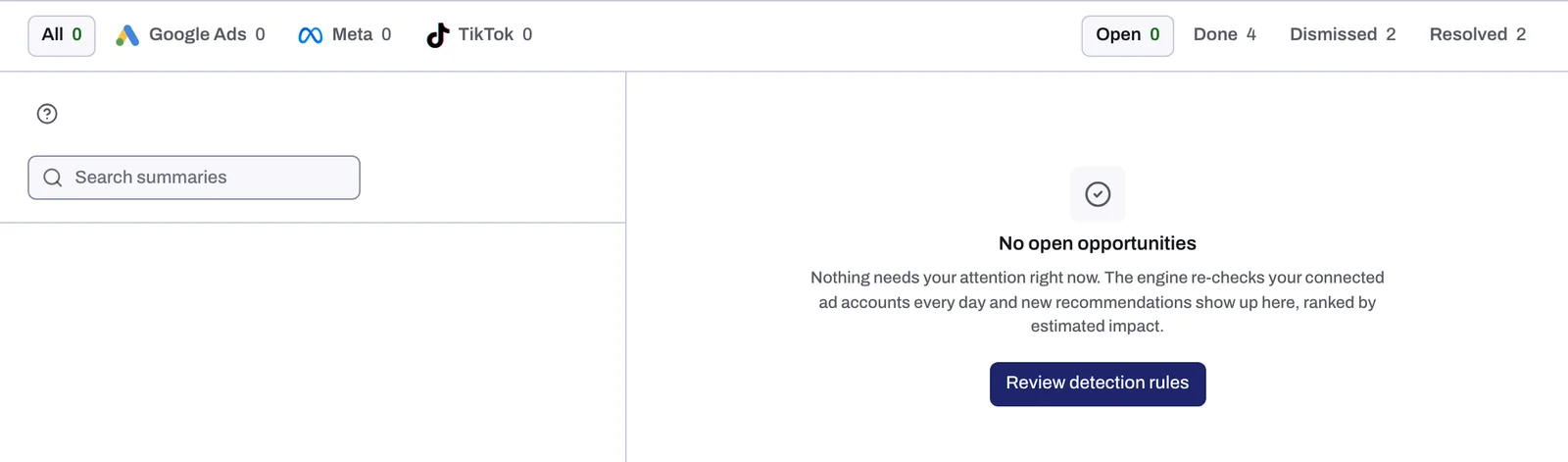
The button under No open opportunities does not bring cards back: on a Block + Lift workspace, Review detection rules opens the Protected Entities page, and on a Lift only workspace, Review Lift settings opens Lift's Settings tab.
With every open card showing, an empty list (or a platform tab at 0) usually means one of these, and the Lift page does not tell them apart: Tapper has not set up your workspace for Lift yet, the account's first check has not run, the day's figures have not fully arrived, the account needs reconnecting, or Lift found nothing to flag.
Fix it
1. Check the entity and its accounts
With several protected entities, pick the right one in the Protected entity dropdown above the page. Under Connect an ad account to start Lift, press Connect an ad account and connect a Google Ads, Meta Ads or TikTok Ads account: see Connect or reconnect Google Ads for Lift, Connect Meta Ads for Lift or Connect TikTok Ads for Lift. Under No protected entities yet, press Go to protected entities and add one first (Protected entities: what they are and how to add one). A platform the entity has no account on shows as a dashed tab such as Meta Connect: press it to add one.
2. Show every open card
Pick the Open status tab and the All platform tab, empty Search summaries, and press Clear to remove any Status, Check or Ad account chip. If a platform tab still reads 0, that platform has no open card.
Cards already handled or closed are under Done, Dismissed and Resolved. On Google Ads and Meta Ads, a card dismissed with Not for this account also stops its check on that ad account. On Google Ads you switch it back on in Setup (the gear on the Lift page), under Checks switched off; on Meta Ads, write to support@tapper.ai to switch it back on. See Fix, mark as done, dismiss and revert.
3. Give the first check time
The first cards come at different times on each platform:
| Account | First recommendations |
|---|---|
| Google Ads, on Lift only | A first check about 45 minutes after you connect, otherwise the next daily check. |
| Google Ads, on Block + Lift | The next daily check. |
| Meta Ads | The first daily check after Lift has read up to 90 days of the account's history: usually the day after you connect. |
| TikTok Ads | The first daily check after Lift's first read of the account. Lift reads TikTok accounts once a day, after 12:00 UTC, when TikTok has settled the previous day's figures. |
4. Reconnect an account that stopped working
In Protected Entities, open the entity's Google protection, Meta protection or TikTok protection tab. Lift skips an account whose card shows Needs reconnect, Not active or Needs attention: it gets no check and no new card until it is reconnected. Press Reconnect on the card and sign in again. For Not active, reactivate the account in Google Ads first; for Needs attention, check it in Meta Business settings first. See Reconnect an ad account that stopped working.
5. Wait a day if cards went away
Lift checks each account once a day. When an account's figures for the day have not fully arrived, or its spend in Tapper over the last 7 days is more than 5% away from the ad platform's own figure, Lift adds no card for it and takes its open cards off the list, with no notice. They come back with a later check, or close if Lift no longer finds the problem. If they stay away day after day, write to support@tapper.ai.
If it still happens
If all of that checks out and the Open and All tabs still show No open opportunities, Lift found nothing worth flagging, or nothing it can judge yet:
- On Google Ads, most checks raise no card on a campaign, or on anything in it, until the campaign has 14 days of spend since it started or restarted, and none once it has gone 7 days without spend.
- On Meta Ads and TikTok Ads, most checks skip an ad set or ad group in its learning phase, with spend on fewer than 7 of the last 28 days, or in a campaign with no spend in the last 3 days.
- On every platform, a card about wasted spend worth less than 1 a day, in the account's currency, is not shown.
- Lift checks each card once more before showing it. A card that does not pass is kept back, and shows only once a later check passes it.
Lift checks again every day. If no card comes after several daily checks, write to support@tapper.ai with your workspace name, the entity and the Account ID shown on the ad account's card. See How to get help from Tapper.
Related
Was this helpful?
Related articles
Still need help?
Chat with our team and mention this article.