

Manually excluded IPs are not showing in Google Ads
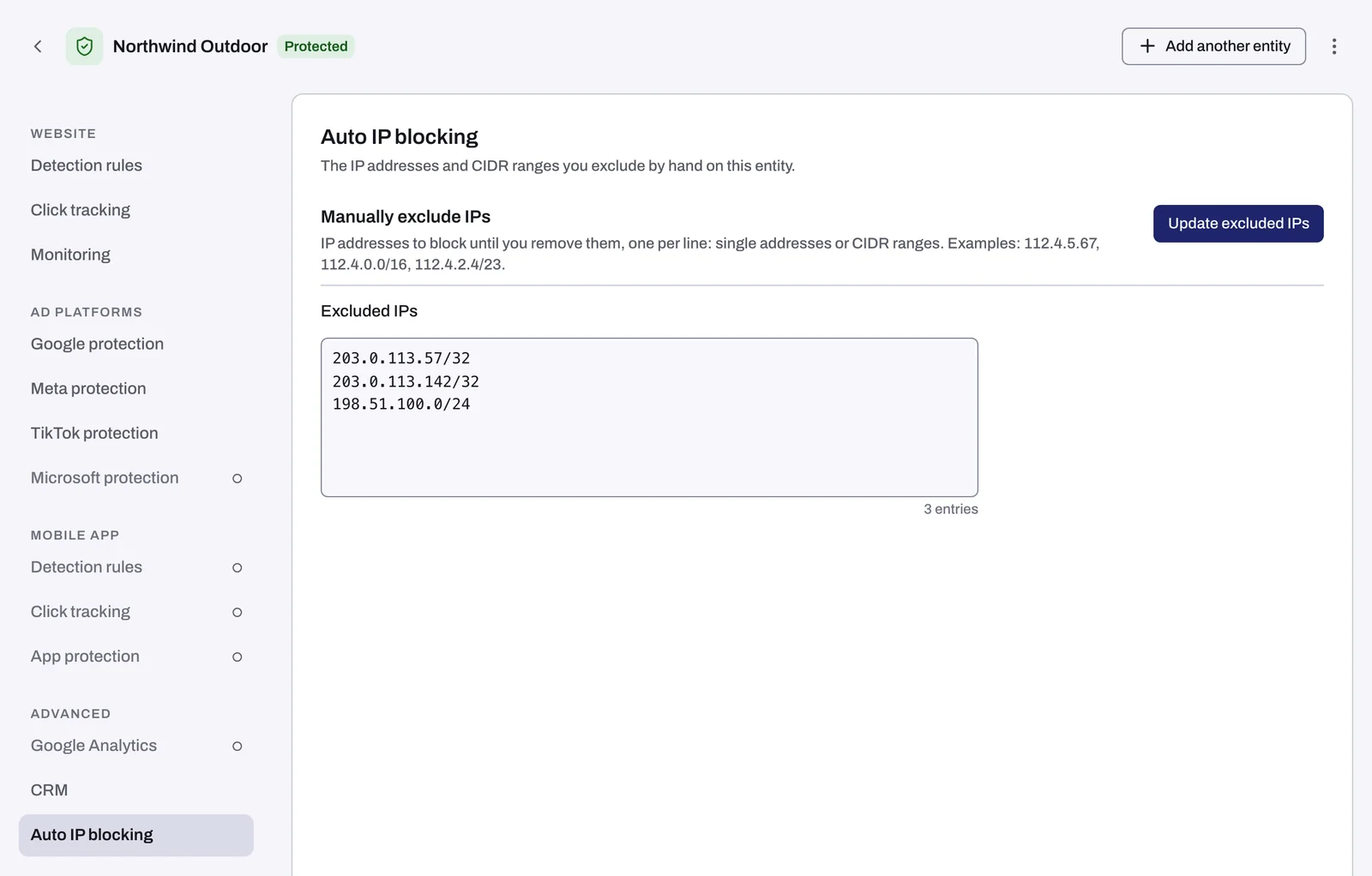
You added addresses or ranges under Manually exclude IPs on the entity's Auto IP blocking tab and clicked Update excluded IPs, but a campaign's IP exclusions in Google Ads do not list them. One of the causes below is almost always the reason.
Why it happens
- You are looking in the wrong place. Tapper writes IP exclusions on each campaign, not to an account-level list.
- The campaign type does not take the list. The hand-entered list goes to Google Search, Display and Shopping campaigns only. Other campaign types, including Performance Max, never receive it. Meta, TikTok and Microsoft Ads have no IP exclusions at all.
- The campaign is not protected. The list goes only to campaigns whose Protection switch is on under Manage campaigns. The unprotected copy in a blocking-lift experiment never receives it either.
- The push has not finished. Tapper sends the list to Google Ads in the background after you save, which usually takes minutes.
- The Google Ads account is in error. An account whose card reads Needs reconnect or Not active receives nothing until it is reconnected.
- The list was replaced. Saving replaces the whole list with what is in the field. If someone saved a version without your entry, it was removed from Google Ads too.
- A saved range already covers the address. An address added inside a range that is already saved is not kept as its own entry, so the campaign excludes the range rather than the single address.
- The campaign is at Google's limit. Google allows 500 IP exclusions per campaign, and your list shares that limit with Tapper's automatic exclusions. Tapper makes room by rotating its own lower-priority exclusions out and never rotates your entries out, but a list close to 500 entries leaves no room.
Fix it
- In Google Ads, open the campaign and go to Settings, Additional settings, IP exclusions. That is where Tapper's exclusions appear.
- Check the campaign type. Only Search, Display and Shopping campaigns receive the list.
- In Tapper, open the entity's Google protection tab, select Manage campaigns and check that the campaign's Protection switch is on. See Choose which campaigns Tapper protects.
- Open the entity's Auto IP blocking tab and confirm the entry is still in Excluded IPs. A saved single address is listed with
/32added, so112.4.5.67shows as112.4.5.67/32. If it is not there, check whether a range on the list covers it: an address added inside a range that is already saved is not kept as its own entry, so look for the range in Google Ads instead. Otherwise add it back and click Update excluded IPs. - On the Google protection tab, look at the account's status chip. If it reads Needs reconnect or Not active, follow the sentence on the card (an inactive account must be reactivated in Google Ads first), then click Reconnect and sign in with a Google login that has access to the account. See Reconnect an ad account that stopped working.
- Wait a few minutes after saving, then check the campaign again.
- If the campaign holds close to 500 IP exclusions, shorten your list: replace runs of single addresses with one CIDR range, which counts as one entry. See The 500 IP exclusions per campaign limit in Google Ads.
To compare with what Tapper excluded on its own for the same campaign, open the Exclusions page and filter by Campaign. See The Exclusions page and the proof drawer.
If it still happens
Contact Tapper support with the entity's name, the Google Ads account ID (shown as Account ID on the account card), the campaign name and the entry that is missing. See How to get help from Tapper.
Related
Was this helpful?
Related articles
Still need help?
Chat with our team and mention this article.