

Reconnect an ad account that stopped working
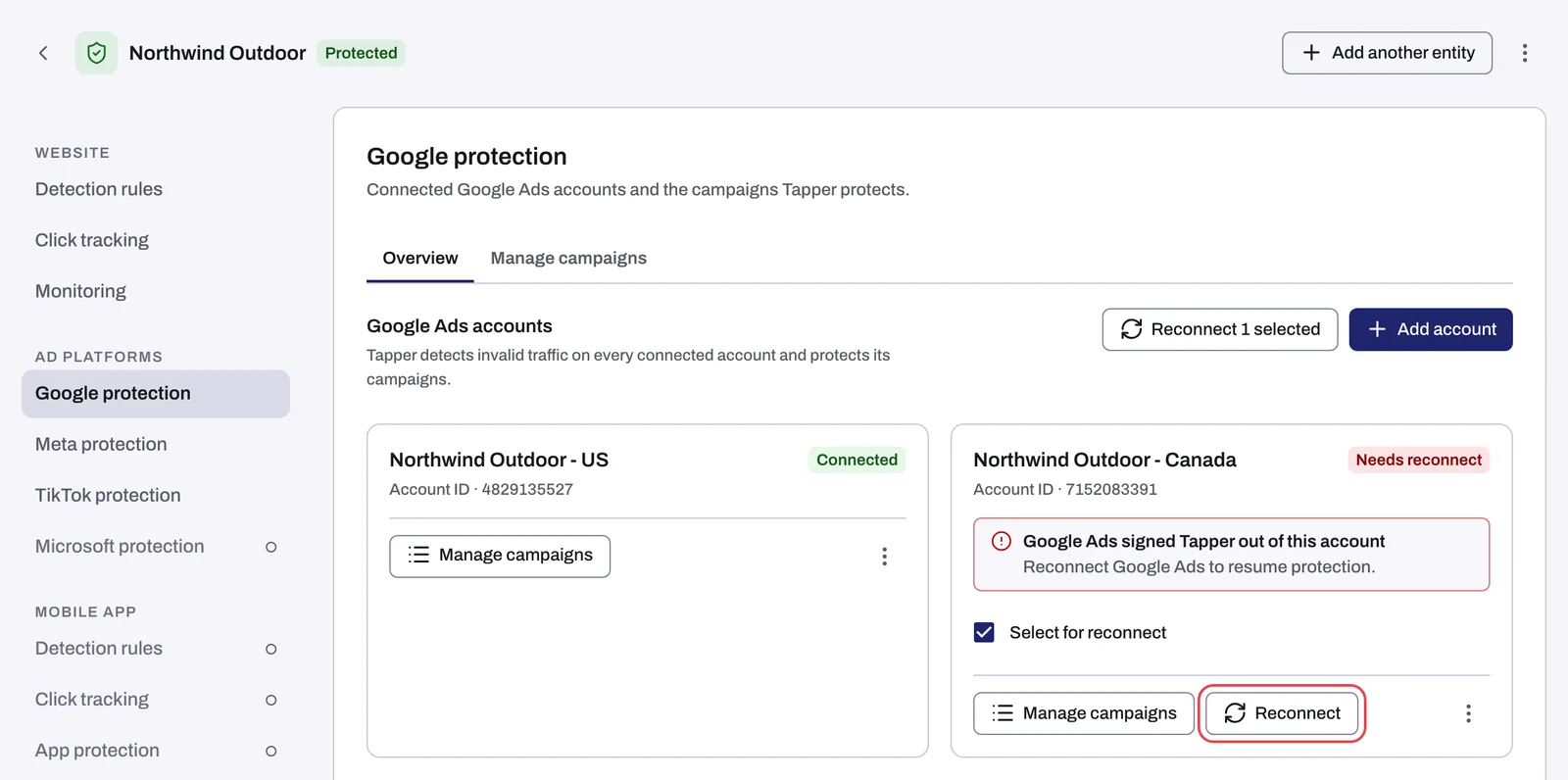
When Tapper can no longer use a connected ad account, the account's card on the entity's platform tab shows the chip Needs reconnect, Not active or Needs attention, with a notice naming the cause, for example "Google Ads signed Tapper out of this account". Reconnecting means signing in to the platform again so Tapper gets a working connection back. It works the same way on Google Ads, Meta, TikTok and Microsoft Ads, and on Lift-only workspaces.
Why it happens
- The platform signed Tapper out. The sign-in Tapper uses for the account is no longer valid.
- The login you connected with lost access to the account, for example because it was removed from the account in Google Ads or in Meta Business settings.
- The account itself has a problem. Google Ads reports it is not active (chip Not active), or Meta can't reach it because it may be closed or your profile lost access (chip Needs attention).
Tapper skips the account in its syncs until you reconnect it. Tapper does not email you about it and the dashboard shows no banner for it, so the card is where you see it. Every chip and sentence is listed in Ad account status: Connected, Needs reconnect, Not active, Needs attention.
Before you start
- You need to be a workspace Owner or Admin.
- Not active: reactivate the account in Google Ads first.
- Needs attention: check the ad account in Meta Business settings first, and fix what Meta shows there.
Reconnect one account
- Open Protected Entities in the sidebar and click the entity.
- In the entity's left rail, under Ad platforms, open the platform tab: Google protection, Meta protection, TikTok protection or Microsoft protection.
- Find the card with the error chip and read its notice. It says what went wrong and what to do.
- Click Reconnect on the card. This button appears only on accounts in error.
- Sign in to the platform with a login that has access to the account (see the table below).
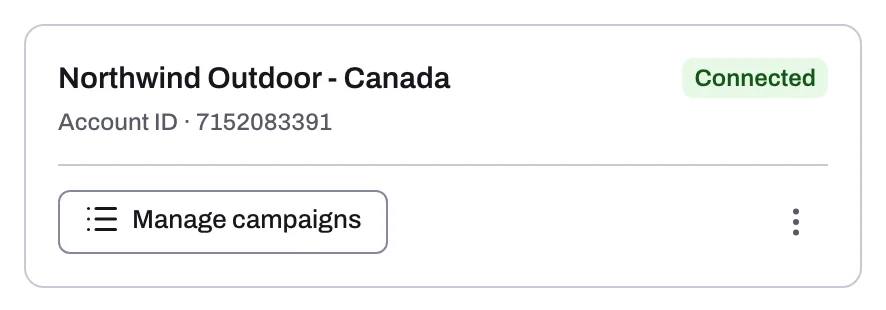
- Tapper brings you back to the same tab. The chip reads Connected and the notice is gone.
Reconnect several accounts at once
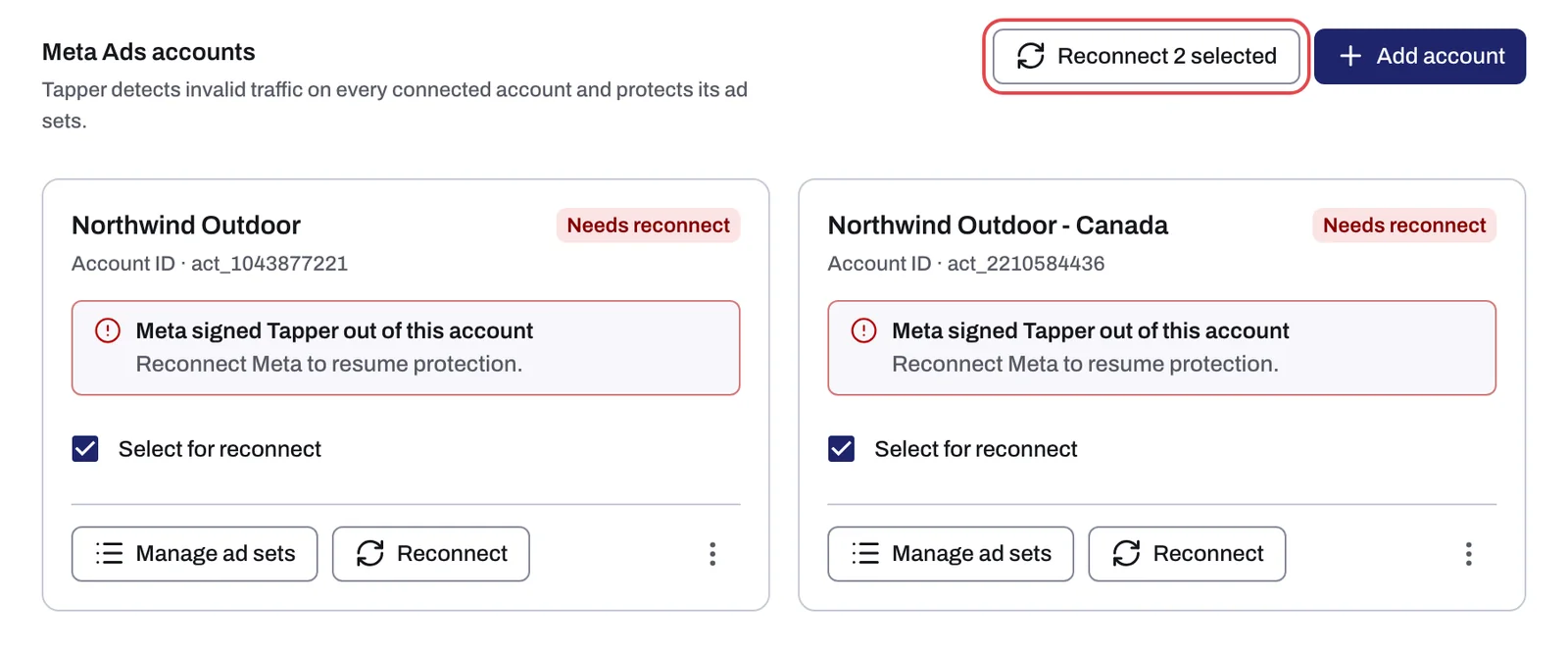
- On the platform tab, every card in error starts with Select for reconnect already ticked. Untick any account that needs a different login; you can reconnect it in a second round.
- Click Reconnect 2 selected (with your own count) beside Add account above the cards.
- Sign in once, with a login that can reach every selected account.
Which sign-in to use
| Platform | Sign in with |
|---|---|
| Google Ads | A Google login that has access to the account, directly or through a manager account. If the card says "The connected Google sign-in lost access", see Google Ads says your sign-in has no access to the account. |
| Meta | A Facebook profile with Advertiser or Admin access to the ad account, and allow ads management when Meta asks. If Meta does not ask, first remove Tapper in your Facebook settings under Business integrations, then reconnect. |
| TikTok | A TikTok for Business login that can open the ad account. |
| Microsoft Ads | A Microsoft login that can open the ad account. |
If you are still on the account list while connecting, the result screen has its own fresh sign-in button: Reconnect Google Ads (or the platform's name).
If it still happens
- The chip is still in error after you signed in. The login you used cannot reach that account; accounts the new sign-in cannot reach stay in error. Reconnect with a login that has access, or get your login added to the account on the platform first. For Meta, see Meta Ads account could not be connected.
- Not active comes back: the account is still inactive in Google Ads. Reactivate it there, then reconnect.
- Needs attention comes back: Meta still can't reach the ad account. Check it in Meta Business settings, then reconnect.
- You are back on the tab, no message appears and nothing changed. The reconnect may not have started. Click Reconnect again. If it fails a second time, write to support@tapper.ai with the entity name and the account ID from the card.
Related
Was this helpful?
Related articles
Still need help?
Chat with our team and mention this article.