

Fix, mark as done, dismiss and revert
Every Lift card has a row of buttons. On Google Ads, a card whose change Tapper can make carries a fix button: press it, check the change, confirm, and Tapper makes the change for you, with nothing to copy into Google Ads. Any other change, every Meta Ads and TikTok Ads one included, you make in the ad platform, then mark the card as done.
Before you start
You need the Owner or Admin role on the workspace: members with the Editor role cannot use Lift.
The buttons on a card
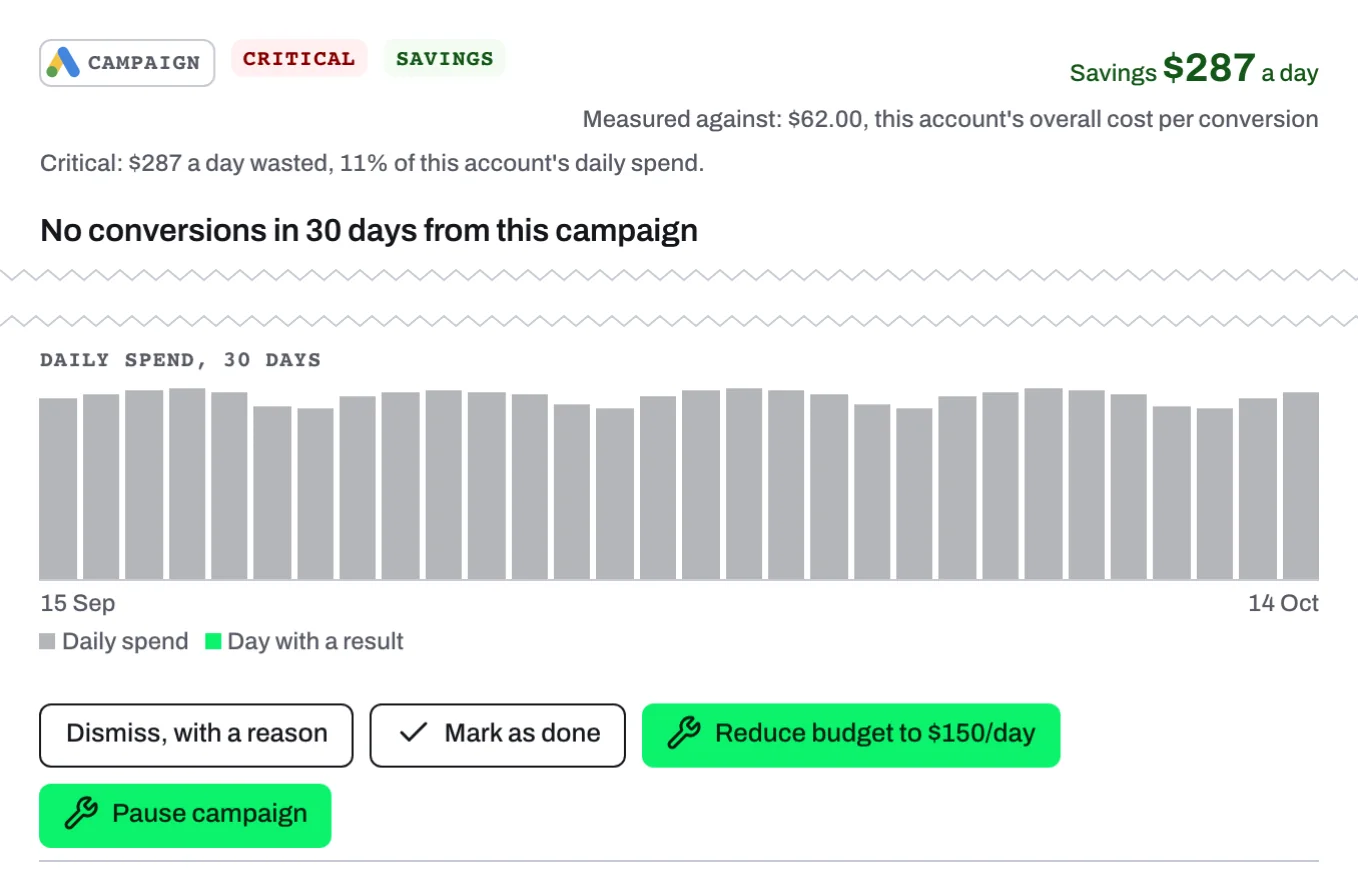
Press a row on the Lift tab to open its card beside the list (on a phone, as its own page). The buttons sit above Where to find it and stay in view as you scroll the card: Dismiss, with a reason and Mark as done on open cards, Revert this fix where Tapper can undo a fix, green fix buttons with a wrench icon where the card has them, each named for its change (on Google Ads only), Open in Meta Ads Manager on a Meta card and Apply in TikTok Ads Manager on an open TikTok card.
Nothing changes until you confirm the dialog a button opens: a link into a card (such as Review in the weekly email), a row's buttons and the keyboard keys only open the card or that dialog. One fix press acts on one card. Acted-on cards leave the Open status tab for Done (their chip reads Actioned) or Dismissed, and Resolved holds cards a daily check closed, for example because it no longer finds the issue.
On a Monthly budget off track card (Google Ads), Adjust monthly budget opens Setup at the account's Monthly budget, the figure in the account's own currency that Lift paces the account against. Change it, or empty it to turn that check off, then press Save; nothing changes in Google Ads.
Fix it in one press
On Google Ads
- Press the card's fix button.
- Check the change the confirmation describes, and confirm with the button of the same name.
The card moves to Done. If only part of the change lands, the fix still counts as applied; if nothing lands, a red message says so and the card stays open.
| Button | What changes in Google Ads |
|---|---|
| Exclude placements | Adds the flagged placements to the account-wide exclusion list. |
| Turn off Search Partners | Turns off Search Partners for the campaign. |
| Turn off Display expansion | Turns off the Display Network for the Search campaign. |
| Add negative keywords | Adds the search terms to the campaign as exact-match negatives. |
| Add phrase negatives | Adds phrase-match negatives to the campaign; each blocks every search term containing its pattern. |
| Pause keywords | Pauses the flagged keywords that are enabled. |
| Pause ad | Pauses every ad the card flags, across the campaign's ad groups. |
| Tighten target CPA to {money} | Lowers the campaign's target CPA by 20%. |
| Raise target ROAS to {n} | Raises the campaign's target ROAS by 20%. |
| Reduce budget to {money}/day | Lowers the campaign's daily budget, by at most half in one press. |
| Pause campaign | Pauses the campaign if it is enabled. |
The four campaign checks (Spending with no conversions, Far more spend than the conversions are worth, Cost per conversion over target, Return on ad spend under target) offer their buttons as alternatives. A budget or target button shows only when Tapper can work out its figure: none for a shared budget or a portfolio bid strategy's target. Other Google cards have no fix button: make the change in Google Ads and mark the card as done.
On Meta Ads
Tapper changes nothing in a Meta account yet: Meta cards have no fix button.
- Press Open in Meta Ads Manager on the card. Its campaign, ad set or ad opens in a new tab.
- Make the change there.
- Back in Tapper, press Mark as done.
On TikTok Ads
Tapper changes nothing in a TikTok account: Lift recommends, and you make the change.
- Press Apply in TikTok Ads Manager on the open card. The account's campaigns open in TikTok Ads Manager, in a new tab.
- Find the campaign that Where to find it names, then the ad group or ad, and make the change.
- Back in Tapper, press Mark as done.
Mark as done
- Once you have made the change yourself, press Mark as done on the card, the row's check button (Mark as done (E)) or the E key.
- Confirm with Mark as done.
Nothing is sent to the ad account. The card moves to Done and counts in Acted on this month at the top of the Lift tab; without it, the card stays open until a daily check no longer finds the issue, and does not count. To mark several, tick them on the Open tab (not on a phone) and use Mark as done in the list header.
Dismiss a card
Use it for a card that does not fit how you run the account, such as a brand campaign you keep on purpose.
- Press Dismiss, with a reason on the card, the row's x button (Dismiss (D)) or the D key.
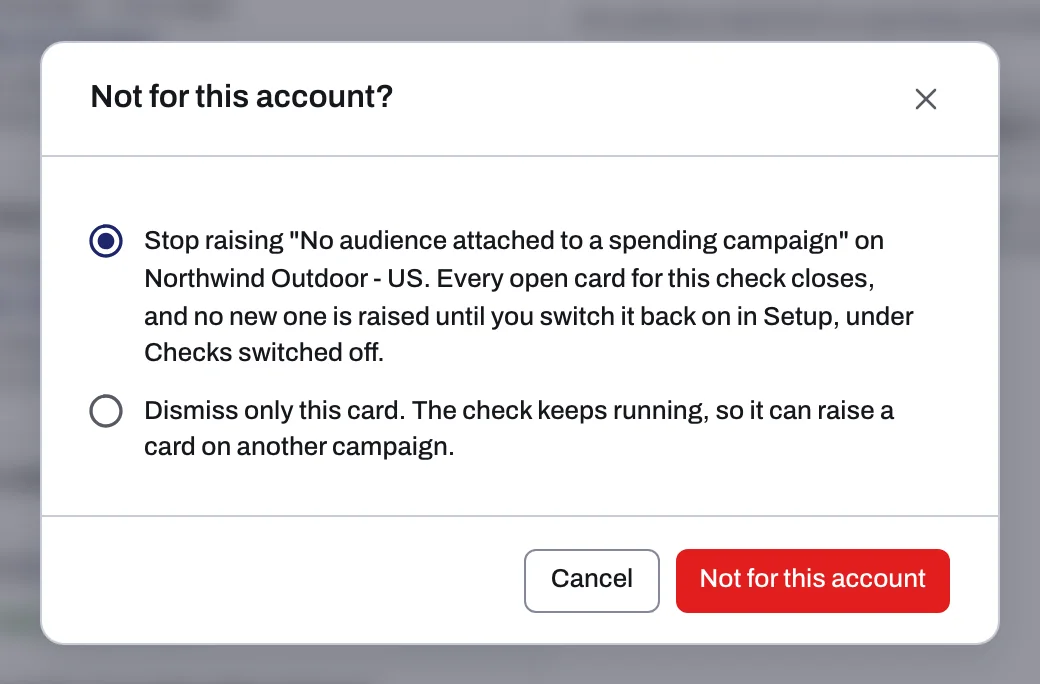
- In Not for this account?, pick how far it reaches. The first choice, the default, closes every open card of this check on this ad account and, on Google Ads and Meta Ads, stops the check raising new ones there. The second dismisses only this card.
- Confirm with Not for this account or Dismiss this card.
The card moves to Dismissed. The choice is the reason, and there is no snooze. After the first choice:
| Platform | What happens |
|---|---|
| Google Ads | No new card of that check on the account. To switch it back on, open Setup (the gear on the Lift page), then Google Ads, pick the account under Ad account, and press Switch back on under Checks switched off. |
| Meta Ads | No new card of that check on the account. It cannot be switched back on in the app: contact Tapper support. |
| TikTok Ads | Its open cards close, but the check keeps running and can raise new cards. |
Dismiss in the list header, for ticked cards, dismisses only those cards and never stops a check.
Revert a fix
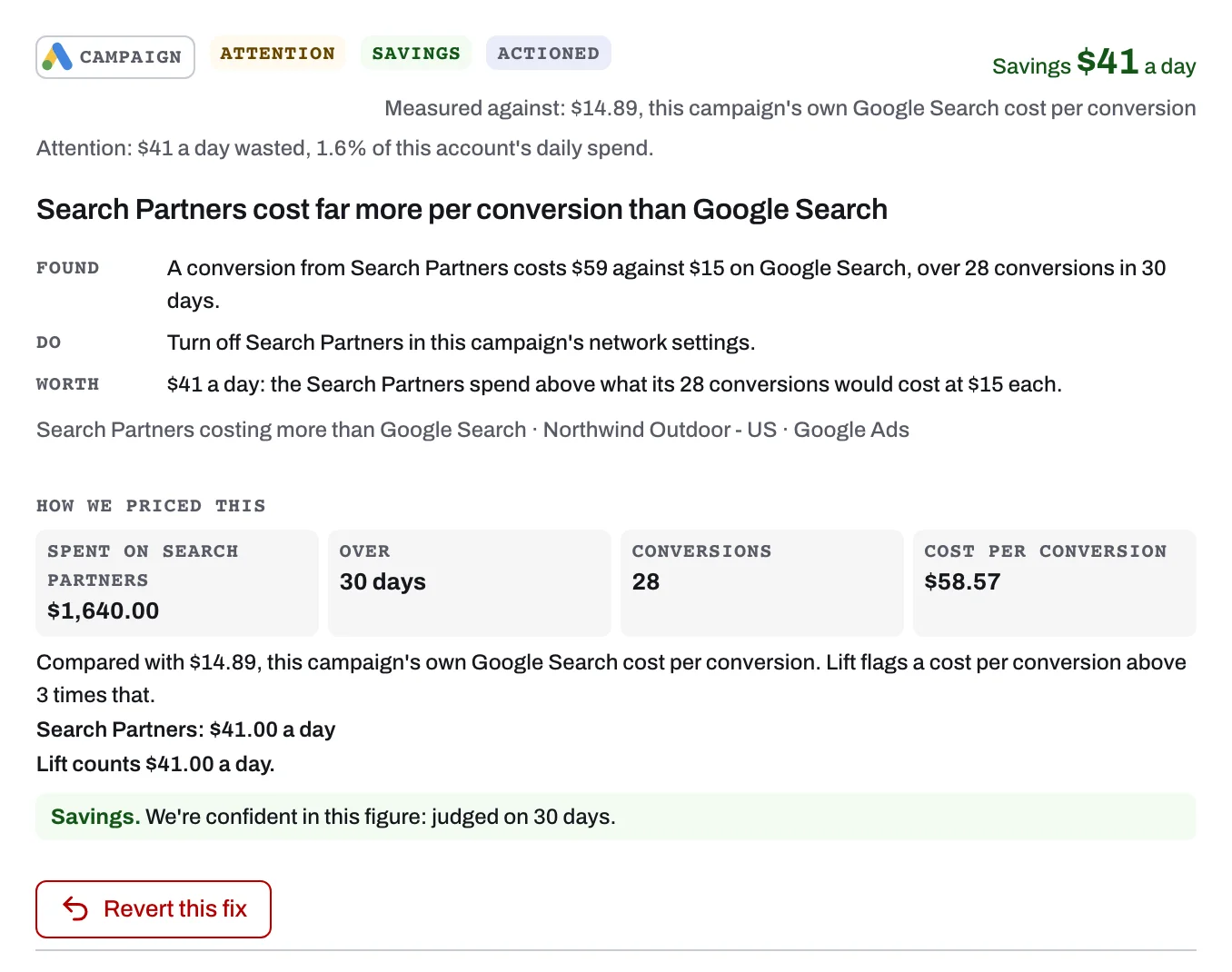
You can undo a fix Tapper made, with no time limit.
- Open the card on the Done tab. On Google Ads, the Activity tab also lists each fix, with Revert where Tapper can still undo it.
- Press Revert this fix (red, with an undo icon) and confirm with Revert.
On Google Ads, a revert removes the exclusions and negatives Tapper added, and sets statuses, budgets, targets and network settings back to the values they had before the fix, even if they were changed in Google Ads since. Your own exclusions and negatives are never touched. After a full revert the card returns to Open. If some changes stay live, a red message says how many, and you can revert again. The button undoes the card's most recent fix.
What Lift never changes
- Anything, until a person confirms a fix, except on Google Ads, where an Owner or Admin can set an automation band that lets Tapper tighten a target CPA or raise a target ROAS on its own, within the band, once a person's own fix of that kind has stuck on that account. See Automatic fixes and the Activity tab.
- Your total budget, upward: no fix raises it, and Lift never recommends spending more in total.
- A shared budget, a portfolio bid strategy's target, or a campaign's target when its ad groups set their own.
- Your own exclusions and negative keywords, even when it reverts a fix.
- Anything in a Meta Ads or TikTok Ads account: you make those changes in the ad platform.
If something goes wrong
- The fix button is grayed out. Hover over it for the reason, such as "Write access has not been verified for this ad account yet, so fixes cannot be applied." Contact your Tapper contact; meanwhile, make the change in Google Ads and mark the card as done.
- "This campaign's ad groups set their own targets." Change the ad group targets in Google Ads, then mark the card as done.
- "Tapper hit an error and nothing was saved. Try again in a minute." Someone may have acted on the card first, or the daily check closed it: the list refreshes to show where it is.
More causes: A fix was refused or cannot be reverted.
Related
Was this helpful?
Related articles
Still need help?
Chat with our team and mention this article.