

Change your password
On this page
Change your password in Settings, Profile, on the Login tab. You need to be logged in and know your current password. If you cannot log in, use a reset link instead: see Reset a forgotten password.
Change it in Settings
- Open the account menu at the bottom of the sidebar (your photo and name) and click Profile. You can also open Settings and choose Profile, or go to
https://app.tapper.ai/settings/personal. - Open the Login tab.
- On the Password row, click Change password.
- Type your current password in Current password.
- Type the new password in New password and again in Repeat new password.
- Click Update password. Tapper shows Password changed.
If a Verify it's you dialog appears, Tapper has emailed you a 6-digit code. Type it in Code from the email and click Verify. Send a new code sends another.
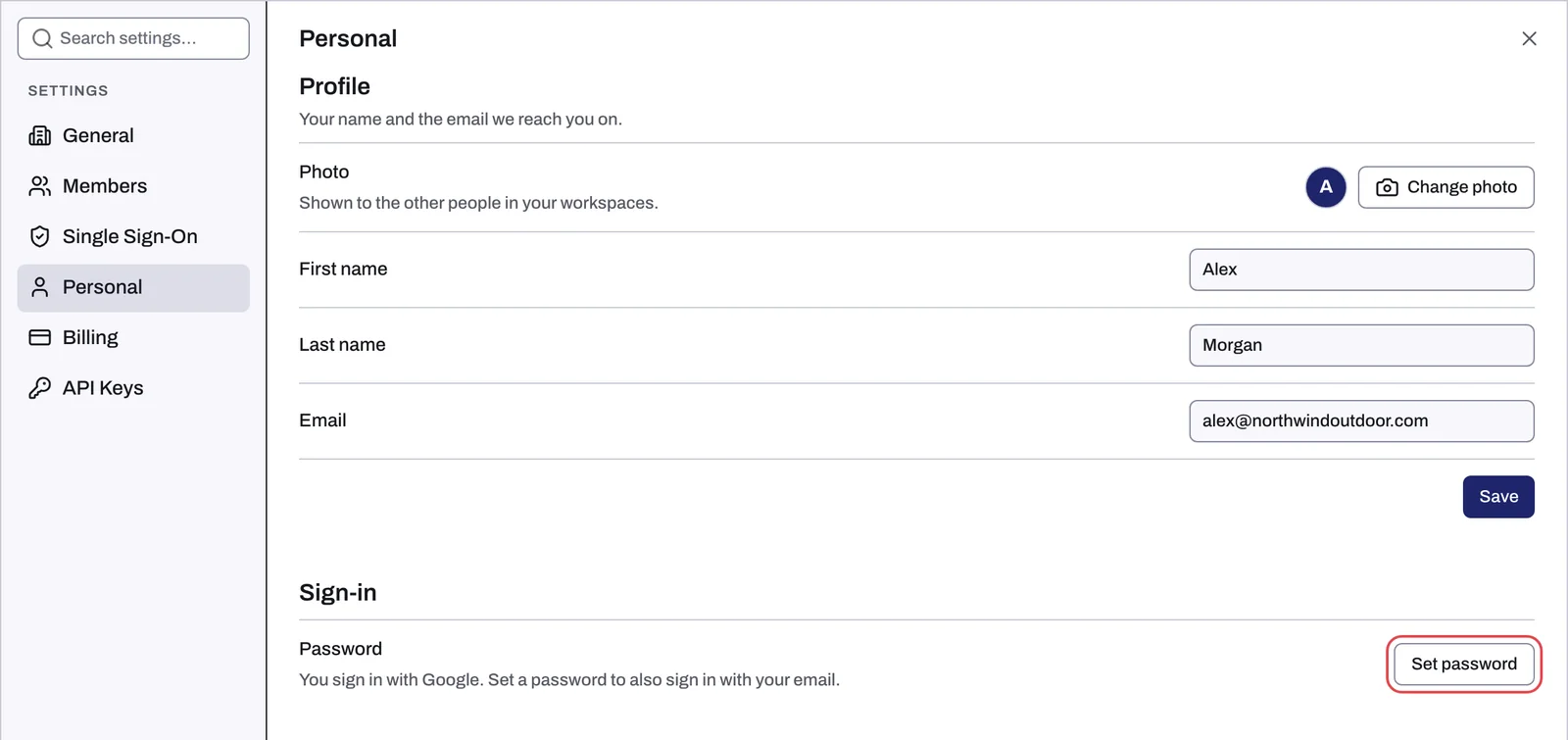
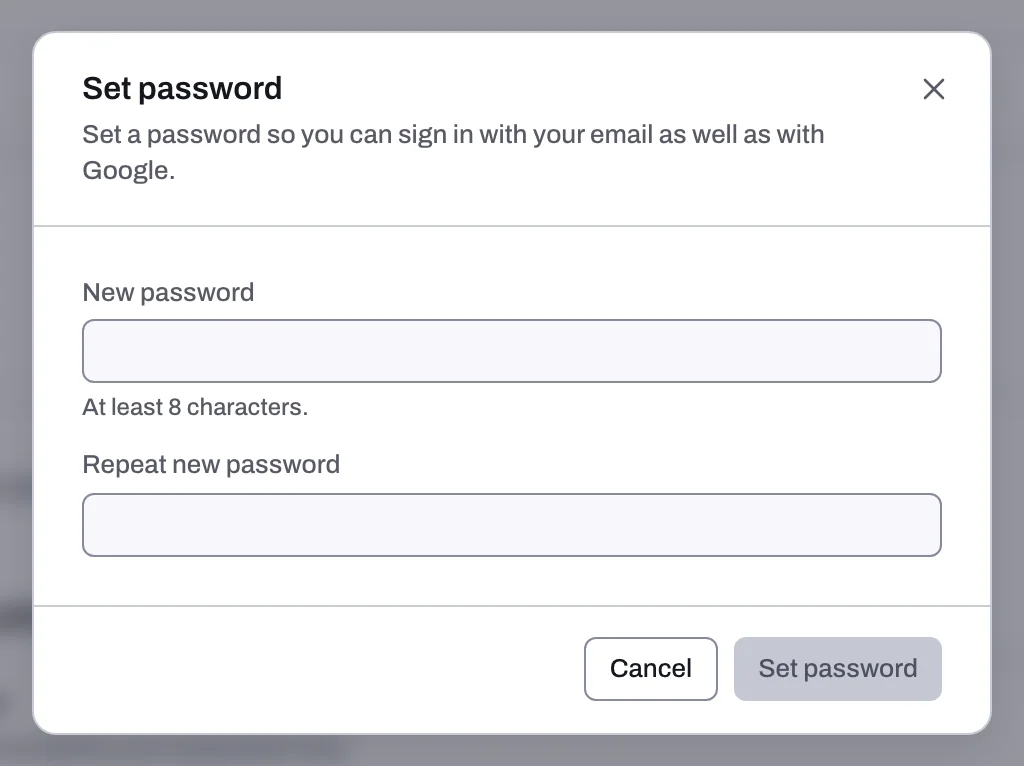
If your account was created with Google
It has no password yet. The Password row reads "You have no password yet. Set one to also log in with your email." Click Set password, type the new password in New password and Repeat new password, and click Set password. You can then log in with your email address as well as with Google.
Password rules
At least 8 characters, at most 320. Numbers, symbols and capital letters are not required.
If something goes wrong
| Message | What to do |
|---|---|
| Passwords do not match. | The two new-password fields differ. Type the new password again in both. |
| Enter your current password. | Your account already has a password, so the dialog needs it. If you forgot it, use a reset link. |
| Could not change the password. | Try again. If it fails twice, write to support@tapper.ai. |
Related
Was this helpful?
Still need help?
Chat with our team and mention this article.