

Reset a forgotten password
Ask for a reset link from the sign-in page and choose a new password. You do not need to contact support.
Before you start
- An account created with Sign in with Google has no password. Sign in with Google, or add a password with Set password: see Change your password.
- If you know your current password, change it in Settings, Profile instead: see Change your password.
- The reset pages open only when you are logged out.
Ask for a reset link
- Open
https://app.tapper.ai/log-inand click Forgot password?. The Reset your password page opens. - Type the address you sign in with in Email.
- Click Reset password. The page shows "Sent. Check your inbox, and your spam folder."
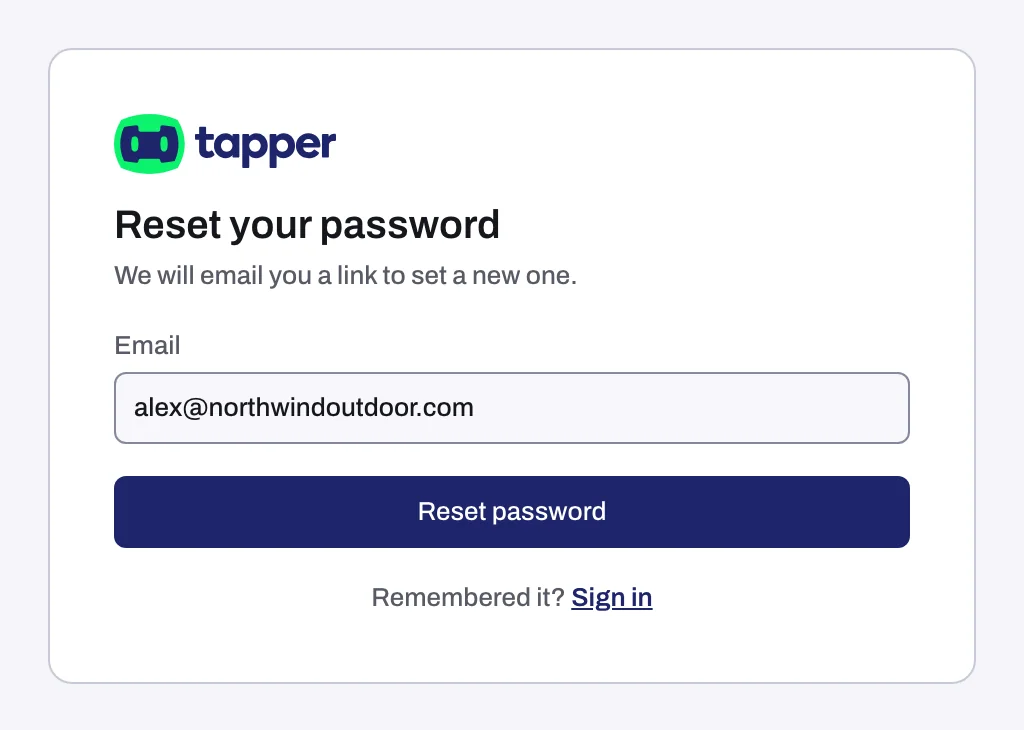
The confirmation is the same whether or not the address has a Tapper account, so check you typed the address you signed up with.
Set a new password
- Click the link in the reset email. The Set a new password page opens.
- Type your new password in New password, at least 8 characters.
- Click Reset password. Tapper takes you to the sign-in page.
- Sign in with your email address and the new password. If two-factor authentication is on, Tapper still asks for your authenticator code.
If something goes wrong
| What you see | What to do |
|---|---|
| This link has expired | A reset link works once and expires after 14 days. Click Ask for a new link and use the newest email. |
| No email arrives | Check spam for "Reset your password for Tapper" and check the address, then ask again. After three requests in 14 days, no new email is sent: use an earlier link. Still nothing? Write to support@tapper.ai. |
| You are asked for a code you cannot produce | You lost your authenticator. A reset does not help: see Can't sign in: wrong password, lost authenticator, SSO not found. |
Related
Was this helpful?
Still need help?
Chat with our team and mention this article.