

The Clicks page and the visitor drawer
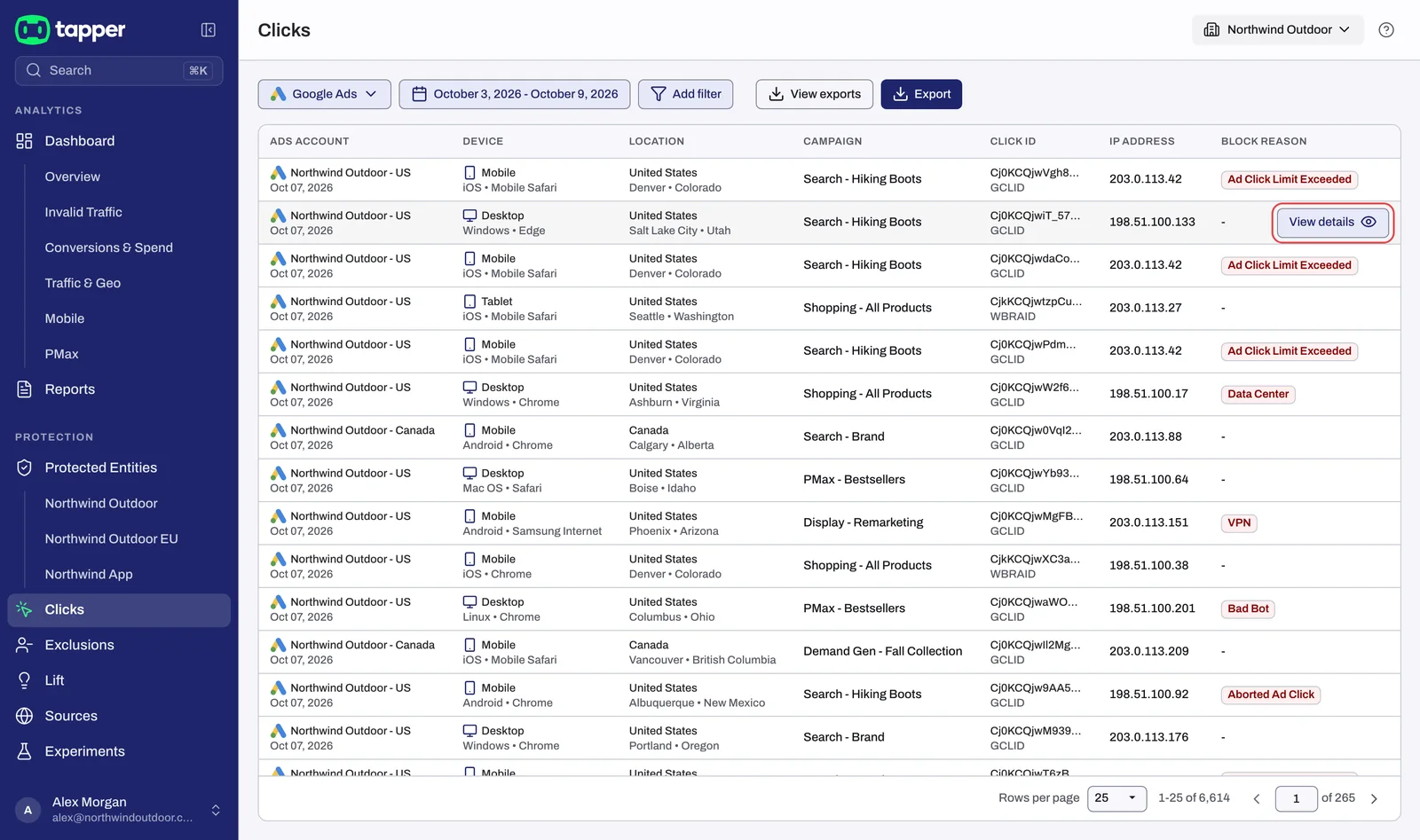
The Clicks page lists every ad click Tapper tracked, one row per click, for each ad platform you have connected. Use it to confirm that clicks are arriving after setup, to follow one visitor's clicks, and to see why Tapper flagged a visitor. Open it from the sidebar row Clicks in the Protection section. Lift only workspaces do not have this page.
Pick a platform
The page shows one platform at a time. The button at the start of the filter row shows the current platform; click it to open the Marketing Platform menu and pick Google Ads, Meta Ads, TikTok Ads or Microsoft Ads. A platform you have not connected is marked Not connected.
The columns
| Column | What it shows |
|---|---|
| Ads account | The connected account the click belongs to |
| Device | The device the click came from |
| Location | Where the click came from |
| Campaign | The campaign that served the ad |
| Click id | The ad platform's click identifier. On Google Ads the kind is printed underneath: GCLID, WBRAID or GBRAID |
| IP address | The visitor's IP address. The column is hidden when sensitive information is hidden in your workspace |
| Block reason | Why Tapper flagged the click, or empty for a valid click |
On a workspace in monitoring-only mode, nothing is blocked yet, so the last column is named Invalid traffic instead of Block reason. See Monitoring-only mode.
Hover a row and a View details button appears. It opens the visitor drawer described below.
Filters
The row above the table holds the platform button, the date range and Add filter; on Google Ads, View exports and Export sit at its end. No filter shows in the row until you choose one:
- Click Add filter.
- Choose Protection script (that is the entity filter), Ads account, Campaign type, Campaign, Block reason or Blocked.
- Pick the values and click Apply.
The filter then shows as a chip in the row: click the chip to change it, or its x to remove it. Clear removes every filter but the date range. On monitoring-only workspaces the Block reason and Blocked filters are named Invalid traffic type and Invalid traffic.
On Google Ads the menu has one more filter, Visitor ID. Paste the id from a visitor drawer or from the Exclusions page to see every click that visitor made.
The visitor drawer
Click View details on a Google Ads or Meta Ads row to open the drawer. TikTok Ads and Microsoft Ads rows do not open a drawer.
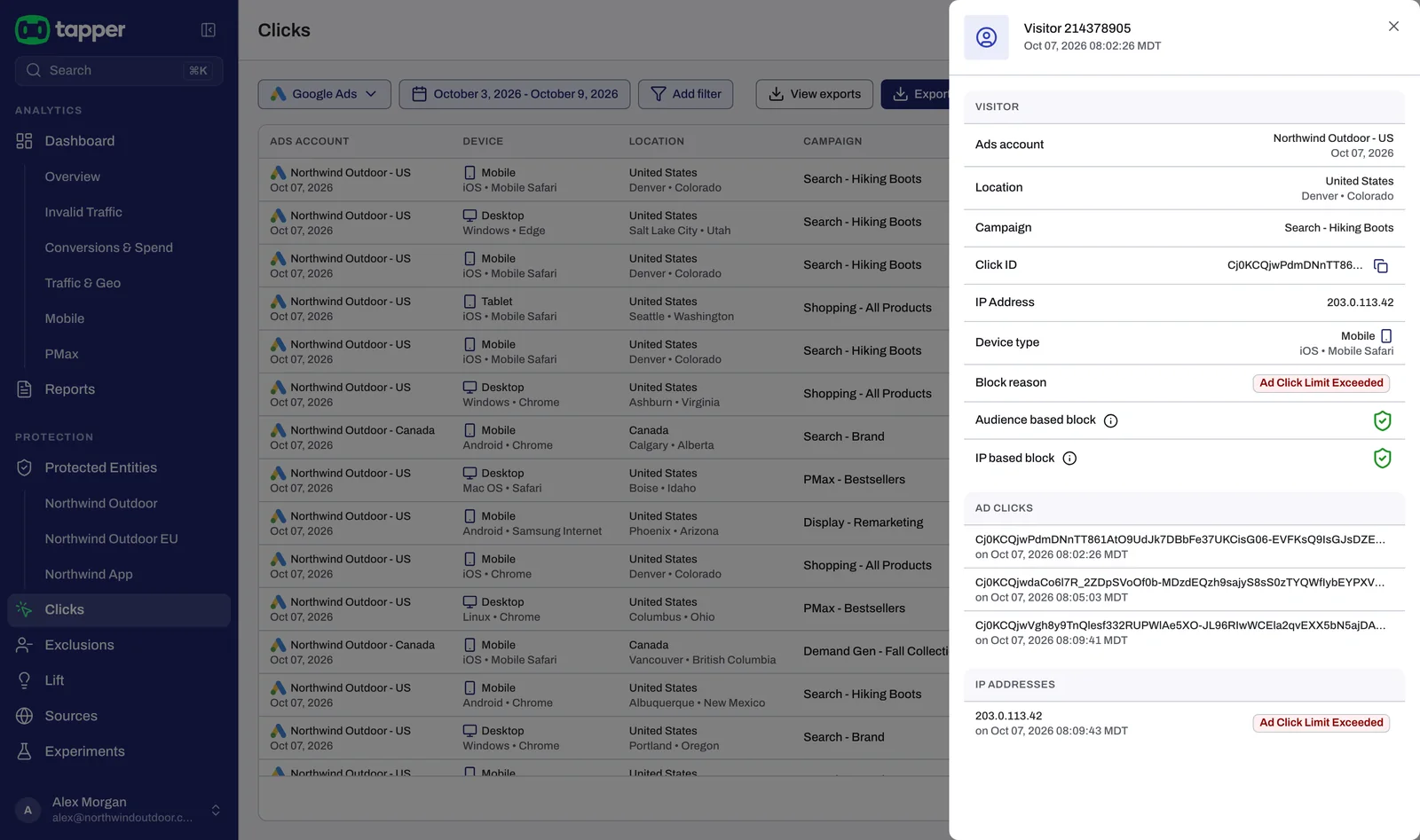
The header reads Visitor followed by the visitor id. Below it you find:
- Ads account, Location, Campaign
- Click ID, with Copy to clipboard next to it
- IP Address and Device type
- Block reason, or No block reason for a valid visitor
- Audience based block and IP based block: which kind of exclusion Tapper applied to this visitor, if any
- An Ad clicks list with every ad click from this visitor, and an IP Addresses list with every IP it used
You can copy the browser URL of an open drawer and send it to a colleague with access to the workspace.
The same visitor fields appear in the drawer on the Exclusions page, where they come with Google Analytics engagement evidence. See The Exclusions page and the proof drawer.
Export clicks to CSV
The export exists on the Google Ads view only.
- Click Export. The Export clicks data confirmation opens.
- Confirm. Tapper builds the file on its servers.
- Click View exports to open Export History.
- Click Download next to the export you want. The file is a .csv.
Click Stream is a different list
If your plan includes Links & Campaigns, the sidebar also shows a Click Stream row with a live pulse dot at the end of that section. It opens a drawer titled Live stream over the Clicks page.
The Live stream shows clicks on your Tapper short links, not ad clicks. Its columns are Time, Link, Short link, City, Country, Device, OS, Browser, Referrer and Destination, and it refreshes every 10 seconds.
No session recordings
Related
Was this helpful?
Related articles
Still need help?
Chat with our team and mention this article.