

No clicks on the dashboard: what to check
Your dashboard shows Total Clicks at zero, or the charts stay empty for days your ads ran. Work down this list in order: the first checks take seconds and solve most cases.
Why it happens
With Block, Tapper sees an ad click through the monitoring script on your landing page and, for Google Ads, through the tracking template it sets on your account. An empty dashboard usually means one of three things: you are looking at the wrong view, setup isn't finished, or something stops the script or the template from reaching Tapper.
Fix it
1. Check the view: Live, dates and filters
- Make sure the Live / Demo switch is on Live. Demo shows sample data.
- Check the date range. The default is the last 7 days in your workspace time zone; pick a range in which your ads ran.
- Set the platform toggle to All platforms and remove any filter added with Add filter (for example Protection script or Ads account) that you no longer need.

2. Give it a few hours
Dashboard numbers refresh every 4 hours. Clicks from the last few hours may not be counted yet, especially right after you install the script or connect an account.
3. Check that the entity is set up
- In the sidebar, open Protected Entities and click the entity.
- Look at the chip next to its name. Setup incomplete means something is missing, and its tooltip says what.
- Open the tab of each platform you advertise on and check the account cards. An account marked Needs reconnect, Not active or Needs attention is skipped by Tapper's syncs until you fix it. See Reconnect an ad account that stopped working.
On the dashboard, if you select a platform that has no connected account, a banner invites you to connect one. Protected confirms the setup, not the traffic, so carry on if the chip is fine.
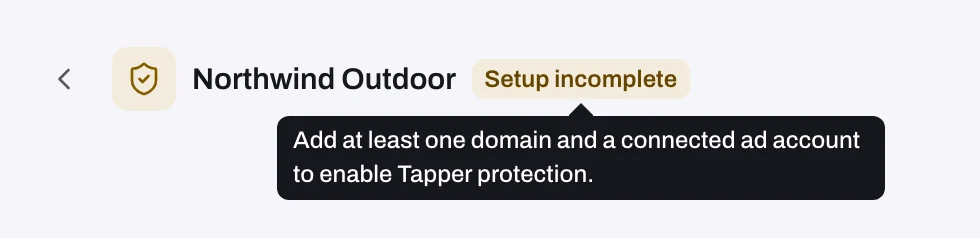
4. Check the monitoring script on your landing pages
- The script must run on every page your ads send visitors to. Run the browser test in Check that the monitoring script is working on your site.
- The script runs only on the domains listed under Protected domains on the Web detection rules tab. Check the spelling, and add every domain your ads land on.
- If your site sends a Content-Security-Policy header, it must allow Tapper's sources, or browsers block the monitoring script and Tapper sees no visits. See Allow Tapper in your Content Security Policy.
- On the dashboard's Overview, the Clicks & Failed Script Load % card in the Script load section shows a Failed load rate as a share of Google Ads clicks. A high rate means many Google Ads clicks reached pages where the script did not load.
5. Check for Google Ads tracking that skips Tapper
If the dashboard shows Some ads skip Tapper's tracking, some campaigns, ad groups or ads have their own tracking template and Tapper can't see their clicks. Click Fix tracking. See Fix campaigns, ad groups or ads that override Tapper's tracking.
If one Google Ads account runs ads for several entities, each entity's campaigns need its own template. See Use the tracking template at campaign level when one Google Ads account serves several entities.
6. Check your cookie policy and consent
On the entity's Website monitoring tab, Cookie policy is set to Region-based, Cookie first or Consent first. With Consent first, make sure your consent banner tells Tapper each visitor's answer with window.tapper.consent("GRANTED"); or window.tapper.consent("DENIED");. On the same tab, check whether Recognise visitors without cookies is still on; it is on by default for every script. See Cookie policy, consent snippets and recognizing visitors without cookies.
7. Look for traffic Tapper can't see
- Call ads. A call that starts from an ad dials a phone number and never opens your website, so the monitoring script never sees it.
- Platforms you haven't connected. The Sources page, for Owners and Admins, lists traffic Tapper observed over the last 30 days from ad platforms the workspace has not connected. See The Sources page: traffic from platforms you have not connected.
Three cases that are not a fault
- Lift only workspace. There is no monitoring script and no Clicks page, and the dashboard shows Lift's figures instead of click counts.
- Monitoring only. Tapper still counts clicks; it just doesn't block. Tiles change their names: Total Blocks reads Total Invalid, IP Blocks reads Invalid IPs, Saved Spend reads Wasted Spend. See Monitoring-only mode: why nothing is blocked yet and what changes when blocking starts.
- A different time zone in Google Ads. The workspace time zone, under Settings, General, Time zone, decides which day a click counts in. A different zone in your ad account moves clicks between days; it does not hide them.
If it still happens
Write to support@tapper.ai with the entity name, the date range you looked at and the address of one landing page.
Related
Was this helpful?
Related articles
Still need help?
Chat with our team and mention this article.