

The Conversions & Spend and Traffic & Geo tabs
Besides Overview and Invalid Traffic, the dashboard has two more tabs for Block: Conversions & Spend, about what your traffic costs and what it brings in, and Traffic & Geo, about where visitors come from, how they behave and how well the monitoring script runs. Open them from the sidebar under Dashboard, in the Analytics section.
Conversions & Spend
The tiles
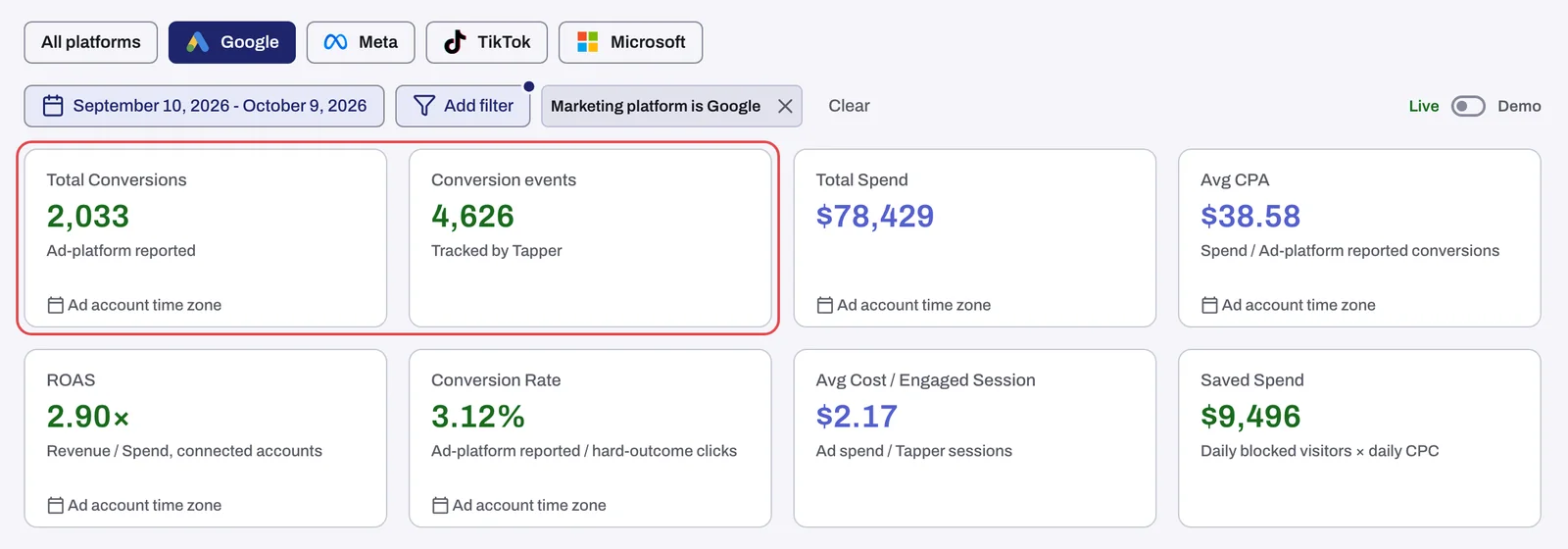
| Tile | What it shows |
|---|---|
| Total Conversions | Conversions as your ad platforms report them. |
| Conversion events | "Tracked by Tapper": the conversions Tapper records on your site through the conversion script or conversion pages. |
| Total Spend | What your connected ad accounts report as spent. |
| Avg CPA | Spend divided by ad-platform conversions. |
| ROAS | Revenue divided by spend on your connected accounts. A dash (-) means no revenue was reported. |
| Conversion Rate | Ad-platform conversions divided by the platform's own clicks. It can go above 100%. |
| Avg Cost / Engaged Session | "Ad spend / Tapper sessions". |
| Saved Spend | Tapper's estimate of what blocked visitors would have cost. See Saved Spend: how your savings are estimated. |
Total Conversions and Conversion events are two different counts and are not meant to match. Compare Total Conversions with your ad platform; Conversion events is Tapper's own count, usually higher, and it is the one behind the conversion charts by country, device and OS.
The sections
| Section | Cards |
|---|---|
| Conversions | Conversions & Conversion Rate over time, Conversions by Campaign Type over time, Conversions by Country, Conversions by Device Type, Conversions by OS |
| Spend & cost | Spend & Saved Spend over time, CPA over time, ROAS over time, Spend by Campaign Type over time, Avg CPC by Campaign Type, Cost per Engaged Session, Spend by Ad Account |
| Conversion journey | Cross-Platform Conversion Paths (first → last), Keyword by Conversion, Visits Before Conversion, Converted Clicks |
| Timing | Conversion Rate by Day and Hour |
The conversion journey
- Cross-Platform Conversion Paths (first → last) shows, for visitors who converted, which platform brought them first and which brought them last.
- Keyword by Conversion ranks your Google Ads keywords by conversions, with Match, Campaign Type, Top Block Reason and Invalid %. It uses its own rolling window, not your date range.
- Visits Before Conversion shows how many visits came before each conversion.
- Converted Clicks shows how many ad clicks your converting visitors made, over three intervals: Within 10 min, Within 2 days and Within 7 days. It counts converting visitors only and, as its caption says, does not follow the date or ad account filters. It tells you how often real customers click before they buy, which is the starting point for an invalid click threshold. See Reading the Invalid Traffic tab: reasons, click frequencies and IP types.
Traffic & Geo
The tiles
| Tile | What it shows |
|---|---|
| Total Clicks | Tapper-tracked clicks, as on the Overview tab. |
| Avg Time on Site | The average time on your site, counted over engaged sessions. |
| Non-Engaged % | The share of sessions that were non-engaged (definition below). |
| Traveling Users | "Seen in 2+ countries · rolling window, not the date filter": the share of visitors Tapper saw in more than one country. |
The sections
| Section | Cards |
|---|---|
| Geography | Clicks by Country over time, Top Countries by Clicks (with a vs top on page column) |
| Devices & browsers | Clicks by OS, Clicks by Device Type, Traffic by Browser |
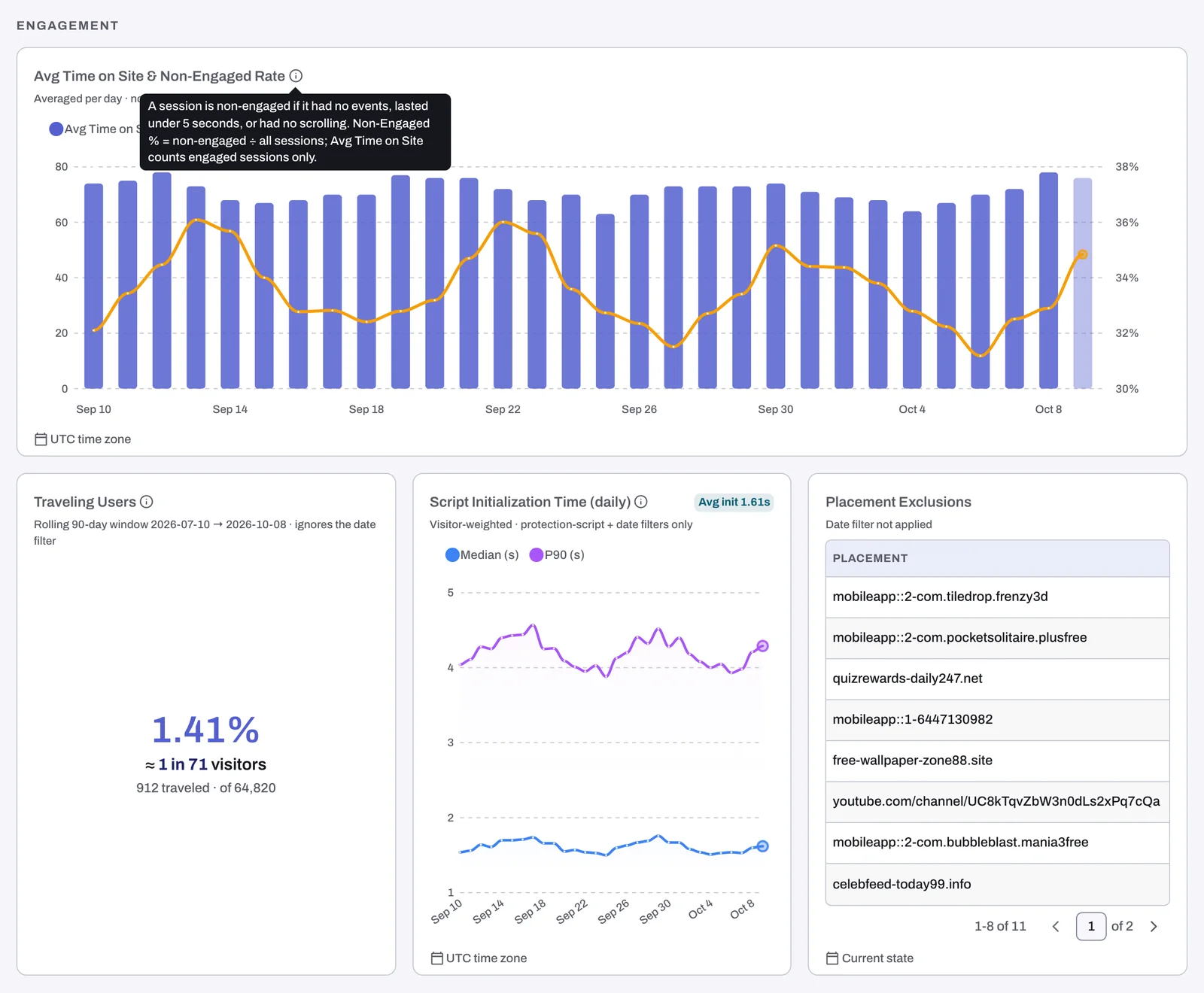
| Engagement | Avg Time on Site & Non-Engaged Rate, Traveling Users, Script Initialization Time (daily), Placement Exclusions |
| Timing | Traffic by Day and Hour |
The engagement cards
- Avg Time on Site & Non-Engaged Rate: its "i" tooltip defines the term: "A session is non-engaged if it had no events, lasted under 5 seconds, or had no scrolling." A high non-engaged rate on paid traffic is one sign of clicks that never turn into real visits.
- Traveling Users: visitors seen in two or more countries. Like the tile, it uses a rolling window and ignores your date range.
- Script Initialization Time (daily): how long Tapper's monitoring script takes to initialize on your pages, day by day. See Does the monitoring script slow down my website?
- Placement Exclusions: placements Tapper has excluded, with the columns Placement, Platform, Clicks and Score. It does not follow your date range. See Placement exclusions on Display and Performance Max.
About heatmaps
On the dashboard, "heatmap" means only the day by hour charts: Traffic by Day and Hour on Traffic & Geo, Conversion Rate by Day and Hour on Conversions & Spend and Invalid Click Rate by Day and Hour on Invalid Traffic. Each is a grid of weekdays by hours. Conversion Rate by Day and Hour uses Tapper's own conversion events across all platforms, so its caption warns that it does not match the Conversion Rate tile.
Related
Was this helpful?
Related articles
Still need help?
Chat with our team and mention this article.