

Monthly reports: what is in your report and how to download it
Tapper publishes a performance report after each month closes and keeps earlier months' reports next to it. You open a report from the Reports page, read it in the app, or download it as a file to share.
Where to find your reports
- In the sidebar, under Analytics, click Reports.
- The list shows one row per month, newest first.
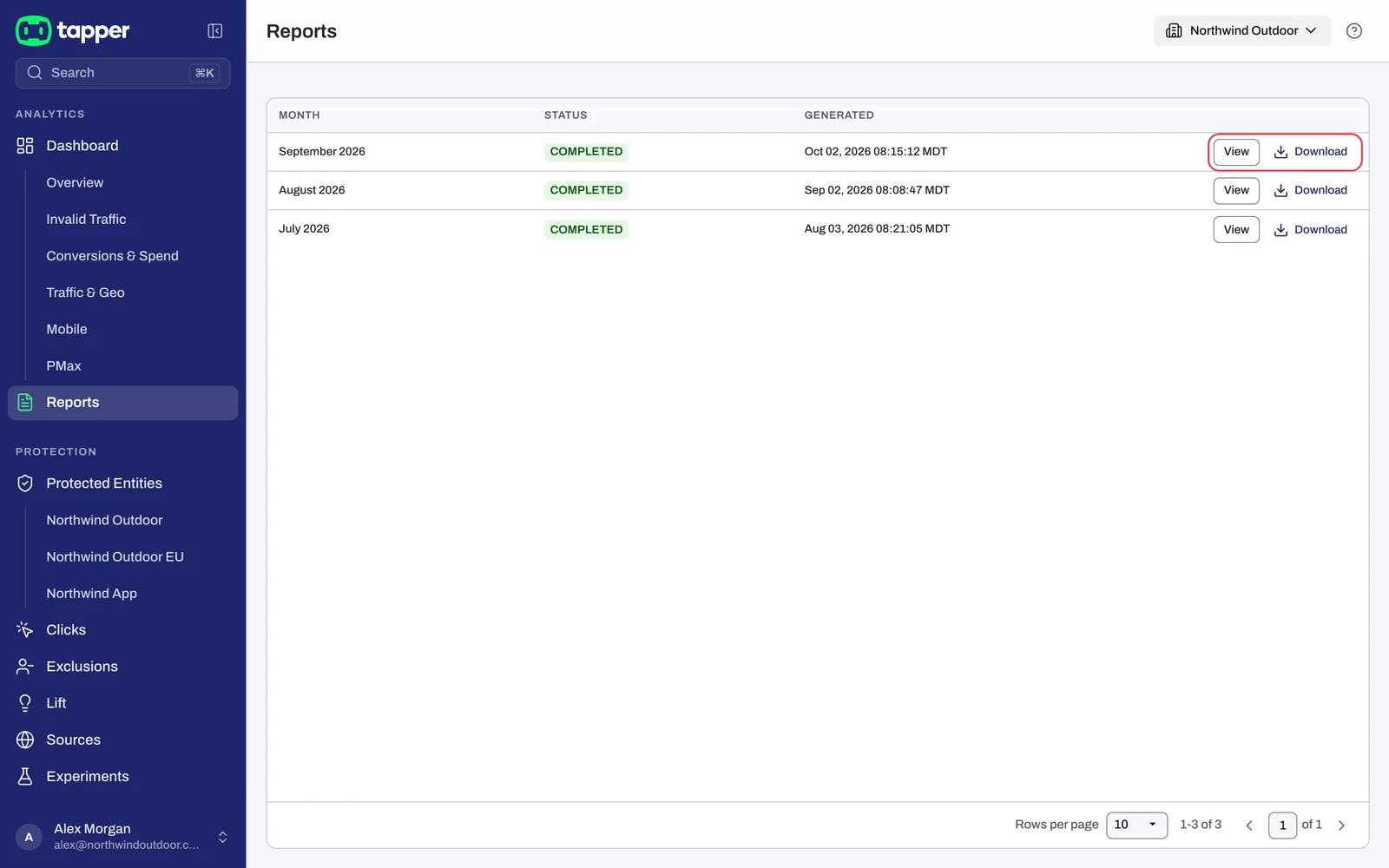
| Column | What it shows |
|---|---|
| Month | The month the report covers, for example "August 2026". |
| Status | The report's state, for example COMPLETED. |
| Generated | When the report was produced. |
Each row has two buttons: View opens the report inside Tapper, Download saves it as a file.
If no report exists yet, the page reads No reports yet. The View your dashboard button takes you to the dashboard in the meantime.
View or download a report
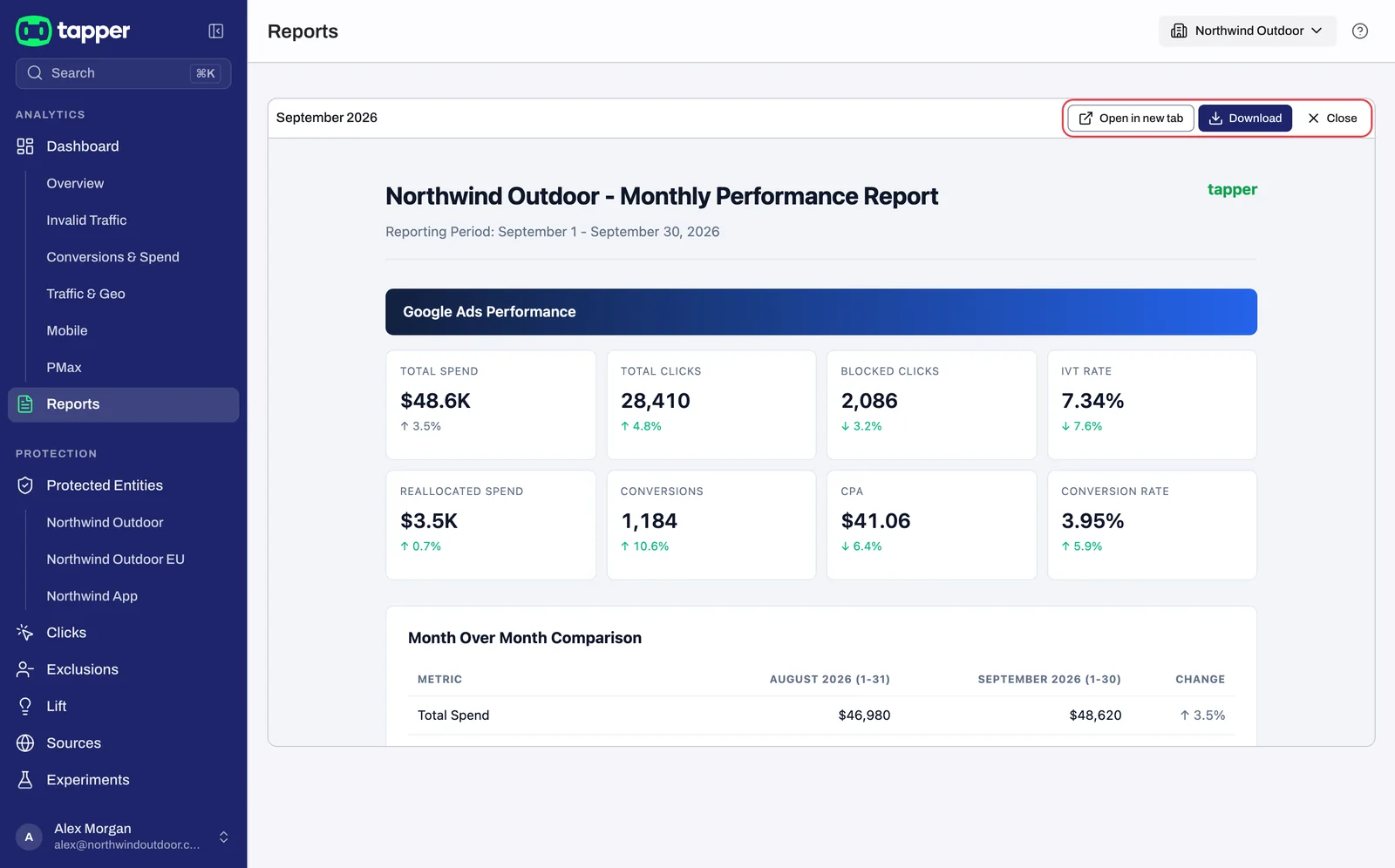
- Click View on the month you want. The report opens inline, with three buttons above it: Open in new tab, Download and Close.
- Click Open in new tab to read the report in a full browser tab, or Download to save it.
- Click Close to return to the list.
The downloaded file is the report as an HTML page. It opens in any browser and keeps its layout, so you can attach it to an email or drop it in a shared folder as it is.
Save a report as a PDF
Tapper does not export reports as PDF directly. Your browser does the conversion:
- Click View on the report, then Open in new tab.
- Open your browser's print dialog (Ctrl+P on Windows, Cmd+P on a Mac).
- Choose Save as PDF as the destination and save the file.
What is in a report
A report opens with its title and a Reporting Period line giving the month. Each ad platform in the report then gets its own part:
- the month's headline cards for that platform (see below);
- Month Over Month Comparison: the same figures set against the previous month;
- Campaign Type Breakdown: the figures split by campaign type;
- Invalid Traffic Types - {Platform}: the reasons Tapper flagged traffic on that platform. A visitor flagged for more than one reason appears once per reason, so these counts add up to more than the blocked total. Block reasons explained lists what each reason means.
Figures are never added up across platforms.
The cards
| Card | What it tells you |
|---|---|
| Total Spend | Ad spend for the month on that platform. |
| Total Clicks | The clicks Tapper tracked and assessed for the month, the same count as the dashboard's Total Clicks. |
| Blocked Clicks | The distinct visitors Tapper blocked on that platform, counted like the dashboard's blocked visitors. |
| IVT Rate | Blocked visitors divided by the clicks Tapper tracked, capped at 100%, like the dashboard's Invalid Traffic % (IVT stands for invalid traffic). |
| Reallocated Spend | The report's name for the dashboard's Saved Spend tile: daily blocked visitors multiplied by that day's CPC. See Saved Spend: how your savings are estimated. |
| Conversions | Conversions as the ad platform reports them. |
| CPA | Spend divided by conversions. |
| Conversion Rate | The platform's reported conversions divided by the platform's own clicks. |
Three things change which cards you see:
- Monitoring-only workspaces see Wasted Clicks instead of Blocked Clicks and Wasted Spend instead of Reallocated Spend, because nothing was blocked and the report shows what the invalid traffic cost instead. Monitoring-only mode explains that state.
- The three conversion cards (Conversions, CPA and Conversion Rate) appear only when Tapper has verified conversion data for the month. If they are missing, the rest of the report is still complete.
- A platform with no Tapper-tracked clicks that month gets no Total Clicks, Blocked Clicks, IVT Rate or Reallocated Spend card, rather than a row of zeros.
For the definitions behind the dashboard tiles the report draws on, see How the dashboard metrics are calculated.
When a report is published
A report is generated after the month closes, early on the first day of the following month, for a month in which your ad accounts had spend, and it appears on the Reports page once it has been reviewed and approved for publication. Only approved reports are listed, so a month can be closed for a short while before its row shows up. There is nothing to set up on your side.
Who can see reports
The Reports page is open to every role in the workspace: Owner, Admin and Editor members can all view and download reports. It is part of Tapper's paid analytics, so it is available on plans that include that feature. See Roles: what Owners, Admins and Editors can do for the full breakdown.
Related
Was this helpful?
Related articles
Still need help?
Chat with our team and mention this article.