

Choose which campaigns Tapper protects
In Tapper Block, every Google Ads campaign Tapper can protect starts with its protection on. If you want one left alone, for example a brand campaign you prefer to manage yourself, switch its protection off on the Manage campaigns sub-tab. Tapper keeps recording that campaign's clicks; it just stops writing exclusions to it. We recommend protecting every campaign, but the choice is yours.
Before you start
- Your workspace is Block + Lift, with a Google Ads account connected to the entity. Lift only workspaces have no Protection column.
- You are an Owner or Admin of the workspace.
Open the campaign list
- Go to Protected Entities and open the entity.
- Choose Google protection in the Ad platforms group.
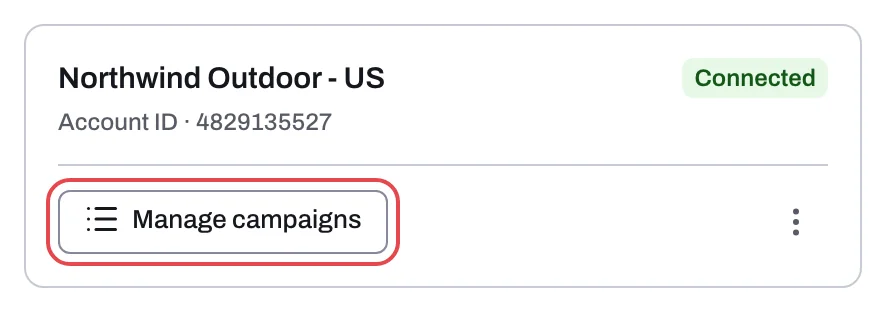
- Click the Manage campaigns sub-tab. You can also click Manage campaigns on an account card to open the list filtered to that account.
- Stay on the Campaigns view. The Ad groups view has no switch.
- Use the search box or the account filter to find the campaign.
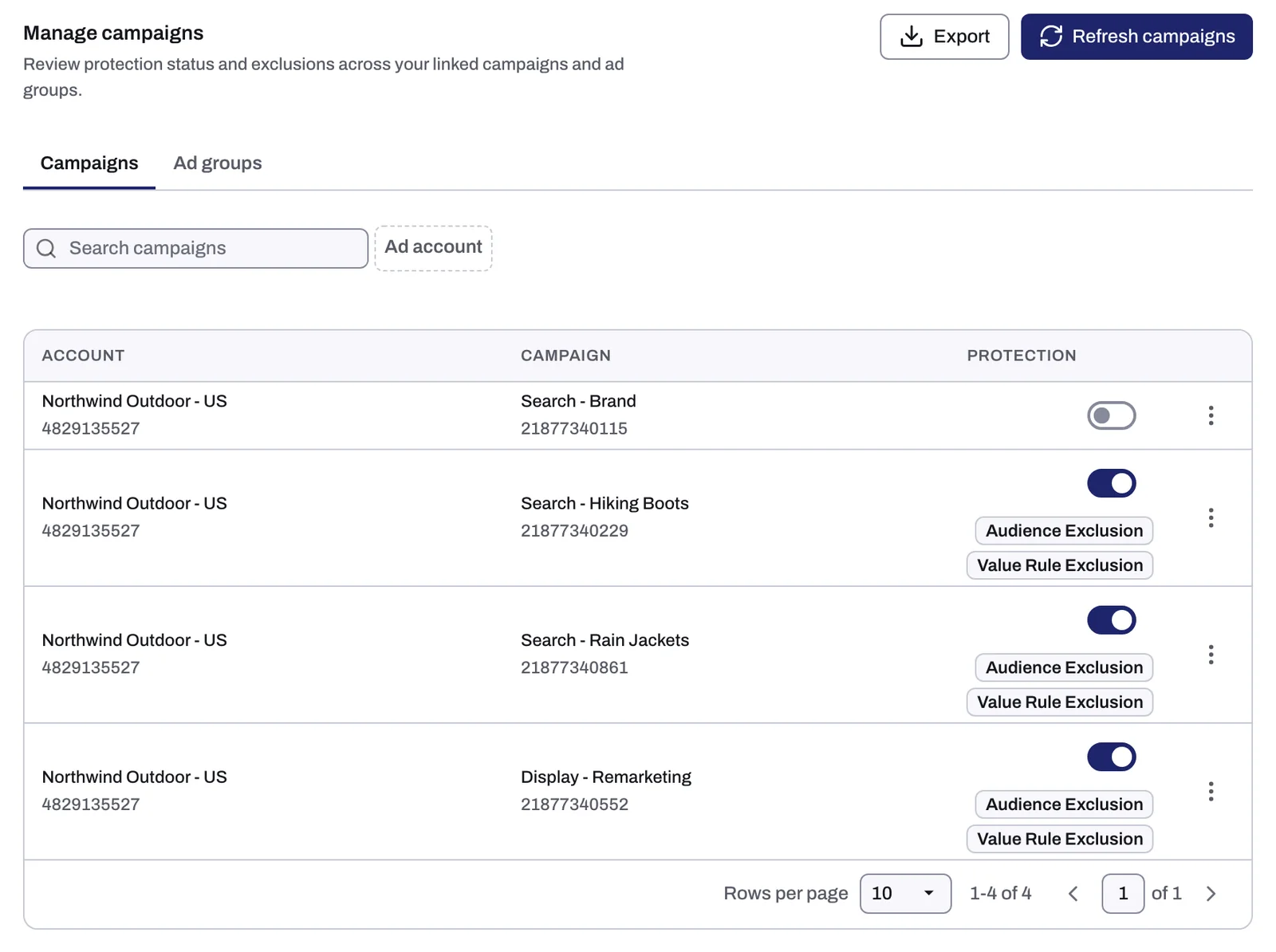
The table has three columns: Account, Campaign and Protection.
Switch a campaign's protection off or on
- Find the campaign's row. The Protection column shows a switch for Search, Display, Shopping, Demand Gen and Performance Max campaigns.
- Click the switch to turn it off.
- To protect the campaign again, click the switch back on.
Each click takes effect at once; there is no save button. There is no bulk action on Google Ads, so switch campaigns one at a time.
What happens next
When you switch protection off, Tapper removes its audience exclusion and its value rule from the campaign. For a Demand Gen campaign, Tapper removes the exclusion from the campaign's ad groups. Tapper stops sending the campaign new exclusions but still records its clicks, so they keep showing on your dashboard. IP exclusions Tapper already added to the campaign stay in place; the switch does not remove them.
When you switch it back on, Tapper applies the audience exclusion again (and the value rule, on Search, Display and Shopping), and new IP exclusions follow as invalid clicks are flagged.
New campaigns start protected. Tapper syncs the campaign list from Google Ads when you connect and then every 6 hours. To pick up a campaign you just created, click Refresh campaigns. A new campaign found by a sync gets Tapper's IP exclusions and audience exclusion queued.
To keep a record, click Export (Campaigns view only). The CSV file has the columns Ad Account, Ad Account ID, Campaign, Campaign ID, Campaign Type and Protection, which reads "Protected" or "Not protected".
Campaigns without a switch
Video, Hotel and the other campaign types Tapper does not write exclusions to have no switch. There is nothing to turn off. See Which exclusions Tapper applies to each Google Ads campaign type for what each type receives.
A shadow campaign you created from a row's ⋮ menu appears under that row with its own switch. See Value rules and shadow campaigns: optional extras for Performance Max, Search and Shopping.
On Meta, TikTok and Microsoft Ads
| Platform | Where | How |
|---|---|---|
| Meta | Meta protection > Manage ad sets | A Protection switch per ad set, plus Protect all or Disable protection for every ad set that matches the current filter. Nothing is switched on for you at connect. |
| TikTok | TikTok protection > Manage ad groups | The same, per ad group. |
| Microsoft Ads | Microsoft protection > Manage campaigns | A switch per campaign. |
See Protect Meta ad sets: Protect all or one at a time and Protect TikTok ad groups: Protect all or one at a time.
To stop protecting every campaign in a Google Ads account, disconnect the account instead. See Disconnect an ad account.
If something goes wrong
- The switch fails with a sentence about your Google Ads account, such as "Google Ads signed Tapper out of" the account: the account needs reconnecting. Click Reconnect on its card on the Overview sub-tab, then try again. See Reconnect an ad account that stopped working.
- "Someone is saving this right now. Try again in a few seconds.": another change to the same entity is in progress. Wait a few seconds and click the switch again.
- A campaign is missing from the list: click Refresh campaigns. If it still does not appear, check that it belongs to an account connected to this entity.
Related
Was this helpful?
Related articles
Still need help?
Chat with our team and mention this article.