

Set invalid click thresholds
The Invalid click threshold decides how many times one IP address may click your ads inside a time window before Tapper treats the next click as invalid. You set it on the Web detection rules tab of a protected entity.
Before you start
- You need the Owner or Admin role. Editor members can see the rules but cannot change them.
- Rules belong to a rule set. The Default set applies wherever no other set is linked; see Rule sets: apply different rules to platforms, ad accounts or campaigns.
How a threshold rule works
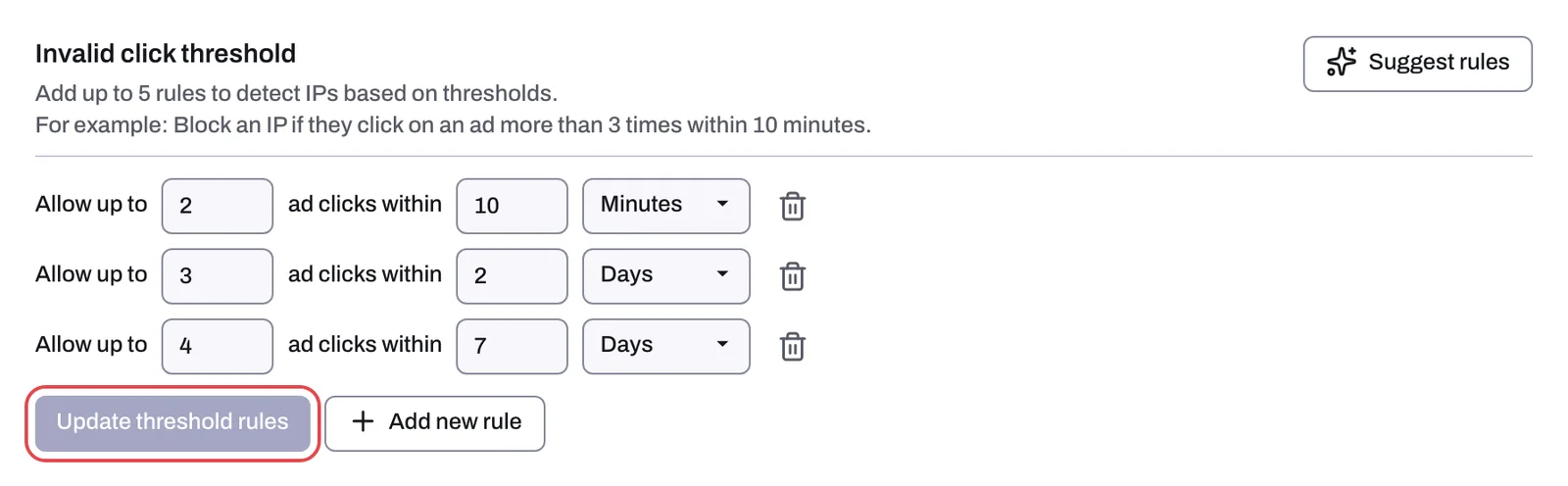
Each rule is one line: Allow up to [N] ad clicks within [M] Seconds, Minutes, Hours or Days. For example, "Block an IP if they click on an ad more than 3 times within 10 minutes." With a rule of 3 clicks within 10 minutes, an IP can click three times; the fourth click inside that window is the one Tapper flags.
- The click count and the window must each be at least 1.
- You can add several rules. A short window catches a burst from a competitor or a bot; a long window catches someone who comes back every day. The industry presets combine both.
- The number of rules you can add comes from your plan; Add new rule is disabled once you reach it.
When an IP breaks a rule, Tapper records the click with the block reason Ad Click Limit Exceeded (see Block reasons explained: what each label means). On Google Ads the IP is pushed as an IP exclusion to your protected Search, Display, Shopping and Demand Gen campaigns, and the visitor joins the Google user list Tapper - Ad Click Limit Exceeded Traffic List, which keeps an entry for 180 days. On Meta and TikTok there are no IP exclusions: the visitor goes into the invalid traffic audience that your protected ad sets and ad groups exclude.
Find the section
- In the sidebar, under Protection, open Protected Entities and click the entity.
- In the left rail, under Website, click Detection rules. The tab is titled Web detection rules.
- In Rule sets, select the set you want to edit. Everything below applies to the selected set.
- Scroll to Invalid click threshold.
Add, change or remove rules
- Click Add new rule to add a row.
- Type the click count, type the window, and pick the unit: Seconds, Minutes, Hours or Days.
- To remove a row, click its trash icon.
- Click Update threshold rules.
If the section shows No rules yet, the set has no thresholds and Tapper flags no IP for going over one. A new entity starts this way unless onboarding created industry presets for it (Block + Lift workspaces only).
Choose your numbers
- Start from the presets. Click Suggest rules in the section header, pick the closest industry in Choose your industry and press Use suggested rules. Three rules are added to the rows the set already has, and saved: E-Commerce, for example, gets 2 clicks within 10 minutes, 3 within 2 days and 4 within 7 days. The full table is in Suggested thresholds by industry.
- Read your own repeat-click data. On the dashboard's Invalid Traffic tab, the Invalid Click Frequencies table (columns Clicks, Blocked visitors and %, with rows for 1, 2, 3, 4 and 5 clicks, then 6-10, 11-50 and 51+) shows how many clicks your blocked visitors made. If most of them sit at 6-10 and above, a count of 2 in a short window costs you real visitors for little gain; if the 2 and 3 buckets are heavy, a tighter rule pays. For one visitor, open its row on the Clicks page (Google Ads and Meta Ads rows open a drawer): the drawer lists every ad click it made.
- Think about how a genuine customer behaves. How many times does someone click your ad before they convert? A considered purchase can take several visits over several days; a service booked by phone often takes one. Set the long-window count above that.
- Weigh your cost per click. The higher your CPC, the more each repeat click costs you and the more a tight rule saves.
The tightest setting: Allow up to 1
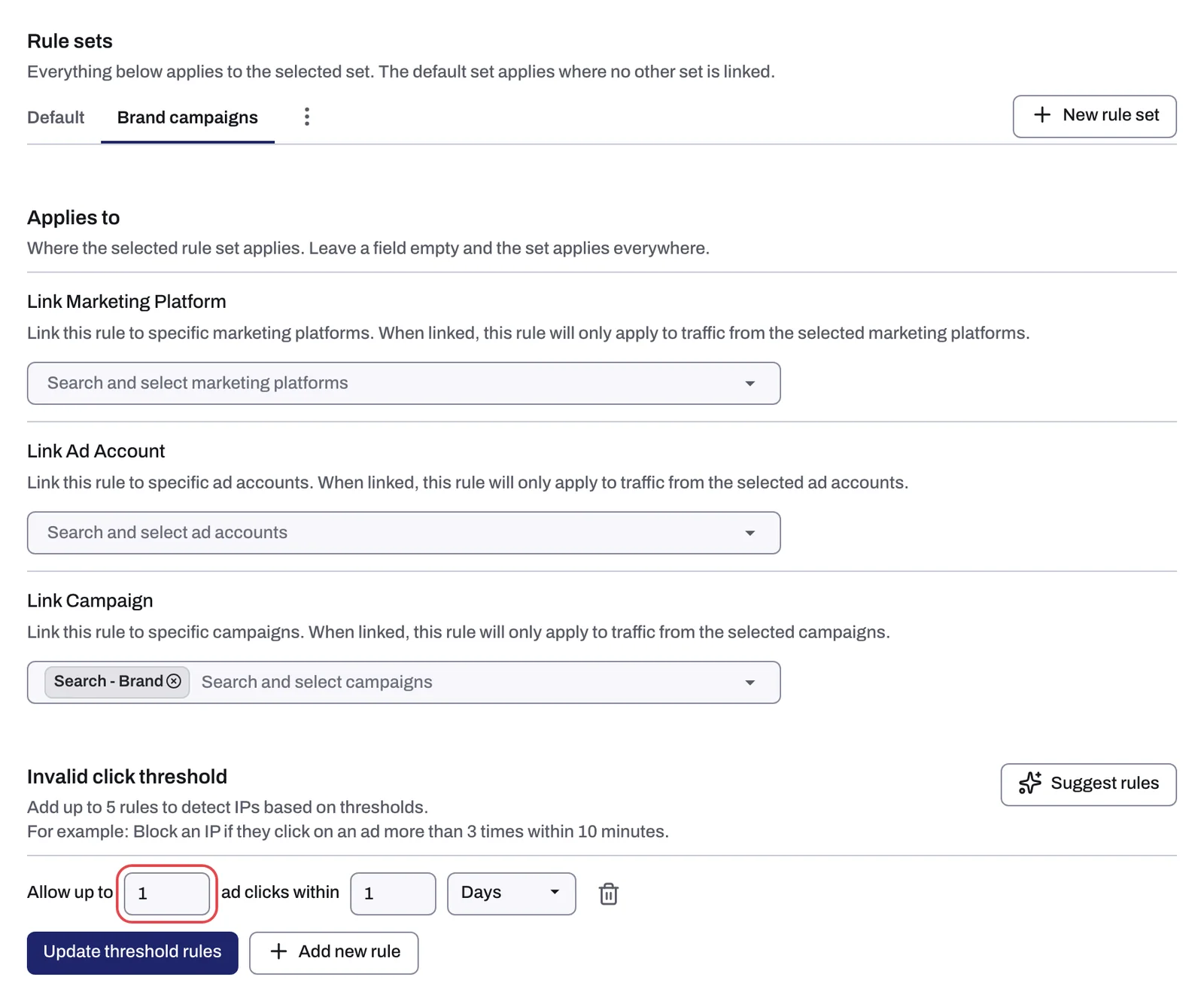
The smallest count you can enter is 1. A rule of Allow up to 1 ad clicks within a window means the first click from an IP goes through and the second click inside that window is flagged. Tapper has no setting that excludes an IP on its very first click.
This suits businesses where one click is normally enough: on-demand services with a high CPC, fast conversions and customers who call after the first click. There is no reason to pay for the same IP five times when a real lead has already called.
For most businesses it is too tight, for two reasons:
- Genuine visitors who come back to compare, read reviews or finish a form are excluded on their second click.
- On Google Ads every flagged IP takes one of the 500 IP exclusion slots a campaign has, and a tight rule fills them quickly. When a campaign is full, Tapper rotates lower-priority IPs out to make room, so older exclusions stop protecting you. Read The 500 IP exclusions per campaign limit in Google Ads. Meta and TikTok use audiences rather than IP lists, so the cap does not apply there.
If only some campaigns need the tight rule, create a custom rule set, give it the 1-click rule and link only those campaigns under Applies to. The Default set keeps the normal thresholds for everything else.
What happens next
- Flagged clicks show on the Clicks page; filter by Block reason to see only Ad Click Limit Exceeded.
- On a blocking workspace, the Exclusions page lists the excluded visitors per ad account and campaign. On a monitoring-only workspace that page is titled Invalid Traffic and shows what would have been excluded.
- On the Invalid Traffic dashboard tab, IP Exclusions per Campaign shows how close each Google campaign is to the 500 limit. Revisit your thresholds if campaigns keep hitting it.
Related
Was this helpful?
Related articles
Still need help?
Chat with our team and mention this article.