

The Exclusions page and the proof drawer
The Exclusions page lists the exclusions Tapper made on your ads, one platform at a time, and on Google Ads it also lists the placements Tapper excluded. Each row is one exclusion, not one visitor, so a visitor Tapper excluded in more than one way is listed more than once. Open a Google Ads row and the proof drawer shows the visitor's first click and first IP address, the block reason and which kinds of exclusion apply, with Google Analytics engagement evidence when the entity has Google Analytics connected. Open it from the sidebar row Exclusions in the Protection section. Lift only workspaces do not have this page.
Why the page may be named Invalid Traffic
On a workspace in monitoring-only mode nothing is excluded, so the sidebar row and the page title read Invalid Traffic instead of Exclusions. The page is otherwise the same: it reports the visitors Tapper would have excluded had blocking been on, and the last column is named Invalid traffic instead of Block reason. Blocking is off during the free trial, so a trial workspace sees this name. See Monitoring-only mode.
Pick a platform
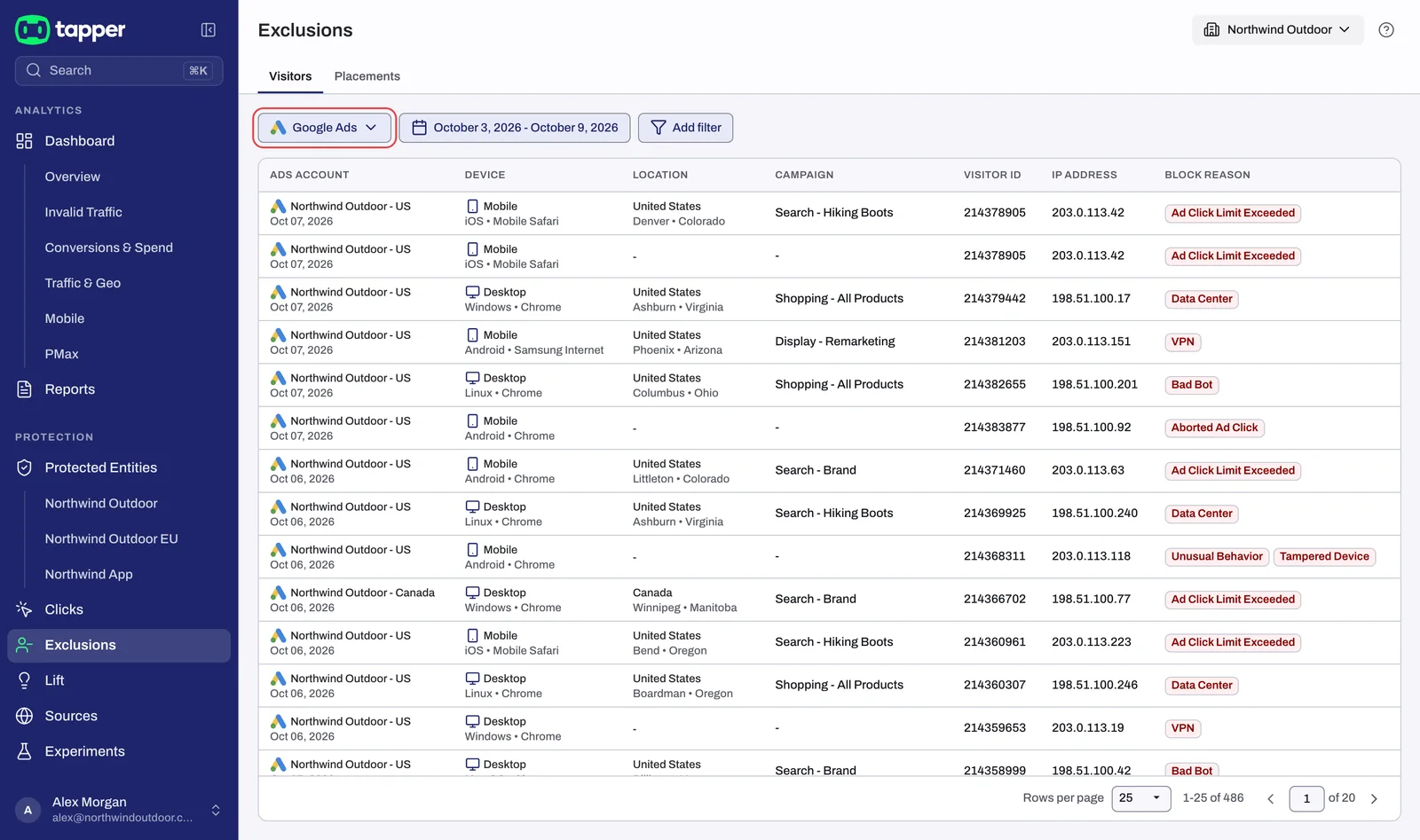
The page shows one platform at a time. Pick it with the platform button at the start of the filter row: it shows the current platform and opens the Marketing Platform menu with Google Ads, Meta Ads, TikTok Ads and Microsoft Ads. A platform you have not connected is marked Not connected. Next to it sit the date range and Add filter. No filter shows in the row until you choose one: click Add filter, choose Protection script (the entity filter), Campaign, Ads account, Campaign type or Block reason (Meta Ads, TikTok Ads and Microsoft Ads add Traffic), pick the values and click Apply. The filter then shows as a chip in the row, and Clear removes every filter but the date range.
Visitors
On Google Ads the page header has two views, Visitors and Placements. Visitors is the view every platform has.
| Column | What it shows |
|---|---|
| Ads account | The connected account whose campaign the visitor clicked |
| Device | The device the visitor used |
| Location | Where the visitor came from |
| Campaign | For an IP exclusion, the campaign the IP address was excluded on |
| Visitor id | Tapper's identifier for the visitor. Paste it into the Visitor ID filter on the Clicks page (Google Ads only) to see every click this visitor made |
| IP address | The visitor's IP address. Hidden when sensitive information is hidden in your workspace |
| Block reason | Why Tapper excluded the visitor. Named Invalid traffic on monitoring-only workspaces |
On Google Ads each row is one of two kinds of exclusion: an IP exclusion, listed once for each campaign the visitor's IP address was excluded on, and an audience exclusion, listed each time Tapper adds the visitor to one of its audiences. Audience rows have no location or campaign, so Location and Campaign read -, and the Campaign and Campaign type filters do not hide them. A visitor excluded both ways appears on several rows with the same Visitor id, and each of those rows opens the same drawer.
Click a Google Ads row to open the proof drawer. Meta Ads, TikTok Ads and Microsoft Ads use the same columns, but their rows do not open a drawer. On Meta Ads and TikTok Ads every row is an audience exclusion: Location reads -, Campaign shows the name of the Tapper audience the visitor was added to, and the Campaign and Campaign type filters do not narrow the list.
Placements (Google Ads only)
The Placements view lists the placements Tapper excluded on your Google Ads campaigns, with the columns Ads account, Protection script, URL, Score (or - when the placement has no score) and Created at. Its filter row has the date range and Add filter but no platform button: go back to Visitors to switch platform. For what a placement exclusion is and which campaign types receive one, see Placement exclusions on Display and Performance Max.
The proof drawer
You can copy the browser URL of an open drawer and send it to a colleague with access to the workspace.
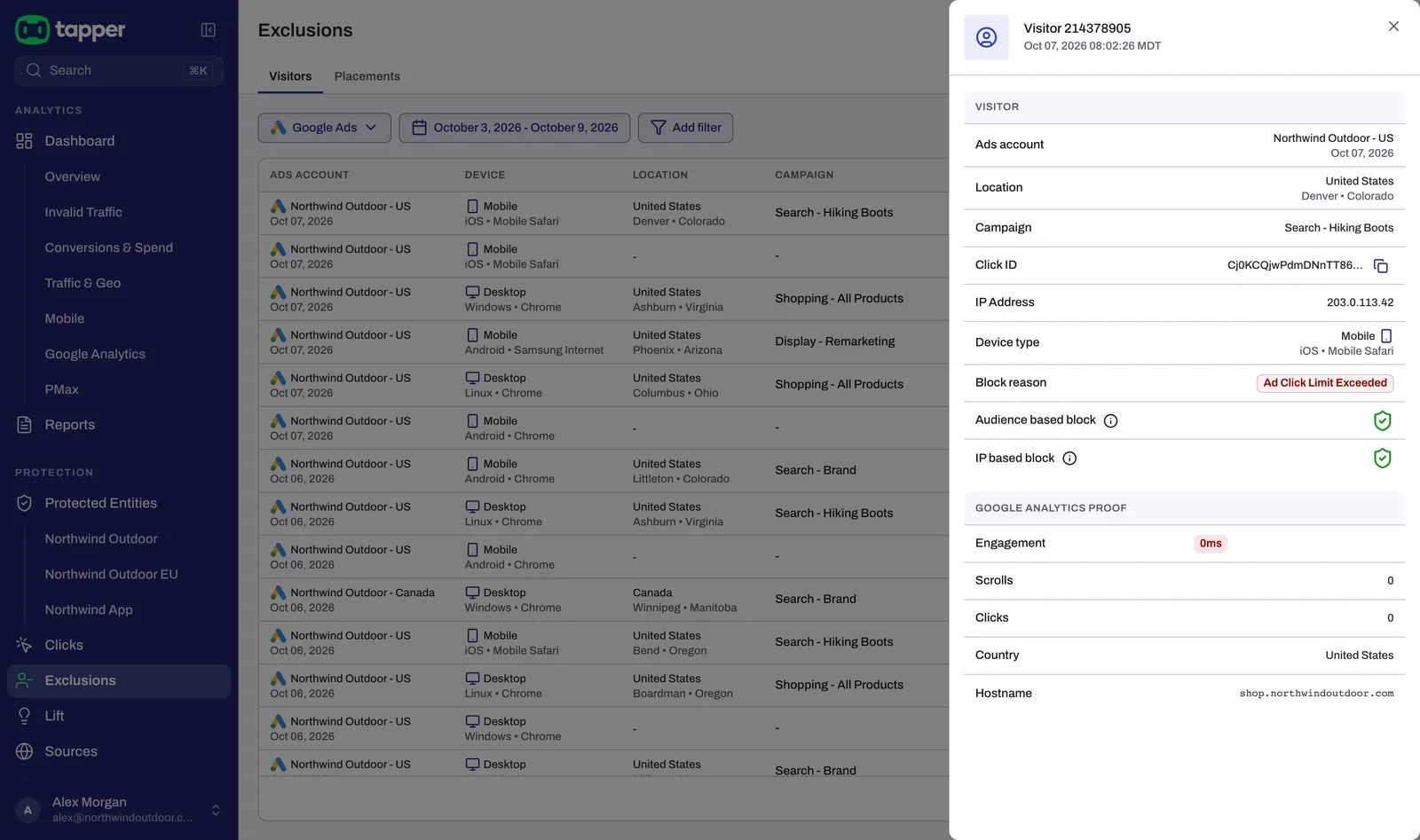
The header reads Visitor followed by the visitor id, with the date and time of the visitor's first click underneath. The Visitor block holds the same fields as the drawer on the Clicks page, taken from the visitor's first click and first IP address:
- Ads account, Location, Campaign
- Click ID of that first click, with Copy to clipboard next to it
- IP Address and Device type
- Block reason, or No block reason when none was recorded
- Audience based block: whether this visitor is in the audience exclusion Tapper maintains on the platform.
- IP based block: whether Tapper excluded one of this visitor's IP addresses.
On monitoring-only workspaces these rows are named Invalid traffic type (with No invalid traffic when none was recorded), Audience based and IP based.
Unlike the drawer on the Clicks page, this one has no Ad clicks or IP Addresses lists. To see every click and IP address of the visitor, add the Visitor ID filter with this id on the Clicks page and click View details on one of its rows.
The Google Analytics Proof block
Below the visitor fields, the Google Analytics Proof block looks for a zero-engagement Google Analytics session that carries this visitor's click ID, over the last 30 days. It only appears when the visitor has a click ID. What you see depends on the entity:
| State | What the block shows |
|---|---|
| Google Analytics not connected on the entity | "Connect Google Analytics on the entity to see GA session proof." with a Connect button that opens the entity's Google Analytics tab |
| A matching session was found | Engagement (in milliseconds, highlighted in red at 0ms), Scrolls, Clicks, Country and Hostname |
| No matching session | "No zero-engagement session found for this click ID in the last 30 days." |
| The read failed, for example because no BigQuery export is set up for the entity's Google Analytics | "Could not read the Google Analytics proof." with a Retry button |
A zero-engagement session is independent evidence from your own Analytics property that the click reached your site and did nothing. To set up the connection, see Connect Google Analytics and read the Google Analytics tab.
When the page is empty
With no excluded visitors for the selected date range and filters, the Visitors view reads No exclusions in this range. The Placements view reads No placement exclusions in this range. Both offer Review detection rules, which opens Protected Entities so you can check the thresholds and features on the entity's Web detection rules tab. If the page stays empty after clicks are arriving, see Nothing is being blocked: what to check.
Related
Was this helpful?
Related articles
Still need help?
Chat with our team and mention this article.