

Tapper Lift for Google
Not all wasted budget comes from bad traffic. A lot of it comes from the account itself: a campaign that hasn't converted in weeks, keywords absorbing clicks and returning nothing, a bid target set so far from reality that Google's bidding can't work against it, or Display expansion left switched on by default.
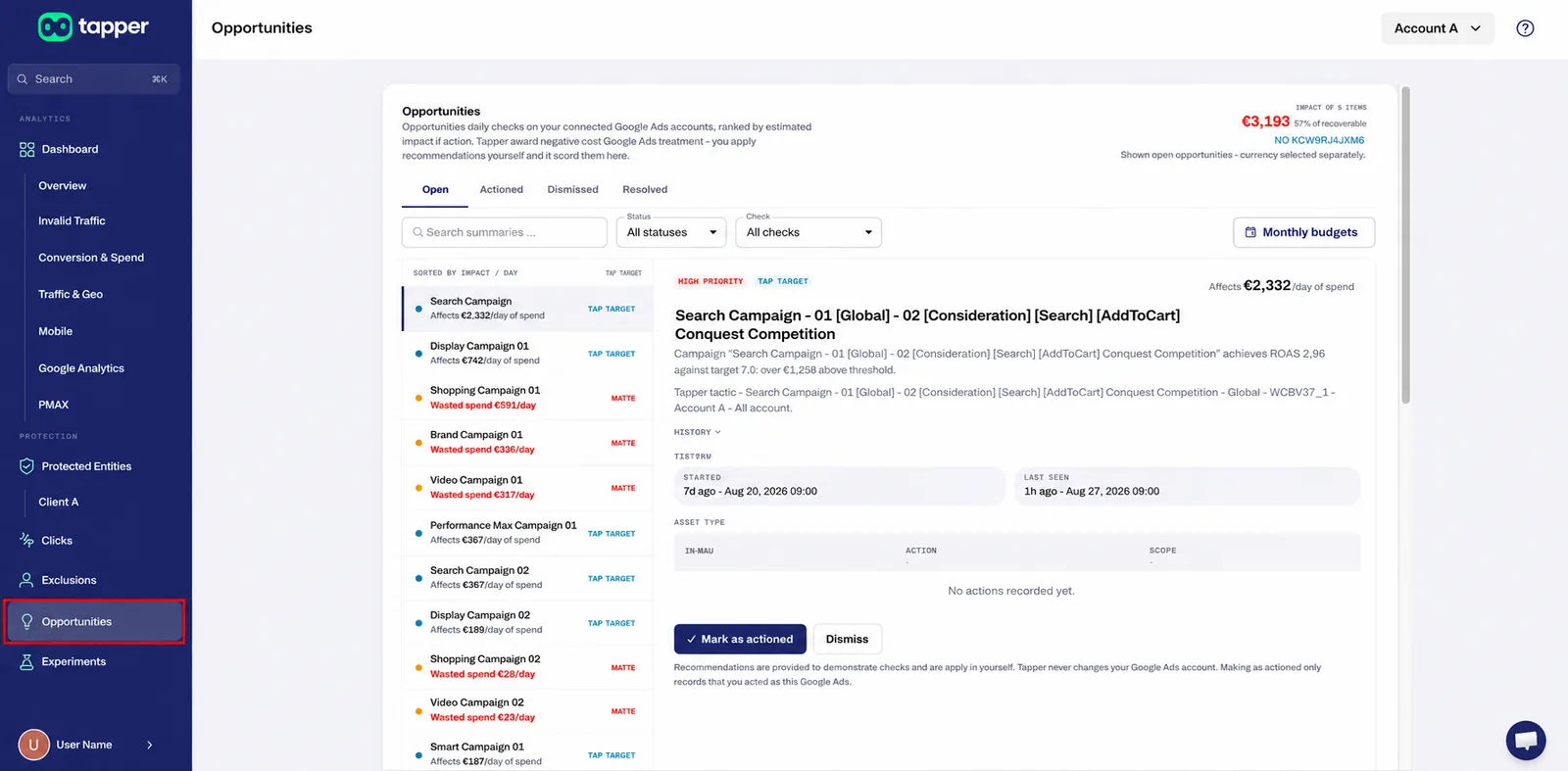
Tapper Lift reviews your Google Ads accounts every day and tells you, in plain words, where money is being wasted, where settings are working against you, and where your ads are held back. Each finding is a card. Every card says what was found, what to do about it, and how much money is involved, with the evidence underneath so you can check the numbers yourself. Findings are ranked by daily impact, so the top of the list is always the biggest thing to fix. Most fixes can be applied from inside Tapper with one click, after you confirm them; every change is logged and can be reverted.
Lift connects to Google Ads only. It does not need a tag on your website, so it can be switched on as soon as a Google Ads account is connected. Meta and TikTok are coming soon.
Lookback window
Lift uses an account-level lookback window across its performance checks. The available windows are: • 7 days • 14 days • 30 days
The default is 30 days. Some checks use additional historical data where needed: search-term and placement checks can use up to 90 days of data.
How to read a card
The title says what was found, for example "Sites and apps not worth paying for".
The money figure is one of three kinds, and the card says which: • Waste: money being spent that is buying nothing, or buying far less than it should. This is the only kind Tapper counts as recoverable. • Recommendation: the spend that runs through the thing the card is about. Nothing has been measured as wasted; the figure shows how much is at stake so the biggest findings sit at the top. • Not priced: a few cards are about how to read your own numbers and carry no money figure.
Priority is measured against the account's own daily spend, never a fixed amount, so a small account and a large one are judged fairly: • Critical: a large share of the account's daily spend is involved. • Attention: a meaningful share. • Low impact: worth doing, small in money terms. Low impact does not mean good news.
The evidence shows the rule the check applied and the measurements that met it: spend, conversions, cost per conversion, the comparison it was judged against, and the time window. Where a rule depends on a setting you control, such as the quality bar or the minimum impressions for an ad test, the value used for your account is shown.
The timeline shows when the issue was first detected and when it was last seen. A card detected weeks ago and still open means the condition has remained present.
The audit trail records who actioned or dismissed the card, when, and every change Tapper made on your behalf.
What happens to a card
Every card is in one of four states: • Open: found and waiting for a decision. • Actioned: you applied the fix, from Tapper or directly in Google Ads. • Dismissed: you decided not to act. Dismissed cards stay on record. • Resolved: the problem is no longer there, for example because the campaign changed or the data no longer meets the rule.
If you make a change directly in Google Ads, Tapper notices it on its next check where it can prove the change was made, so you do not have to mark it by hand.
Fixing from inside Tapper
Some cards have a fix button. Pressing it makes the change in Google Ads for you after you confirm it. Every change Tapper makes is recorded in the account's activity log and can be reverted from there. The changes Tapper can make are: • exclude sites, apps and channels; • add exact-match or phrase-match negative keywords; • pause keywords; • pause an ad that is losing its ad group's test; • turn off Search Partners; • turn off Display expansion on a Search campaign; • tighten a Target CPA, raise a Target ROAS, reduce a daily budget or pause a campaign.
Cards without a fix button are recommendations. They are things Tapper does not change on your behalf, such as writing ads, adding sitelinks, creating audiences or changing a goal, and the card tells you where to make the change in Google Ads.
Automation band. In the account settings you can allow Tapper to tighten a Target CPA or raise a Target ROAS on its own, as long as the change is within a percentage you choose. It only does this once the same fix has been pressed by a person on that account and held. It is off by default: until you set it, nothing changes in your account unless someone presses a button.
Notifications. You can opt in to email alerts and a weekly summary of new findings, per ad account, and choose who receives them. Every email has a one-click unsubscribe.
The checks
Numbers in the rules below, such as "three times", refer to the account's own figures. "What a conversion normally costs on this account" is the account's usual cost per conversion, which Tapper uses as the benchmark when a campaign has not set its own target.
Wasted spend
| Check | What it finds | Money | Fix button |
|---|---|---|---|
| Spending with no conversions | Finds a campaign that is set up to get conversions and got none at all in the period, after spending at least three times what a conversion normally costs on the account. What to do: Pause it, or rework its targeting, ads and landing page before spending more. | The campaign's average daily spend, all of it, because it bought nothing. | Pause the campaign or reduce its budget. |
| Far more spend than the conversions are worth | Finds a campaign that got only one to four conversions in the period and still spent far more than those conversions are worth. That is too few conversions to judge a cost per conversion on, and much more spend than they justify. | The spend above what the benchmark would have paid for the conversions actually delivered, not the whole spend, because some of it did buy something. | Reduce the budget or pause the campaign. |
| Cost per conversion over target | Finds a campaign that tells Google what it wants to pay for a conversion (a Target CPA) and is paying three times that or more, over at least five conversions. | The spend in excess of what the target would have cost for the same conversions. | Tighten the Target CPA, reduce the budget or pause the campaign. |
| Return on ad spend under target | Finds a campaign that tells Google how much revenue it wants back for each unit of spend (a Target ROAS) and is getting a third of that or less, over at least five conversions. | The spend in excess of what hitting the target would have required. | Raise the Target ROAS, reduce the budget or pause the campaign. |
| Keywords not paying their way | Finds keywords that spent three times what a conversion normally costs on the account and bought nothing, or that are paying three times that price over five or more conversions. The top 30% of keywords by conversions are always protected. | Each flagged keyword's daily spend where it converts nothing, or its spend above the benchmark where it converts too expensively, added up across the campaign. | Pause the keywords. |
| Add exact-match negatives for wasted search terms | Finds searches people actually typed that spent three times what a conversion normally costs on the account and bought nothing, where no existing keyword or negative already covers them. An exact-match negative blocks that one exact search and nothing else. Uses up to 90 days of data. | The search term's daily spend. It converts nothing, so all of it is recoverable. | Add the negative keywords. |
| Add phrase-match negatives for wasted patterns | Finds a one-to-three-word pattern that keeps appearing in searches that buy nothing. Between them, the searches carrying the pattern spent three times what a conversion normally costs on the account, and they are still a small share of the campaign's search spend, which limits how much traffic one phrase negative can cut. A phrase-match negative blocks every search containing those words, including searches nobody has typed yet. | The daily spend of the search terms the pattern covers. They convert nothing, so it is recoverable. | Add the phrase negatives. |
| Search Partners costing more than Google Search | Finds a campaign whose ads on Google's partner sites cost three times or more per conversion than the same campaign pays on Google Search, with at least five conversions on each side. | The extra that the partner sites cost compared with Google Search, not their whole spend. | Turn off Search Partners. |
| Display ads running inside a Search campaign | Finds a Search campaign whose ads are also shown as banners across the web, where that banner traffic spent three times the campaign's own cost per conversion on Search and bought nothing, or is paying three times that price over five or more conversions. | The extra that the banner traffic costs compared with the campaign's Search results. | Turn off Display expansion. |
| Sites and apps not worth paying for | Finds a website, app or YouTube channel your ads ran on that spent three times what a conversion normally costs on the account and bought nothing, or is paying three times that price over five or more conversions. Uses up to 90 days of data. | Added up across the flagged placements; in full where a placement bought nothing, or the share above the benchmark where it converts too expensively. | Exclude the placements. |
| A Demand Gen channel not paying its way | Finds a Demand Gen campaign spending at waste level on one of Google's own surfaces: Discover, Gmail or YouTube. These are channels that are switched off per ad group in Google Ads, not placements that can be excluded one by one. | The spend on the flagged channels inside the campaign, which switching them off would stop. | None. The card tells you where the switch is in Google Ads. |
| An ad losing its ad group's test | Finds an ad doing worse than the best ad in its ad group on one of six measures, with the numbers far enough apart that chance is unlikely to explain them (95% confidence or better). Each ad compared needs recent delivery and enough impressions to judge. The minimum impressions used for your account is shown with the evidence. An ad that is winning on conversions is not flagged for losing on clicks. | Each losing ad's daily spend multiplied by how far it trails the winning ad, added up across the campaign. | Pause the ad. |
| Extra spend buying customers above your margin | Finds a campaign that spent more than in the period before, where the extra spend bought its extra customers for more than they are worth to you. "Worth" is what a first order is worth multiplied by your margin, if you have set one in Tapper, or otherwise one and a half times the campaign's own target cost per conversion. It also fires where the extra spend bought no extra customers at all. A campaign with neither a margin nor a target is skipped rather than judged against an invented line. | Only the part of the spend increase that crossed your margin line, never the campaign's whole spend. | Reduce the budget. Tapper never recommends spending more. |
Bidding, budgets and targets
| Check | What it finds | Money | Fix button |
|---|---|---|---|
| A target looser than the campaign already achieves | Finds a campaign beating its own target by more than 20% over at least 10 conversions. The target is looser than what the campaign already delivers, so tightening it (asking Google for a lower cost per conversion, or more revenue per unit of spend) is what is on offer. Tapper never recommends loosening a target. | The spend affected by the change, not money lost. | , |
| Monthly budget off track | Finds an account on course to finish the month more than 15% over or under the monthly budget set in Tapper. | The projected gap at month end, divided by the days in the month. It shows the size of the miss, not money lost. | , |
| Too few conversions for smart bidding to learn | Finds an account running campaigns that ask Google to bid for conversions while getting fewer than 30 conversions each in the last 30 days, which is less than Google's automated bidding needs to learn. One card per account lists the largest affected campaigns by spend and gives the full count. | The combined spend of every affected campaign. Nothing is measured as wasted. | , |
| Good keywords worth an exact match | Finds a loosely matched keyword that is converting at or better than its campaign's own target (Target CPA, or Target ROAS on a campaign bidding to revenue), with no exact-match keyword for the same words in that campaign. A campaign with no target is judged against the account's usual cost per conversion. Good traffic is being bought through a looser match than it needs; an exact-match keyword would bid on it directly. This is the one check that looks for something going well. | The spend of those keywords. Nothing is measured as wasted. | None. Add the exact-match keyword in Google Ads. |
| New customers cost more than the report shows | Finds an account where winning a new customer is getting more expensive than the headline cost per conversion suggests: the gap between the two widened by more than 25% from the previous 28 days to the last 28. Both periods must have new and total conversions before the comparison is made, so an account that only started classifying customers last month is not flagged. | Not priced. This card is about how to read the account's own numbers. | , |
Ads and creative quality
| Check | What it finds | Money | Fix button |
|---|---|---|---|
| Ads Google rates weak | Finds a live ad in a spending campaign that Google itself rates Poor or Average. That rating holds the ad back in the auction however high the bids are, so the same budget buys fewer and more expensive clicks. The card lists Google's own suggestions for improving each ad, grouped at the top. | The campaign's spend behind those ads. Nothing is measured as wasted. | , |
| Ads with empty headline slots | Finds a live search ad using fewer than the 15 headlines or 4 descriptions Google allows. Google mixes and matches those lines to build each ad it shows, so a half-filled ad gives it fewer combinations to try. The card shows, for each ad, how many headlines and descriptions are missing, starting with the ads that spend the most. | The campaign's spend behind those ads. Nothing is measured as wasted. | , |
| Missing sitelinks and callouts | Finds a campaign missing one of the extras Google can show with the ad: sitelinks, callouts, structured snippets and images on Search; sitelinks and callouts on Performance Max. They take up more of the results page and cost nothing to add. The card counts what is in place against what is expected, at each level where it can be added (account, campaign and ad group). | The campaign's spend while the extra is missing. Nothing is measured as wasted. | , |
| Asset groups under Google's minimum | Finds a Performance Max asset group holding fewer headlines, descriptions, images or logos than Google's own stated minimum. Google can only build ads from what is in the group. | The campaign's spend behind those asset groups. Nothing is measured as wasted. | , |
| Assets Google rates low | Finds a headline, description or image that Google has rated Low for more than 30 days inside a running ad. That is long enough that the problem is the asset itself, not a slow start. | The campaign's spend behind the ads carrying it. Nothing is measured as wasted. | , |
| Keywords Google scores low | Finds keywords Google scores at or below the quality bar set for your account, out of 10. The score is Google's view of three things: how often people click the ad, how well the ad matches the search, and how good the landing page is. A low score means a higher price per click and fewer appearances. The card names the weakest of the three for each keyword, and the bar used is shown with the evidence. | The spend of the flagged keywords, not the campaign's. Nothing is measured as wasted. | , |
Audiences
| Check | What it finds | Money | Fix button |
|---|---|---|---|
| No audience attached to a spending campaign | Finds a spending campaign with nothing attached to tell Google who to look for: no list of past visitors or customers, and no in-market or custom segment. | The campaign's spend. Nothing is measured as wasted. | , |
| No customer list uploaded | Finds an account that has never uploaded a customer list. It is the one audience only you have, and the one Google cannot build for you. | The account's spend across its campaigns. Nothing is measured as wasted. | , |
Account and campaign settings
These appear on the Settings tab. Each one asks "did you mean to do this?". They appear as soon as the setting is detected, without waiting for enough performance data to show whether it has already caused a problem, so Lift can surface the same issue in two stages: the configuration first, and its performance impact later if the data accumulates. They are not measured as waste, and are ranked by the spend running through the campaign, with a High, Medium or Low severity.
| Check | What it finds | Money | Fix button |
|---|---|---|---|
| Search Partners enabled | A campaign also showing ads on Google's partner sites rather than on Google Search alone. It is on by default, and it reaches a different audience from the one the campaign was built for. | , | Turn off Search Partners. |
| Display Network on a Search campaign | A Search campaign that is also allowed to show banner ads across the web. It is a checkbox on the campaign, on by default, and it spends the same budget on a different kind of placement. | , | Turn off Display expansion. |
| Automatically created assets | A campaign where Google is allowed to write its own headlines and descriptions from your website and run them in your ads, without anyone approving the wording first. | , | , |
| AI Max enabled | A Search campaign with AI Max switched on, which lets Google widen the searches it matches and rewrite the ad text beyond the keywords and assets you gave it. | , | , |
| Campaigns targeting different places | Campaigns in the same account targeting different locations from each other. Usually one was set up from a different template and nobody noticed; sometimes it is deliberate. | Not priced, because the finding spans many campaigns; it is ranked by severity instead. | , |
| Audiences set to targeting, not observation | An audience set to "targeting" rather than "observation". Targeting stops the campaign reaching anybody outside that audience; observation only reports on how they perform. | , | , |
| Location targeting includes people elsewhere | A campaign whose location setting also reaches people who are somewhere else but show an interest in the places you chose, not only people actually there. | , | , |
| Google auto-apply recommendations | An account with Google's auto-apply switched on, so Google changes campaigns by itself (raising budgets, loosening keyword matching, adding keywords) without anyone approving it first. | , | , |
| No customer acquisition goal | An account where Google returned conversions but classified none of them as new or returning customers. Without a customer acquisition goal, new and returning customers cannot be told apart, so every CPA and ROAS figure on the account is blended and a rising cost of winning new customers stays hidden. The goal is set by you in Google Ads, using your own definition of a new customer; Tapper never sets it. Google's guide: https://support.google.com/google-ads/answer/12080169 | , | , |
Marking recommendations as actioned
If you use a card's fix button, Tapper records the change for you. If you make the change directly in Google Ads instead: 1. Return to the recommendation in Lift. 2. Select Mark as actioned.
This records the change in the audit trail and removes the card from your open list. Your account history is preserved, so you can see what was changed and when. Where Tapper can prove the change was made on its next check, it marks the card for you.
If a recommendation doesn't apply to your situation, such as a deliberately unprofitable brand campaign, a test you're running on purpose or a placement you keep for strategic reasons, select Dismiss instead. Dismissed cards stay on record.
Where to find it
From your Tapper dashboard, select Lift from the left-hand navigation.
Was this helpful?
Related articles
Still need help?
Chat with our team and mention this article.