

Workspace time zone: which day your numbers count in
If a day's numbers in Tapper do not line up with the day you expected, or a date in the app sits one day off from your own reports, check the workspace time zone first. One setting decides where a day starts and ends for your analytics and for every date and time Tapper shows you. Daily charts that come from your ad platforms are the main exception: they keep the ad account's own day.
Why it happens
- The zone was chosen during setup, from a browser. On the Name your workspace step of the setup wizard, the Time zone field is preselected with the browser's zone of whoever ran setup. If that person sat in another country than the one you report in, every day in Tapper has been counted on their clock since.
- The dashboard date range follows the workspace zone. The default range is the last 7 days in the workspace time zone, and presets such as Today and Yesterday start and end on that clock. The footer of the date picker shows which zone is in use as Time zone: …, next to Clear, Cancel and Apply.
- Platform daily charts keep the ad account's day. A card built from your ad platform's daily figures carries the chip Ad account time zone; a Google Analytics card carries GA property time zone. When the workspace zone and the ad account zone differ, a click near midnight can land on one day on Tapper's own cards and on a different day on the platform chart beside it. Both are right; they count different days.
Fix it
Only an Owner or an Admin can change workspace settings.
- Open Settings and stay on General.
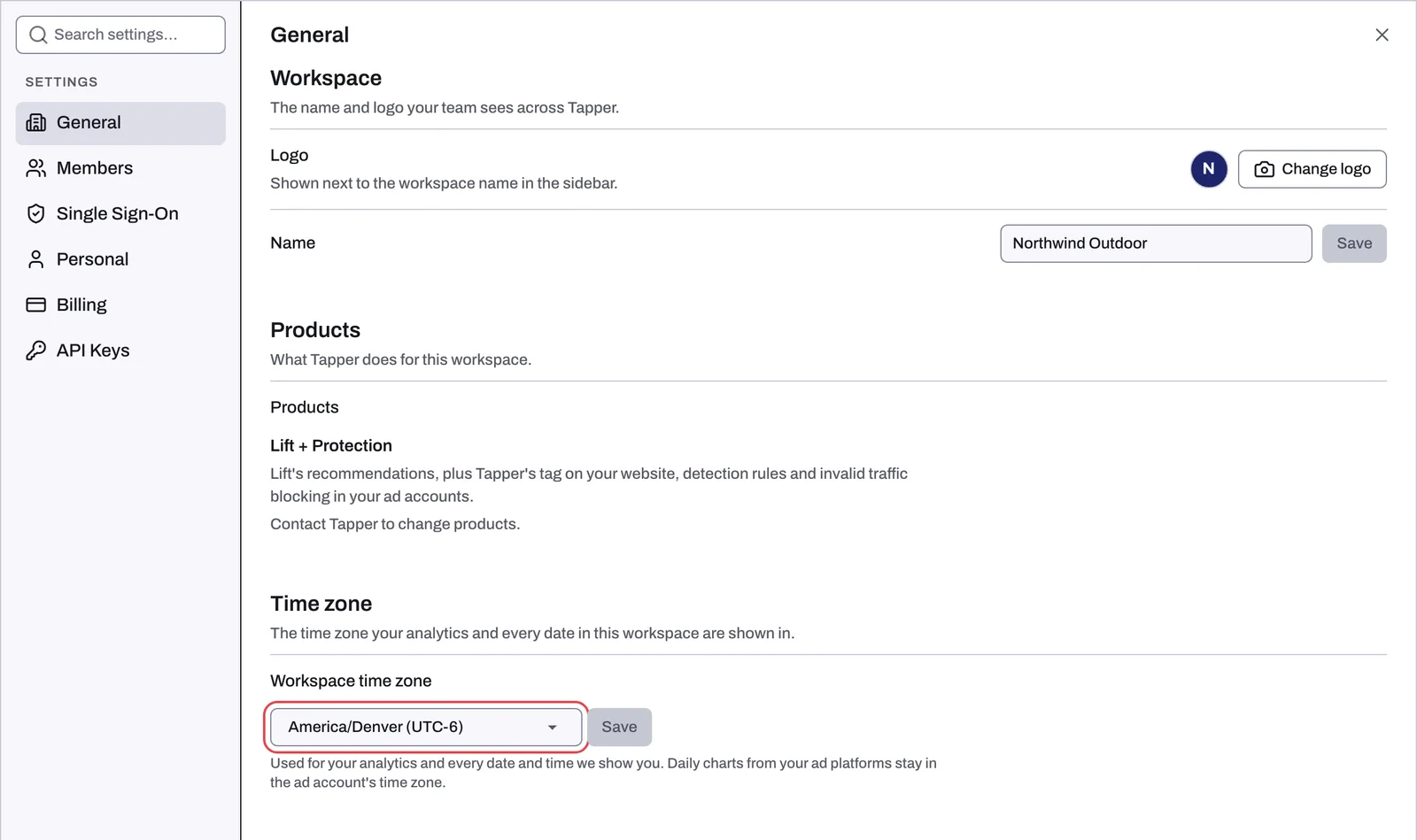
- Scroll to Time zone and find the Workspace time zone field.
- Pick the zone your team reports in (type in Search time zones to find it) and click Save.
- Go back to the dashboard and open the date picker: the footer Time zone: … now shows the new zone, and the date range is counted on it.
If it still happens
- The card says Ad account time zone. That chart follows the ad account's day, whatever the workspace zone is. Compare it with the same day in the platform's own interface. Dashboard numbers differ from Google Ads covers the other reasons those two never match to the click.
- The card says UTC time zone. That chart is built from daily totals in UTC, so its days do not follow the workspace zone.
- The card says GA property time zone. The Google Analytics tab follows the GA4 property's zone, and its freshness line says so: "dates in the GA property's timezone".
- The card ignores the date filter. Some cards use a rolling window, marked with captions like "Rolling window · ignores the date filter", "Seen in 2+ countries · rolling window, not the date filter" or "Date filter not applied". Changing the zone or the range does not change them. See Dashboard filters, date ranges and time zone.
- Today looks short. The data behind the dashboard updates every 4 hours, so Today and the last hours of Yesterday fill in over the day.
Which clock each part of Tapper uses
| Where | Which day it counts in |
|---|---|
| Dashboard date range and presets, and the cards built from Tapper-tracked clicks | Workspace time zone |
| Every date and time shown in the app | Workspace time zone |
| Daily charts from your ad platforms (chip Ad account time zone) | The ad account's time zone |
| Google Analytics tab (chip GA property time zone) | The GA property's time zone |
| Dashboard cards with the chip UTC time zone | UTC days |
| Sources page | UTC days |
| Lift daily sweep | Google Ads by 08:00 UTC, Meta Ads by about 08:00 UTC, TikTok Ads after 12:00 UTC; each account's analysis windows follow that account's own time zone |
| Weekly Lift digest | Monday at 08:00 in the workspace time zone |
Related
Was this helpful?
Related articles
Still need help?
Chat with our team and mention this article.