

Reading the Invalid Traffic tab: reasons, click frequencies and IP types
The Invalid Traffic tab of the dashboard shows what Tapper blocked, why, how often blocked visitors clicked, and where their exclusions landed. Open it from the sidebar: Dashboard, then Invalid Traffic under the Analytics section.
The tiles at the top
| Tile | What it counts |
|---|---|
| Total Blocked | "Distinct blocked visitors": each blocked visitor once, however they were blocked. |
| IP Blocks | Distinct visitors on an excluded IP. |
| Audience Blocks | Distinct visitors excluded through an audience. |
| Invalid Traffic % | Distinct blocked visitors divided by Tapper-tracked clicks, capped at 100%. |
They match the tiles of the same name on the Overview tab; see How the dashboard metrics are calculated. Below them, Clicks & Invalid Traffic % in the Overview section draws clicks and the invalid rate over your date range.
Block reasons
- Block Reason Trend shows over time which reasons Tapper blocked visitors for.
- Blocked Traffic by Block Reason lists each Reason with its count in the Block reasons column.
Both cards count one row per visitor per reason per day, so a visitor caught on several days or by several rules is counted each time, and the cards add up to more than Total Blocked. For what each reason means, and the few reasons these cards write differently from the Clicks and Exclusions pages (such as Bot for Bad Bot), see Block reasons explained: what each label means.
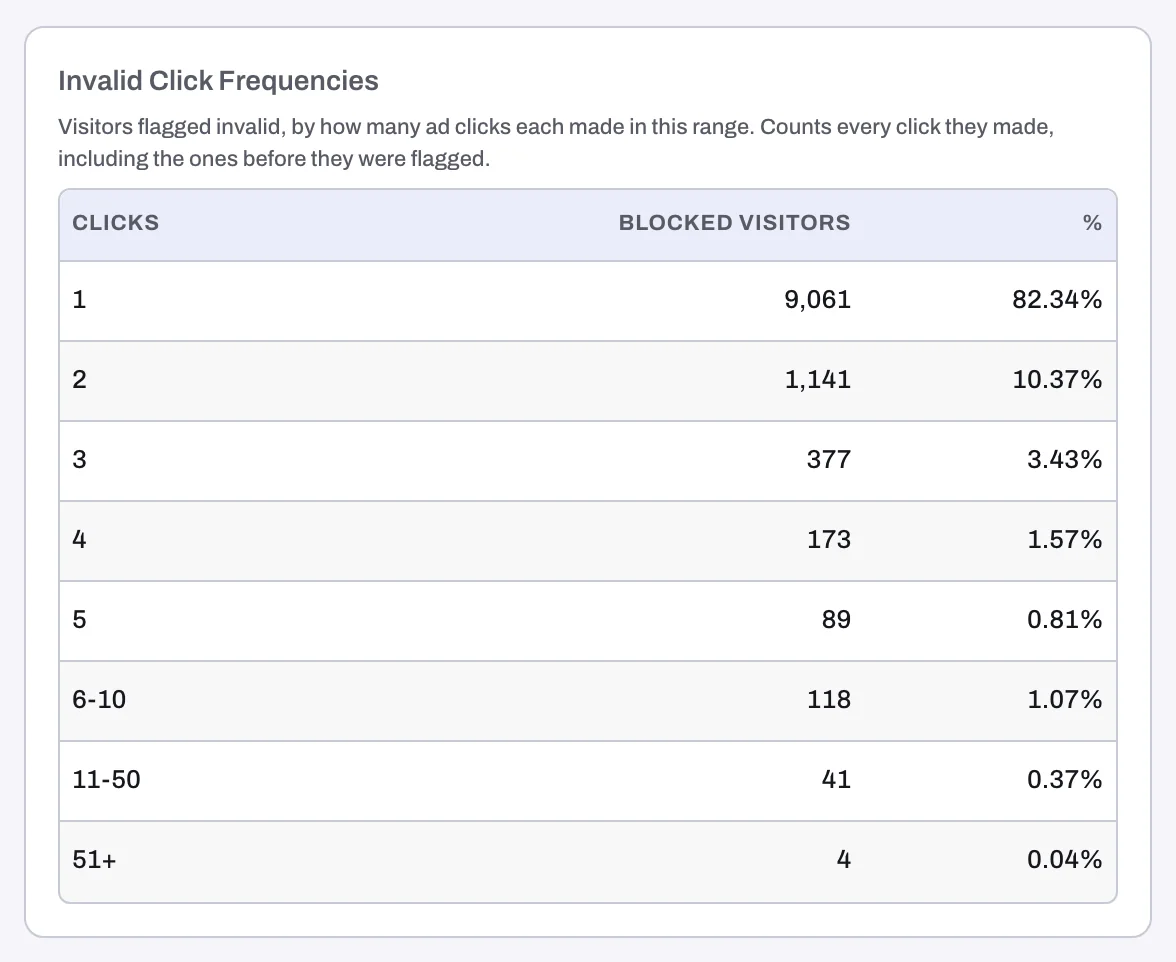
Invalid Click Frequencies groups the visitors Tapper flagged by how many ad clicks each made in your date range: 1, 2, 3, 4, 5, 6-10, 11-50 and 51+. The columns are Clicks, Blocked visitors and %. It counts every click they made, including the ones before they were flagged.
Use it to choose an invalid click threshold
An invalid click threshold flags an IP that clicks your ads more than a set number of times within a time window. Genuine customers rarely need many clicks, so the aim is a limit above what they do and below what bad actors do.
- Open the Conversions & Spend tab and find Converted Clicks in the Conversion journey section. It shows how your converting visitors click, with the intervals Within 10 min, Within 2 days and Within 7 days.
- Come back to Invalid Click Frequencies. If a real share of flagged visitors sits in 6-10, 11-50 or 51+, repeat clicking is a pattern on your account, and a threshold catches it earlier.
- Pick a limit above what converting visitors do in the same window. For example, "Block an IP if they click on an ad more than 3 times within 10 minutes."
- Set it on the entity's Web detection rules tab, under Invalid click threshold, as Allow up to [N] ad clicks within [M] and a unit. Threshold rules belong to each entity and act on IP addresses. See Set invalid click thresholds and Suggested thresholds by industry.
Exclusions & sources
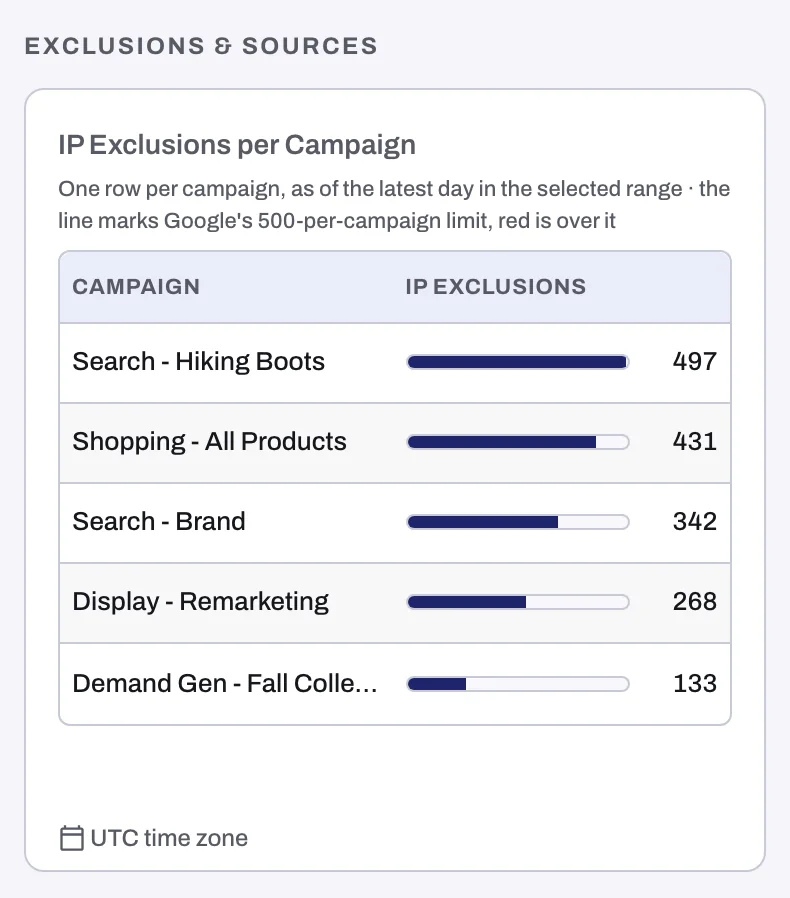
- IP Exclusions per Campaign shows how many IP exclusions each Google Ads campaign carries on the latest day of your range, as a bar measured against Google's limit of 500 per campaign. A campaign over the limit turns red. Hover a bar to see its count against the limit. See The 500 IP exclusions per campaign limit in Google Ads.
- Audience Exclusion List Size tracks how many visitors sit on the audience Tapper excludes from your ads, over time. See The Invalid Traffic Audience and its retention window.
- Invalid Traffic by Device Type splits blocks by device. It counts block actions, so a visitor blocked both by IP and by audience counts twice.
Traffic quality and IP types
- Clicks from Public IPs, in the Traffic quality section, tracks clicks from data center and hosting IP addresses as a share of all your clicks. Real shoppers rarely browse from a data center, so a rising share is worth a look.
- Visitors by IP Type, in the Details section, counts visitors by the type of IP address they came from, whether or not they were blocked. One address can belong to several types, so the bars do not add up to Total Blocked.
Cards hidden for Meta and TikTok
These sections are hidden when Meta or TikTok is selected in the platform toggle:
| Section | Cards |
|---|---|
| IP range exclusions | % of Country IPv4 Blocked, Proactive Block Log |
| VPN traffic | VPN Visitors by Country, VPN Conversions by Country |
| Measurement quality | Ad Blocker Rate |
Details and timing
The Details section also holds Blocked Traffic by Country, Invalid Traffic by OS, Keyword-level Invalid Traffic and Top Blocked Campaigns; Where invalid traffic comes from: campaigns, keywords, devices and countries explains them. Note that Keyword-level Invalid Traffic uses its own rolling window and ignores the date filter.
Invalid Click Rate by Day and Hour, in the Timing section, is a grid of weekdays by hours shaded by your invalid click rate, so you can see when invalid traffic peaks. It covers the whole workspace, all platforms and accounts.
On a monitoring-only workspace
Nothing is blocked yet, so the labels change: Total Blocked reads Total Invalid, IP Blocks reads Invalid IPs, Audience Blocks reads Invalid Audience Exclusion Users, the Block reasons section reads Invalid traffic reasons, with the cards Invalid Traffic Reasons Trend and Invalid Traffic by Invalid Traffic Type, the Blocked visitors column of Invalid Click Frequencies reads Invalid visitors, and the Block reason filter reads Invalid traffic reason. See Monitoring-only mode: why nothing is blocked yet and what changes when blocking starts.
Related
Was this helpful?
Related articles
Still need help?
Chat with our team and mention this article.