

Connect Google Analytics and read the Google Analytics tab
Connecting a Google Analytics 4 property to a protected entity adds a Google Analytics tab to your dashboard and fills the Google Analytics Proof block in the Exclusions page's visitor drawer. The tab puts your Google Ads cost next to the key events, purchases, engagement and revenue that Google Analytics reports, so you can compare what Analytics sees with what Tapper sees. The proof block shows, for an excluded visitor, whether Analytics recorded a session with no engagement for the same click. Tapper only reads your Analytics data.
Before you start
- You need the Owner or Admin role in the workspace. Editor members cannot connect accounts.
- You need a Google Analytics 4 property and a Google account that can read it. Have the property's numeric ID ready: it is 6 to 12 digits, and Google Analytics shows it in the property's Admin area.
- Google Analytics is not on the connect step of onboarding, because it is not an ad platform. You connect it from the entity page once the entity exists.
Connect a property
- Open Protected Entities and open the entity.
- In the left rail, under Advanced, click Google Analytics.
- Click Continue with Google and sign in with the Google account that has access to the property.
- Back on the tab, GA4 properties reads No GA4 properties yet. Click Add property.
- Enter the GA4 property ID and a Label that tells you which property this is. The label is what the dashboard's GA property selector shows.
- To add more properties, click Add property again and fill in the new row. One entity holds up to 25 properties.
- Click Save properties.
- Under BigQuery export, enter the GCP Project ID of the Google Cloud project that holds the property's BigQuery export, then click Save in that section. The dashboard tab works without it, but the Google Analytics Proof block reads your BigQuery export and needs it.
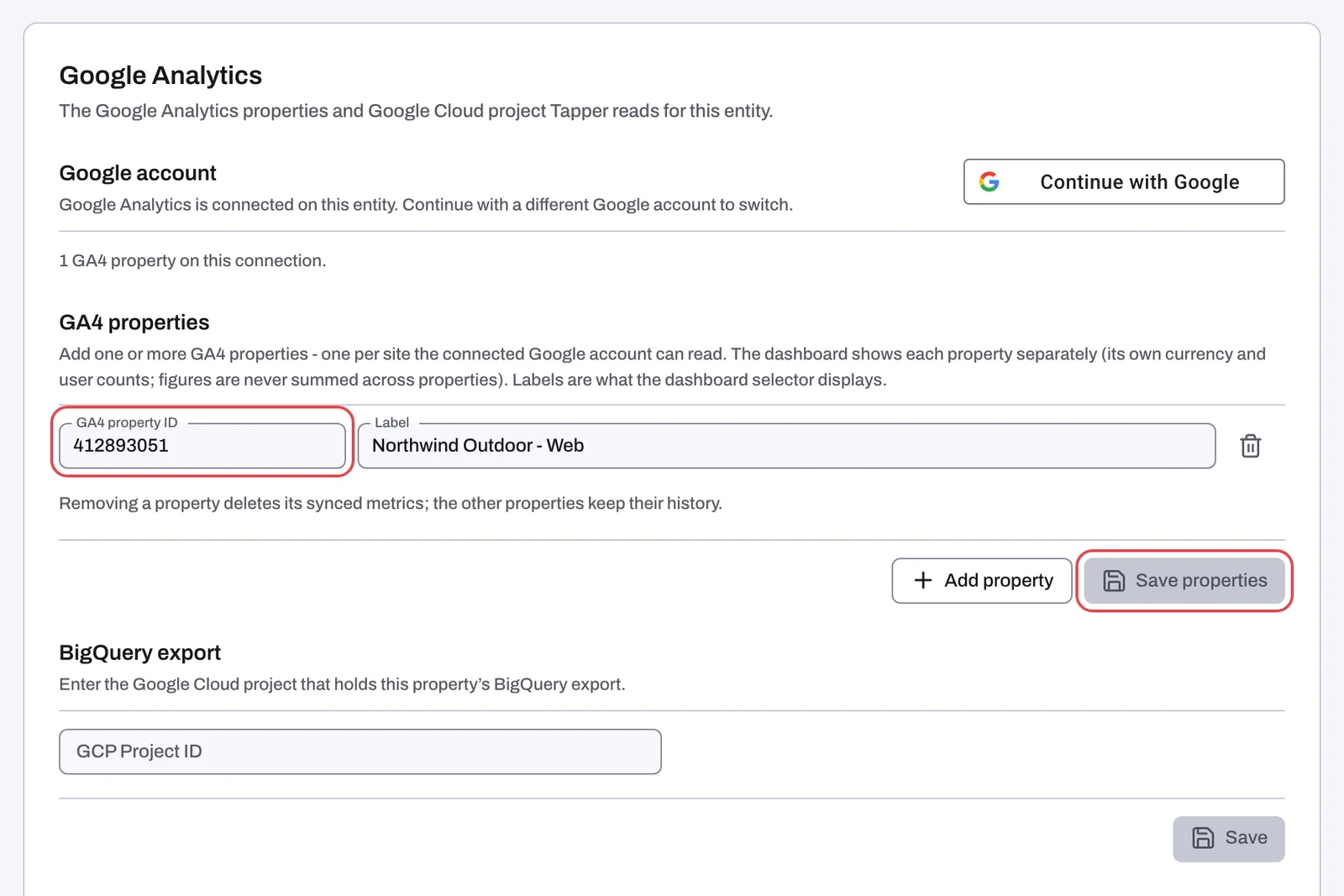
Once connected, the tab has three sections: Google account, GA4 properties (one row per property, with its ID and label) and BigQuery export (the GCP Project ID). Removing a property deletes its synced metrics; the other properties keep their history.
What happens next
- Google Analytics appears as a child row under Dashboard in the sidebar's Analytics section. It shows only while at least one entity in the workspace has Google Analytics connected.
- The tab is synced once a day. Its header carries a freshness line such as "Synced daily from Google Analytics · data through {date} · dates in the GA property's timezone", so you can see how far the data runs.
- If the Google account is connected but no property is saved yet, the dashboard's Google Analytics tab shows No GA4 properties yet with the button Add GA4 properties, which opens the entity's Google Analytics tab.
Read the Google Analytics tab
The tab reports one entity and one GA4 property at a time; figures are never summed across properties. When more than one entity in the workspace has Google Analytics connected, the header shows a Script selector to pick the entity. When the selected entity has more than one GA4 property, it also shows a GA property selector, except in Demo mode. There is no platform toggle on this tab. The only filter is Marketing platform, and cards that cannot be split by platform say "Not available with a platform filter." while one is set.
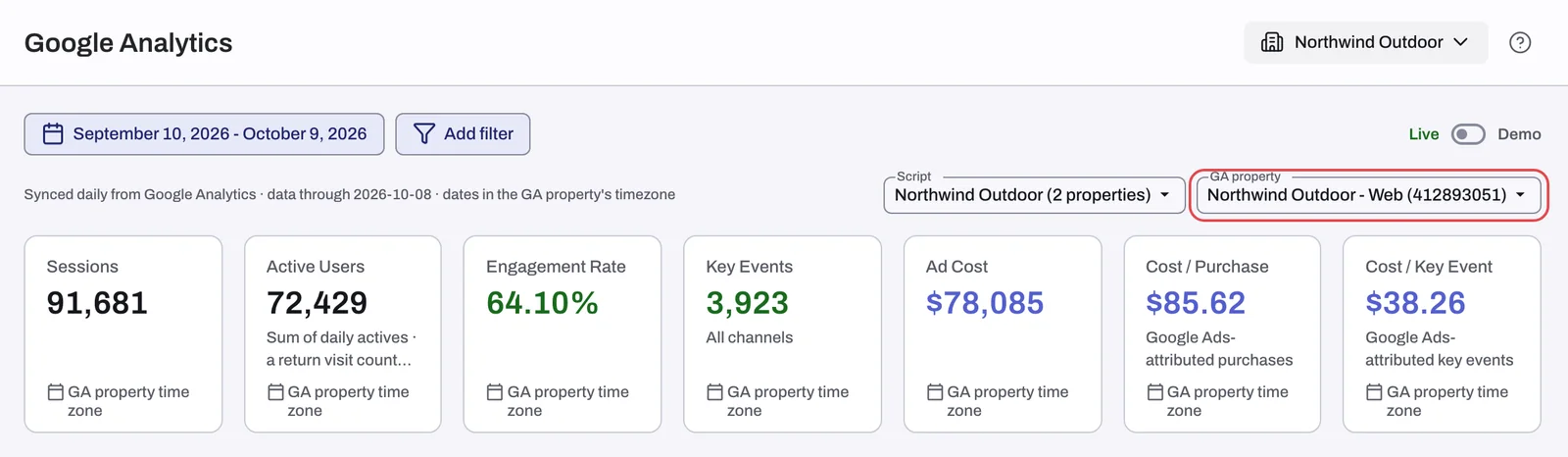
The KPI tiles at the top are Sessions, Active Users ("Sum of daily actives · a return visit counts twice"), Engagement Rate, Key Events ("All channels", so paid and unpaid traffic together), Ad Cost, Cost / Purchase ("Google Ads-attributed purchases") and Cost / Key Event ("Google Ads-attributed key events").
Below the tiles come four sections: Google Ads performance, Engagement, Traffic & acquisition and Key events & revenue. Cards that set cost against Analytics outcomes need your Google Ads account linked to the GA4 property inside Google Analytics; until it is, they read "Requires a Google Ads link in GA4."
With the Demo switch on, the tab shows sample data and the freshness line reads "Sample data · dates in the GA property's timezone". See Live and Demo mode on the dashboard.
The Google Analytics Proof block
On the Exclusions page, opening a visitor shows the same visitor details as the Clicks page drawer plus a Google Analytics Proof block covering the last 30 days. It lists Engagement, Scrolls, Clicks, Country and Hostname for the Analytics session that matches the click ID, so you can see that Analytics recorded no engagement from an excluded visitor's click. It appears for visitors whose click carries a click ID.
- Without a Google Analytics connection the block reads "Connect Google Analytics on the entity to see GA session proof." with a Connect button.
- If the proof cannot be read (for example, no GCP Project ID is saved on the entity), it reads "Could not read the Google Analytics proof." with Retry.
- When no matching session exists it reads "No zero-engagement session found for this click ID in the last 30 days."
The rest of the drawer is described in The Exclusions page and the proof drawer.
If something goes wrong
- Reconnect Google Analytics on the dashboard tab: Google Analytics rejected the stored connection (access revoked or expired). Sign in with Google again from the button on that card, or with Continue with Google on the entity's Google Analytics tab.
- "Requires a Google Ads link in GA4." on a card: link your Google Ads account to the property in Google Analytics, then wait for the next daily sync.
- "Not available with a platform filter.": remove the Marketing platform filter.
- The Google Analytics row is missing from the sidebar: no entity in this workspace has Google Analytics connected yet, or the workspace chose Lift only, whose dashboard has no Google Analytics tab.
- The property ID is not accepted: it must be 6 to 12 digits. Use the numeric property ID, not the measurement ID that starts with
G-.
Related
Was this helpful?
Related articles
Still need help?
Chat with our team and mention this article.