

Dashboard filters, date ranges and time zone
The controls at the top of the dashboard decide what every card shows: which ad platform, which dates, and which entities, ad accounts or campaigns.
Move between tabs
The dashboard's tabs are rows under Dashboard in the sidebar's Analytics section: Overview, Invalid Traffic, Conversions & Spend, Traffic & Geo, Mobile, Google Analytics (only when at least one entity has Google Analytics connected) and PMax. Every one of those links carries your current filters, so switching tabs keeps the same platform, dates and filters. On a workspace that chose Lift only, the dashboard is a single page with no rows under Dashboard; see Lift on the dashboard.
The platform toggle
Pick All platforms, Google, Meta, TikTok or Microsoft. The cards are recalculated for that choice, and a few change shape: some cards on the Invalid Traffic tab are hidden with Meta or TikTok, and the Traffic filter is offered only with them. If you pick a platform with no connected account, a banner invites you to connect one.
The toggle is hidden on the Mobile, Google Analytics and PMax tabs. The Mobile tab has its own app picker and platform toggle.
Pick a date range
The date button shows the dates the dashboard is using, such as "October 2, 2026 - October 8, 2026". Until you pick a range, that is the last 7 days in your workspace time zone.
- Click the date button.
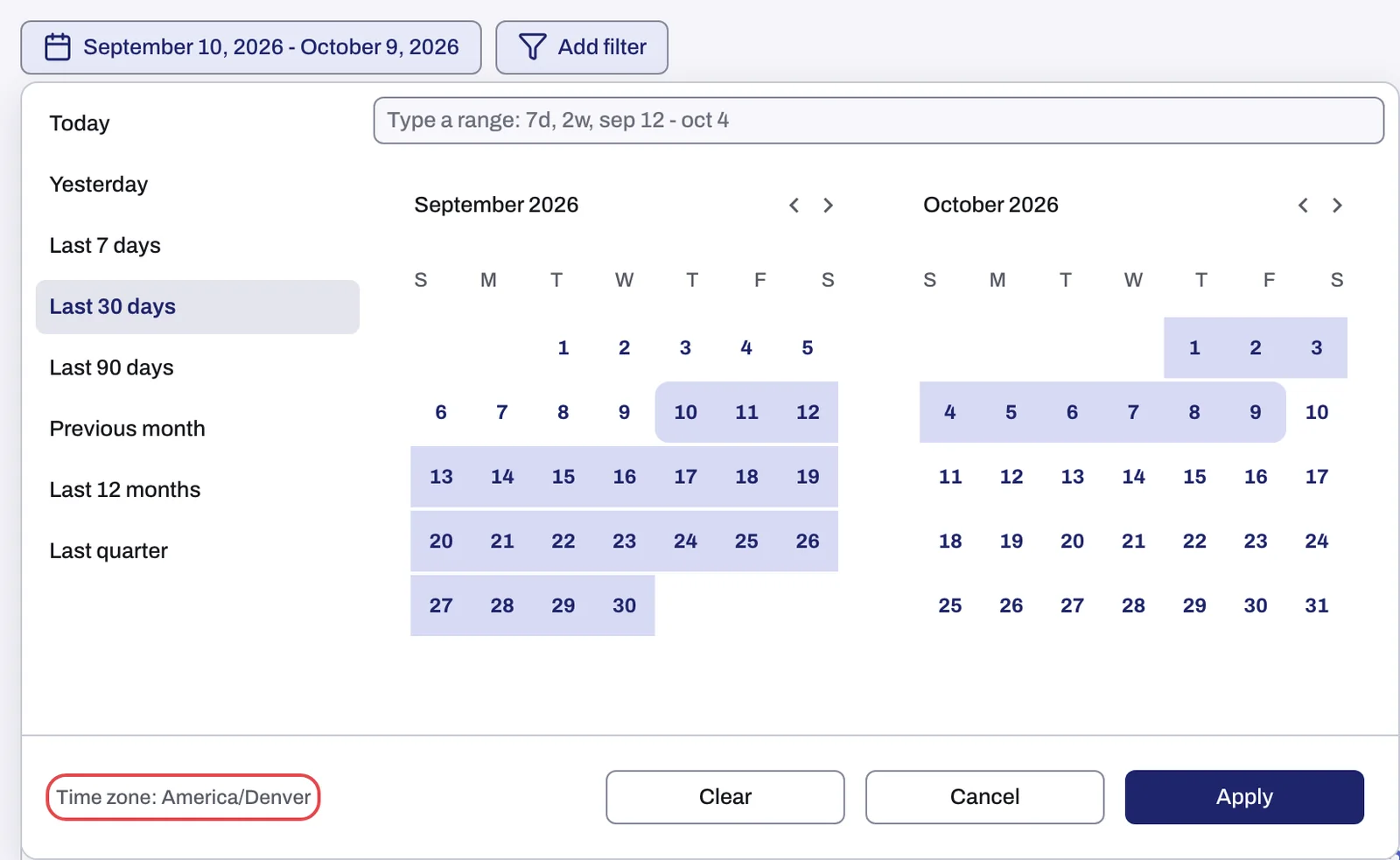
- Click a preset: Today, Yesterday, Last 7 days, Last 30 days, Last 90 days, Previous month, Last 12 months or Last quarter. A preset applies at once and closes the picker.
To set your own range instead, type it in the field that reads "Type a range: 7d, 2w, sep 12 - oct 4" and press Enter, or click the first and the last day on the calendar, then click Apply. Cancel closes the picker without changing anything, and Clear goes back to the default last 7 days.
The footer of the picker shows Time zone: …, the workspace time zone your days start and end in. It is set under Settings, General, Time zone; see Workspace time zone: which day your numbers count in.
The data behind the dashboard updates every 4 hours, so Today fills in over the day. In Demo mode the date button is disabled; switch to Live to use it: see Live and Demo mode on the dashboard.
Add a filter
- Click Add filter.
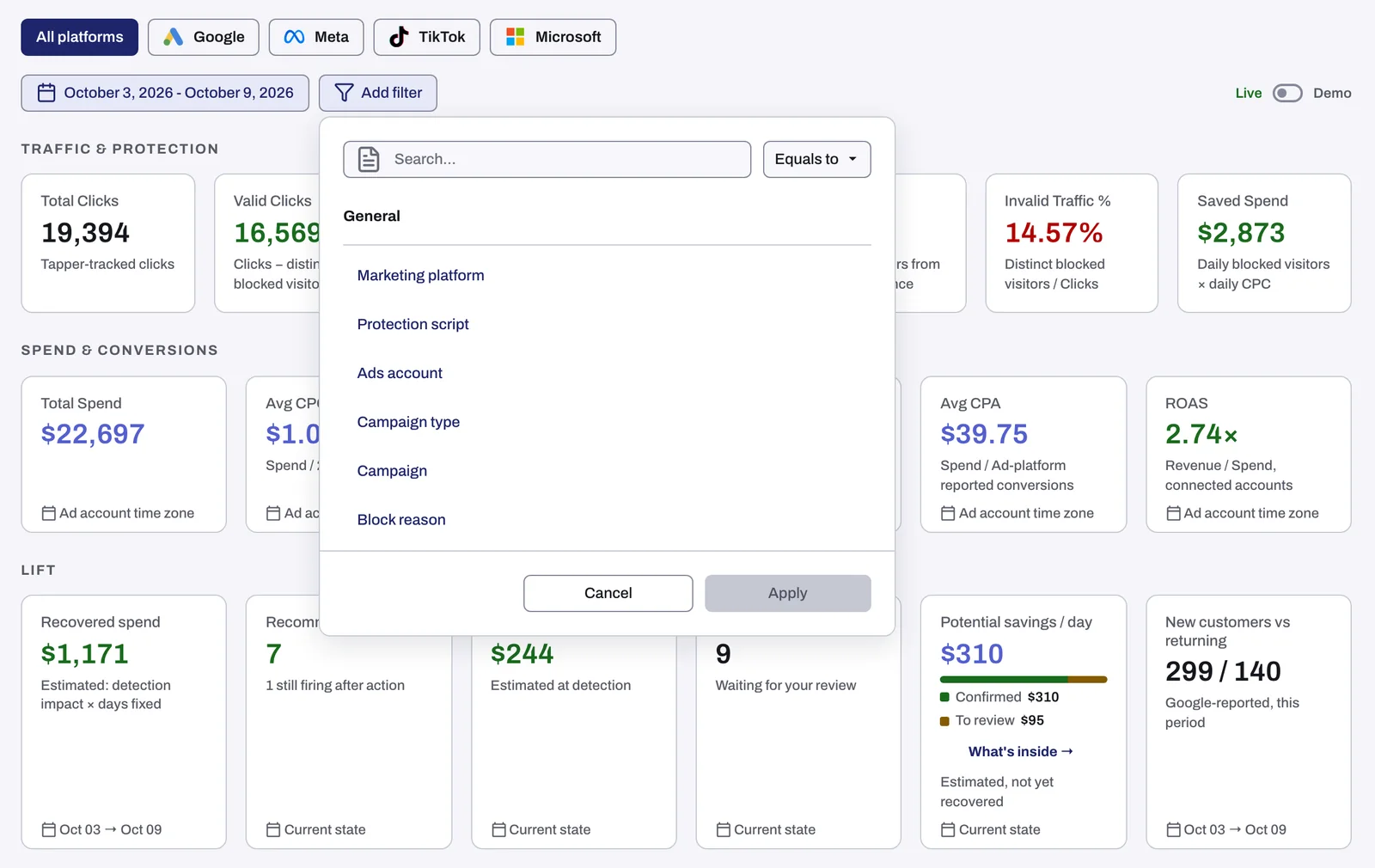
- In the General group, pick the filter you want. To find one quickly, type its name in Search... at the top of the popover.
- Leave Equals to to keep only the values you choose, or switch it to Not equals to leave them out.
- Choose its values.
- Click Apply.
Back returns to the list of filters, and Cancel closes the popover without adding a filter.
| Filter | What it narrows the dashboard to |
|---|---|
| Marketing platform | An ad platform. It is the same setting as the platform toggle, so the two always match. |
| Protection script | One or more protected entities. |
| Ads account | Specific connected ad accounts. |
| Campaign type | Specific campaign types. |
| Campaign | Specific campaigns. |
| Block reason | The reasons visitors were blocked. It reads Invalid traffic reason on a monitoring-only workspace and is not offered on a Lift only workspace. |
| Traffic | Ad Traffic or Organic Traffic. Offered only when Meta or TikTok is selected. |
Two tabs take fewer filters: Google Analytics offers only Marketing platform, and PMax only the date.
Each filter you set shows as a chip next to Add filter, such as "Block reason is not VPN". Click a chip to change its values, or to remove the filter with Delete filter. The x on a chip removes it too, and Clear next to the chips removes every filter except the dates.
Chips that tell you what a card uses
Not every card can honor every choice. When one cannot, or when it counts days on another clock, a chip on the card says so.
| Chip | What it means |
|---|---|
| "{Filter} filter not applied" | The card ignores that filter and shows the figure without it. |
| "{Filter} filter partially applied" | Only part of the data behind the card could be filtered. |
| Your dates, or Selected dates | The card follows the date range at the top of the page, unlike some cards around it. |
| Current state | The card is a snapshot of what is true now. It does not move when you change the dates. |
| "Rolling {N} days" | The card is built over its own rolling window, not the dates you picked. |
| Ad account time zone | The card is built from your ad platform's daily figures, so its days are the ad account's days, not the workspace's. |
| GA property time zone | The card shows Google Analytics data, so its days follow the GA4 property's time zone. |
| UTC time zone | The card is built from daily totals in UTC, so its days do not follow the workspace time zone. |
A few cards use their own rolling window instead of your dates and say so in their caption:
- Keyword-level Invalid Traffic on Invalid Traffic: "Rolling window · ignores the date filter".
- Keyword by Conversion on Conversions & Spend: also a rolling window.
- Traveling Users on Traffic & Geo: "Seen in 2+ countries · rolling window, not the date filter".
- Placement Exclusions on Traffic & Geo: "Date filter not applied".
Related
Was this helpful?
Related articles
Still need help?
Chat with our team and mention this article.