

The Invalid Traffic Audience and its retention window
On this page
Besides IP exclusions, Tapper Block keeps flagged visitors in lists in your Google Ads account and excludes those lists from your protected campaigns. Google stops showing your ads to those visitors, whatever their IP address.
How it works
When you connect a Google Ads account to a workspace with Block, Tapper creates two user lists and two audiences in it:
| In Google Ads | What it holds |
|---|---|
| "Tapper - Invalid Traffic List" | Visitors Tapper flagged as invalid. Created with a 90-day membership. |
| "Tapper - Ad Click Limit Exceeded Traffic List" | Visitors who went over the ad click limit. Created with a 180-day membership. |
| "Tapper - Invalid Traffic Audience" and "Tapper - Invalid and Ad Click Limit Exceeded Traffic Audience" | Audiences built on those lists. |
A flagged visitor stays in a list for its retention window, and stops seeing your protected campaigns' ads for that long.
In monitor-only, which every new rule set starts in and which stays on during the free trial, Tapper applies no audience exclusions. Switching an entity to monitor-only removes the ones it applied.
Change the retention window
You need the Owner, Admin or Manager role.
- Pick the entity in the sidebar switcher if you have more than one.
- Under Setup, click Ad accounts, then Google Ads, and open the Invalid traffic audience tab. The Audience column has one row per list, so two rows per account.
- In Keep each visitor for, type a number of days from 1 to 540. A number outside that range is refused.
- Press Enter, or click outside the field.
Tapper changes the list's membership duration in Google Ads. A longer window keeps flagged visitors out for longer; a shorter one lets a visitor who stopped behaving badly see your ads again sooner. It also changes how long any value rule or exclusion that uses the list keeps a visitor.
Create audience appears on a row whose list does not exist in Google Ads yet. Click it to create the audience.
Campaigns that get the exclusion automatically
| Campaign type | Where the exclusion goes | Chip on the Campaigns tab |
|---|---|---|
| Search, Display, Shopping, Performance Max | On the campaign | Audience Exclusion |
| Demand Gen | On the campaign's ad groups | Audience Segment Exclusion, in the Ad groups view |
| Video, Hotel and other types | Nothing automatic | No switch |
This applies to every campaign whose Protection switch is on. New campaigns get it when Tapper next reads your campaigns, or at once when you click Refresh. See Choose which campaigns Tapper protects.
Exclude the list by hand on a Video campaign
These steps work for any campaign where you manage audiences yourself.
- In Google Ads, open the campaign's Audiences page.
- In Exclusions, click Add exclusions and choose the whole campaign or one ad group.
- Search for "Tapper - Invalid Traffic List", select it and click Save.
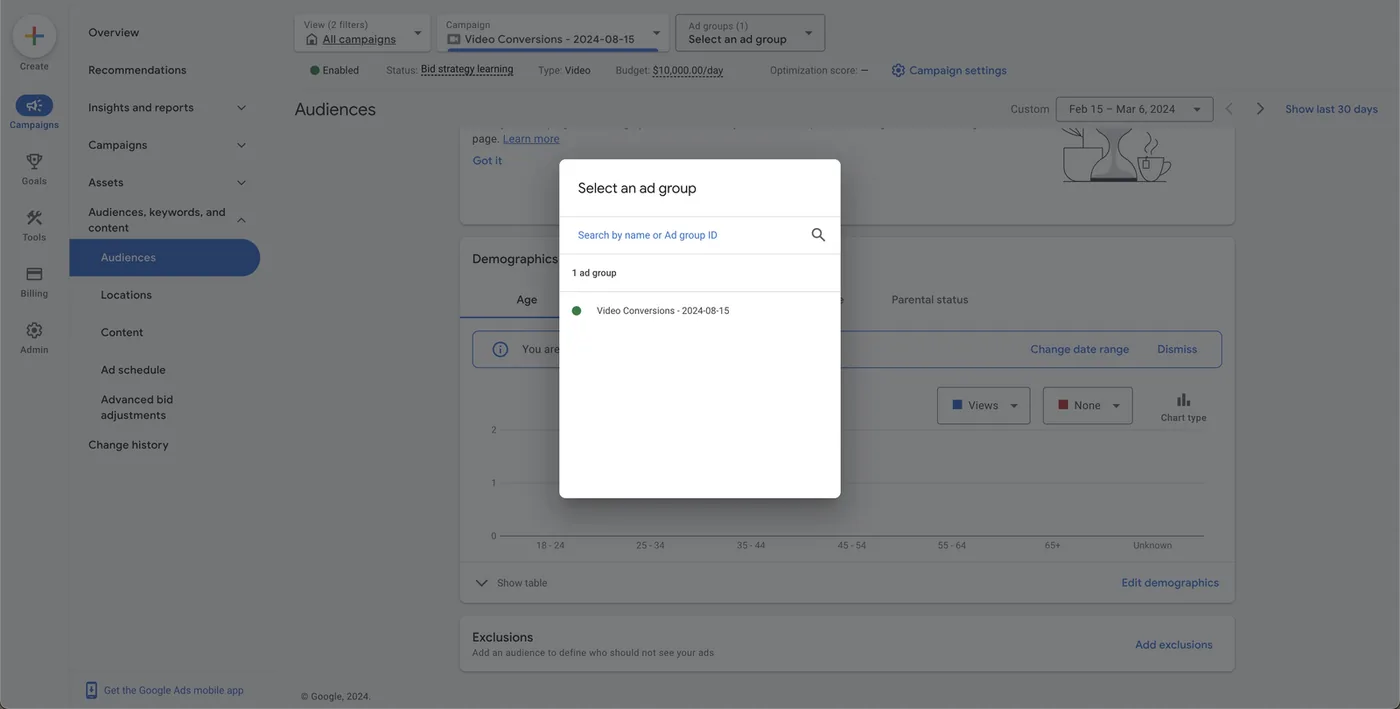
If the ad group already has an audience, you can instead add "Tapper - Invalid Traffic List" under that audience's exclusions and save.
If the list does not appear in Google Ads
Check its membership status under Tools > Shared library > Audience manager > Your data segments: it must be Open. If another Google Ads account manages your conversion tracking, Tapper creates the lists there, and their names end with " - " and your ad account's ID.
Other platforms
On Meta Ads and Microsoft Ads, Tapper excludes a custom audience from each ad set or campaign you protect. On Meta, people stay 90 days by default, and you change it on the Invalid traffic audience tab of the Meta Ads page. See How Block protects Meta ads. On TikTok Ads, Tapper records invalid traffic and changes no ad groups; see Set up the TikTok invalid traffic audience.
Related
Was this helpful?
Still need help?
Chat with our team and mention this article.