

Use the tracking template at campaign level when one Google Ads account serves several entities
The account-level template Tapper sets carries the public key of the entity you connected the account to. Each entity has its own key, and Google Ads holds one account-level template. So if the same account also runs ads for another entity (a second brand or website), those campaigns need that entity's template.
Google uses the most specific template: ad over ad group, ad group over campaign, campaign over account. A campaign template replaces Tapper's account template for every click on that campaign.
Before you start
- Your workspace has Block.
- Each entity has its own domains. See Protected entities: what they are and how to add one.
- Each campaign sends visitors to one entity only. A campaign carries one template, so separate campaigns that mix two entities' websites first.
- You can edit campaign settings in Google Ads. If the account is managed in Search Ads 360, read the last section first.
Steps
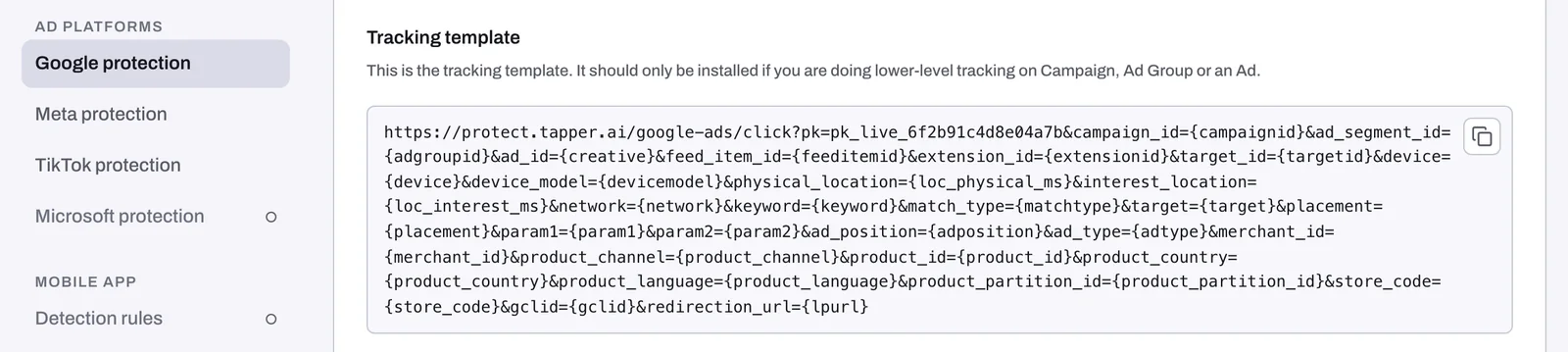
1. Copy an entity's template
- Pick the entity in the sidebar switcher.
- Under Setup, click Ad accounts, then Google Ads.
- Open the Tracking template tab and click Copy the tracking template.
2. Paste it on that entity's campaigns
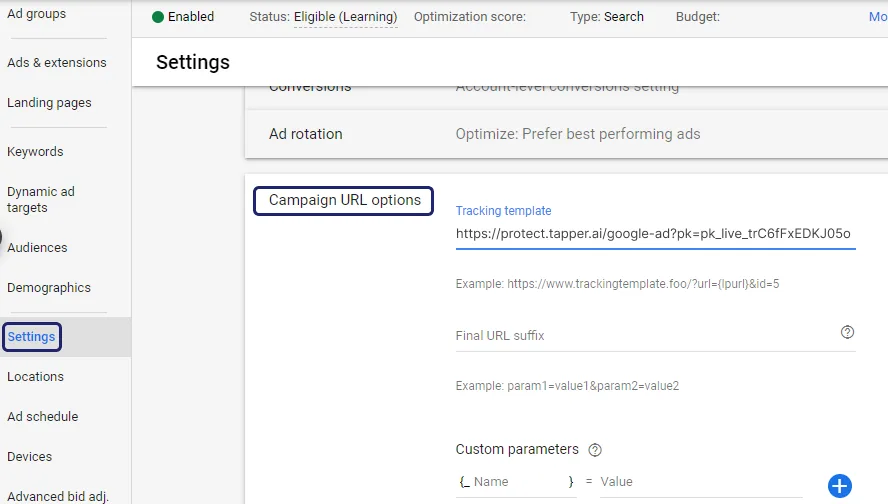
- In Google Ads, open Campaigns and click a campaign that sends visitors to this entity.
- Open Settings, then Additional settings, then Campaign URL options.
- Paste the template into Tracking template. Do not edit it:
redirection_url={lpurl}at the end sends the visitor on to your landing page. - Click Save.
- Repeat for every campaign of this entity.
3. Repeat for each other entity
Copy each entity's template (its key differs) and paste it on its own campaigns. Campaigns without their own template keep the account-level one.
4. Refresh campaigns in Tapper
On the Google Ads page, open the Campaigns tab and click Refresh. It picks up your changes at once.
What happens next
- Campaigns with a Tapper template (starting
https://protect.tapper.ai/google-ads/click?pk=) do not set off the Some ads skip Tapper's tracking banner. If the banner appears, it lists templates that are not Tapper's. A fix there uses the key of the entity the account is connected to, so for an item that belongs to another entity, paste that entity's template yourself instead of pressing Fix all. See Fix campaigns, ad groups or ads that override Tapper's tracking. - A new campaign uses the account-level template until you give it its own.
- To check, open Clicks, choose Google Ads and filter by Protection script (the entity). Each entity's campaigns should show under that entity.
If something goes wrong
- Your template disappears again. Search Ads 360 rewrites templates on every sync. Make the change there.
- A campaign still shows no clicks. One of its ad groups or ads may have its own template, which wins. The dashboard banner lists it.
Related
Was this helpful?
Still need help?
Chat with our team and mention this article.