

Live and Demo mode on the dashboard
The dashboard has a Live / Demo switch at the top, beside the filter bar. Live shows your workspace's real data. Demo fills the cards with sample numbers, so you can see what each tab looks like before your own traffic arrives, or show Tapper to a colleague without exposing a client's figures.
How it works
Flip the switch to Demo and the tabs show sample data instead of yours. Flip it back to Live to return to your data. Nothing in your workspace, your ad accounts or your settings changes either way: the switch only changes what the dashboard displays.
While Demo is on:
- The date button is disabled, because demo data does not change with the date range.
- The Google Analytics tab skips its connection check. In Live, that tab needs at least one entity with Google Analytics connected: its sidebar row appears only then, and opening its address without a connection takes you to Overview. In Demo it can show sample data before you have connected anything.
- The Mobile tab is not affected. The switch is hidden on Mobile, which always shows live data from your MMP.
The PMax tab also offers a way in: when there is no Performance Max data for your range, its empty state "No Performance Max data for this range" has a Try the demo button next to Connect Google Ads.
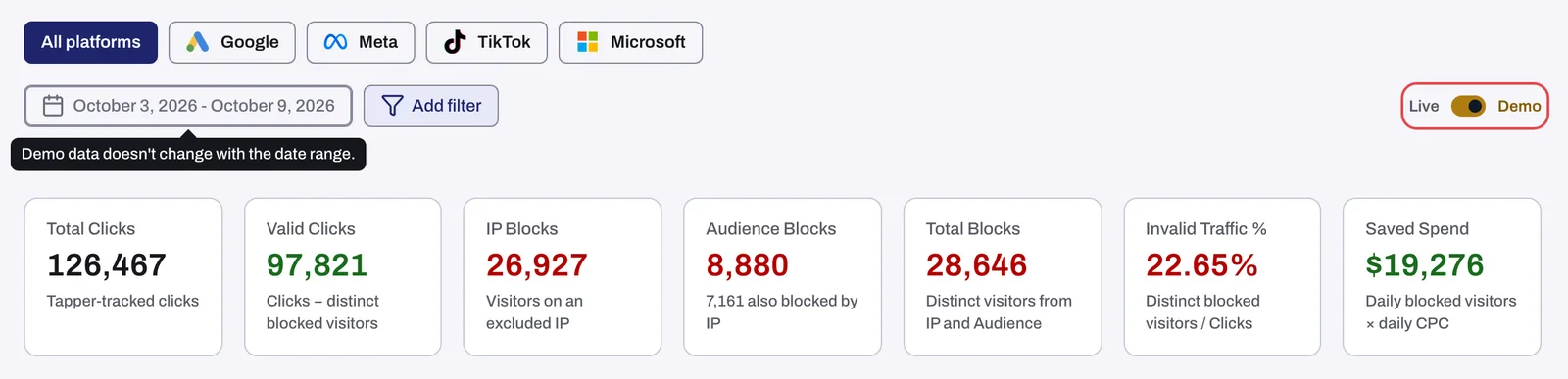
How to tell demo data from your own
There is no demo banner, and the sample numbers look like real ones. Check these marks:
| Where | What shows it is demo data |
|---|---|
| Top of every tab except Mobile | The switch is on Demo |
| Date button | Disabled |
| PMax tab | A Sample data chip |
| Google Analytics tab | The line "Sample data · dates in the GA property's timezone" |
On the other tabs the switch and the disabled date button are the only signs. If a number looks surprising, look at the switch first.
If your Live dashboard is empty
An empty Live dashboard on a new workspace usually means data has not arrived yet, or the monitoring script is not running on your landing pages. Start with No clicks on the dashboard: what to check and Check that the monitoring script is working on your site. For how soon numbers appear after connecting, see When your data shows up after connecting.
Related
Was this helpful?
Related articles
Still need help?
Chat with our team and mention this article.