

Manually exclude IP addresses and ranges
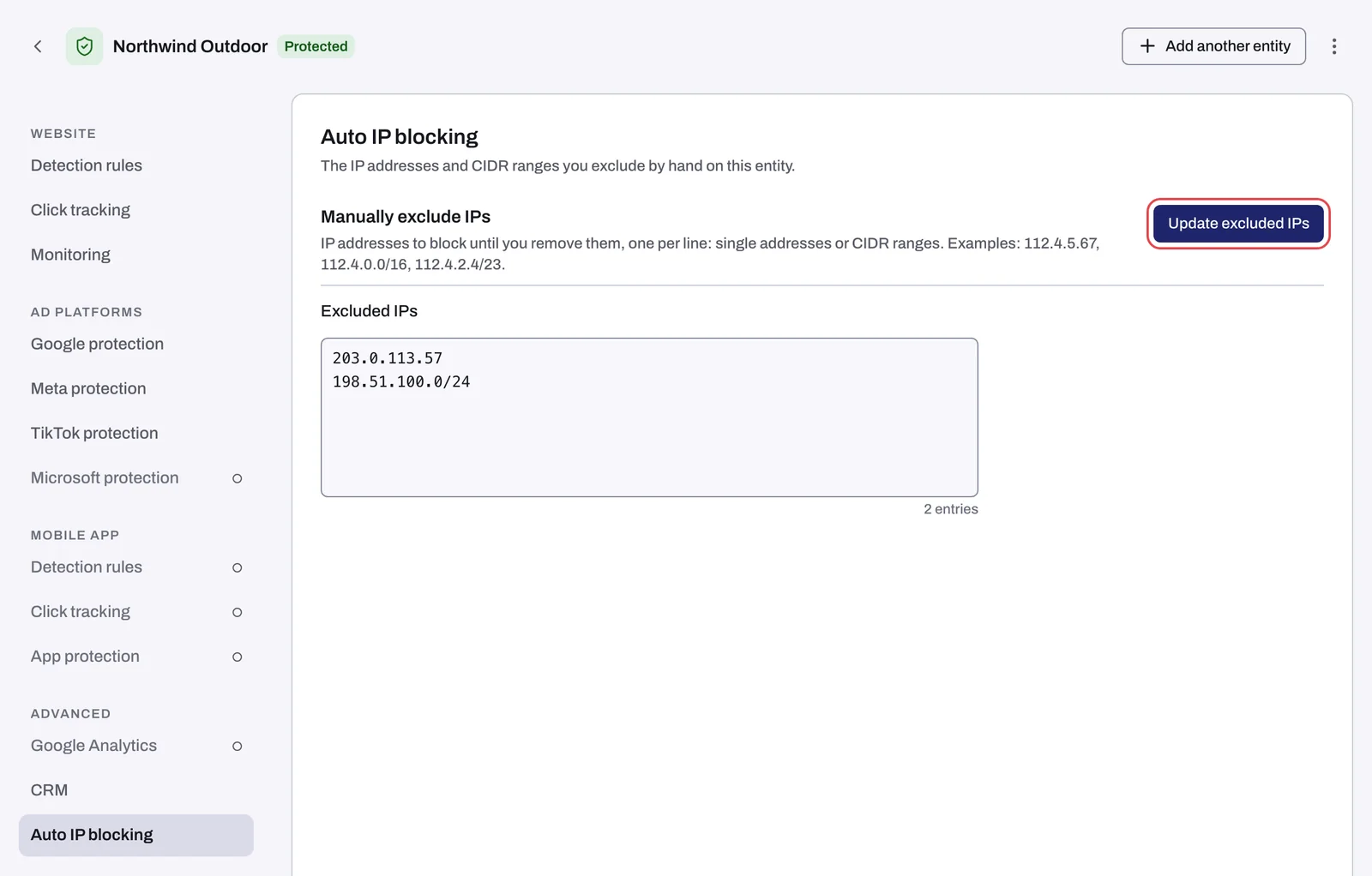
You can exclude IP addresses and ranges from your Google Ads campaigns by hand: an address you know sends invalid clicks, such as a competitor's office, or a range you keep seeing on the Clicks page. The list lives on the entity tab named Auto IP blocking. Despite the name, nothing on this tab is automatic: it holds only what you type, and Tapper pushes it to your Google Search, Display and Shopping campaigns. What Tapper excludes on its own is on the Exclusions page instead.
Before you start
- You need the Owner or Admin role in the workspace.
- The workspace must have Block + Lift. The tab is hidden on Lift only workspaces.
- The entity needs a connected Google Ads account. Meta, TikTok and Microsoft Ads have no IP exclusions, so the list does not reach them.
Steps
- Open Protected Entities in the sidebar and open the entity.
- In the left rail, under Advanced, select Auto IP blocking.
- In the Manually exclude IPs section, click into the Excluded IPs field.
- Type one entry per line: a single address such as
112.4.5.67, or a CIDR range such as112.4.0.0/16. - Check the counter under the field: No entries, 1 entry or the number of entries.
- Click Update excluded IPs at the top right of the section (under the field on a narrow screen).
Writing a range
A CIDR range is an address followed by a slash and a number that says how many addresses it covers. Write it from the first address of the range:
| Entry | Covers |
|---|---|
112.4.5.67 | That one address |
112.4.5.0/24 | 256 addresses, 112.4.5.0 to 112.4.5.255 |
112.4.0.0/16 | 65,536 addresses, 112.4.0.0 to 112.4.255.255 |
Wildcards such as 112.4.* are not supported. Use a CIDR range instead.
What happens next
- The whole list is replaced when you save. To remove an entry, delete its line and click Update excluded IPs; it is removed from your Google campaigns too.
- The field then shows the list as saved. A single address comes back with
/32added, so112.4.5.67reads112.4.5.67/32: the same address, written as a range of one. A line that falls inside a range already saved is not kept as its own entry, since the range covers it, and a saved range stays as long as any line inside it remains. To swap a range for a smaller one inside it, delete the range and save, then add the smaller range and save again. - Tapper pushes the list to Google Ads in the background, as an IP exclusion on each of the entity's Google Search, Display and Shopping campaigns whose Protection switch is on (see Choose which campaigns Tapper protects). Accounts that need a reconnect are skipped until you reconnect them. It usually takes minutes. To check, open a campaign in Google Ads and go to Settings, Additional settings, IP exclusions.
- It applies in monitoring-only mode too. This list is the one exclusion Tapper writes even when the entity only monitors, so clear it if you want monitoring-only mode to leave your campaigns untouched.
- Your entries stay until you remove them. Google allows 500 IP exclusions per campaign, and your list counts toward that limit together with Tapper's automatic exclusions. When a campaign reaches the limit, Tapper makes room by rotating its own lower-priority exclusions out, never your entries. Keep the list short so automatic exclusions still fit. See The 500 IP exclusions per campaign limit in Google Ads.
If something goes wrong
- The save fails with "Tapper hit an error and nothing was saved. Try again in a minute.": a line is not a single address or a range written from its first address, such as
112.4.*or112.4.2.4/23(write112.4.2.0/23). Nothing from that save is applied. Correct the line and click Update excluded IPs again. - The addresses do not appear in Google Ads: see Manually excluded IPs are not showing in Google Ads.
- You cannot find the tab: the workspace is Lift only, or you are on a different entity. Each entity has its own list.
- You excluded someone by mistake: delete the line and save. See A real customer was blocked: what you can do for exclusions Tapper made on its own.
Related
Was this helpful?
Related articles
Still need help?
Chat with our team and mention this article.