

What happens when Tapper excludes an IP in Google Ads
When blocking is on and Tapper Block flags a click on a protected Google Ads campaign, it adds the visitor's IP address to the campaign's IP exclusions through the Google Ads API. From then on, Google does not show that campaign's ads to that address.
What Google does with an IP exclusion
An IP exclusion tells Google not to serve a campaign's ads to an IP address or an IP range. The campaigns that carry it get no new impressions, and so no new clicks, from that address. Campaigns that do not carry it are not affected.
Tapper sends IP exclusions to Search, Display and Shopping campaigns, and to Demand Gen campaigns as each click is flagged. Performance Max campaigns do not accept them; they are protected through Tapper's audience exclusion instead. Video campaigns get no automatic exclusions at all. See Which exclusions Tapper applies to each Google Ads campaign type.
How an exclusion is created
There are two ways:
- Automatically. A visitor clicks your ad, your detection rules mark the click as invalid, and Tapper sends the exclusion. This needs blocking to be on for the entity and the campaign's Protection switch to be on.
- By hand. You list an IP address or a CIDR range on the entity's Auto IP blocking tab, under Manually exclude IPs. These go to Search, Display and Shopping campaigns, even when the entity is in monitoring-only mode. See Manually exclude IP addresses and ranges.
At the same time, Tapper adds a flagged visitor to its invalid traffic lists in your account, which it excludes as an audience on protected campaigns. That exclusion does not depend on the visitor's IP address.
How long an IP stays excluded
There is no timer and no setting for it.
- Below Google's limit, automatic exclusions stay in place. Google allows at most 500 IP exclusions per campaign.
- At the limit, Tapper makes room by ranking: it keeps the IPs with the strongest and most recent evidence, and a new IP replaces the lowest-ranked one only when its own evidence ranks at least as high. An IP that was rotated out can be excluded again if it comes back with a new invalid click. See The 500 IP exclusions per campaign limit in Google Ads.
- Over the limit, when 8 or more excluded addresses share one /24 range, Tapper can replace them with the range itself. The range shows the block reason Aggregated Range.
- IPs you added by hand stay until you remove them. They are never rotated out.
- Later analysis can clear a visitor, and Tapper then lifts that visitor's automatic exclusion.
The audience exclusion has its own retention window: the Block segment for field on the Invalid Traffic Audience card, from 1 to 540 days. See The Invalid Traffic Audience and its retention window.
Where to see it
On the Exclusions page
Open Exclusions in the sidebar and pick Google Ads with the platform button. The Visitors view lists one row per exclusion, with the columns Ads account, Device, Location, Campaign, Visitor id, IP address and Block reason. An IP exclusion is listed once for each campaign the address was excluded on, with that campaign in Campaign. Each addition of a visitor to Tapper's audience gets its own row, where Location and Campaign read -. So a visitor excluded both ways appears more than once, with the same Visitor id.
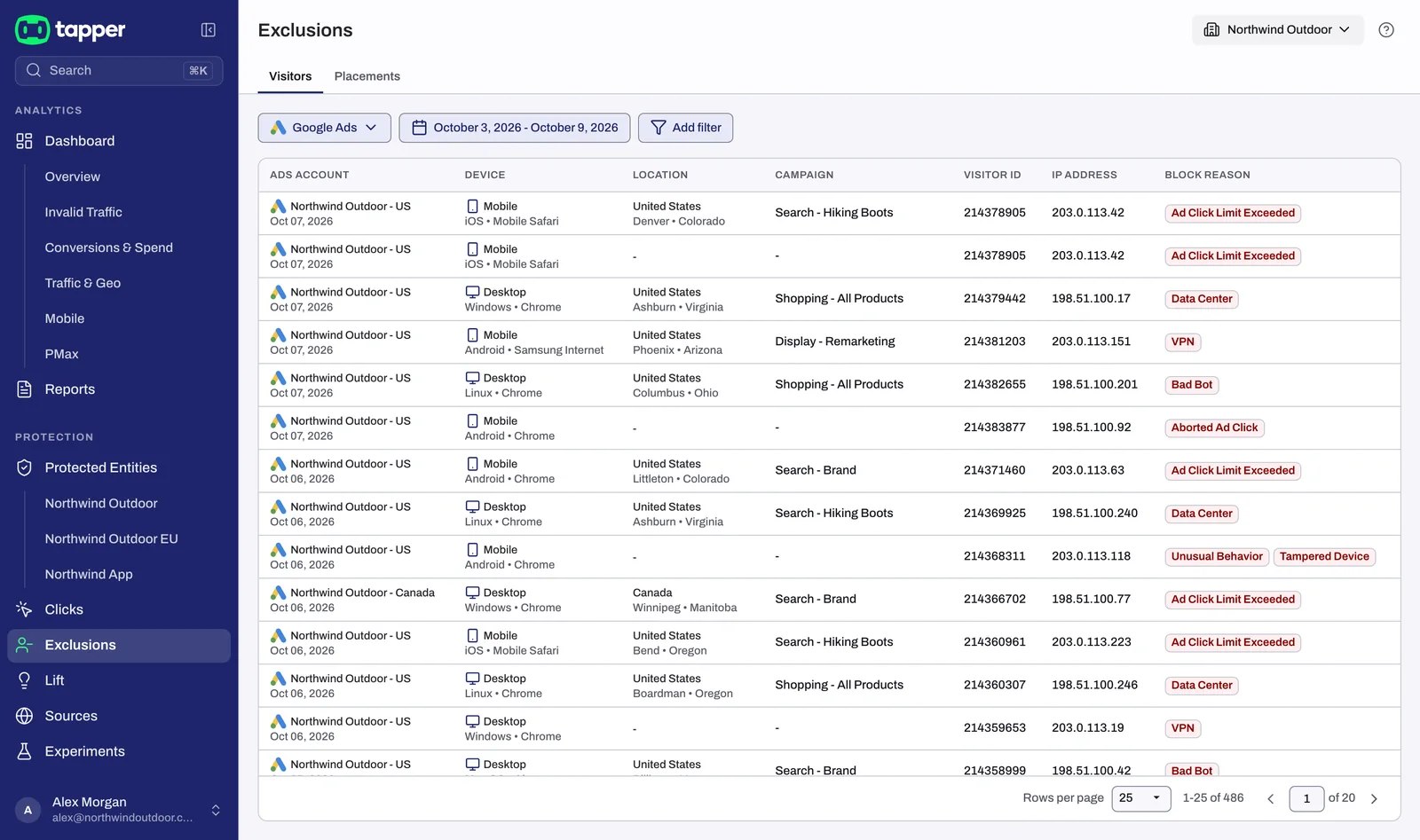
Click a row to open the proof drawer; every row of the same visitor opens the same drawer. Its IP based block row says whether Tapper excluded one of this visitor's IP addresses, and Audience based block says whether the visitor is in Tapper's audience exclusion.
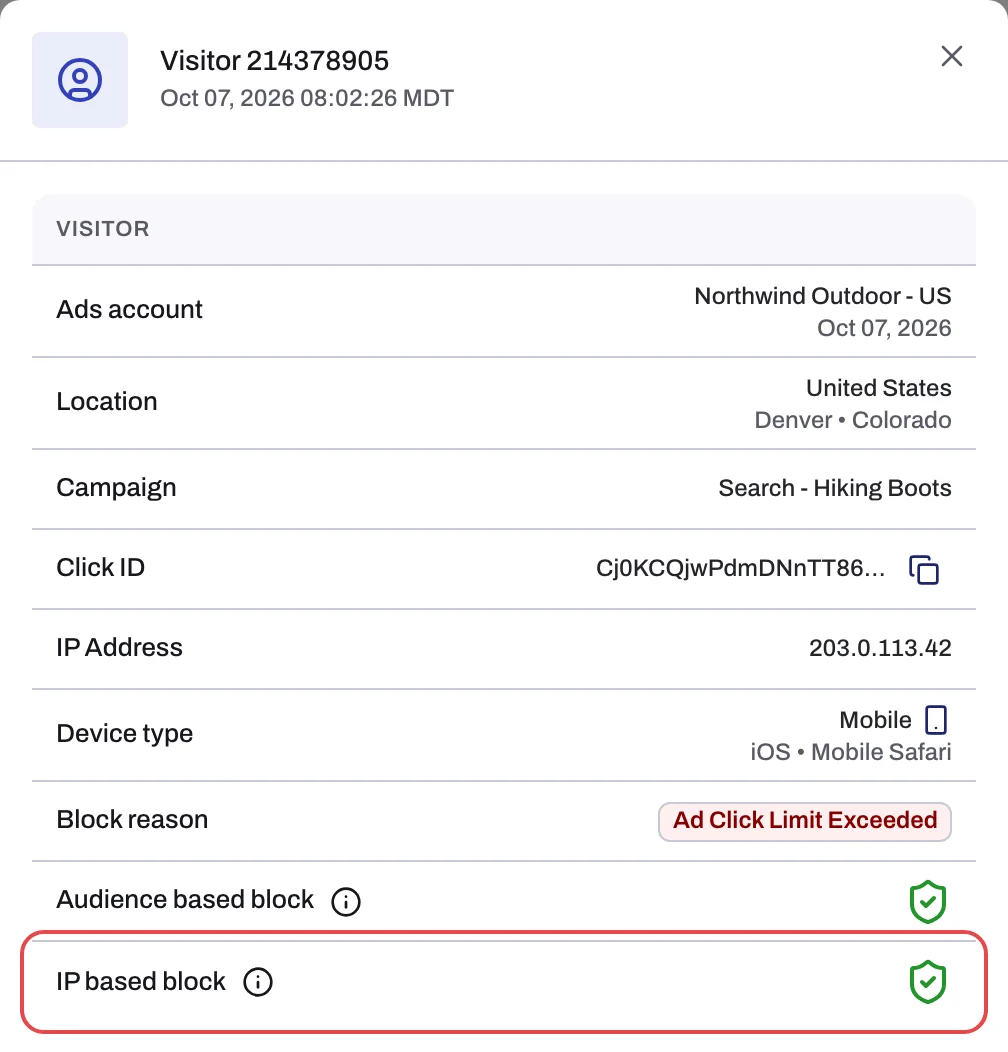
See The Exclusions page and the proof drawer.
On the dashboard
The dashboard's Invalid Traffic tab has an IP Blocks tile, and its IP Exclusions per Campaign card shows how full each campaign's list is.
In Google Ads
Open the campaign's settings and look under IP exclusions to see the addresses and ranges it carries. Google Ads also logs each change in the account's Change history. Tapper connects through your own Google sign-in, not through a Tapper manager account, so the changes are made with the sign-in that connected the account.
In monitoring-only mode
Every new rule set starts in monitoring-only mode, and it stays on during the free trial. Tapper then flags invalid clicks but writes no automatic IP exclusions; only the IPs you added by hand are sent. The Exclusions page is named Invalid Traffic and lists the visitors Tapper would have excluded. See Monitoring-only mode: why nothing is blocked yet and what changes when blocking starts.
Removing an exclusion
There is no unblock or allowlist action in Tapper. To release an address you added by hand, delete its line on Auto IP blocking and click Update excluded IPs. If a real customer was excluded automatically, see A real customer was blocked: what you can do.
Related
Was this helpful?
Related articles
Still need help?
Chat with our team and mention this article.