

The Exclusions page and the exclusion details
On this page
The Exclusions page lists the exclusions Tapper made on your ads, one platform at a time, and on Google Ads the placements it excluded. Each row is one exclusion, not one visitor, so a visitor excluded in more than one way is listed more than once. Open it from Exclusions in the sidebar's Block section. Lift only workspaces do not have this page.
Why it may be named Flagged traffic
On a monitor-only workspace nothing is excluded, so the sidebar row and page title read Flagged traffic. The page lists the visitors Tapper would have excluded, and actions read "flagged" instead of "blocked". Blocking is off during the free trial, so trial workspaces see this name. See Monitor-only.
Pick a platform and filter
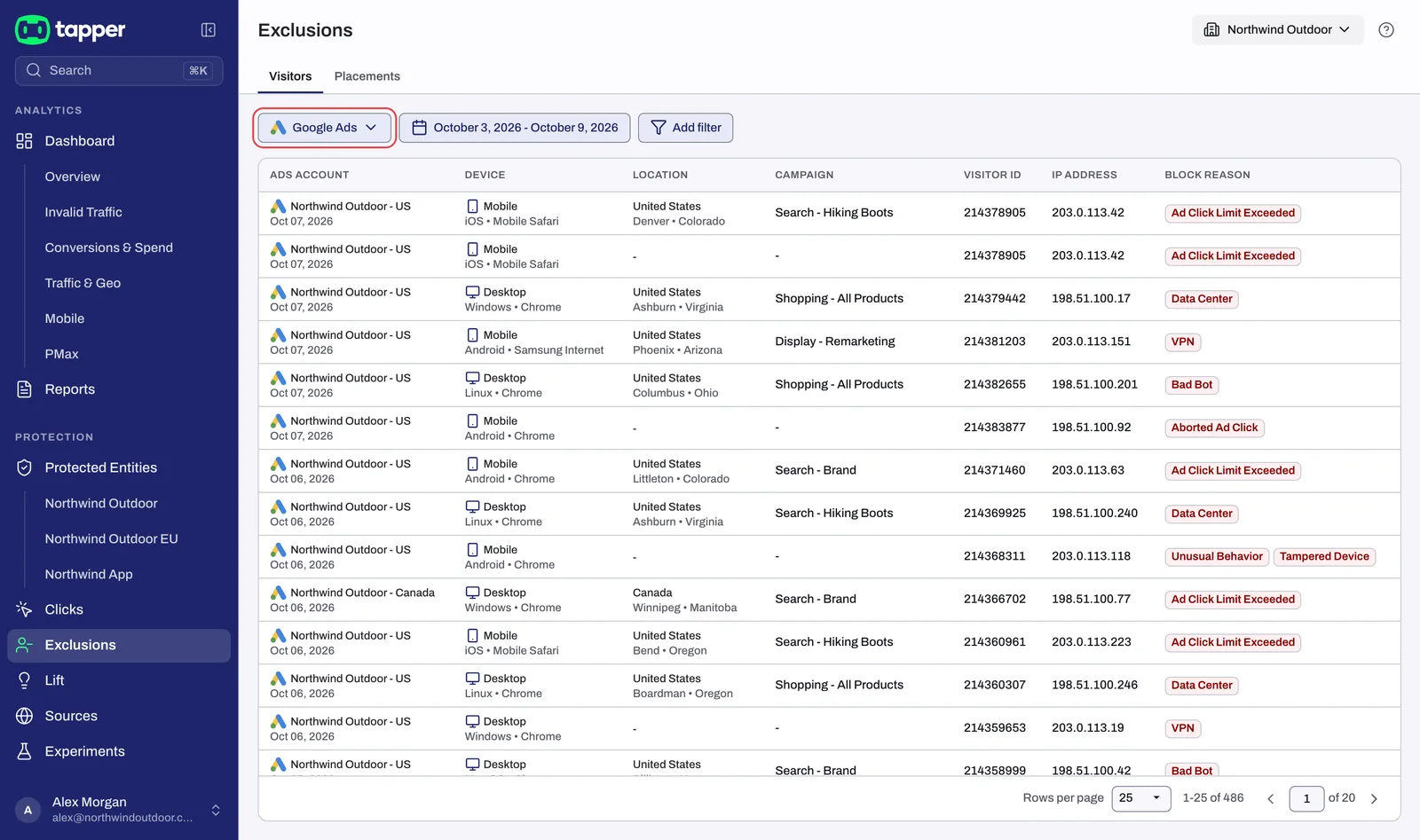
Pick the platform with the button at the start of the filter row; a platform you have not connected is marked Not connected. The date range and filter chips sit beside it: Campaign, Ads account, Campaign type and Block reason, plus Action on Google Ads and Traffic on Meta Ads, TikTok Ads and Microsoft Ads. Click a chip, or + Add filter, and tick values; each pick applies at once. A chip's x removes it; Clear removes every filter but the date range. With several protected entities, the sidebar's entity switcher picks the one shown. On monitor-only workspaces Block reason reads Invalid traffic type.
Visitors
On Google Ads the page has two tabs, Visitors and Placements. Every platform has Visitors.
| Column | What it shows |
|---|---|
| Action | What Tapper did: IP blocked or Audience blocked (flagged instead of blocked on monitor-only workspaces), with the reasons under it |
| Time | When it happened, to the second, in your workspace time zone |
| Applies to | For an IP exclusion, the campaign the IP address was excluded on. For an audience exclusion, the Tapper audience the visitor was added to. The ad account is under it |
| Location | Where the visitor came from |
| Device | The device the visitor used |
| Visitor ID | Tapper's identifier for the visitor. Paste it into the Visitor ID filter on the Clicks page to see every click this visitor made. On a narrow window the column is left out and the ID is in the exclusion details |
| IP address | The visitor's IP address. Hidden when sensitive information is hidden in your workspace |
On Google Ads an IP exclusion is listed once per campaign the IP was excluded on, and an audience exclusion each time Tapper adds the visitor to one of its audiences. A visitor excluded both ways has several rows with the same Visitor ID, each with its own details. Click a row, or its chevron, to open them.
Placements
Placements lists the placements Tapper excluded on your Google Ads campaigns, with Placement, Protected entity (when the workspace has more than one), Score (- when there is none) and Time. See Placement exclusions on Display and Performance Max.
The exclusion details
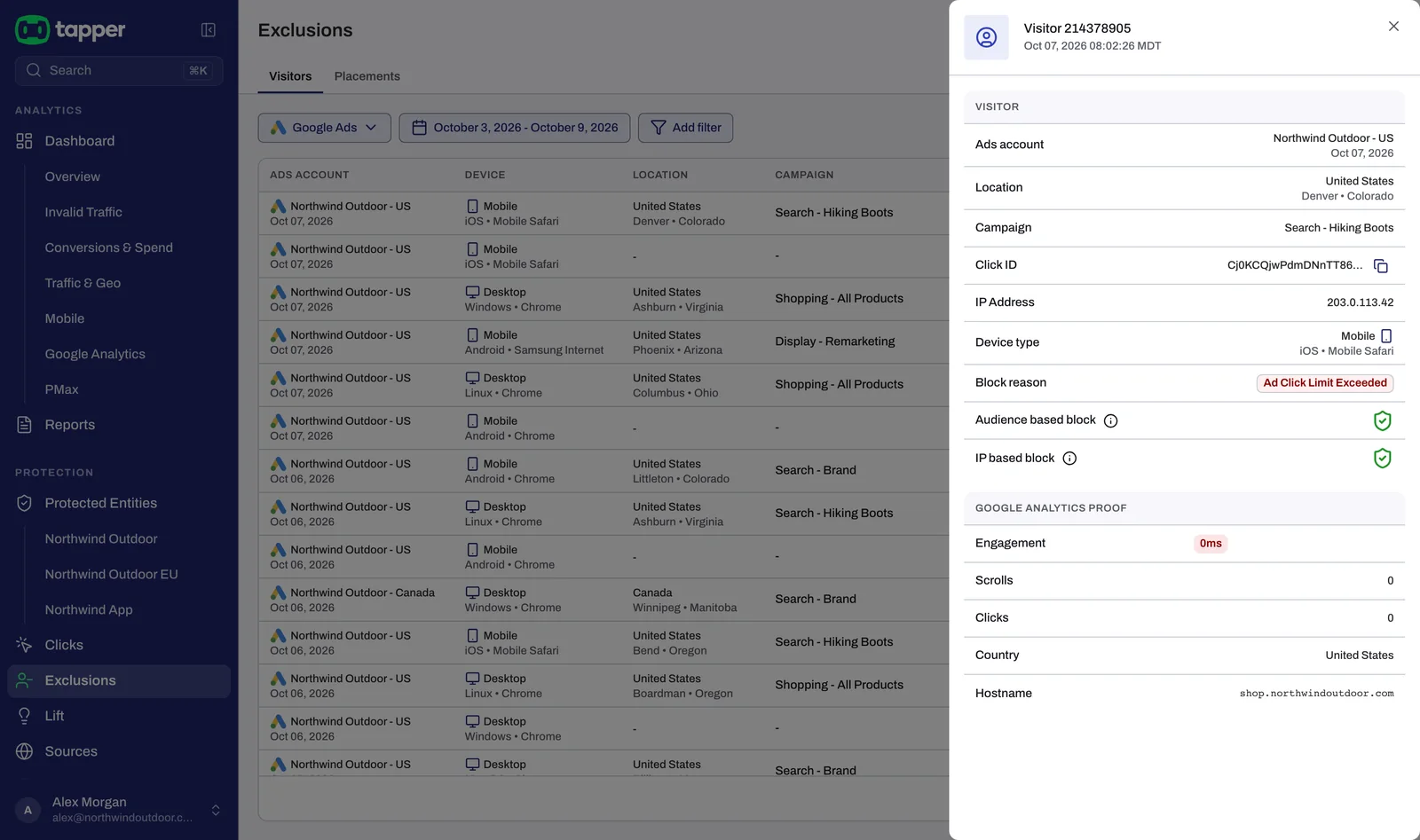
The header reads what Tapper did, such as IP blocked or Audience blocked, with the platform and time. Arrows step to the previous or next exclusion; the X closes it. Copy the browser URL to share it with a colleague in the workspace.
- Why it was blocked (flagged on monitor-only workspaces): the reasons, as badges.
- Exclusion: the Action, what it Applies to (the campaign or the audience), the Ad account, and for an audience entry Expires, the date the ad platform drops the visitor from the audience.
- How long it lasts: when the exclusion ends and whether it can be lifted early. An IP exclusion stays on the campaign's exclusion list until it is lifted; an audience entry ends on its Expires date and a later clean check does not remove the visitor sooner.
- Click: the Click ID of the visitor's first click, with a copy button.
- Visitor: the Visitor ID, Device, Location and Website.
- IP addresses: every IP address the visitor used, each marked Blocked or Not blocked.
- Google Analytics proof: below.
- Protection and Timeline: where the visitor stands now, and its clicks and blocks, newest first.
On Google Ads, Show this visitor's clicks opens the Clicks page filtered to this visitor.
The Google Analytics proof block
This block looks for a zero-engagement Google Analytics session carrying the visitor's click ID in the last 30 days. It appears only when the visitor has a click ID.
| State | What the block shows |
|---|---|
| Google Analytics not connected on the entity | "Connect Google Analytics to see GA session proof." with a Connect button that opens the entity's Google Analytics tab |
| A matching session was found | Engagement (in milliseconds, highlighted in red at 0ms), Scrolls, Clicks, Country and Hostname |
| No matching session | "No zero-engagement session found for this click ID in the last 30 days." |
| The read failed, for example because no BigQuery export is set up for the entity's Google Analytics | "Could not read the Google Analytics proof." with a Retry button |
A zero-engagement session is independent evidence, from your own Analytics property, that the click reached your site and did nothing. To connect it, see Connect Google Analytics and read the Google Analytics tab.
When the page is empty
| Situation | Visitors tab | Placements tab |
|---|---|---|
| Nothing excluded | No exclusions | No placement exclusions |
| None in the dates and filters | No exclusions in this range | No placement exclusions in this range |
On a monitor-only workspace they read No flagged traffic and No flagged traffic in this range on the Visitors tab, and No flagged placements and No flagged placements in this range on the Placements tab. With nothing excluded yet, the page offers Review detection rules; click limits and detection features are in Setup > Rule sets. If it stays empty while clicks arrive, see Nothing is being blocked: what to check.
Related
Was this helpful?
Still need help?
Chat with our team and mention this article.